Add and manage users
What this does
Creates the accounts people sign in with, decides which company each one works in, and retires accounts when someone leaves.
Every record in WindoorERP is stamped with the user who made it, so an account is not just a login — it is the name on the audit trail.
Before you start
- Administrator rights. The screen is Settings ▸ Users & Companies ▸ Users.
- The person's work email address. It becomes their login and it is where the invitation goes.
- Know whether they need an internal account or portal access — the difference is not cosmetic, and it is covered below.
Steps
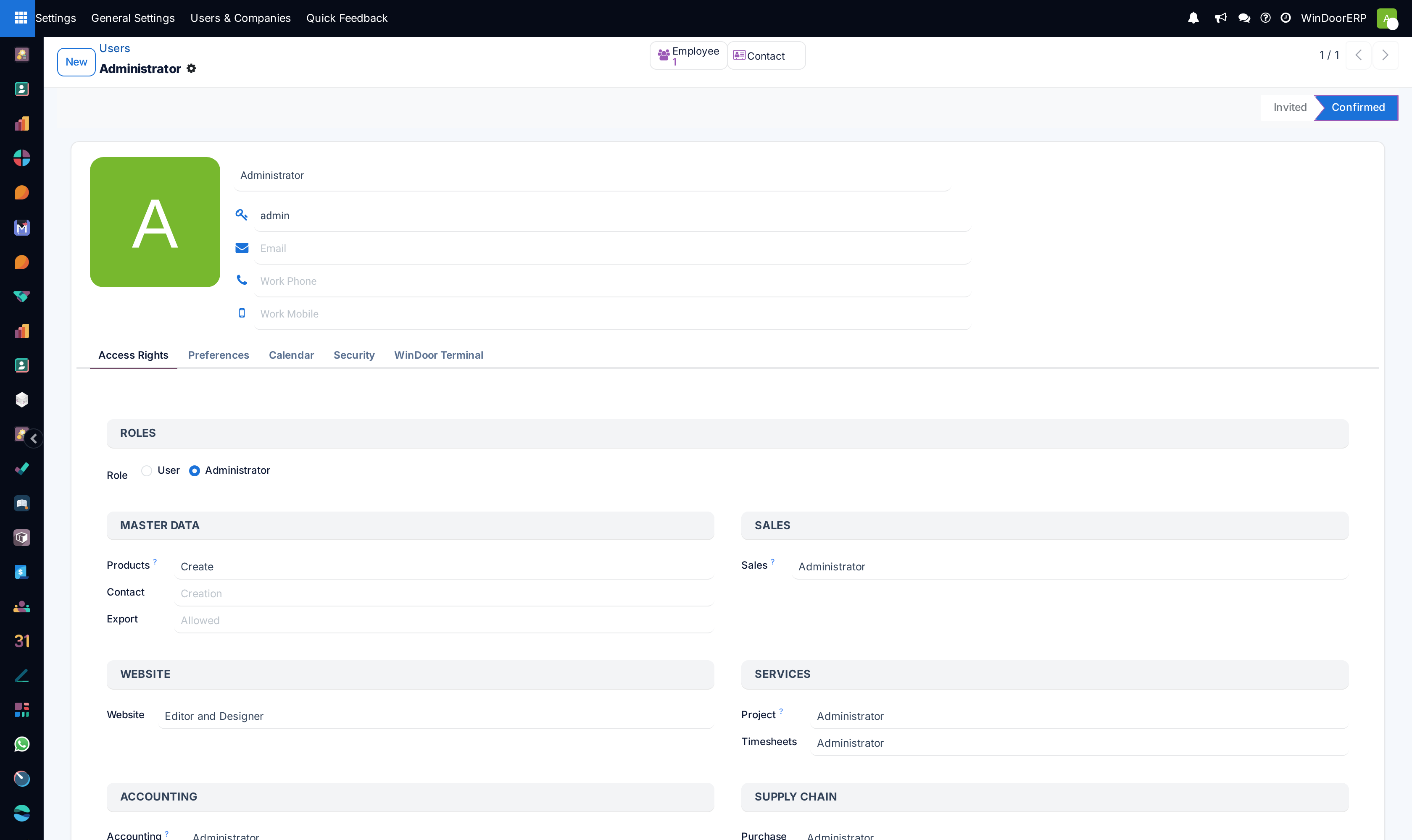
-
01
Open Settings ▸ Users & Companies ▸ Users and click New.
-
02
Enter the person's Name and their Login — use the work email address.
-
03
On the Access Rights tab, set Role and then the permissions they need. See Set access rights for a user for what each block means.
-
04
Set the Company they work in. Add more under Companies only if they genuinely work across several.
-
05
Save. WindoorERP emails an invitation and the record sits at Invited until they follow the link and set their own password.
-
06
Never type a password for them. The invitation exists so that nobody but the user ever knows it.
Every field on the user record
| Status bar | Invited until the person sets a password, then Confirmed. A user stuck at Invited has never signed in — check that the invitation arrived before assuming anything else is wrong. |
|---|---|
| Name | How they appear on every record they touch, in the chatter and in reports. |
| Login | What they type to sign in. Use the work email; anything else is a support call waiting to happen. |
| Email, Work Phone, Work Mobile | Contact details, shown at the top of the record. |
| Employee / Contact | Smart buttons linking the account to its employee record and its contact. |
| Access Rights tab | Permissions, grouped into blocks. Covered in Set access rights for a user. |
| Preferences tab | Language, email signature and notification preference — the same settings the person can change themselves. |
| Calendar tab | Timezone. Worth setting when you create the account rather than leaving it to them. |
| Security tab | Password, two-factor authentication, API keys, passkeys, and the Devices list of every session opened with the account, each with its own Log out. |
| Company | The company this user works in, and the one new records they create belong to. |
| Companies | Every company they may switch between. The single Company must be one of these. |
Modules can add their own tabs, so a WindoorERP user record shows more than the four standard ones. Do not assume a tab you see on one system exists on another.
Internal users and portal users
An internal user works inside the application: menus, records, reports. A portal user is a customer or supplier who signs in at the same page but lands in the portal, seeing only their own quotations, orders and invoices.
The distinction is a property of the account, not a permission you tune. Giving a customer an internal account to "let them see one screen" exposes far more than intended, and it consumes a seat.
Portal access is normally granted from the customer's contact record rather than by creating a user here.
Working in more than one company
Companies lists everything the user may switch between; Company is where they are right now. New records belong to whichever company is active at the time, which is the usual cause of a document being filed under the wrong entity.
Give people access to the companies they actually work in. Access to all of them is convenient for an administrator and a reporting problem for everyone else.
Retiring an account
Archive the user rather than deleting it. Deleting breaks the link to everything they created; archiving keeps the history, blocks the login, and frees the seat.
Archive from the user's ⚙ Actions ▸ Archive. To restore later, filter the list on Archived and un-archive.
When someone leaves, archive the account the same day and log out their devices from the Security tab. An archived account cannot sign in, but an already-open session is a different thing.
Passwords
Users set their own by following the invitation. If someone is locked out, the right fix is the Reset Password link on the login page, which emails them a link.
An administrator can also send reset instructions from the user record. Setting a password by hand and telling it to someone means two people know it, and the audit trail can no longer prove who acted.
Troubleshooting
| The invitation never arrived | Check spam, then check that outgoing mail works at all — see Fix an email that did not arrive. A broken mail configuration looks exactly like a broken invitation. |
|---|---|
| The user is stuck at Invited | They have not followed the link. Re-send the invitation; the old link may have expired. |
| "Too many users" when saving | The subscription's seat limit is reached. Archive an account that is no longer used to free one. |
| They cannot see a menu you can | Access rights. Compare the two accounts' Access Rights tabs rather than guessing. |
| They see no records at all | Usually the wrong company, not permissions. Check Companies and which one is active. |
| An archived user still appears on old records | Correct and intended. Archiving preserves history; the name stays where the work was done. |
| A leaver still has a session open | Archiving blocks new sign-ins, not existing sessions. Log out their devices on the Security tab. |
| The login is not their email | It can be changed on the record, but tell them — it is what they type to sign in. |
Common mistakes
- Typing a password for someone instead of letting the invitation do it, and destroying the value of the audit trail.
- Deleting a leaver's account instead of archiving it.
- Creating an internal user for a customer who needed portal access.
- Giving everyone access to every company because it is easier than deciding.
- Archiving an account and assuming the person is signed out. Log out their devices too.
- Sharing one login between two people, which makes every approval and every chatter entry name the wrong person.
Was this article helpful?
Thanks — your feedback helps.
Running a window or door factory?
Ask for a demo