Create storage locations
What this does
A location is a place inside a warehouse that stock can sit in — a profile rack, a glass stillage bay, a hardware shelf, the finished-goods dispatch bay. Creating them turns "we have 40 bars of that profile" into "we have 40 bars of that profile on Profile Rack A2", which is what a picker actually needs.
Locations are one setting away rather than one click away, and the setting changes what several other screens offer. This article covers the switch, the form, every field on it, the list, and what your database looks like before you touch anything.
Before you start
- Tick Storage Locations in Inventory ▸ Configuration ▸ Settings, in the Warehouse section, and save. Nothing below exists until you do — the menu is hidden and the New button is removed from both the list and the form.
- Reaching the settings page needs the system-wide Administrator role, which is a different right from the Inventory Administrator role that lets you edit warehouse configuration.
- You do not need Multi-Step Routes. Locations stand on their own; the reverse is not true, because ticking Multi-Step Routes switches Storage Locations on for you.
- Decide the naming scheme before the first record. The full path is built from the parents, so a location named
A2underRaw Material Storereads asWH/Stock/Raw Material Store/A2everywhere in the system.
Steps
-
01
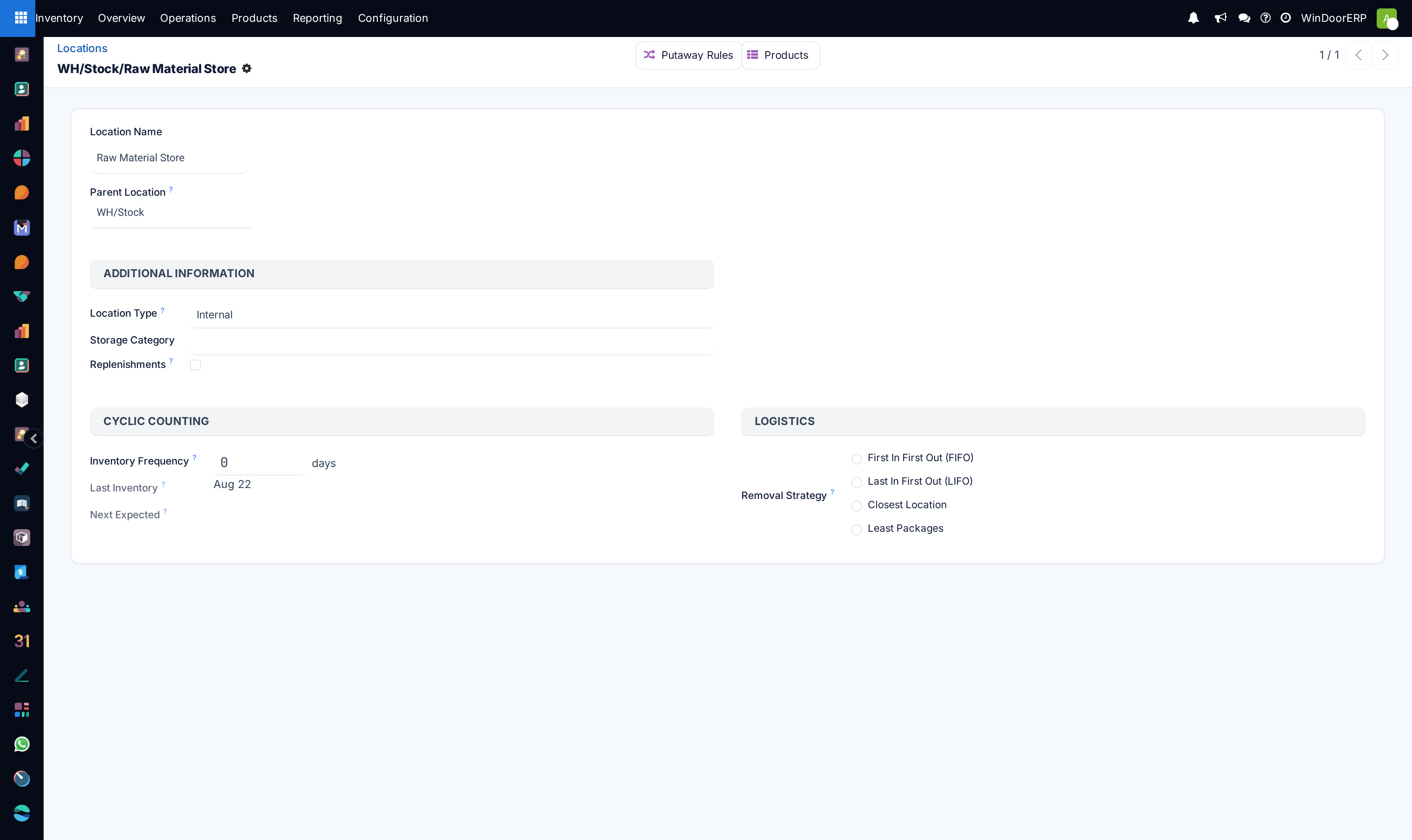
Go to Inventory ▸ Configuration ▸ Warehouse Management ▸ Locations and click New.
-
02
Type the Location Name — the short name a picker would say out loud, such as
Profile Rack A2. The placeholder suggests e.g. Shelf 1. -
03
Choose the Parent Location, the area this one sits inside. For real storage that is almost always
WH/Stockor a zone underneath it. The placeholder suggests e.g. Aisle 1. -
04
Leave Location Type on Internal. That is the only type that holds stock you can sell or consume.
-
05
Set Inventory Frequency if this place should be counted on a cycle, and pick a Removal Strategy if goods should leave it in a particular order. Both are optional and both default to doing nothing special.
-
06
Save. The record now shows its full path in the breadcrumb, and it can be chosen as a source or destination on any transfer.
Every field on the location form
The form is short and it is all on one page: a two-field header, then three groups. Two smart buttons sit at the top — Putaway Rules, which lists the rules that send arriving goods here, and Products, which lists everything currently stored here with its quantity.
| Field | What it does |
|---|---|
| Location Name | Required. The short name only. The system builds the full path from the parents — you never type the slashes. |
| Parent Location | The location this one sits inside. Leaving it empty makes a top-level location that belongs to no warehouse, which is almost never what you want. |
| Location Type | Required, defaults to Internal. Seven values, listed in the next section. It decides whether the record can hold stock at all. |
| Storage Category | Only shown when the type is Internal. Links the location to a capacity and mixing rule — see below. |
| Company | Only shown on a multi-company database. Left empty the location is shared. Once saved it cannot be moved to another company: the system answers "Changing the company of this record is forbidden at this point, you should rather archive it and create a new one." |
| Replenishments | Only shown when the type is Internal. Marks this location as the one that replenishment suggestions deliver into. Exactly one location in a branch may carry it: tick a second one in the same parent-or-child chain and you get "Another parent/sub replenish location … exists, if you wish to change it, uncheck it first". |
| Inventory Frequency | Days between scheduled counts, followed by the word days. Default 0, which means no schedule. The whole Cyclic Counting group is hidden unless the type is Internal or Transit and a company is set. |
| Last Inventory | Read-only. The date this location was last counted. |
| Next Expected | Computed, not typed. Last Inventory plus the frequency; if that date has already passed it shows tomorrow instead. With a frequency of 0 it stays empty. |
| Removal Strategy | A radio group in the Logistics section with four choices: First In First Out (FIFO), Last In First Out (LIFO), Closest Location, Least Packages. Leaving it blank is normal — the system then looks at the parent location, and falls back to FIFO if nothing is set anywhere. |
Note
There is no Barcode field on this form. The location model carries one and it is guaranteed unique per company, but the field is only put on screen by the Barcode Scanner app, which is not available on this platform. A scanner workflow for locations is not something you can set up here today.
The seven location types
Only Internal is a real place. The rest are counterparties: every stock move has a source and a destination, so goods that arrive have to come from somewhere and goods that leave have to go to somewhere. That is why a purchase receipt reads Vendors → WH/Stock and a count correction reads Inventory adjustment → WH/Stock.
| Type | What it is for |
|---|---|
| Vendor | Where goods coming from a supplier are deemed to start. |
| Virtual | A grouping node with no stock of its own — WH itself is one. The system refuses to convert a location to this type while it holds products: "This location's usage cannot be changed to view as it contains products." |
| Internal | A physical place in your warehouse. The only type that holds sellable stock. |
| Customer | Where delivered goods are deemed to end up. |
| Inventory Loss | The counterpart for count corrections and scrap. This is why an adjustment is a move with a paper trail rather than a silent edit. |
| Production | The counterpart for manufacturing: components are consumed into it, finished units come out of it. |
| Transit | The in-between for inter-warehouse and inter-company movements. |
Important
Changing the type of a location that already holds stock is refused outright — "Internal locations having stock can't be converted". Empty it first, or archive it and make a new one.
The Locations list
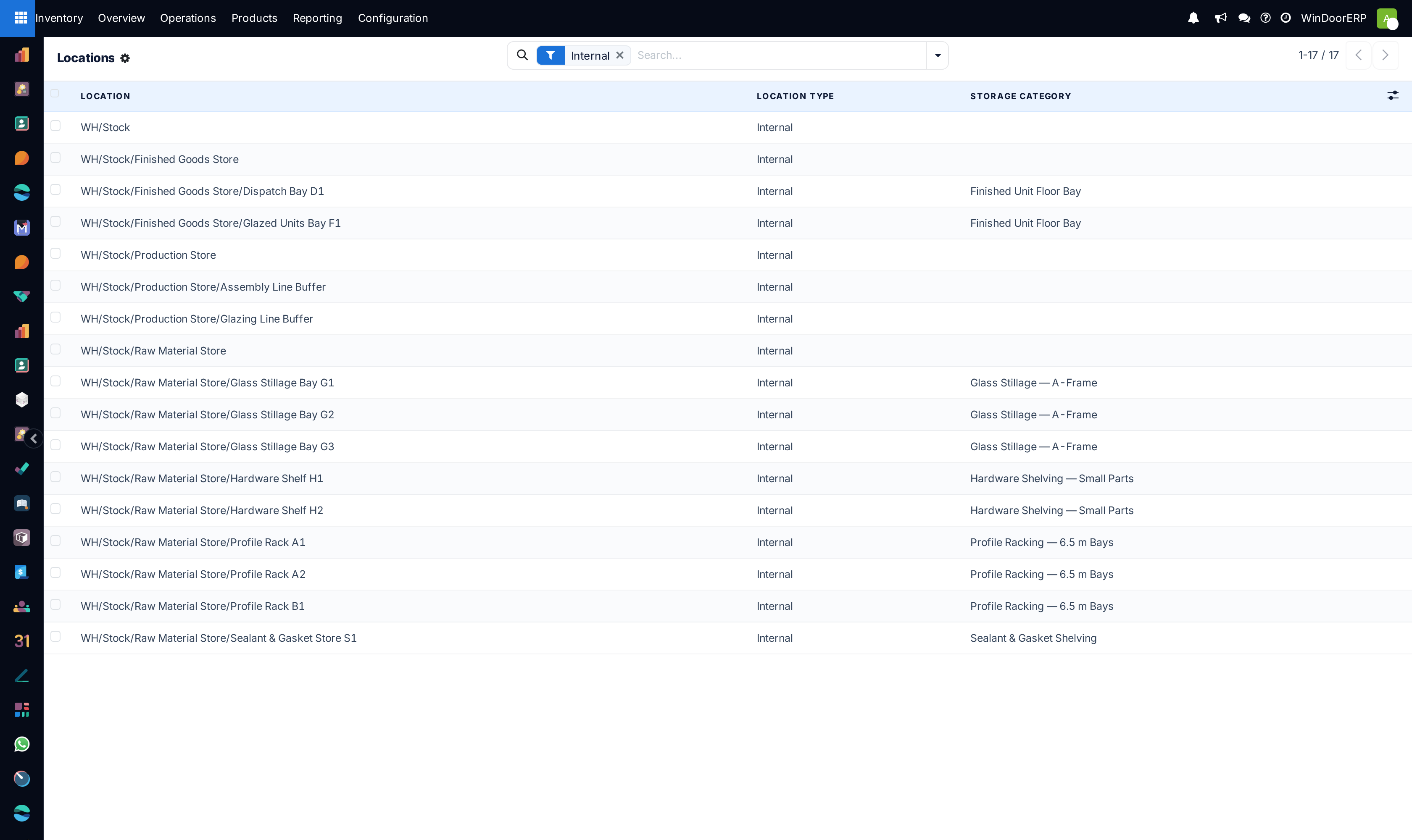
The list opens filtered to Internal, which is why counterparty locations are missing until you clear the filter. Three columns are shown: Location (the full path), Location Type and Storage Category; Is Empty is available from the ⚙ column picker. The list is multi-editable, so ticking several rows and changing one cell changes them all — useful for assigning a storage category to a whole rack run, and easy to do by accident.
The search panel offers a filter per location type, an Empty Locations filter, Archived, and grouping by Warehouse or Location Type.
Storage categories
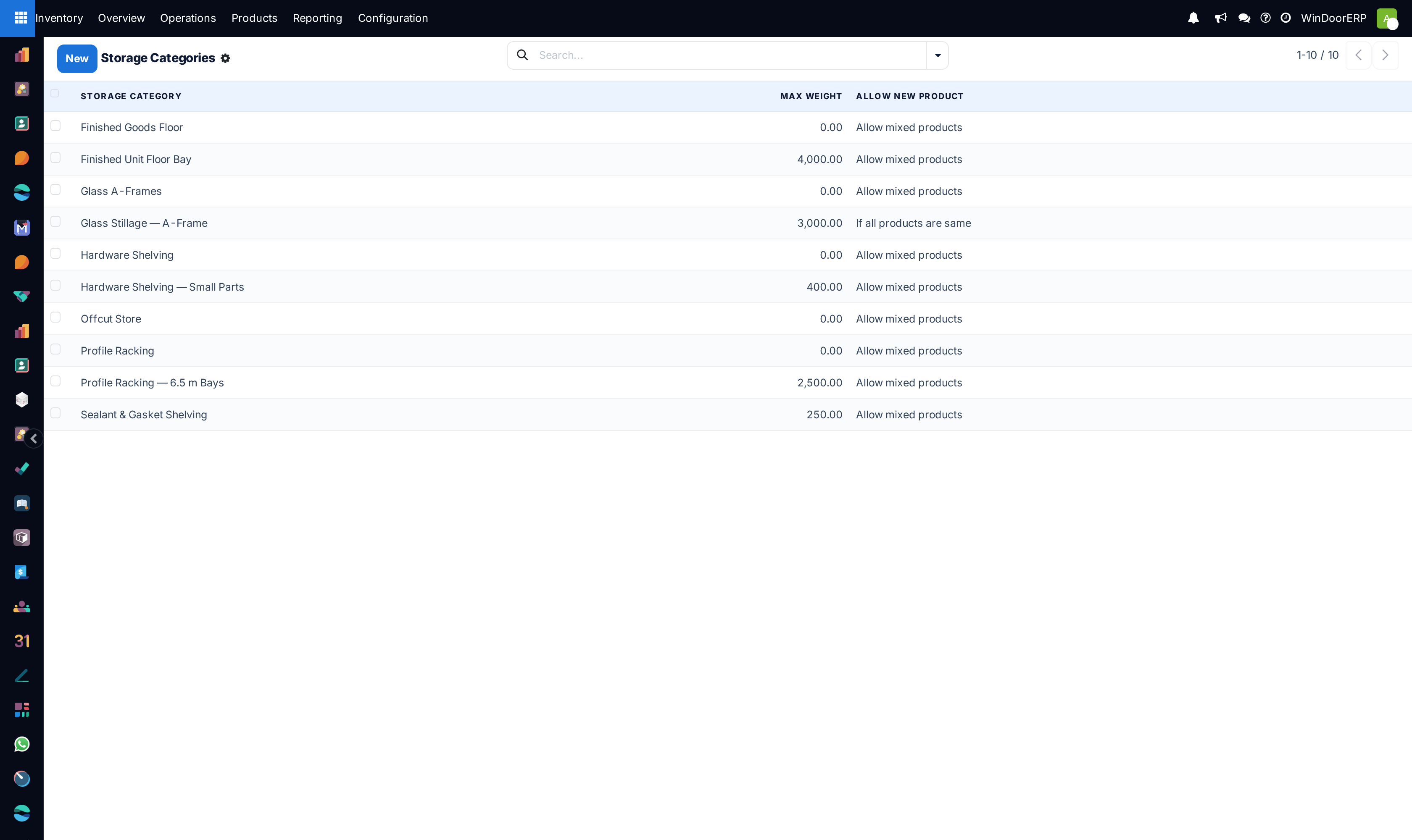
A storage category is a rule about what may sit in a location, attached to as many locations as you like. It lives at Inventory ▸ Configuration ▸ Warehouse Management ▸ Storage Categories and appears with the same setting that reveals Locations.
| Field | What it does |
|---|---|
| Storage Category | The name, shown in the Storage Category column of the Locations list. |
| Max Weight | A weight ceiling for the location, in the database's stock weight unit. 0.00 means no ceiling. |
| Allow New Product | If the location is empty · If all products are same · Allow mixed products. Defaults to allowing mixed. |
| Capacity lines | Two tables — one keyed by product, one by package type — each holding a quantity. This is how you say "three A-frames per bay" rather than only "3,000 kg per bay". |
| Locations | A smart button listing every location using this category. |
Note
Capacity is only consulted when goods are being put away — that is, by putaway rules deciding where an arrival should go. Nothing stops a person choosing an over-capacity location by hand on a transfer.
What your database looks like today
Before anyone enables the setting, a WindoorERP warehouse has exactly one live internal location: WH/Stock. Four more — WH/Input, WH/Output, WH/Packing Zone, WH/Quality Control — exist but are archived, because the warehouse is set to receive and deliver in one step and does not need them. They come back on their own if you ever move the warehouse to two or three steps.
So the first thing enabling Storage Locations does is not create anything; it gives you the menu and the New button. The tree in the figure above is the shape a fitted-out warehouse ends up with, not what you will see on day one.
Troubleshooting
| Symptom | Cause and fix |
|---|---|
| No Locations entry under Configuration | Storage Locations is off. That one setting also hides Storage Categories and the Putaway Rules button. |
| The Locations list opens but there is no New button | Same cause. With the setting off the system deliberately swaps in a read-only version of the list and the form, so you can look but not add. |
| A location you made is not offered on a transfer | Check its Location Type. Only Internal can hold stock, and a Virtual parent will never be selectable itself. |
| "You cannot archive location … because it is used by warehouse …" | You are archiving the warehouse's own stock or view location. Change the warehouse first, or archive the warehouse. |
| "You can't disable locations … because they still contain products." | Move or write off the stock, then archive. Archiving a parent archives its children, so this can fire for a location you did not tick. |
| "The … location is required by the Inventory app and cannot be deleted, but you can archive it." | The inter-company transit location is protected. Archive it instead. |
| Saving a frequency is refused | The frequency must be zero or positive, and a very large number is rejected with "The selected Inventory Frequency (Days) creates a date too far into the future." |
| Turning the setting back off is refused | The system answers "You can't deactivate the multi-location if you have more than once warehouse by company" (the wording is the software's). Reduce to one warehouse first. |
| Next Expected stays empty | Inventory Frequency is 0, or the location type is not Internal or Transit, or it has no company. |
Common mistakes
- Naming a location after what is in it today. Racks outlive products — name the place, not the contents.
- Building a tree four or five levels deep. Two or three levels is usually the whole answer, and every extra level is another thing to keep tidy.
- Turning the setting on mid-week without telling the floor. From that moment every transfer asks for a location that nobody has been trained to choose.
- Multi-editing the list without noticing. Several rows ticked and one cell changed rewrites all of them, silently.
- Expecting a removal strategy set here to beat one set on the product category. It does not — the category wins, always.
Was this article helpful?
Thanks — your feedback helps.
Running a window or door factory?
Ask for a demo