Work a confirmed sales order: what Confirm changed and what you can still edit
What this does
Once a quotation is confirmed it becomes a Sales Order and moves into Sales › Orders › Orders. This article is about that screen in its everyday, record-by-record mode: the list you scan, the kanban you skim, and the order form you open to invoice, amend, cancel or hand on to the factory.
The screen matters because confirmation is the moment the commercial document stops being a proposal. On this fleet confirmation does considerably less than most people expect — it does not create a delivery order for fabricated lines, it does not raise a production order, and there is no approval chain in front of it. Knowing exactly what it did and did not do is the difference between chasing a phantom problem and doing the next real step.
If what you need is the deadline and fulfilment picture across many orders at once — the calendar, the activity board, the pivot and the graph on this same menu — read Track order deadlines and fulfilment status instead. Same menu, same records, different job.
Before you start
- You need a confirmed order. Confirming happens on the quotation, not here — see Build a quotation: customer, expiry, designed lines, sections and Confirm.
- There is no approval step between a quotation and a sales order on this fleet. The Approval Matrix you may have heard of governs production actions only, never Confirm.
- The per-line Discount column is switched off fleet-wide, so nothing on this screen shows or edits a line discount.
- The Lock button is switched off fleet-wide too. Orders here are not locked, and the wording below tells you what to use instead.
Steps
-
01
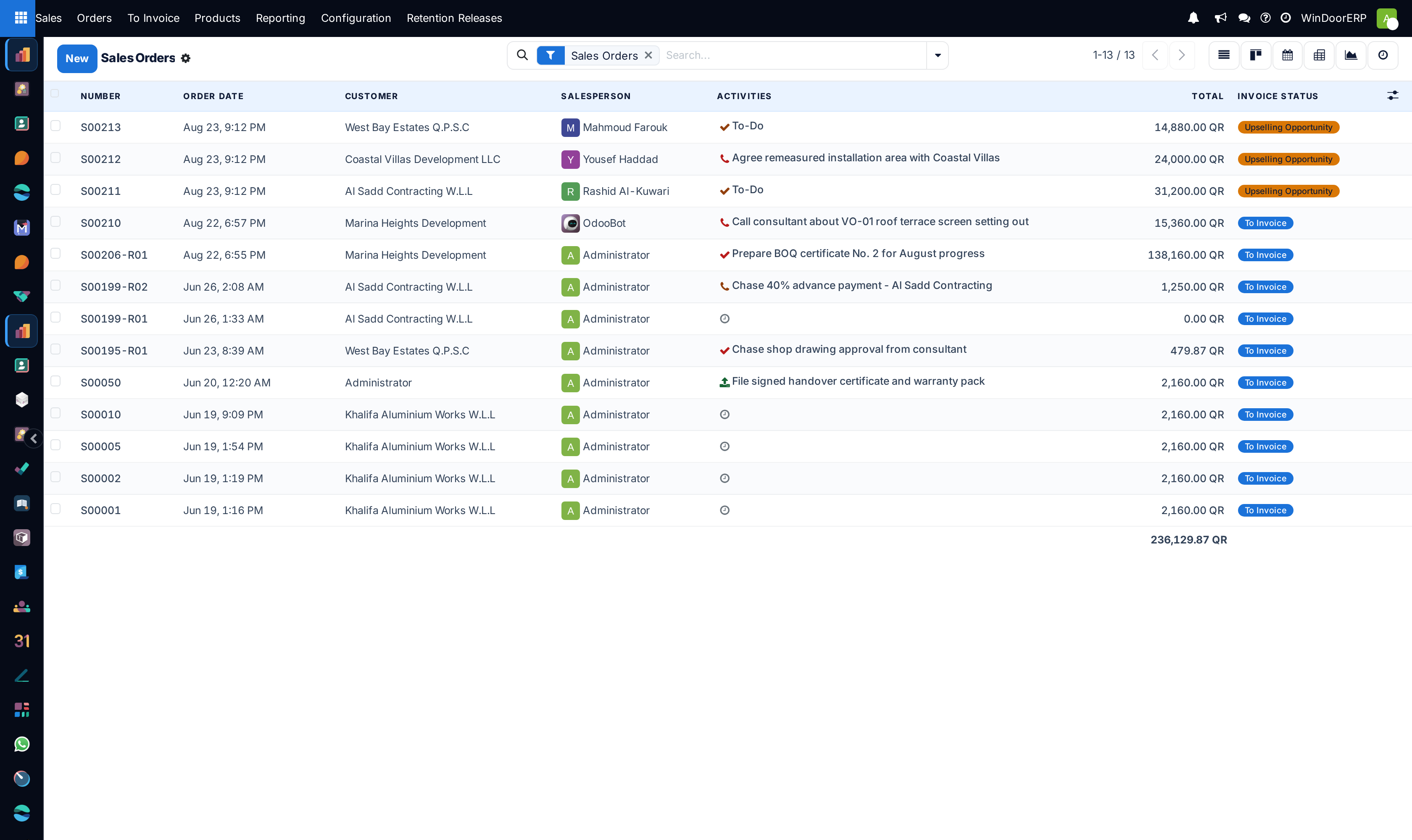
Open Sales › Orders › Orders. The screen arrives titled Sales Orders with a Sales Orders chip already sitting in the search bar — that chip is a filter on Status = Sales Order, and it has an × on it.
-
02
Find the order. The list searches on Order (which covers the number, the Customer Reference and the customer), plus Customer, Salesperson, Sales Team, Product and Project.
-
03
Open it. The status bar reads Quotation › Quotation Sent › Sales Order with the last one highlighted, and the row of smart buttons above the header tells you what already hangs off this order.
-
04
Do the one thing you came for: raise an invoice, amend a quantity, add a variation order, or open the Survey Status tab to see what production is waiting on.
-
05
Leave the record. There is nothing to save explicitly — the form saves through the cloud/discard control by the breadcrumb like every other WindoorERP form.
The list, and the filter that is already on
The menu opens the Sales Orders action, which is the same action and the same record set as the Quotations menu next to it — the only difference is that this one arrives with the Sales Orders filter pre-applied, so you see confirmed orders and nothing else. That filter is not in the Filters drop-down; it is applied from the menu and only appears as the removable chip in the search bar. Click its × and quotations, sent quotations and cancelled orders all reappear, which is almost never what you want on this screen.
Seven columns show by default and nine more are available from the ⚙ column picker at the end of the header row.
| Column | What it is, and when it is worth turning on |
|---|---|
| Number | The order reference, bold. A revision carries a suffix — S00206-R01 is revision 1 of S00206. |
| Order Date | Stamped to the moment of confirmation, not to the day the quotation was drafted. Read-only once the order is confirmed or cancelled. |
| Customer | Read-only in the list. |
| Salesperson | Avatar widget. Filled at quotation time from the contact, falling back to whoever was quoting. |
| Activities | The next scheduled activity, clickable to reschedule or mark done from the list. |
| Total | Tax included. Sums at the foot of the list. It turns bold blue when the order's invoice status is To Invoice. |
| Invoice Status | A badge — see the four values below. |
| Delivery Date | Hidden by default. Rendered in red when the promised date has passed with the delivery still pending or started, or when the order is only partly delivered. Worth turning on for site-driven contracts. |
| Expected Date | Hidden. Computed from lead times, not typed. |
| Sales Team | Hidden. |
| Untaxed Amount and Taxes | Hidden. Both sum at the foot when shown. |
| Tags | Hidden. Coloured tag chips. |
| Status | Hidden — and redundant here, because the pre-applied filter already pins it to Sales Order. |
| Delivery Status | Hidden. Blank on most orders here; the reason is explained in Track order deadlines and fulfilment status. |
| Customer Reference | Hidden. The customer's own PO or contract number. |
| Expiration | Hidden, and meaningless on a confirmed order — it is a quotation validity date. |
Cancelled rows render greyed out, which is how you spot one when you have removed the status filter. The list also carries a Create Invoices button in its header bar: tick several orders and it runs the same invoicing wizard across all of them at once.
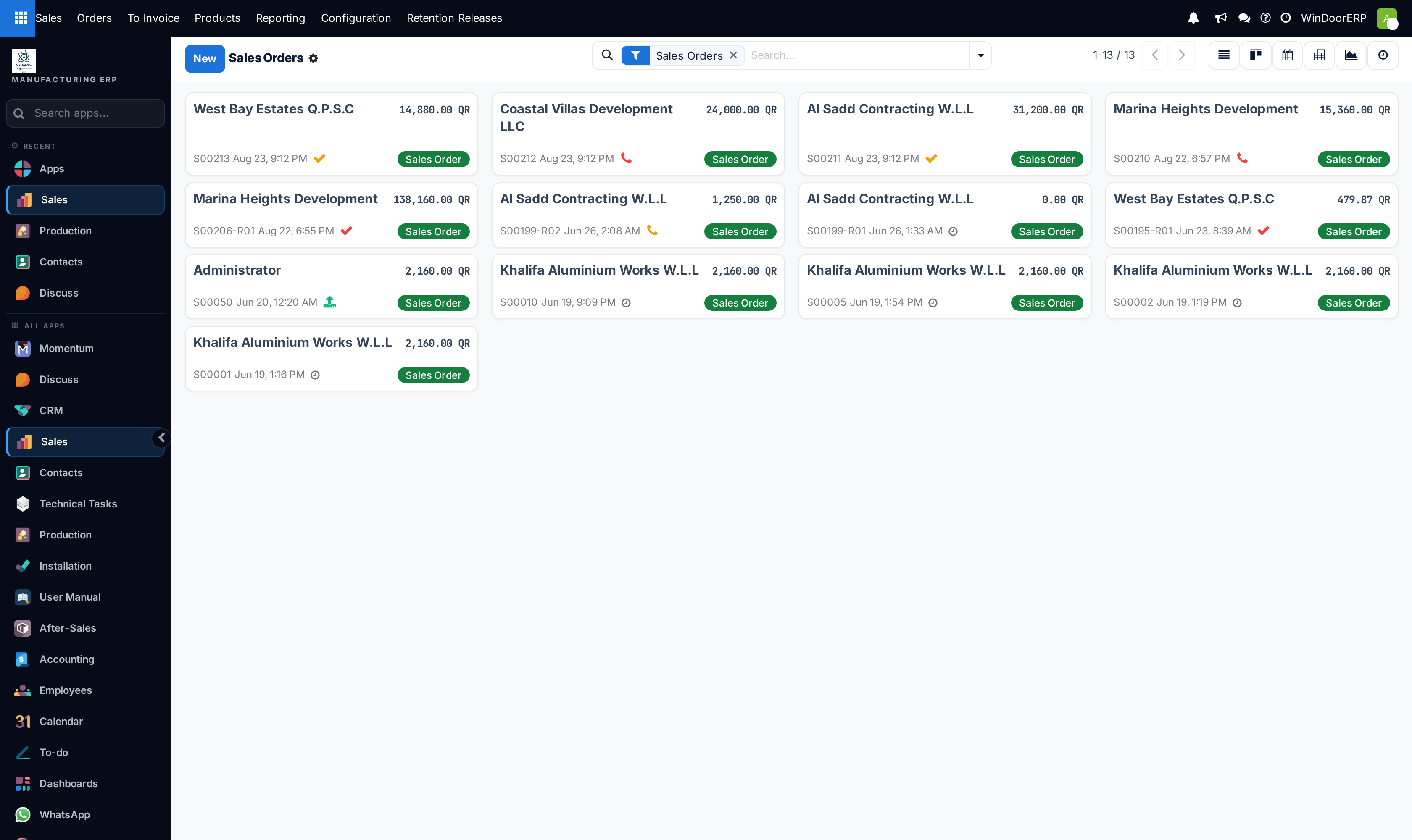
The kanban view is the same records as cards: customer and Total on the top line, then the number, the order date, the activity clock and a state label. It groups nothing and it sorts by the same order as the list. Use it when you want to read customer names quickly; use the list when you want columns.
What Confirm actually changed
Confirmation is a short, specific set of effects on this fleet, and it helps to know all of them because several of the things people expect are not on the list.
- Status moves to Sales Order and Order Date is stamped with the confirmation moment.
- Each line's original unit price and quantity are snapshotted, so that later rate revisions on the bill of quantities have a baseline to compare against.
- Stock rules run only for lines that are not fabricated. A line whose product is set up for the designer or for simple configuration suppresses procurement entirely, so an order that is all windows and doors creates no delivery order at all. Those units ship later, on the finished-goods delivery raised out of production.
- If Create Project was ticked — it is ticked by default — the installation project is created from the chosen template, and both fields lock.
- Nothing else. No production order, no site survey, no bill of quantities, no invoice. Production starts from the survey flow; invoicing starts from a button you press.
Confirming a windows contract creates no delivery order
Confirming does not reserve material and does not release anything to the factory. If you are waiting for a delivery order to appear on a windows-and-doors contract, it never will — the delivery is created downstream by production, and until then the Delivery Status field on the order stays empty.
The confirmed order form
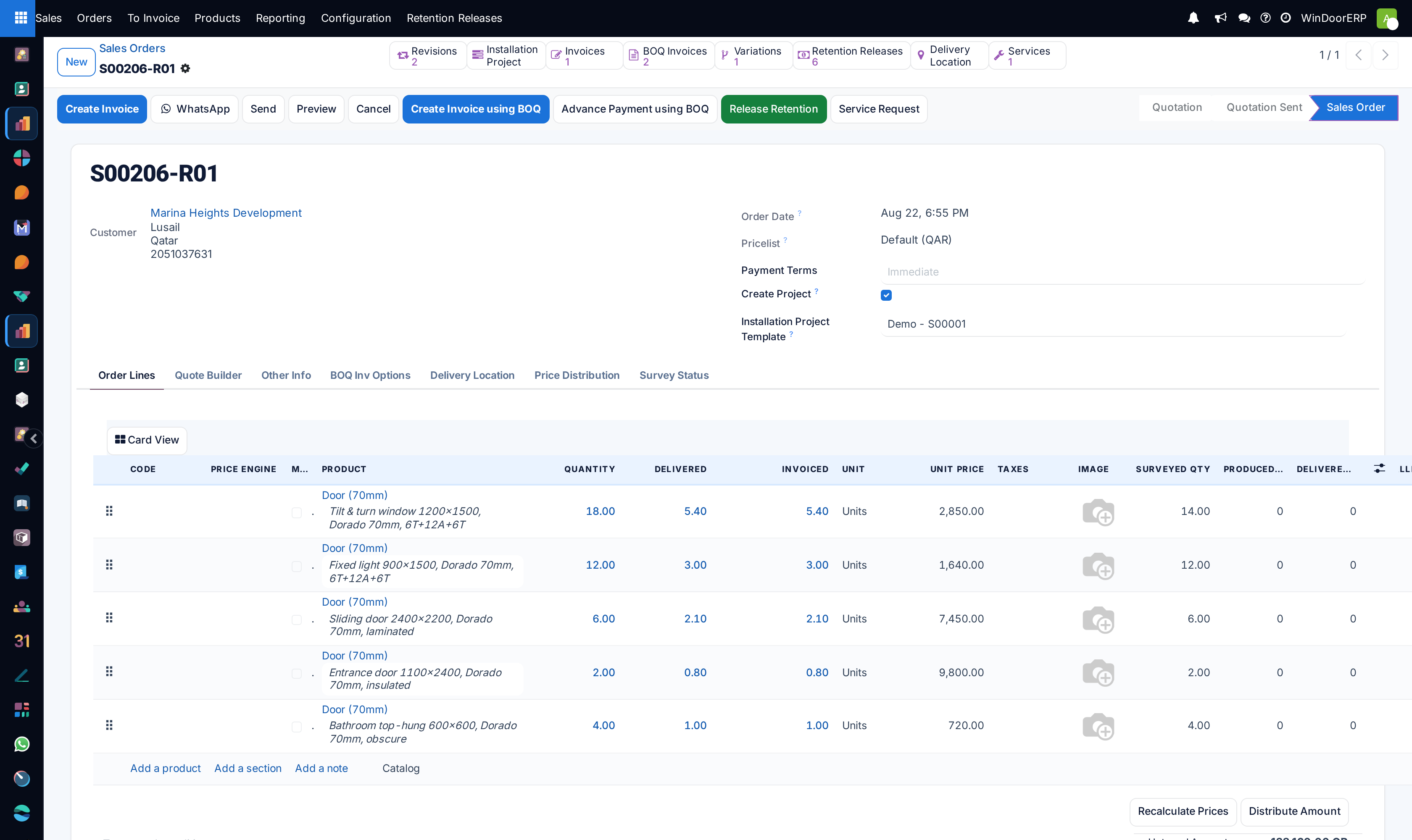
The form on a confirmed order looks different from the quotation you confirmed, because roughly half the controls are state-driven. Expiration disappears, Order Date appears, Confirm is gone, and a run of invoicing buttons arrives.
Header fields
| Field | Behaviour once the order is confirmed |
|---|---|
| Customer | Read-only. Its address block is displayed underneath as text. |
| Order Date | Read-only, showing the confirmation timestamp. |
| Pricelist | Read-only. The Update Prices refresh link beside it is hidden after confirmation, so changing a pricelist is a quotation-stage decision only. |
| Payment Terms | Still editable. Empty means immediate — the placeholder says so. |
| Create Project and Installation Project Template | Both frozen. Whatever was ticked at confirmation is what you have; the resulting project is reachable from the Installation Project smart button. |
There are no address fields anywhere on this form — no invoice address, no delivery address. The delivery and invoice contacts are resolved silently from the customer's child contacts, and the only way to change them is to change those contacts.
Header buttons
| Button | What it does, and when it is there |
|---|---|
| Create Invoice | Opens the Create invoice(s) dialog. It is highlighted when the invoice status is To Invoice. When there is nothing to invoice it still appears, but pre-set to the down-payment-by-percentage mode. |
| Opens the WhatsApp composer with the customer's WhatsApp number pre-filled. Present on every state. Sending requires a configured WhatsApp account. | |
| Send | Still available on a confirmed order. Opens the mail composer with the order PDF and the portal link attached. |
| Preview | Opens the customer's portal view of this order in a new tab. |
| Cancel | Asks "Are you sure you want to cancel this order? This may affect related documents or processes." and, on confirmation, also cancels any draft invoices raised from it. |
| Create Invoice using BOQ | The progressive-billing route. Builds the next bill-of-quantities claim across the main order and every variation. Only on main orders, never on a variation. |
| Advance Payment using BOQ | Opens the advance-payment wizard. Main orders only. |
| Release Retention | Appears only once there is a retention balance to release. |
| Service Request | Creates an after-sales service order from this contract and opens it. No confirmation dialog — see the warning below. |
| Unlock | Present only if the order is locked. Nothing on this fleet locks an order, so in practice you will not see it. |
| Disappears once the order is confirmed. The reports are still there — use the ⚙ gear beside the order number, which offers PDF Quote, Quotation / Order, Print Quotation with Drawing and Timesheets. |
Service Request acts the moment you press it
Service Request acts immediately. It creates a service order, copies the contract's items onto it and opens it — with no dialog and no undo. Pressing it twice leaves two service orders behind, and the second one has to be deleted by hand.
Smart buttons
The strip above the header only shows a button when the thing it counts exists, so an order's strip is a quick census of everything attached to it.
| Smart button | Shows when |
|---|---|
| Revisions | The quotation was revised before confirmation. Opens the frozen copies. |
| Installation Project | An installation project was created at confirmation. |
| Projects | A billable project exists for this order. A separate timesheet counter appears beside it once hours have been recorded against it. |
| Delivery | At least one transfer is linked. Absent on an all-fabricated order. |
| Invoices | At least one customer invoice exists. |
| BOQ Invoices | Always on a confirmed order, even at zero. |
| Variations | This order has variation orders. Never shown on a variation itself. |
| Retention Releases | Retention has been released at least once. |
| Materials | Any line carries a design. Opens the component summary across every designed line. |
| Production | Production orders exist against this contract. |
| Services | After-sales service orders exist. |
| Purchase | Purchase orders were generated from this contract. |
| WhatsApp messages have been exchanged with this customer. | |
| Delivery Location | The order has coordinates. Opens Google Maps at the site. |
Tabs
Order Lines is the working tab. On a confirmed order it gains two read-only columns the quotation did not have — Delivered and Invoiced — alongside the four progress columns this fleet adds: Surveyed Qty, Produced Qty, Delivered Qty and Installed Qty. The Delivered figure on a fabricated contract is driven by progressive bill-of-quantities billing, not by warehouse transfers, which is why it can advance while no delivery order exists.
The other tabs are Quote Builder (the PDF header/footer assembly), Other Info (salesperson, team, customer reference, tags, fiscal position, warehouse, shipping policy, delivery dates), BOQ Inv Options (variation orders, project parties, retention summary), Delivery Location (site coordinates and map), Price Distribution (a log of amount distributions) and Survey Status.
What you can still edit — and what refuses
Order lines stay editable after confirmation. That is deliberate on this fleet: contracts get amended. But three specific actions now refuse, each with its own message.
| You try to | What happens |
|---|---|
| Duplicate a line with the clone icon | Refused: "Cannot duplicate lines in confirmed, done, or cancelled orders." |
| Open the designer on a line | Refused with an Order Locked toast: "Cannot modify design. Sale order is in sale state." The drawing is frozen at confirmation. |
| Create a revision | The Create Revision button is not on the header any more. It exists only in Quotation and Quotation Sent. |
| Run Recalculate Prices or Distribute Amount | Both still work on a confirmed order. They stop only when the order is cancelled or locked, and refuse with "Price engine actions cannot be applied to locked or cancelled orders." |
Note
Because the designer refuses to reopen, a dimension change after confirmation is not an edit — it is a re-measure. Handle it through the production survey and, where the money changes, through a variation order.
Locking, cancelling and reopening
The setting that would put a Lock button on this header is off across the fleet, and no order is locked. This matters mostly as a negative: if a procedure tells you to lock a confirmed order before releasing it to the factory, that procedure describes a configuration this fleet does not run. The protection you actually have is the designer refusal above, plus the audit trail in the chatter.
Cancel moves the order to Cancelled and cancels its draft invoices. It is refused on a main order that still has non-cancelled variation orders hanging off it, and the message names them. From Cancelled, Set to Quotation puts the record back to the beginning — it does not return it to Sales Order, so anything downstream has to be re-done.
Two routes to an invoice
A confirmed order offers two invoicing buttons and they are not alternatives to be chosen at random.
- Create Invoice is the standard route: a wizard that raises a regular or down-payment invoice against the ordered quantities. Use it for straightforward, non-progressive work.
- Create Invoice using BOQ is the progressive route this fleet was built for. It creates the next numbered claim, with a section for the main order and one for each variation, and a progress line per order line. It is the route that owns the Delivered figures on the lines.
Mixing them on one contract will make the progress arithmetic disagree with the invoiced amounts. Pick one per contract and stay with it. The invoicing surfaces themselves are covered in Work the Orders to Invoice queue: what lands there and how to clear it.
Amending a confirmed contract: variations, not revisions
Before confirmation you amend a quotation by making a revision — a frozen copy numbered -R01, -R02 and so on. After confirmation that route closes, and the amendment mechanism is the variation order: a linked sales order that carries the extra or changed scope while the main contract keeps its original figures.
Both live on the BOQ Inv Options tab, where Create New Variation Order builds one and Link Existing Sales Order adopts one you already have. A variation shows a Variation Order ribbon, cannot itself raise a bill-of-quantities invoice or an advance payment, and blocks deletion and cancellation of its parent while it lives. Upsell opportunities — orders where the delivered quantity has overtaken the ordered quantity — surface on their own menu, covered in Work the Orders to Upsell queue: what over-delivery really means here.
Where the factory release actually happens
Nothing on this screen releases work to the factory. The Survey Status tab is the honest picture of where the contract stands on the road there: a six-phase bar — Opportunity, Pre-Quote Survey, Quotation, Won, Production Survey, Production — plus a Pre-Quote state, a Production state, a progress bar and a Suggested next step.
On a confirmed order with no production survey yet, that suggested step reads Schedule Production Survey; once the production survey is approved it reads Release to Production. The panel is a read-out, not a control: the only buttons on it are New Technical Request and View All Requests. Doing the release itself is covered in Launch production from a sales order, and the surveys in Run pre-quote and production surveys through approval.
Troubleshooting
| What you see | Why, and what to do |
|---|---|
| The order has no Delivery smart button and Delivery Status is empty | Normal for a fabricated contract. Procurement was suppressed at confirmation; the delivery is raised by production later. |
| "Cannot duplicate lines in confirmed, done, or cancelled orders." | Add the line with Add a product instead, or put the extra scope on a variation order. |
| "Cannot modify design. Sale order is in sale state." | The drawing is frozen. Re-measure through the production survey. |
| "You cannot cancel a locked order. Please unlock it first." | Press Unlock first. You should not meet this on a standard tenant. |
| "Cannot create BOQ Invoice from a variation order. Please create the invoice from the main contract." | You are on a variation. Open the order named in its This Sales Order is a Variation for banner. |
| "Cannot cancel Sales Order … because it has N non-cancelled variation order(s)." | Cancel the variations first, then the main contract. |
| "Please release retention from the main contract: …" | Retention is held at project level. Use the main order's Release Retention button. |
| A CREDIT HOLD banner and ribbon | The customer is on credit hold, and confirmation of further orders is blocked. Clear it on the customer record. |
| No Print button on the header | Expected once confirmed. Use the ⚙ gear beside the order number. |
Common mistakes
- Waiting for a delivery order to prove that a windows contract is moving. It will not appear; watch Production and the Survey Status tab instead.
- Removing the Sales Orders chip to widen a search and then reading the resulting figures as order values — quotations and cancelled orders are now in the list.
- Amending scope by editing the main contract's quantities after confirmation instead of raising a variation order, which destroys the comparison the progressive claims depend on.
- Using Create Invoice on a contract that is being billed progressively through the bill of quantities.
- Pressing Service Request to "see what it does". It creates a real service order immediately.
- Reading the Total column as a net figure. It is tax-inclusive; turn on Untaxed Amount if that is what you need.
Was this article helpful?
Thanks — your feedback helps.
Running a window or door factory?
Ask for a demo