Search, filter, and group records
What this does
Every list, kanban board, calendar and report in WindoorERP is fed by the same search bar at the top of the screen, and that one bar does three separate jobs: it searches for a value, it filters the records down to a condition, and it groups what is left into blocks. The three combine, and whatever you end up with can be saved as a Favorite so the screen opens that way next time — for you alone, or for the colleagues you name.
This article covers the whole bar as it behaves in WindoorERP 19. Several things changed at that release: the menu entry is now Custom Filter… rather than an Add Custom Filter pop-up, the custom-filter window is a rule editor whose confirm button is Search, and custom groups are picked from a Custom Group drop-down instead of an Add Custom Group button. If a colleague describes older wording, that is why.
Before you start
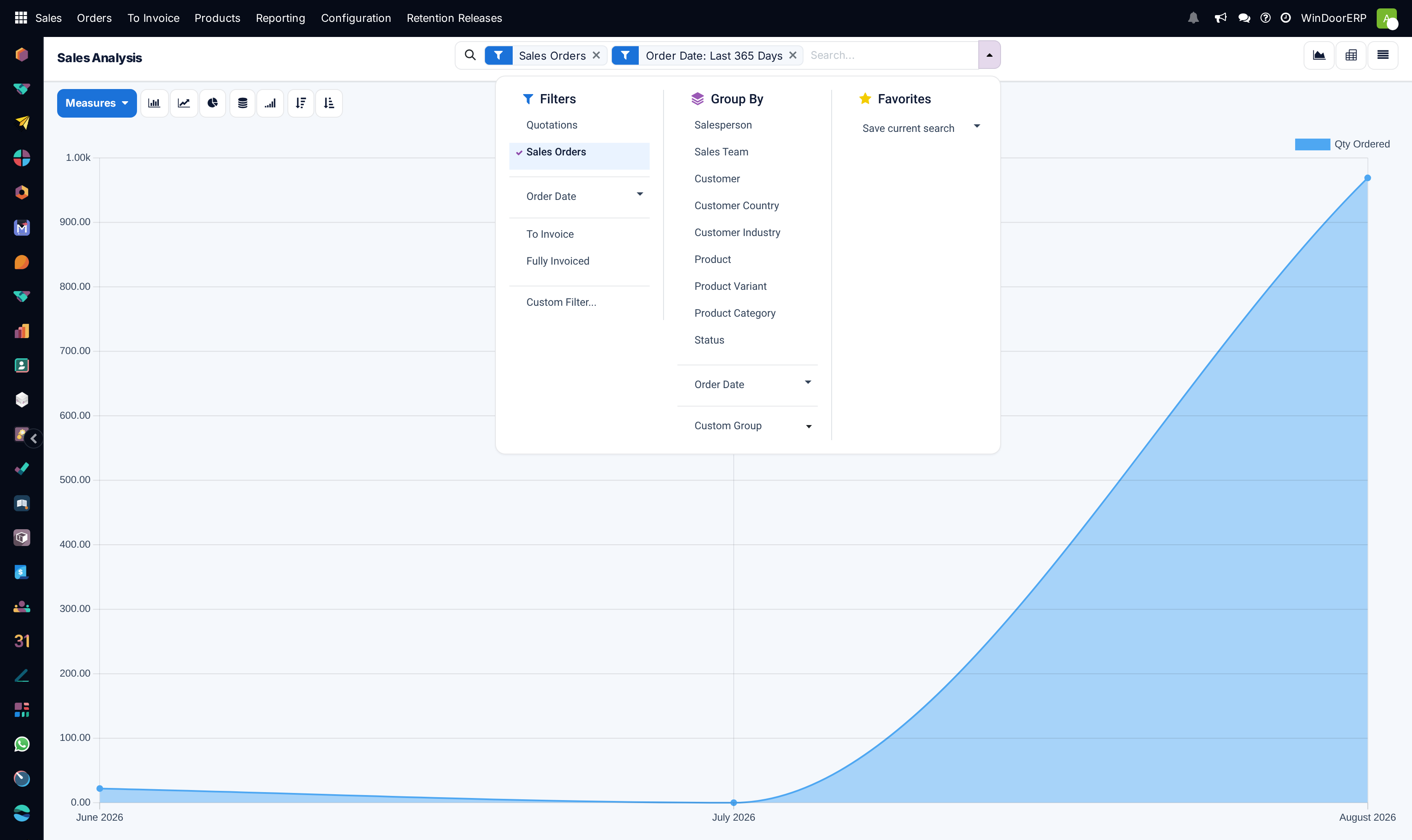
- Most screens open with something already applied. The Sales Analysis report, for example, opens with Sales Orders and Order Date: Last 365 Days already in the bar; the CRM pipeline opens with My Pipeline. Read the bar before you conclude a record is missing.
- Nothing you do in the search bar changes a record. Filtering, grouping and saving a favourite are all read-only operations, so you can experiment freely.
- A saved favourite is stored per screen and per user. Two colleagues on the same screen can be looking at genuinely different sets of records.
Steps
-
01
Click in the search box — the placeholder reads Search… — and type what you are looking for: a customer, a product, an order number.
-
02
A drop-down appears listing the fields that can be searched, each as Search <field> for: <what you typed>. Pick the line for the field you mean. For a date field the wording is at rather than for.
-
03
To match an exact record instead of a partial text match, click the small ▸ arrow at the start of a line to expand it, then choose the value itself from the list underneath. Long lists end with Load more.
-
04
Your choice becomes a coloured facet in the bar. Add as many as you need; they narrow the result together.
-
05
Remove a facet with the ✕ at its end, or clear the bar completely to see every record the screen can show.
The search bar and its facets
Typing into the box and pressing a field name is the same thing as asking for contains: every record holding those characters in that field is kept. Expanding a line with the ▸ arrow and picking a value instead asks for is exactly, which is what you want when two customers have similar names.
Each facet carries a small icon showing which of the three jobs it belongs to — a funnel for a filter, a stack for a group, a star for a favourite — and the values inside it are joined by or. Two values in one facet widen the result; two separate facets narrow it. That single rule explains most of the surprises people report.
A facet you created from the Custom Filter… window is editable: hover it and a pencil appears over its label, and clicking it re-opens the rule editor on that facet so you can adjust the condition instead of deleting and rebuilding it.
In a list view only, a group-by facet has a second trick: hovering it shows a sort symbol, and clicking the facet label toggles the groups between most-populated-first and least-populated-first. In kanban, graph and pivot views the same click does nothing, because the option is only offered on lists.
Filters
Open the drop-down with the ▾ button at the end of the search bar. Three columns appear: Filters on one side, Group By in the middle, Favorites on the other. The keyboard shortcut Shift + Q opens and closes it.
Preconfigured filters
The Filters column lists conditions the screen was built with — on the Sales Analysis report they are Quotations, Sales Orders, Order Date, To Invoice and Fully Invoiced. Tick as many as you need.
Horizontal lines split the list into groups, and the lines matter. Two filters from the same group are combined with or, so ticking both Quotations and Sales Orders shows more records than either alone. Filters from different groups are combined with and, so adding a date on top of a status shows fewer.
Date filters
A filter on a date field opens into a panel of months, then quarters Q1 to Q4, then years. The selection is read as a grid: every year you tick is crossed with every month or quarter you tick, and the resulting periods are added together.
Note
A month or a quarter is meaningless without a year, and WindoorERP enforces that for you. Pick March on its own and the matching year is ticked automatically; un-tick the last remaining year and every month and quarter under that filter is cleared with it. This is not a glitch — it is the only way the period could still be computed.
Custom filters
When no preconfigured filter says what you mean, click Custom Filter… at the bottom of the Filters column. It also appears at the bottom of the search box's own drop-down while you are typing, so you never have to leave the keyboard.
A window titled Custom Filter opens on a single rule reading Match any of the following rules:. The word any is a small drop-down: switch it to all and every rule must be true instead of just one. Two more values, none and not all, appear once you start negating conditions.
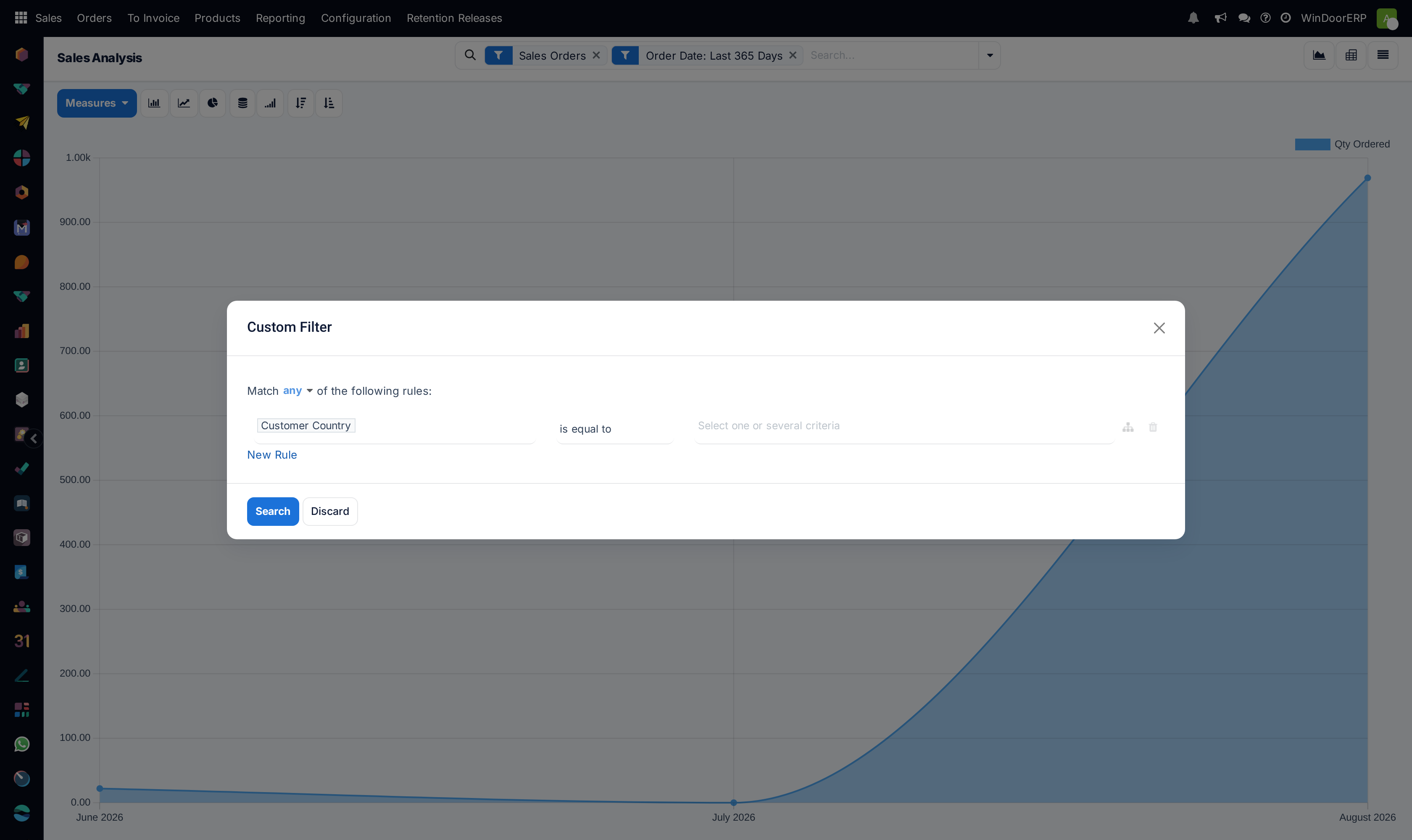
A rule is three boxes read left to right: the field, the operator, and the value. The operators on offer depend on the field's type, and so does the value box — it becomes a drop-down, a number box, a date picker, a yes/no switch, or nothing at all for operators such as is set. Fields that lead somewhere else, such as a customer's country, carry a ▸ arrow you expand to reach the fields on the other record.
Two icons sit at the end of each rule. On a top-level rule the first is a branch symbol, tooltip Add nested rule, which starts a sub-group with its own any / all switch; inside a sub-group the same position becomes a plus, tooltip Add rule. The second icon is a red bin, tooltip Delete rule, and deleting a branch deletes everything inside it. The New Rule link underneath adds a plain rule at the current level.
If the model can hold archived records, a switch labelled Include archived appears in the window; models with no archive have no switch. Click Search to apply, or Discard to abandon. Search stays greyed out until the rules actually say something.
Tip
How the result lands in the bar depends on the connector you chose. With all, each rule arrives as its own facet, so you can remove one of them afterwards without rebuilding the rest. With any, the whole condition arrives as a single facet, because taking one part away would change its meaning.
Tip
With developer mode active the window also shows each field's technical name and a # Code editor box holding the condition as text, which you can read or edit directly.
Group records
The Group By column clusters the records instead of removing them. Pick Salesperson and the list, board or report reorganises itself by salesperson without dropping a single record.
Grouping stacks. The first group you pick is the outer division, the second splits each of those blocks again, and so on. Filters and groups work together, so you can narrow first and then group what is left.
A date field offers five granularities — Year, Quarter, Month, Week, Day — with Month as the default. You may tick more than one, which nests them.
Any other groupable field on the record can be used through the Custom Group drop-down at the bottom of the column. It is a list of field names; choosing one adds the group immediately. Fields that cannot be grouped — free text, most computed values, and the record id — are simply not in the list.
Important
Records with nothing in the grouped field are not dropped; they collect in a group of their own, usually shown as None, at one end of the screen. A group you were expecting to be empty is often just that group, scrolled past.
Favorites: saving and sharing a search
A favourite stores the whole state of the bar — every filter, every group, the sort order — under a name, so you can bring it back with one click.
Saving one
Set the bar up the way you want it, open the drop-down and click Save current search in the Favorites column. It expands into a small panel.
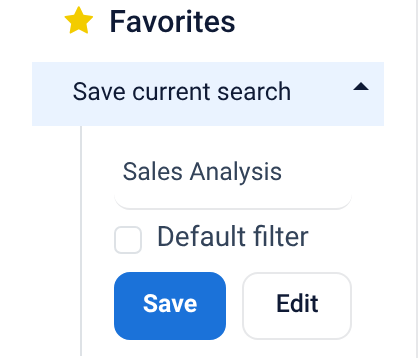
The name box is pre-filled with the screen's own title; replace it with something you will recognise later. Tick Default filter — its tooltip reads Use this filter by default when opening this view — if this should be how the screen opens for you every time. Then click Save, or press Enter.
Sharing one
A favourite is private to you unless you say otherwise, and the sharing setting lives on a form rather than in the drop-down. Click Edit instead of Save and WindoorERP saves the favourite and then opens it as a record.
On that form, fill Shared with with the colleagues who should see it. The box is a list of users and its placeholder reads All users — that is not decoration: leaving it empty shares the favourite with everybody, it does not keep it private. To share an existing favourite, hover its name in the Favorites column and click the pencil, Edit favorite.
Living with them
Saved searches are listed under Favorites in the drop-down: yours first, then the ones other people shared, and if there are many shared ones a More… link reveals the rest. Applying one does not lock the screen — you can add more filters and groups on top of it.
The favourite form itself carries four fields you can change: Filter Name, Shared with, Default Filter, and Domain, which is the stored condition shown as an editable rule tree. With developer mode on, two more appear — Context, which holds the saved grouping, and Sort, which holds the saved ordering. A favourite that has been archived shows an Archived ribbon across the corner of the form.
With developer mode active, Settings › Technical › User-defined Filters lists every favourite in the database, whoever made it, and lets you archive or delete them in bulk.
The search panel
A few screens carry a second, quieter control: a panel down the side listing categories and tick-boxes, which filters the screen as you click through it. On this database you will meet it on Product Variants, Journal Items, Reordering Rules, Employees and Technical Tasks.
The panel collapses to a narrow strip that reports what is currently chosen, or the word All when nothing is. Click the strip to open it again. What it applies is an ordinary filter — it simply does not appear as a facet in the bar, which is worth remembering when a count does not add up.
Field reference: the Custom Filter window
| Control | What it does |
|---|---|
| Match … of the following rules: | The connector between the rules. any keeps a record that satisfies at least one rule; all requires every rule. none and not all are the negated forms. With no rules at all the line reads Match all records or Match no records, which tells you the condition is empty. |
| First box in a rule | The field to test. Type to search it. A ▸ arrow means the field leads to another record whose own fields you can reach. |
| Second box in a rule | The comparison. The choices follow the field's type — text offers contains, a link offers is in, a number offers > and <. |
| Third box in a rule | The value. Renders as a drop-down, a text box, a number box, a date picker or a yes/no switch, and disappears entirely for operators that need no value. |
| Branch icon — Add nested rule | On a top-level rule only. Starts a sub-group with its own any / all switch. Set the sub-group to the same connector as its parent and it dissolves back into the parent. |
| Plus icon — Add rule | The same position inside a sub-group. Adds a sibling rule in that branch. |
| Bin icon — Delete rule | Removes the rule. On a branch, removes everything inside it as well. |
| New Rule | Adds a rule at the level you are on. |
| Include archived | Shown only for records that can be archived. Off by default, so archived records are excluded unless you say otherwise. |
| # Code editor | Developer mode only. The condition as editable text. |
| Search | Applies the condition. Greyed out while the condition is empty. |
| Discard | Closes without applying anything. |
Troubleshooting
A record you know exists is not found. The box only searches the fields the screen offers, and the field you typed against may not be one of them. Type the term, then read the drop-down: if the field you wanted is not listed, it is not searchable here — use Custom Filter… instead, where every field on the record is available.
Adding a filter returned more records, not fewer. The two filters sit in the same group, so they combine with or. Look at the horizontal dividers in the Filters column: within one block the conditions widen, across blocks they narrow.
Ticking a month cleared the whole date filter. You un-ticked the last year. Months and quarters cannot be computed without one, so WindoorERP clears them together. Tick the year again, then the month.
The Search button in the Custom Filter window is greyed out. The condition is still empty — the header will be reading Match all records. Fill in a value, or add a rule.
“Domain is invalid. Please correct it”. The condition could not be evaluated against the record. Almost always it is a hand-edited # Code editor box in developer mode; switch the box back to the rule editor and rebuild the rule there.
“This domain is not supported.” A stored condition — usually on an old favourite — cannot be drawn as rules. Reset domain clears it so you can build a fresh one; the old text is lost, so copy it first if you need it.
“A name for your favorite filter is required.” You cleared the name box before clicking Save. Type a name and save again.
A colleague sees different records on the same screen. Compare the two search bars first. If they match, one of you has a favourite marked Default filter that is applied silently on opening, and the other does not.
A group you expected is missing. Grouping only creates a block where records exist. Nothing in that field means the records fall into the None group; nothing in that period means a chart simply skips it.
The screen is filtered but the bar looks empty. Check the side panel, if the screen has one. It filters exactly like the bar but does not write a facet into it.
Common mistakes
- Reporting a record as lost when a default filter is hiding it. Clear the bar completely before concluding anything.
- Expecting two filters from the same block to narrow the list. They widen it — that is what the dividing lines are telling you.
- Pressing Enter on the first line of the search drop-down when you meant an exact record. That gives a contains match; expand the line with the ▸ arrow and pick the value instead.
- Leaving Shared with empty in the belief that it keeps a favourite private. Empty means all users. Private is the default only until you open that form and save it.
- Setting a personal favourite as the default and then wondering why a colleague's screen looks different. The default is yours alone.
- Deleting a facet built from a custom filter in order to change one condition. Hover it and click the pencil instead — the rule editor re-opens on exactly that condition.
Was this article helpful?
Thanks — your feedback helps.
Running a window or door factory?
Ask for a demo