Set up your company and its branches
What this does
Sets up the legal entity every document is issued in the name of. The company record supplies the name, address, tax identifiers, currency and logo that appear on quotations, invoices and delivery notes, and it is what the accounting is kept for.
Branches sit under a company for offices or divisions that share its legal identity. Anything that is a separate legal entity is a separate company, not a branch.
Before you start
- Administrator rights. The screen is under Settings ▸ Users & Companies ▸ Companies.
- Have the legal details to hand: registered name, address, tax registration number and the trading currency.
- Decide the structure before you create anything. Moving accounting between companies afterwards is painful; renaming one is trivial.
Steps
-
01
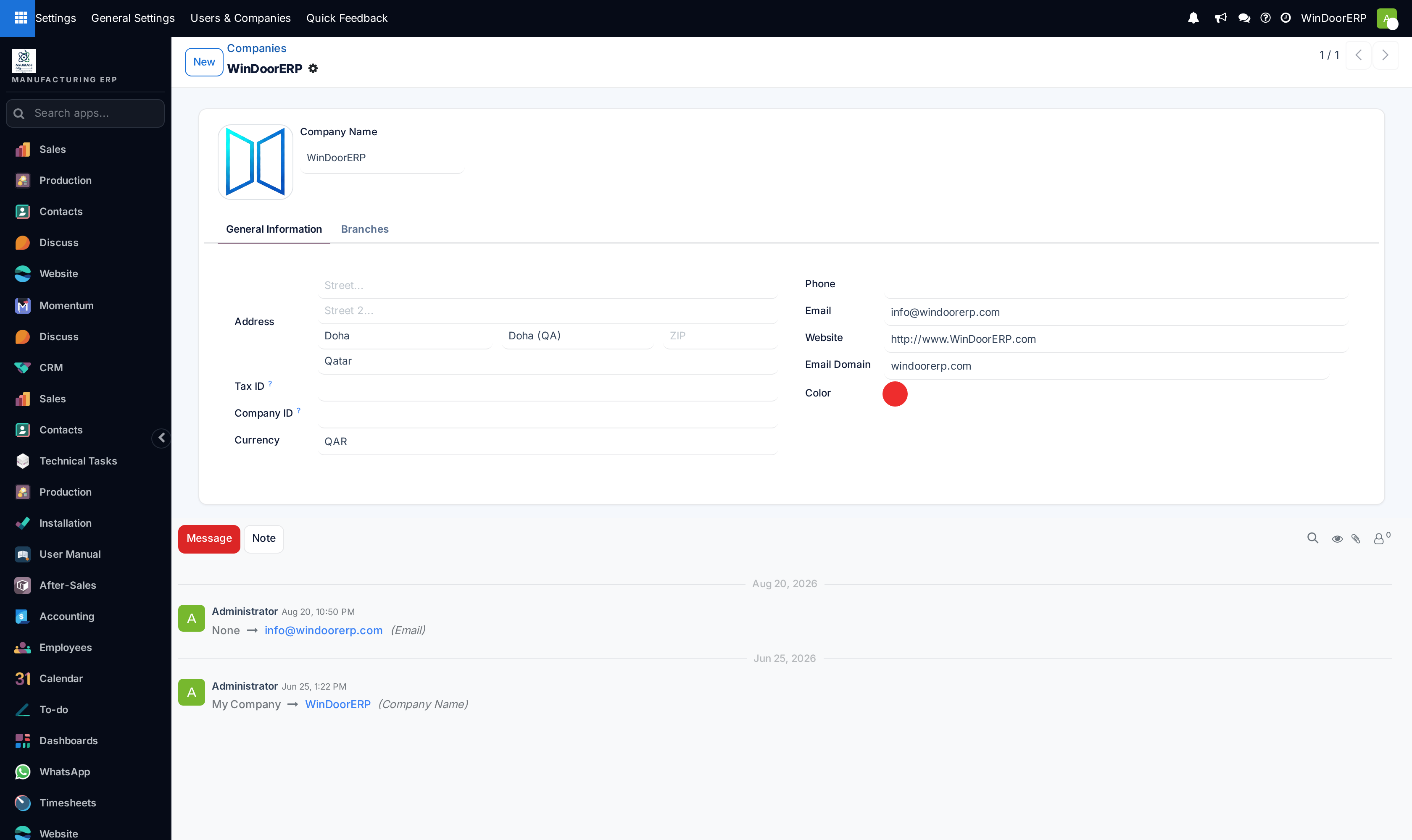
Open Settings ▸ Users & Companies ▸ Companies. Your own company is already there — the one created when the database was set up.
-
02
Open it and complete the General Information tab: address, Tax ID, Company ID, Currency, Phone, Email, Website.
-
03
Upload the Company Logo by clicking the image at the top left of the form. It is what appears on every printed document.
-
04
Set the Email Domain if the company sends mail from its own domain.
-
05
Save. Then set the document layout from Settings ▸ General Settings ▸ Configure Document Layout, which controls how that information is arranged on paper.
-
06
To add a branch, open the Branches tab on the company and add a line. To add a separate company, use New on the Companies list.
Every field on the company form
| Company Name | The registered name. It heads every printed document, so use the legal spelling rather than the trading nickname. |
|---|---|
| Company Logo | Click the image at the top left to upload. Used on documents and in the top bar. A wide, transparent PNG reproduces best. |
| Address | Street, Street 2, City, Fed. State, Zip and Country. The country also drives address formatting and, in accounting, the fiscal behaviour. |
| Tax ID | The tax registration number. Printed on invoices, and required by most tax authorities for a valid invoice. |
| Company ID | The commercial registry number, where that differs from the Tax ID. |
| Currency | The currency the company's accounts are kept in. Everything is converted into it for reporting. |
| Phone | The company switchboard, printed on documents. |
| The address customers see and reply to. | |
| Website | Printed on documents and used on the portal. |
| Email Domain | The domain this company's outgoing mail is sent from, and the one incoming replies are matched against. |
| Color | Identifies the company in the interface where several are in use. |
| Parent Company | Set when this record is a branch. Empty on a top-level company. |
| Branches tab | The branches under this company. A branch may itself have branches, so several levels are possible. |
Company or branch?
A branch shares the parent's legal identity. Use one for a regional office, a showroom or a division that is not separately registered. It can carry its own address and logo, so its documents look like its own, while the accounting stays with the parent.
A separate company is a separate legal entity with its own accounts, its own tax registration and its own books. Use one for an independent subsidiary.
Getting this wrong is expensive in one direction only: a branch that should have been a company means the accounts of two legal entities are mixed, and separating them later means re-entering history.
What changes when there is more than one
A company switcher appears in the top bar. Which company you are in decides which records you see and which company a new record is created for.
Users are given access to one or more companies. Someone with access to several can be in more than one at a time; someone with access to one never sees the others.
Products, customers and price lists can be shared between companies by leaving the company field on them empty. Anything with a company set belongs to that company alone.
Troubleshooting
| The logo does not appear on documents | It was uploaded on the wrong company, or the document layout has been set to a style that does not show it. |
|---|---|
| Invoices are missing the tax number | Tax ID is empty on the company the invoice belongs to — not necessarily the one you are looking at. |
| A record was created for the wrong company | The company switcher was on the wrong entry when it was created. New records take the active company. |
| A colleague cannot see records I can | Their user has no access to that company. Access is granted per user. |
| Amounts look wrong in reports | Reporting converts into the company's Currency. Check which company the report is being read for. |
| Mail from the second company sends from the first | The Email Domain or the outgoing mail server's FROM filtering does not cover the second company's address. |
| The Branches tab is empty and I cannot add one | Branches are added as lines on that tab; a branch is a company record with this one as its parent. |
Common mistakes
- Creating a branch for something that is a separate legal entity, and mixing two sets of books.
- Typing the trading name instead of the registered one, then discovering it on every invoice.
- Leaving Tax ID empty until the first tax return.
- Uploading a logo with a white background, which shows as a white box on a coloured document layout.
- Setting the currency after transactions exist, instead of before.
- Forgetting that a new record belongs to whichever company was active when it was created.
Was this article helpful?
Thanks — your feedback helps.
Running a window or door factory?
Ask for a demo