Deliver in three steps with packing
What this does
Splits an outgoing order into three transfers — pick, pack, ship — each validated by whoever does that part. Goods move from WH/Stock to a packing zone, are made into a load there, move on to an output area, and leave from there.
It is the mode for work where packing is real work: crating glass, bundling profiles per elevation, wrapping and labelling finished units. Where packing is a person putting a box on a pallet, the extra transfer buys nothing and two steps or one is the better answer.
The receipt side is untouched by this setting. You can pack outgoing loads in three steps and still receive in one.
Where this stands on your system
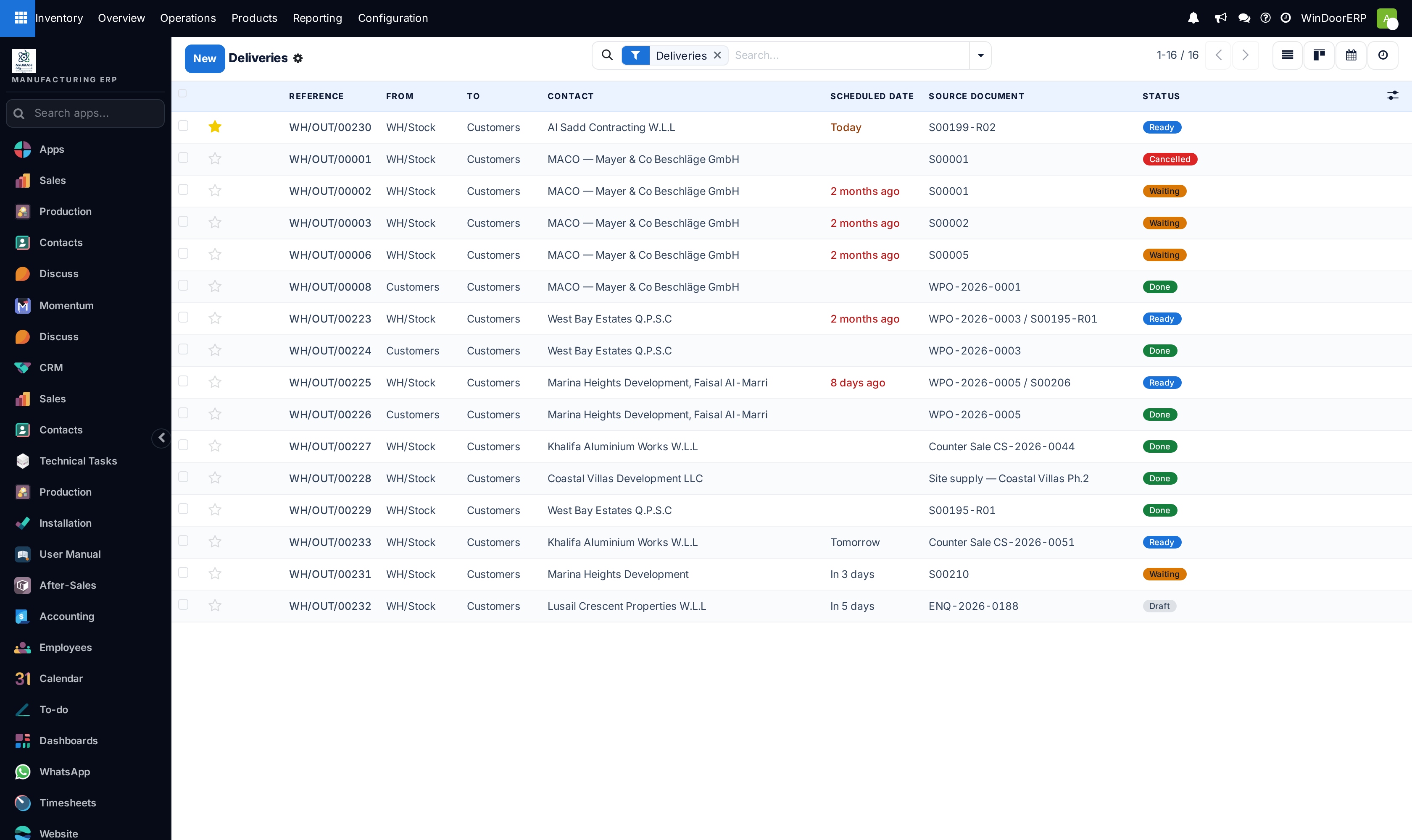
Every warehouse in this installation is set to Deliver (1 step), and Multi-Step Routes — the setting that offers anything else — is switched off. Deliveries run from WH/Stock to Customers in a single hop. So this article describes a configuration you can move to, not the one you are running.
There is a second setting to be aware of before you start, because the two are easy to confuse. Three-step delivery gives you a packing stage; it does not give you packages. Recording the actual crates and pallets — Put in Pack, package types, package barcodes — belongs to the separate Packages setting, and that one is off on this installation too. Turning on Multi-Step Routes does not turn it on.
Before you start
- Administrator rights for Inventory ▸ Configuration ▸ Settings and the warehouse form.
- A packing area that exists in the yard. The mode models a place; if there is no place, there is nothing to model.
- A decision about Packages. Turn it on in the same visit if you want to record what went into which crate; leave it off if the packing step is only about sequencing the work.
- Nothing important in flight. Deliveries already open keep the route they were created with.
Steps
-
01
Open Inventory ▸ Configuration ▸ Settings. In the Warehouse block, tick Multi-Step Routes; Storage Locations switches on with it. If you want real packages, tick Packages in the Operations block at the top of the same page. Click Save.
-
02
Go to Inventory ▸ Configuration ▸ Warehouse Management ▸ Warehouses and open the warehouse.
-
03
On the Warehouse Configuration tab, set Outgoing Shipments to Pick, Pack, then Deliver (3 steps).
-
04
Save. Two further locations become active —
WH/Packing ZoneandWH/Output— together with the Pick and Pack operation types and a route named Deliver in 3 steps (pick + pack + ship). -
05
If you turned Packages on, define your crates under Inventory ▸ Configuration ▸ Delivery ▸ Package Types.
-
06
Run one sales order end to end before the team meets the change.
What the switch creates
WH/Packing Zone | Named Packing Zone. Active only in three-step mode. Where a picked order waits to be made into a load. |
|---|---|
WH/Output | Named Output. Active in two- and three-step delivery. The despatch bay the lorry loads from. |
Pick — WH/PICK/00001 | An internal-transfer operation type. In three-step mode it runs WH/Stock to WH/Packing Zone; in two-step mode the same type runs straight to output instead. |
Pack — WH/PACK/00001 | An internal-transfer operation type running WH/Packing Zone to WH/Output. Active only in three-step mode. |
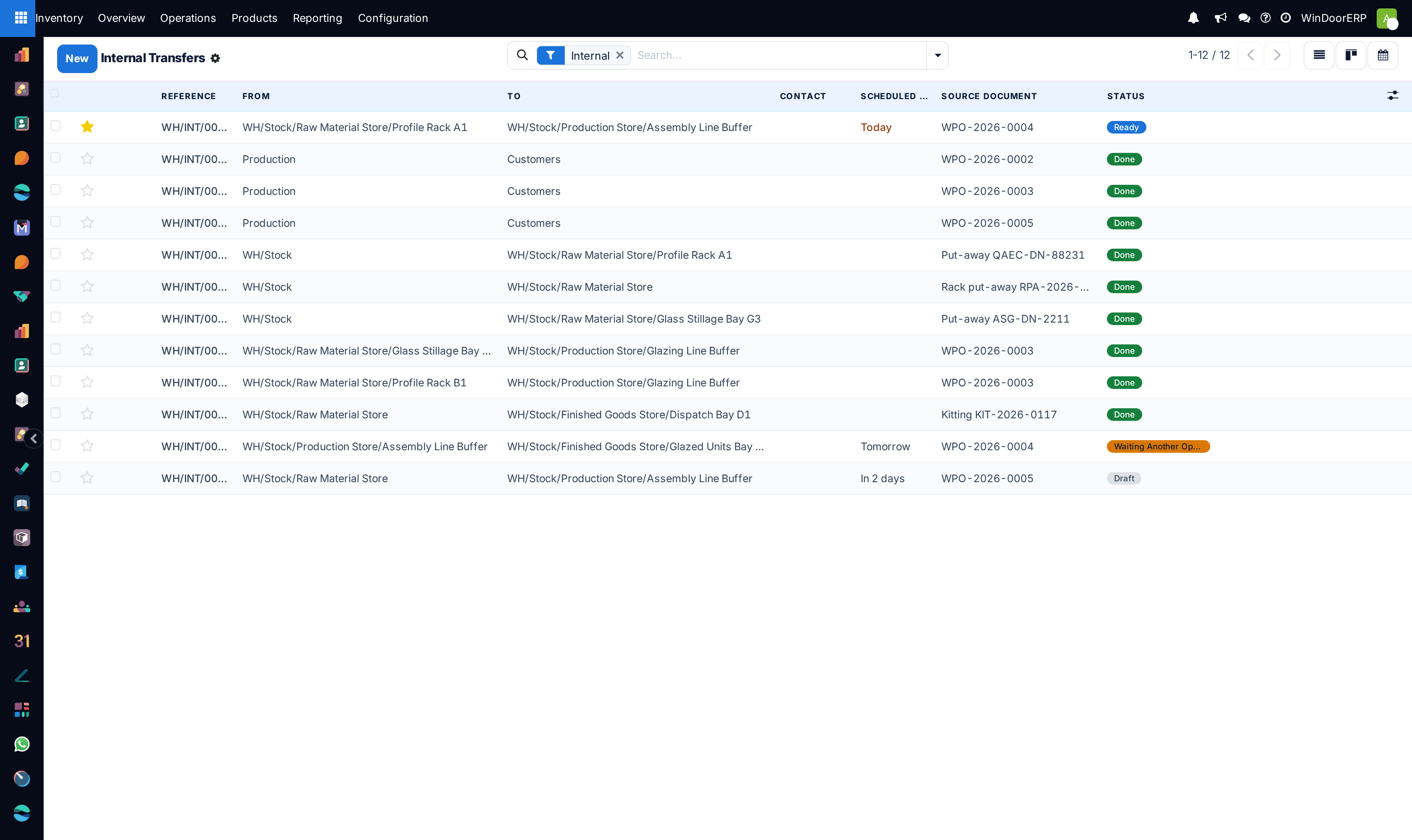
Both locations sit beside WH/Stock under the warehouse, not inside it. Goods in the packing zone or at output still count towards the product's on-hand quantity, but they are already committed to an order and are outside the location anything else reserves from.
Working an order out
Confirming the sales order creates one transfer — the Pick. The Delivery smart button on the order reads 1, and this is the single most confusing thing about the mode for anyone used to the one-step flow.
Validating the pick creates the Pack transfer, and the smart button becomes 2. Validating the pack creates the Delivery Order, and the smart button becomes 3, showing all three documents in the order they happened. Each transfer is born Ready, so there is never a queue of documents waiting on one another and never a delivery sitting in Waiting Another Operation.
1 — Pick WH/PICK | Reserves the stock and takes it off the racks to the packing zone. Correct the Quantity column against what was actually collected. |
|---|---|
2 — Pack WH/PACK | The load is built. Validating moves it from the packing zone to output. With Packages on, this is where Put in Pack is used, crate by crate. |
3 — Delivery Order WH/OUT | The despatch. This is the document the delivery slip and the customer's paperwork come from; validate it when the lorry pulls away, not before. |
All three ship with Create Backorder set to Ask, so a short pick asks what to do with the remainder each time. Decide it deliberately: a backorder keeps a second transfer for the shortfall, declining closes the transfer at the quantity moved. The one setting to keep away from is Never, which drops the shortfall with no record.
The Shipping Policy on the delivery — As soon as possible or When all products are ready, on the Additional Info tab — matters more in this mode than in one step, because a partial pick now propagates through two further documents. On a crated order, When all products are ready usually reflects what the yard would do anyway.
Recording real packages
With the Packages setting on, the pack transfer gains a Put in Pack button at the foot of its Operations tab. Select the lines that go into one crate, press it, and WindoorERP creates a package record holding them. The button appears only while the transfer is open — not on a draft, not on a done one — and a Packages smart button then appears at the top of the transfer listing what was made.
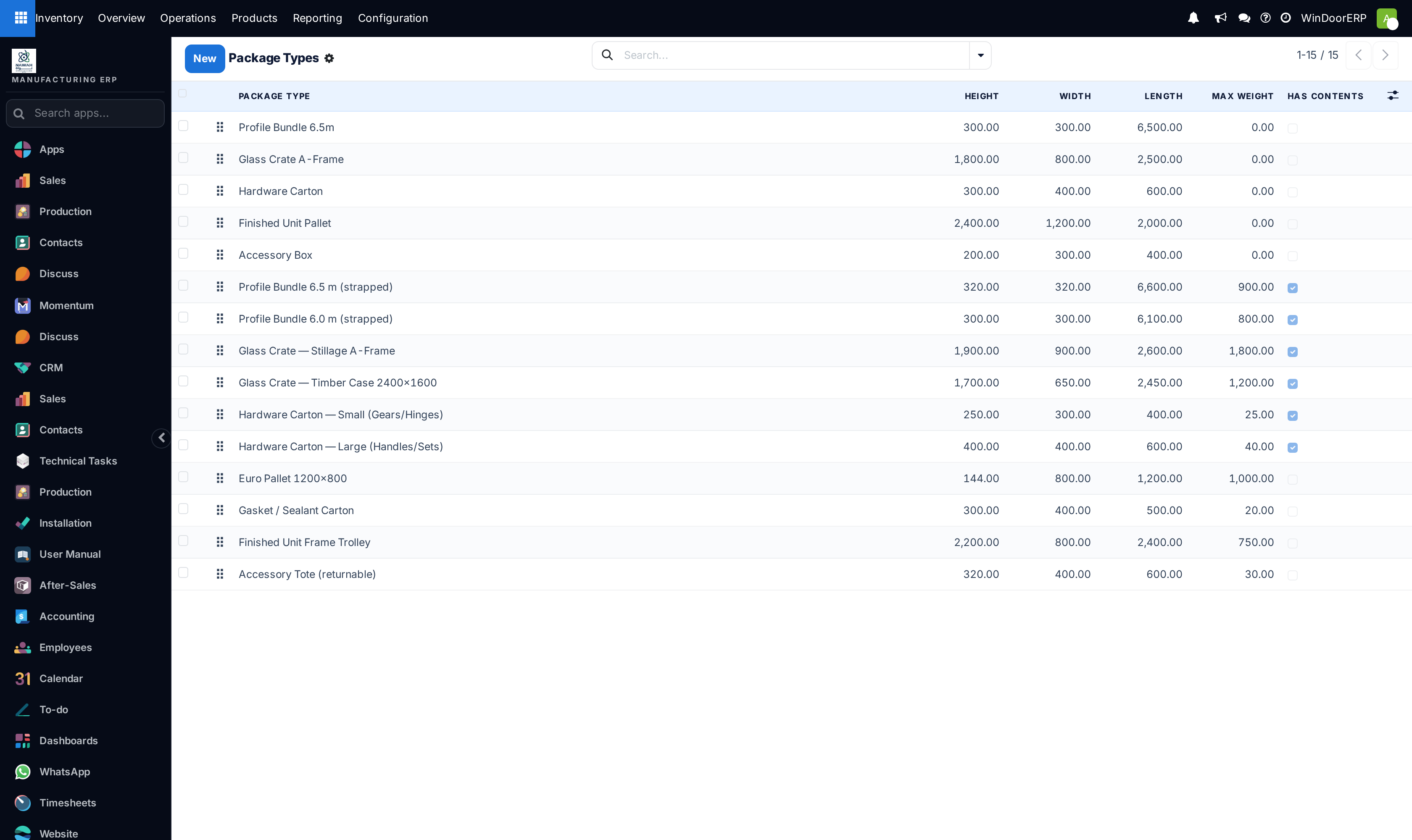
Package types are the templates for those crates, defined under Inventory ▸ Configuration ▸ Delivery ▸ Package Types. Each carries a Package Type name, a Barcode, a Sequence Prefix for the package references it generates, and its Length, Width, Height, Weight and Max Weight. The list shows a Has Contents column, which tells you whether any package of that type currently holds stock — a type with contents is one you should not be redefining.
Without the Packages setting the packing step still works, but it records only that the goods moved from the packing zone to output. Nothing tells the driver what is on the lorry, and nothing scans. That is the honest limit of three-step delivery on its own.
See also
Receive and deliver in two steps covers the same configuration screens, the shared WH/Output stop and the two-step delivery it builds on. Choose how goods come in and go out compares the modes. Print delivery slips and labels covers the paperwork the despatch step produces.
Troubleshooting
| The three-step option is not offered | Multi-Step Routes is off, so the Warehouse Configuration tab is hidden entirely. |
|---|---|
| The sales order shows one delivery, not three | Expected. The pack is created by validating the pick and the delivery by validating the pack. The count grows as the work is done. |
| There is no Put in Pack button | The Packages setting is off, or the transfer is draft, done or cancelled. Multi-Step Routes does not turn Packages on. |
| Package Types is not in the Configuration menu | Same cause: the menu appears only with Packages on. |
| Goods are in the packing zone and nothing can use them | Correct. They are committed to that order and outside WH/Stock. Finish the pack and the delivery, or cancel the chain. |
| Part of an order shipped and the rest is nowhere | The backorder question was declined, or the operation type has Create Backorder set to Never. Check the type under Configuration ▸ Warehouse Management ▸ Operations Types. |
| One person validates all three in a minute | The mode is being performed as paperwork. Two steps, or one, will give you truer dates. |
| A delivery still runs straight from WH/Stock | It was created before the mode changed. Existing transfers are never rewritten. |
Common mistakes
- Expecting three transfers at sales-order confirmation. Only the pick exists until the pick is validated.
- Turning on three-step delivery in order to get packages, and finding the Put in Pack button is not there because that is a different setting.
- Packing without recording packages, then having no way to tell the driver what is on the lorry.
- Validating the delivery order when the load is built rather than when it leaves, so the paperwork and the yard disagree.
- Part-picking an order and shipping it without deciding what happens to the remainder.
- One person doing and validating all three steps, which adds two documents and no information.
Was this article helpful?
Thanks — your feedback helps.
Running a window or door factory?
Ask for a demo