Open a sales team's orders, invoices and Sales Analysis from its card
What this does
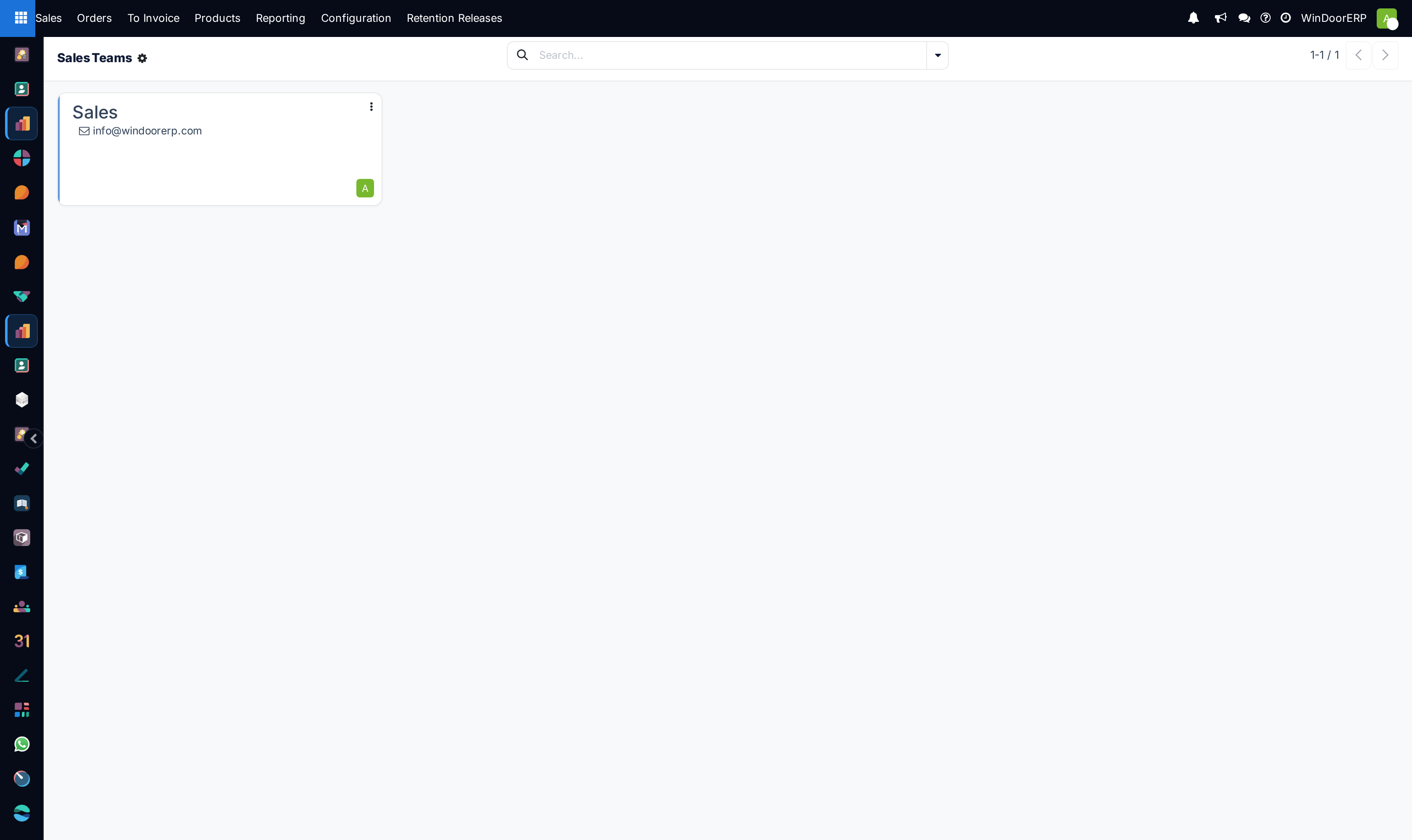
Sales › Orders › Sales Teams is the Sales app's entry to the sales team records. It is a small screen with one job: from a team card, jump straight to that team's orders, its invoices or its sales analysis, with the team filter already applied. It is a launcher, not a dashboard.
That distinction matters, because older Odoo releases put a revenue gauge and a target progress bar on these cards, and a good deal of folklore still describes them. WindoorERP 19 does not. The card shows a name, an email alias, an unassigned-lead count and a team leader — and nothing else. Everything numeric you might want is one click away in a report, which is what this article shows you how to reach.
Setting a team up — its leader, its alias, its members, its target — is covered in Set up sales teams: leader, email alias, invoicing target and members. Read that one to configure; read this one to use what is configured.
Before you start
- A standard WindoorERP tenant ships with one active sales team, called Sales. The Website and Point of Sale teams exist but are archived, so this screen shows a single card until somebody creates more.
- The Invoicing Target ships at zero. Nothing on this screen will show progress against a target until somebody sets one, and even then it is not shown here.
- Two of the drill-downs are gated: the Invoices links need invoicing rights, and the lead-related links only appear when the team has the matching feature ticked.
Steps
-
01
Open Sales › Orders › Sales Teams. You land on a kanban of team cards.
-
02
Click anywhere on a card body. That does not open the team record — it opens Sales Analysis for that team. What you get is described below.
-
03
To reach anything else, use the ⋮ menu at the card's top corner. It holds three columns of links — View, New and Reporting — plus a colour picker and a Configuration link.
-
04
Use Configuration when you actually want to open the team record itself: leader, alias, target and members.
-
05
Come back and use View ▸ Sales Orders or View ▸ Invoices when you want the underlying documents rather than a chart.
What the card actually shows
Four things, and only when each applies.
| On the card | What it is |
|---|---|
| The team name, large and bold | Sales Team. Translated per language. |
| An envelope icon and an address | The team's Email Alias. Shown only when both the alias name and the mail domain are set. Mail sent there creates leads or opportunities for this team. |
| N Unassigned Leads | A link, shown only when the count is above zero. Opens that team's unassigned leads. Absent on a tenant that does not use leads. |
| An avatar, bottom corner | The Team Leader. |
There is no target gauge on this card
Invoicing Target and Invoiced This Month both exist as fields, and the target is loaded into this view — but the card template never draws either of them. The help text on Invoiced This Month still says the value is "used to compute the progression ratio … on the kanban view"; that sentence is left over from an older release and describes nothing that ships today. No progress bar, no ratio, no quotation or order counts appear on any card.
There is also no New button on this kanban — creating a team from here is disabled. To add one, open an existing team through ⋮ ▸ Configuration and use the New button in its breadcrumb, or create it from Sales › Configuration › Sales Teams.
Clicking the card opens Sales Analysis
The card body is one big button, and in the Sales app it runs the sales report. This is the closest thing to a team dashboard the product has, and it arrives pre-filtered in three ways at once — which is exactly why people misread the numbers on it.
| What arrives | Detail |
|---|---|
| The report | Sales Analysis, opening on the graph view with a list view available beside it. |
| A standing restriction | Draft and cancelled records are excluded before any filter is applied. |
| Pre-applied filter 1 | Sales Orders — confirmed orders only, so quotations are out. |
| Pre-applied filter 2 | A date filter on the current month. This is the one people miss: a team that looks quiet is often just early in the month. |
| Pre-applied filter 3 | This team. |
All three arrive as removable chips in the search bar. Widen the date to compare months, or clear the team chip to compare teams. Note that the same report reached from Sales › Reporting › Sales arrives with different defaults; the two will not agree until you match the filters.
The ⋮ menu — every link on it
The menu is laid out in three columns.
| Column | Link | What it opens, filtered to this team |
|---|---|---|
| View | Leads | The team's leads. Only when the team has Leads ticked. |
| View | Opportunities | The team's pipeline. Only when the team has Pipeline ticked. |
| View | Sales Orders | The team's orders, excluding quotations, sent quotations and cancelled orders — so this is confirmed business only. Opens in list, with form, calendar, graph, kanban and pivot available. New records created from here inherit the team. |
| View | Invoices | Posted customer invoices and credit notes for the team. Requires invoicing rights. |
| New | Leads | Creates a lead on this team. Leads-enabled teams only. |
| New | Opportunity | Creates an opportunity on this team. Pipeline-enabled teams only. |
| Reporting | Leads | Lead analysis for the team. |
| Reporting | Opportunities | Pipeline analysis for the team. |
| Reporting | Sales | The same Sales Analysis the card body opens — same three pre-applied filters. |
| Reporting | Invoices | Invoices Analysis as a graph, filtered to this team and grouped by month, over posted documents only. |
| Reporting | Activities | The team's scheduled activities. Pipeline-enabled teams only. |
Below the three columns sit a colour picker, which tints the card's edge and nothing else, and Configuration, which finally opens the team record.
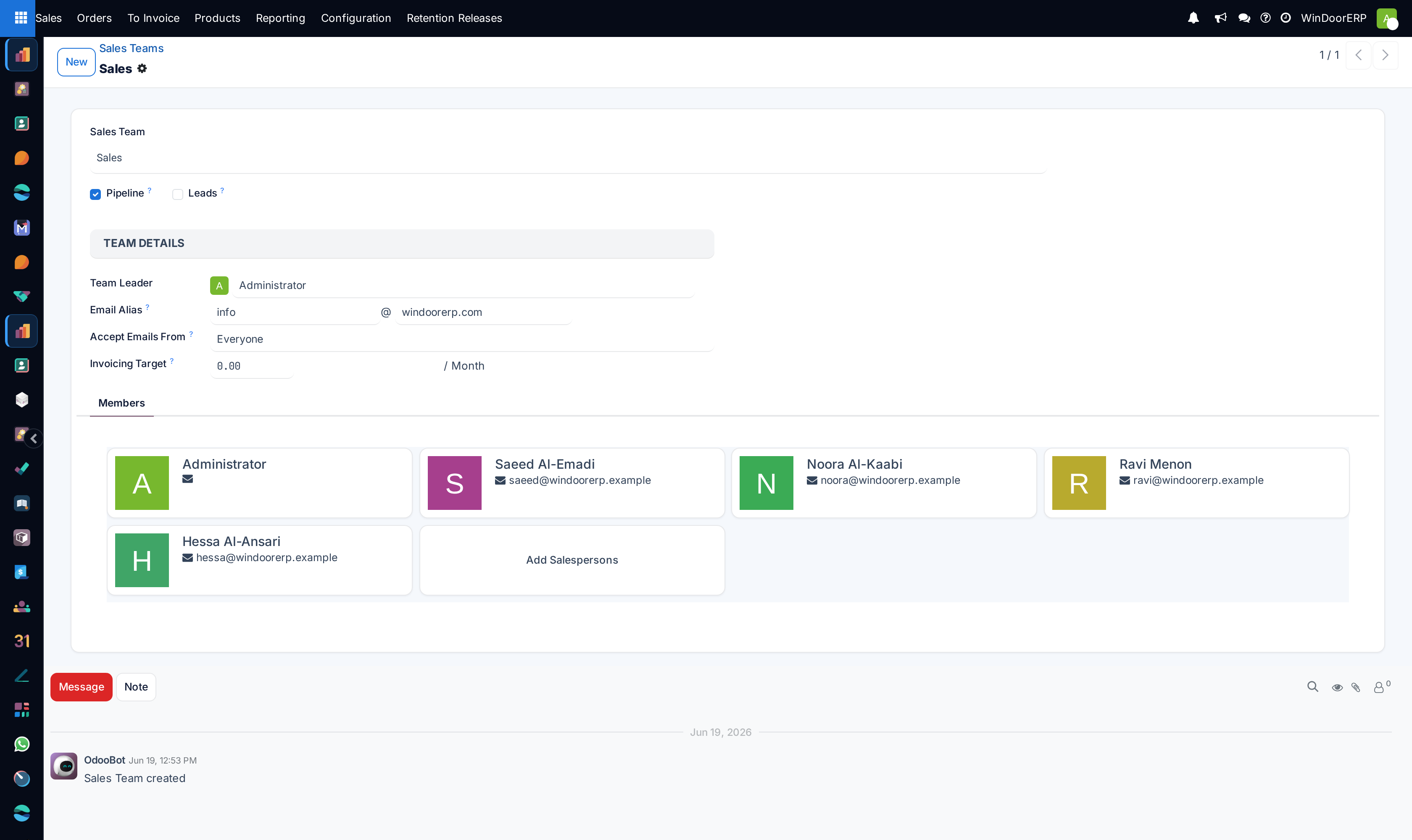
The team record, as it appears from the Sales app
| Field | What it does |
|---|---|
| Sales Team | The name. Translated per language, so an Arabic reader may see a different string for the same team. |
| Pipeline | On by default. Decides whether the opportunity links appear on the card and whether clicking the card in the CRM app opens the pipeline. |
| Leads | Off unless the lead stage is enabled in CRM settings. |
| Team Leader | A single user. Shown as the card's avatar. |
| Email Alias and its domain | Incoming mail address for the team. |
| Accept Emails From | Who may create records by mailing the alias. Ships as Everyone. |
| Invoicing Target, suffixed / Month | A monthly revenue goal in the company currency. It is a number you record; nothing on any screen compares against it automatically. |
| Members tab | Salesperson cards plus an Add Salespersons tile. This is the plain list; a richer membership record with capacities appears here instead once rule-based lead assignment is enabled, which it is not by default. |
The form has a chatter, so team changes are logged. It also has a New button in the breadcrumb, which is the practical way to add a second team.
Invoicing Target and Invoiced This Month
Invoiced This Month is computed but never displayed anywhere in the interface. Its definition is narrower than most people assume: it is the untaxed total of the team's posted customer invoices, credit notes and receipts dated from the first of the current month to today, and only those whose payment state is in payment, paid or reversed. An invoice that is posted but unpaid does not count towards it.
If you want a real comparison against a target, take it from Reporting ▸ Invoices on the ⋮ menu, or from the accounting reports, and compare it by hand with the number on the team form.
Troubleshooting
| What you see | Why, and what to do |
|---|---|
| Only one card | Expected. The tenant ships with one active team; the other two are archived. Search Filters ▸ Archived to see them. |
| No New button on the kanban | Creating from this kanban is disabled. Open a team and use the New button on its form. |
| Clicking the card opened a chart, not the team | By design in the Sales app. Use ⋮ ▸ Configuration for the record. |
| The same card opens the pipeline instead of a chart | You are in the CRM app, where the card is wired to the team's opportunities. Both behaviours are correct for their app. |
| No Leads or Opportunities links on the ⋮ menu | The team has the corresponding tick switched off. |
| No Invoices link | You lack invoicing rights. |
| Sales Analysis looks almost empty | It is filtered to the current month. Widen or remove the date chip. |
| The team card shows no unassigned-lead count | There are none, or the tenant does not use leads. The link is hidden at zero. |
| A team cannot be deleted | A team with five or more non-cancelled sales orders refuses deletion: "Team … has N active sale orders. Consider cancelling them or archiving the team instead." Quotations count towards that five. |
Common mistakes
- Looking for a target progress bar on the card. There has not been one since before this release; the target lives on the form and is not compared to anything automatically.
- Reading the figure the card click opens as a full-year or all-time total. It is the current month.
- Comparing that chart with Sales › Reporting › Sales without matching the filters. The two screens start from different defaults.
- Using View ▸ Sales Orders and expecting to see the team's quotations. That link deliberately excludes them.
- Assuming Invoiced This Month counts everything posted. It counts what has been paid.
- Creating a second team to represent a branch, then wondering why old orders did not move. The team on an order is stamped when the order is written; changing team membership does not rewrite history.
Was this article helpful?
Thanks — your feedback helps.
Running a window or door factory?
Ask for a demo