Move work through stages
What this does
A stage is a column on a board: one of the ordered steps a card passes through on its way from arriving to being finished. In WindoorERP the pipeline of opportunities has stages, so do project tasks, installation tasks and technical requests, and every one of those lists is separate — a stage belongs to the kind of record it was made for, never to the database as a whole. Two boards can and usually should have different columns.
Stages are yours to rename, reorder, colour and retire. What they cost is honesty: a card sitting in Proposition is a claim that a proposal went out, and every report built on the board repeats that claim. A board nobody maintains is a list with extra steps.
Before you start
- Where the stage list lives differs by application, and so does whether you need developer mode. The CRM and Project task lists are behind developer mode; the Installation and Technical Tasks lists are not; the Project Stages list appears once Use Stages on Project is switched on in the Project settings.
- Creating, renaming and deleting CRM stages requires the Sales Administrator role. Everyone else can read the list but not change it — the buttons are simply not offered.
- You do not need any of that to move a card. Dragging a card between columns needs only write access to the card itself.
Steps
-
01
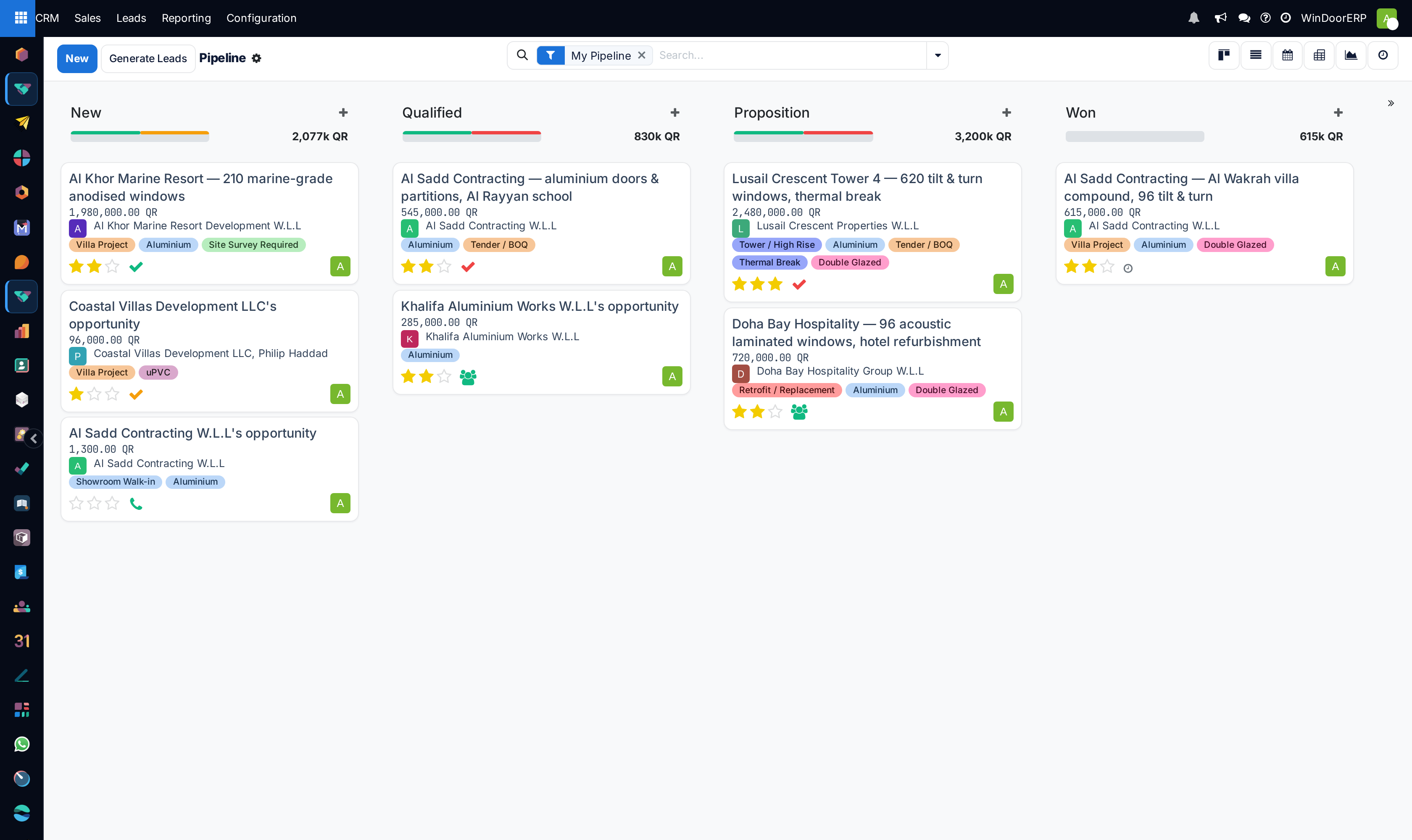
Open the board. For opportunities that is CRM › Sales › My Pipeline, which opens grouped by stage.
-
02
Drag a card from one column to another to move it, or open the card and click the stage you want on the status bar across the top of its form.
-
03
To add a column, click the narrow » strip at the far end of the board, type the name in the box that opens — its placeholder is the name of the grouping field, Stage… — and confirm with the tick. To rename, reorder or configure an existing one, use the ⚙ icon on its heading, then Edit.
-
04
To reorder the whole set at once, open the stage list instead — CRM › Configuration › Pipeline › Stages, with developer mode on — and drag the handle at the start of each row.
-
05
Save. New cards will now arrive in the first column that is not folded.
Where the stage lists are
There is no single stages menu. Each application keeps its own, and the path is worth writing down because two of them are hidden until you turn something on.
| Stage list | Where it is, and what it needs |
|---|---|
| Opportunity stages | CRM › Configuration › Pipeline › Stages. Requires developer mode. Editing requires the Sales Administrator role. |
| Project stages | Project › Configuration › Project Stages. Appears only when Use Stages on Project is enabled in the Project settings. These are the stages of a project, not of its tasks. |
| Task stages | Project › Configuration › Task Stages. Requires developer mode. |
| Installation task stages | Installation › Configuration › Task Stages. No developer mode needed. |
| Technical request stages | Technical Tasks › Configuration › Technical Request Stages. No developer mode needed. |
Note
To switch developer mode on, go to Settings › General Settings, scroll to Developer Tools and click Activate the developer mode.
Working with columns on the board
Most stage work is faster from the board than from the configuration list, and none of it needs developer mode.
Each column heading carries a ⚙ icon. It opens a short menu: Fold, which collapses that column for you until you reload; Edit, which opens the stage itself in a dialog titled Edit: <stage name>; and Delete, in red. Edit and Delete only appear when you have the rights for them.
Deleting asks first — “Are you sure you want to delete this column?” — and the confirm button is Delete. Move the cards out before you delete a column that still holds any.
To the right of the ⚙ is a + that creates a card straight into that column. At the far end of the board a narrow strip marked with a double chevron » creates a new column: click it, type a name in the box that opens — whose placeholder is the grouping field's own name, Stage… — then confirm with the tick or cancel with the cross.
Dragging a whole column sideways changes the order of the stages for everyone, not just for you. Dragging is the same edit as changing Sequence on the stage record.
Important
Folding from the ⚙ menu is temporary and personal: it hides that column on your screen and closes nothing. The Folded in Pipeline tick-box on the stage record is the permanent setting, and it means something different — see below.
The opportunity stage form
The list at CRM › Configuration › Pipeline › Stages shows the stages in pipeline order with a drag handle at the start of each row. Stage Name is read-only in the list, so open a row to rename it. Two more columns, Days to rot and Color, are hidden by default and can be switched on from the column picker at the far end of the header row.
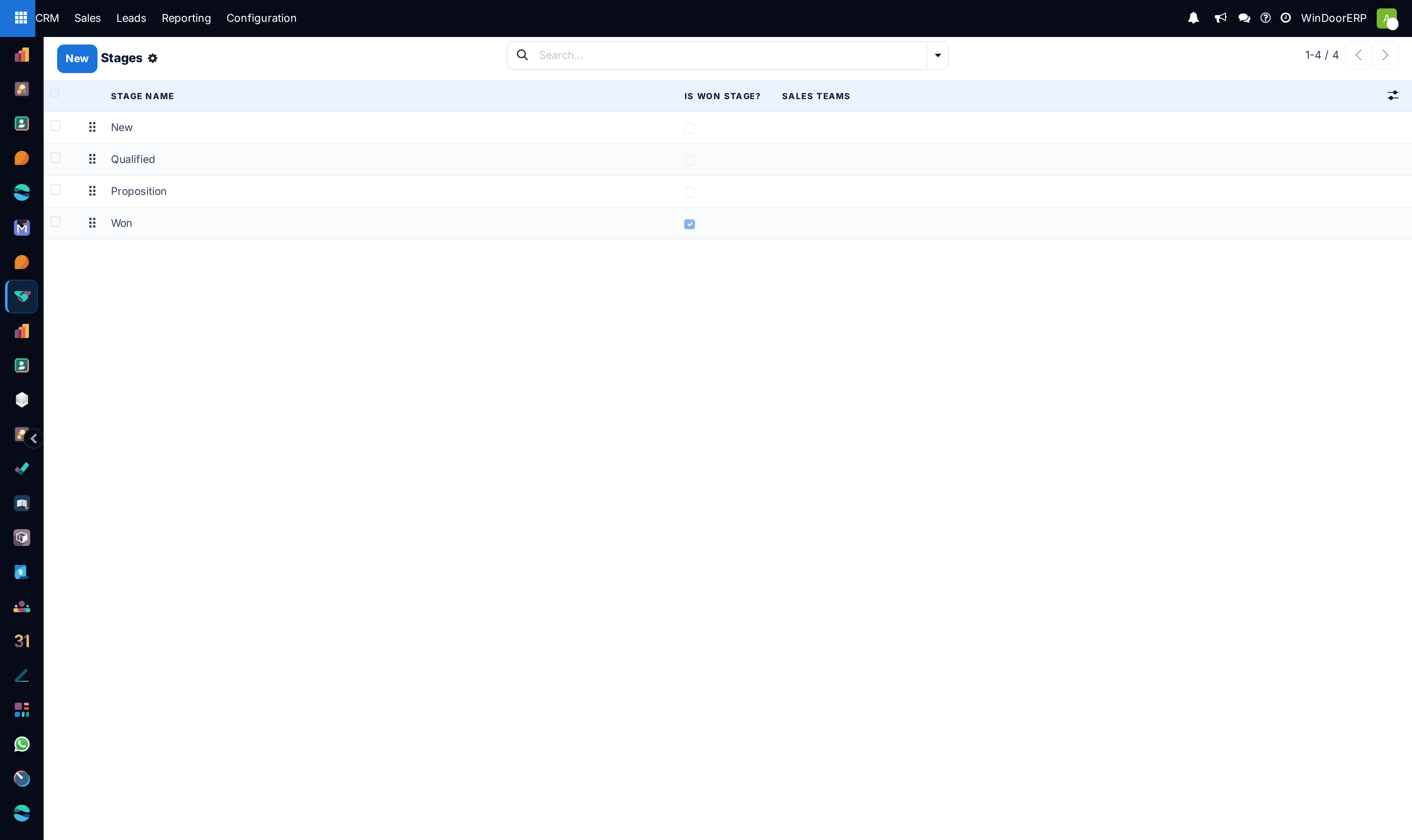
Opening a stage gives a short form. Two of its fields hide themselves, which is worth knowing before you conclude a setting is missing.
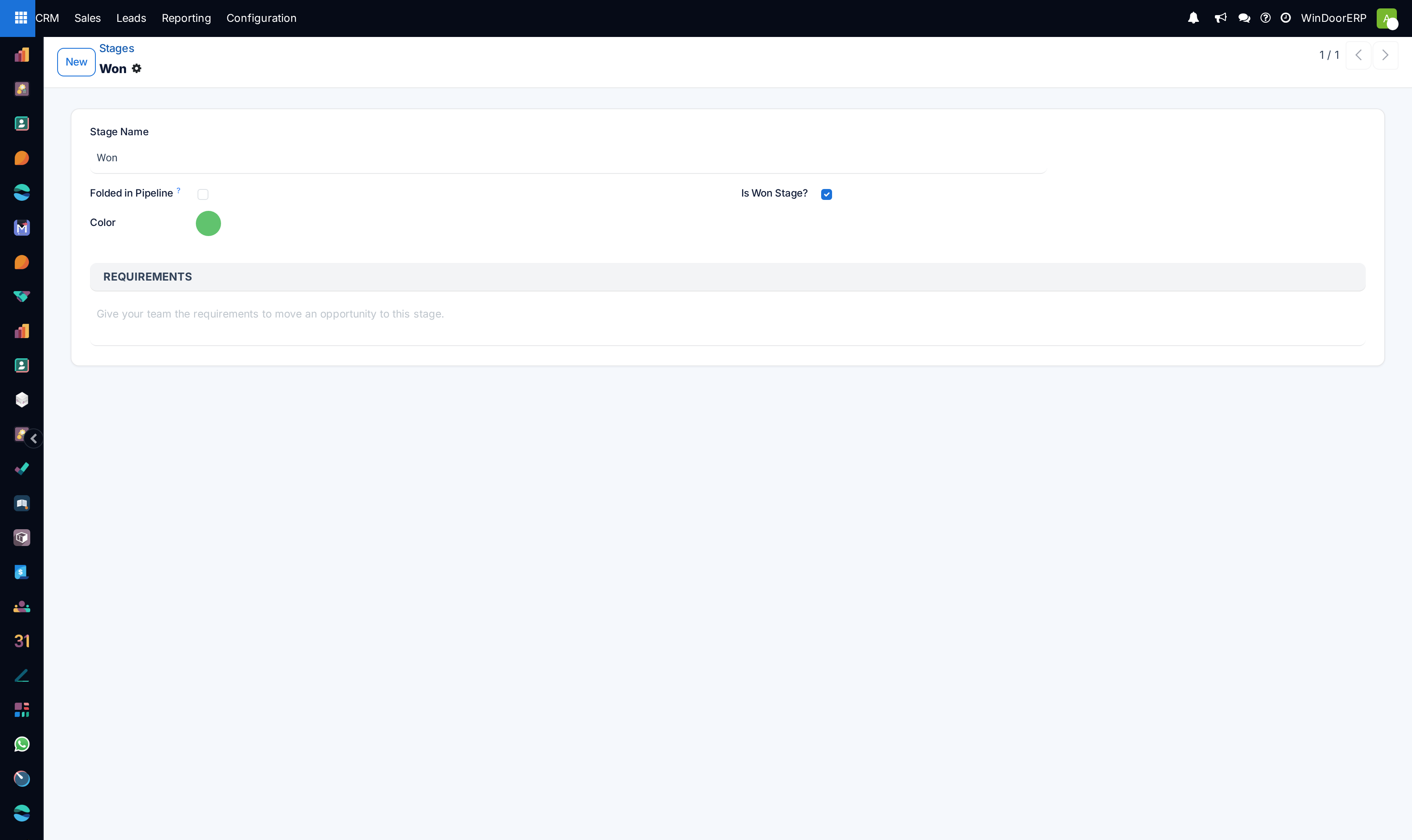
| Field | What it does |
|---|---|
| Stage Name | The column heading. Required, and translated, so an Arabic user can see an Arabic column name. Placeholder: e.g. Negotiation. |
| Folded in Pipeline | The column is collapsed on the board whenever it holds no cards. It is a tidiness setting, not a closing one. It has one real side effect: a folded stage is skipped when WindoorERP picks the stage for a brand-new opportunity. |
| Color | The colour dot beside the stage. Cosmetic; it changes nothing about behaviour. |
| Sales Teams | Which teams see this column. Leave it empty and the stage is shared with every team — the placeholder reads Shared with all teams. The whole field is hidden while the database has only one sales team, because there would be nothing to choose. You cannot create a team from here. |
| Is Won Stage? | Marks this as the stage that means the deal is won. It is not decoration — see the warning below. |
| Days to rot | How many days a card may sit in this stage before it is flagged as stale. 0 turns it off, and it is 0 on a new stage. The field is hidden when Is Won Stage? is ticked, because a won deal is not going stale. |
| Requirements | Free text describing what has to be true before a card may enter this stage. It is not enforced, but it is shown: hovering the column heading on the board pops it up, labelled Description. This is the cheapest way to make a board mean the same thing to everyone. |
Warning
Ticking Is Won Stage? rewrites every opportunity already in that stage: their probability is forced to 100%. Un-ticking it recomputes those probabilities from scratch, and any figure a salesperson had typed in by hand is gone. WindoorERP warns you when you change the box — “Do you really want to update this stage? Changing the value of 'Is Won Stage' may induce a large number of operations, as the probabilities of opportunities in this stage will be recomputed on saving.” — and the write happens when you save, not when you tick.
Which columns a board shows
A pipeline does not simply show every stage in the list. It shows the stages that are shared with all teams, plus the stages assigned to the team you are looking at, plus any stage that already holds one of the cards on screen — which is why a column you thought you had retired can reappear when someone leaves a card in it.
Team assignment reaches further than the board. A new opportunity is placed in the first stage, in sequence order, that is not folded and that serves its team. If you later move an opportunity to a different team and its current stage does not serve that team, its stage is reset to that team's first non-folded stage. Nothing announces this, so check the board after a re-assignment.
Catching work that has gone quiet
Days to rot is the board's own nagging. Set it to a number of days on a stage, and any card that has sat in that stage longer than that is flagged.
The flag is a pink day-count badge on the card — 5d, 7d — and a pink count badge beside the stage's progress bar telling you how many of them there are.
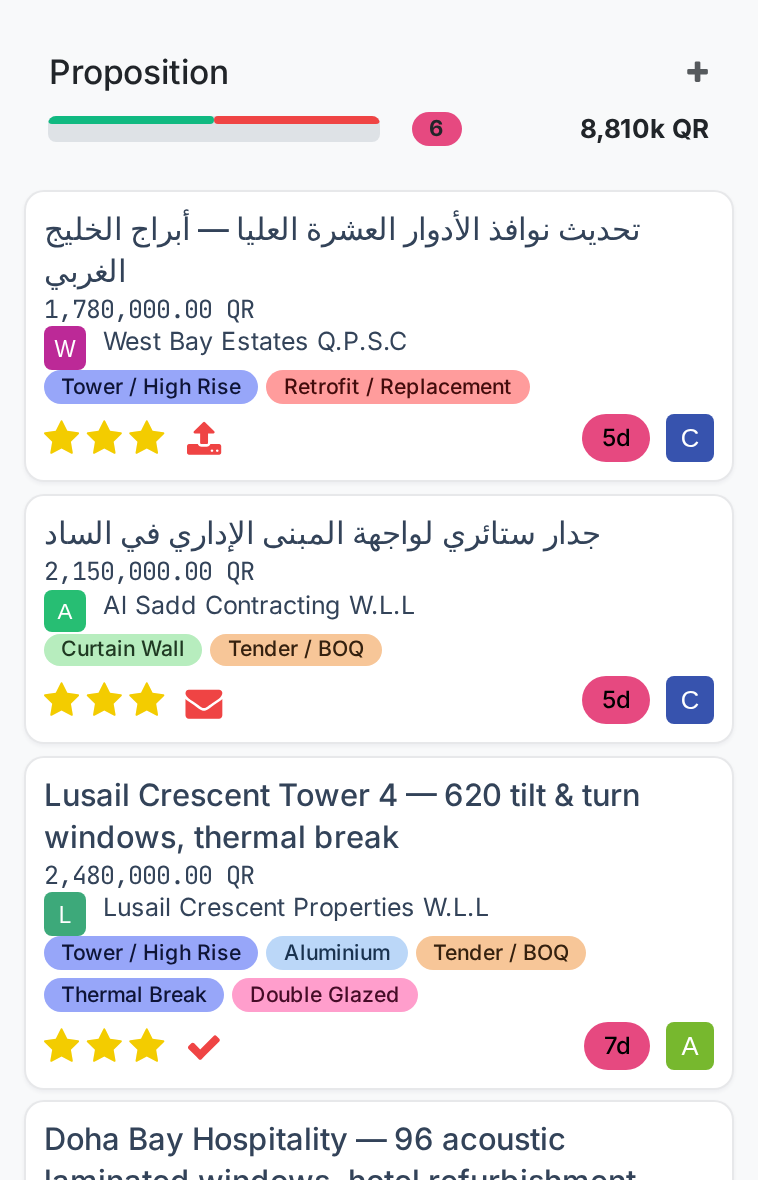
Two details decide whether you will ever see it. First, the clock starts at the last stage change, not at the last time anyone touched the record — a card you have been emailing about daily still rots if it has not moved. Second, in the opportunity pipeline only open opportunities can rot: leads do not, and neither do opportunities already marked won or lost.
Set the threshold from the stage record, either through the configuration list or through ⚙ › Edit on the column heading. Changing it does not retroactively re-date cards that were already sitting there before the change.
Note
Days to rot has no Arabic translation in this release, so it shows in English on the Arabic stage form. That is the label to look for.
Reading the progress bar
The coloured bar above each column is not a completion meter. It breaks the cards in that column down by whatever field the board was built to track, and the field differs per board.
On the opportunity pipeline the field is the state of each card's scheduled activity: green for planned, orange for due today, red for overdue, and grey for cards with no activity at all. The board's own tooltip says so — “This bar allows to filter the opportunities based on scheduled activities.” On the project task board the same bar is broken down by the task's state instead.
The figure beside the bar is a total, not a count: in the pipeline it is the sum of Expected Revenue for the column.
Hover a coloured segment and a tooltip gives its count and label. Click it and the column narrows to just those cards, with the count shown next to the bar; click the same segment again to release it.
Email and SMS on arrival
Sending something automatically when a card lands in a stage is a project feature, not a pipeline one. Opportunity stages have no template fields at all, and no amount of dragging in the pipeline will send a customer an email by itself.
Project task stages and project stages each carry two fields: Email Template, which sends the chosen template to the customer when a record reaches that stage, and SMS Template, which does the same by text message. Pick an existing template, or type a new name and choose Create and edit to build one on the spot. Task stages additionally offer a Rating Email Template, which asks the customer for feedback either on arrival or on a repeating schedule.
Task stages also carry a Stage Owner, the person tasks in that stage default to.
What folding really means
The word folded is used by three different stage models and means something slightly different in each. This is the single most common source of wrong reporting on a board.
| Where | What ticking it does |
|---|---|
| Opportunity stages — Folded in Pipeline | The column collapses only while it is empty, and the stage is skipped when a new opportunity is placed. It does not mark the cards in it as closed. Won and lost are tracked separately, by Is Won Stage? and by marking an opportunity lost. |
| Project stages — Folded | The stage shows as folded in the kanban and list views, and projects in a folded stage are treated as closed. This one really does change reporting. |
| Task stages, installation stages, technical request stages — Folded / Folded in Kanban | A display setting for the column. No closing semantics attached. |
Troubleshooting
A stage is missing from the board. Either it is folded and empty, or it belongs to another sales team, or nobody has ever put a card in it. Open the stage list to see the full set.
Dragging a card does nothing. Check what the board is grouped by first — a board grouped by anything other than stage cannot be reordered by dragging into a column. If it is grouped by stage, you do not have write access to that card.
There is no add-column strip, or the ⚙ menu has no Edit or Delete. You are missing the rights to change stages. For the pipeline that is the Sales Administrator role; ask an administrator rather than looking for a hidden setting.
The Sales Teams field is not on the stage form. The database has only one sales team, so WindoorERP hides a field with nothing to choose in it. Create a second team and the field appears.
Days to rot is not on the stage form. Is Won Stage? is ticked on that stage, which hides it. Untick it if the stage was not meant to be the won stage.
Nothing ever rots. Check three things in order: the threshold is not 0; the cards are opportunities rather than leads; and they are neither won nor lost. Remember too that the count starts from the last stage change, so a card that moved yesterday starts again from zero.
Probabilities all jumped to 100%. Somebody ticked Is Won Stage? on a stage that still held live opportunities. Un-ticking it recomputes them, but hand-entered probabilities are not recoverable.
An opportunity changed stage on its own. Its sales team changed and the stage it was in does not serve the new team, so it was reset to that team's first open stage.
“Are you sure you want to delete this column?” — this is the confirmation before a stage is deleted, not a warning about the cards. Cancel, move the cards out, then delete.
Two boards have different columns and one of them looks wrong. They are different stage lists. Opportunity stages, project stages, task stages, installation stages and technical request stages are five separate sets of records that happen to share a word.
Common mistakes
- Treating Folded in Pipeline on an opportunity stage as “this stage is closed”. It is not — it only collapses an empty column, and it quietly pushes new opportunities past that stage.
- Ticking Is Won Stage? to tidy a name, and rewriting every probability in the stage as a side effect.
- Deleting a stage that still holds cards instead of moving them first.
- Expecting a stage to send an email in the pipeline. That field exists on project stages, not on opportunity stages.
- Setting an email template on a project stage without reading it. The customer receives it the moment anybody drags a card.
- Leaving Requirements empty and then arguing about what Qualified means. It is one text box, and it shows on hover to everyone.
- Reading the progress bar as progress. On the pipeline it is scheduled activities; the number beside it is money, not a card count.
Was this article helpful?
Thanks — your feedback helps.
Running a window or door factory?
Ask for a demo