Manage Annual Maintenance Contracts (AMC) and recurring preventative site visits
What this does
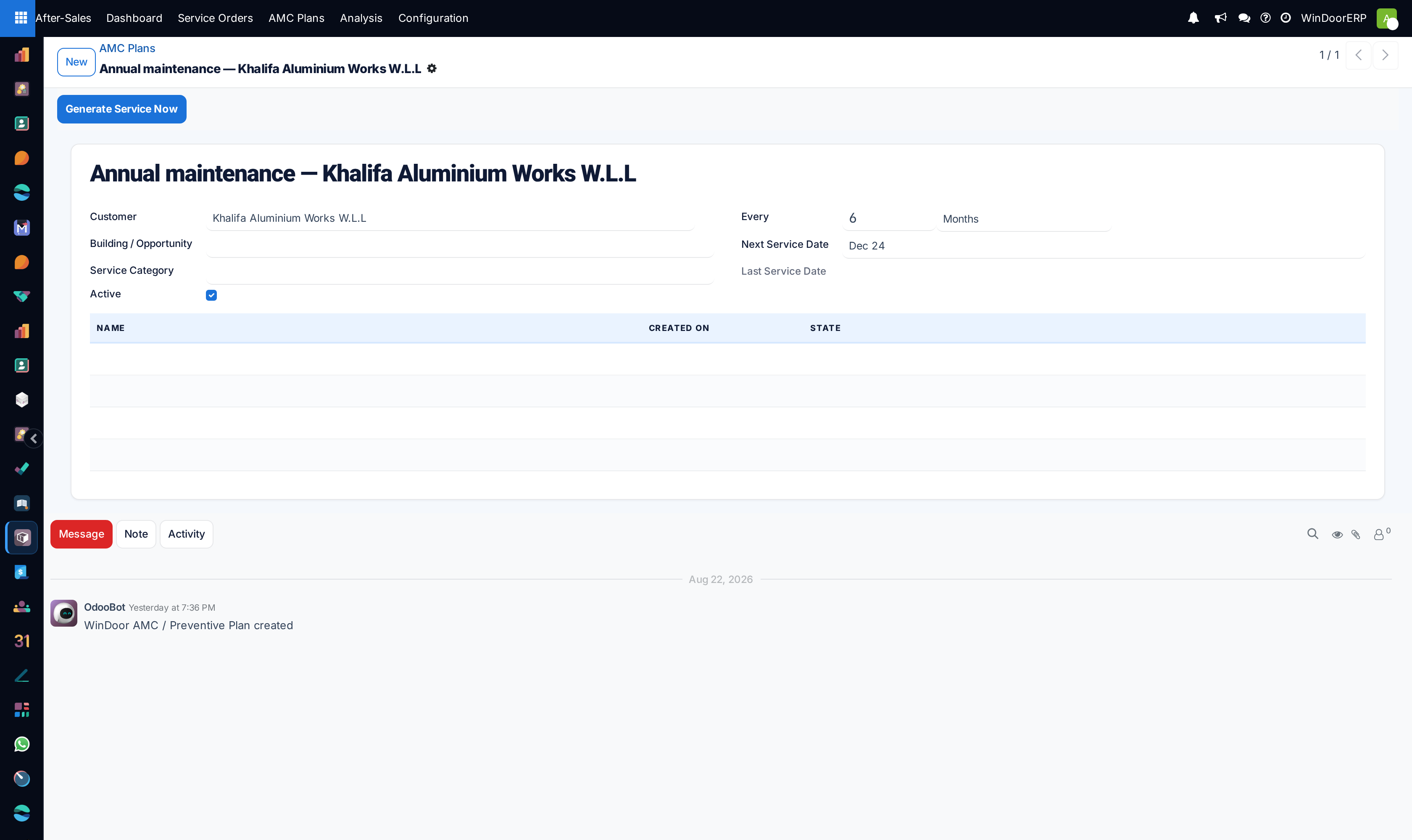
An AMC plan is a repeating timer against a customer: every time its Next Service Date comes due, WindoorERP raises a preventive service order by itself and rolls the date forward by the plan's interval. The plan is the schedule; the visits it raises are ordinary service orders that flow through the normal triage-schedule-done cycle.
Before you start
- You need the After-Sales app (the Service User group).
- Agree the commercial side — price, scope, exclusions — on paper or on a sales quotation first: the plan record deliberately does not hold money or terms.
Steps
-
01
Open After-Sales › AMC Plans and click New.
-
02
Set the Customer, and the Building / Opportunity so the visits land in the right building's history.
-
03
Pick a Service Category — it is copied onto every service order the plan raises.
-
04
Set the interval: Every 6 Months is the default; quarterly visits are 3 Months.
-
05
Set the first Next Service Date — the first visit is generated on that day.
-
06
Save. The plan gets an
AMC-reference and starts running.
The plan, field by field
| Field | What it does |
|---|---|
| Customer | Required. Every generated service order is created on this customer. |
| Building / Opportunity | Copied to each generated order, keeping the building's service history in one place. |
| Service Category | Copied to each generated order — a category like Adjustment keeps preventive work distinguishable in the analysis. |
| Every | The interval: a number plus Months or Years. Default 6 months. |
| Next Service Date | Required. When the next visit will be raised. The row turns yellow in the list once this date is due. |
| Last Service Date | Read-only; stamped each time a visit is generated. |
| Active | Untick to archive the plan — the archived plan stops generating, and its history stays. |
| Service Count and the embedded list | Every service order the plan has raised, with its date and state — the plan's own evidence at renewal time. |
What the automation actually does
Once a day, a scheduled job finds every active plan whose Next Service Date has arrived and, for each, creates one service order — source AMC / Preventive, state New, the plan named in its AMC Plan field and the due date copied into Preferred Date/Time. It then stamps Last Service Date and moves Next Service Date forward one interval.
The generated order is not a booked visit: it arrives in New like any other request and still needs someone to triage it, assign a technician and press Schedule — that is the moment the customer is emailed.
A plan whose date is far in the past catches up gradually: the daily job raises one order per day, advancing the date one interval each time, until the date is in the future again.
Generate Service Now on the plan form raises a service order immediately — and it does not check the due date, so pressing it on a plan that is not due still creates a visit and advances the schedule. Use it for a customer who calls asking to bring the visit forward, not for testing.
What the plan does not do
- No end date and no renewal: a plan runs until someone archives it. Renewal is a decision you take, not an event the system fires.
- No billing: the plan holds no contract value and raises no invoices. Price the contract on a sales order, and charge out-of-scope work through the Create Charge Quotation button on the individual service order.
- No advance notice: the order is created on the due date itself, not fourteen days before. If crews need lead time, set the Next Service Date earlier than the visit you promised.
Troubleshooting
| Symptom | Cause and fix |
|---|---|
| The due date passed and no service order appeared | The generator runs once a day — wait for the daily run, or press Generate Service Now. Also check the plan is Active: archived plans generate nothing. |
| Orders keep appearing for a contract that ended | Nothing expires a plan by itself. Archive it (untick Active). |
| The customer was not told about the visit | Generation sends no message. The customer is emailed when the generated order is Scheduled — so triage the New queue. |
| Pressed Generate Service Now to test, now the schedule is wrong | Each press advances Next Service Date one interval. Set the date back by hand and cancel the extra order. |
Common mistakes
- Expecting the plan to invoice the contract — it never touches money; the commercial contract lives in Sales.
- Leaving generated orders sitting in New, which turns "preventive maintenance" into a queue of missed promises.
- Archiving nothing, so lapsed buildings keep generating work orders nobody sold.
Was this article helpful?
Thanks — your feedback helps.
Running a window or door factory?
Ask for a demo