Receive incoming email in the database
What this does
Sets up how mail gets into the database: how a customer's reply finds its way back to the record it belongs to, and how a message to a shared address can open a new lead or bill.
Without this half configured, everything you send is one-way. Customers reply, and nobody ever sees it.
Before you start
- Administrator rights, and developer mode for the alias screens.
- A mailbox the database may poll, with its IMAP or POP details.
- The sending half working first — see Send outgoing email from the database. There is no point catching replies to mail that never went out.
Steps
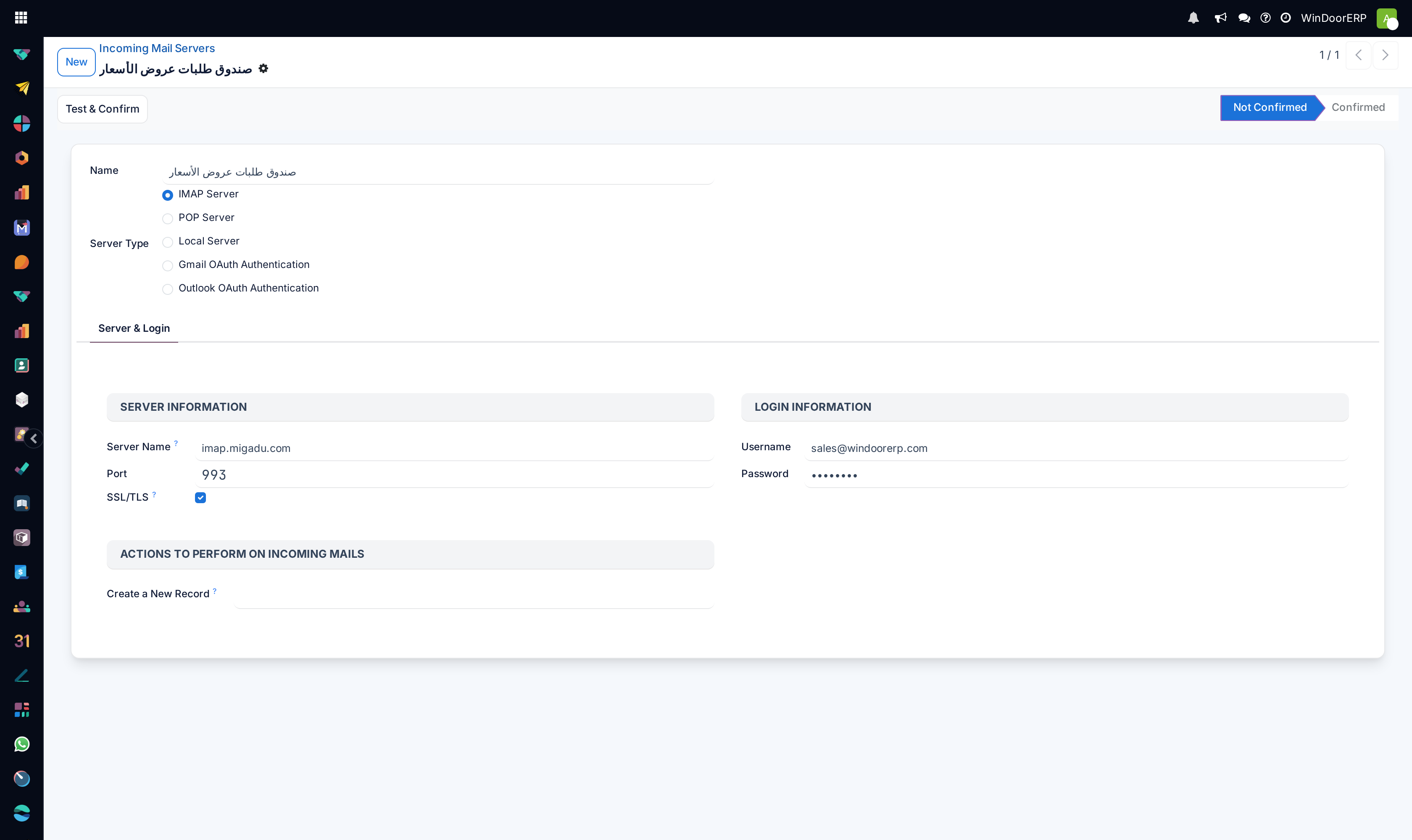
-
01
Open Settings ▸ Technical ▸ Email ▸ Incoming Mail Servers and click New.
-
02
Name it after the mailbox it polls, and pick a Server Type: IMAP Server is the usual choice.
-
03
On the Server & Login tab fill in Server Name, Port, SSL/TLS, and the Username and Password of the mailbox.
-
04
Click Test & Confirm. The status moves from Not Confirmed to Confirmed only if the connection really worked.
-
05
Set Create a New Record if a message that matches no existing thread should open something — a lead, a bill — rather than being discarded.
-
06
Switch on the scheduled job Mail: Fetchmail Service. It ships disabled, and until it is enabled nothing is ever fetched, however correct the server is.
-
07
Reply to one of your own outgoing messages from an outside mailbox and confirm it lands in that record's chatter.
Every field on an incoming mail server
| Name | Free text. Name it after the mailbox, not the purpose — purposes change. |
|---|---|
| Server Type | IMAP Server · POP Server · Local Server · Gmail OAuth Authentication · Outlook OAuth Authentication. Prefer IMAP: POP tends to remove mail from the mailbox as it reads it. |
| Server Name / Port | Host and port. 993 with SSL/TLS for IMAP, 995 for POP. |
| SSL/TLS | Encrypts the connection. Leave it on. |
| Username / Password | The mailbox credentials. Often the full address. |
| Create a New Record | The model a message creates when it matches no existing thread. Empty means such messages are simply not kept. |
| Test & Confirm | Header button. Connects with what you entered and moves the status bar to Confirmed. |
| Status | Not Confirmed until the test passes. A server left unconfirmed is not polled. |
| Advanced tab | Visible in developer mode only: Server Priority (fetch order), Keep Attachments, Keep Original (stores the raw message beside the parsed one), a Script hook, the Last Fetch Date, and the Last Error Date and Message — which is where a failing poll records why. |
How a message finds its record
Every outgoing message carries a reply address that identifies the record it came from. When the reply arrives, the database reads that address and files the message in the same chatter. Nothing is matched on subject lines.
Mail sent to a plain shared address instead — sales@, info@ — is handled by an alias, which says what such a message should create. On this installation info opens a CRM lead, and sales and purchases open accounting documents.
Every field on an alias
Aliases live under Settings ▸ Technical ▸ Email ▸ Aliases in developer mode.
| Alias Name | The local part — the bit before the @. |
|---|---|
| Alias Domain | Which domain it belongs to. Alias Email shows the assembled address. |
| Aliased Model | What an unmatched message creates. |
| Default Values | Values stamped on every record the alias creates — a team, a salesperson, a tag. Written as a Python dictionary, so a syntax error here stops the alias silently. |
| Alias Contact Security | Who may post through it: Everyone (the default) · Authenticated Partners, meaning known contacts only · Followers only · Authenticated Employees. Everyone is right for a public sales address and wrong for anything internal. |
| Local-part based incoming detection | Off by default. Matches on the local part alone, ignoring the domain — useful when one mailbox receives several domains. |
| Custom Bounced Message | What a refused sender is told. Worth writing: the default tells them nothing useful. |
| Record Thread ID | Pins every message from this alias to one specific record instead of creating new ones. |
| Alias Status | The result of the last message this alias handled — the first place to look when an address stops working. |
The two system addresses
Beyond your own aliases, the alias domain carries a Catchall Alias, which is where replies come back to, and a Bounce Alias, where delivery failures land. Both need real mailboxes.
They may be set to the same address, and on this installation they are. That works, but it means a bounce and a genuine reply arrive together — worth knowing before you go looking for a lost message.
When mail goes to the wrong place
An alias with contact security set to Everyone accepts mail from anyone, so a public address will collect spam and open a record for each piece. Tighten it to Authenticated Partners if that becomes a problem.
Loops are the other failure. If the database mails an address that auto-replies, and that auto-reply is itself accepted and answered, the two systems will talk to each other indefinitely. Never point an alias at a mailbox with a vacation responder or a ticketing auto-acknowledgement.
Replies that open a new record instead of joining a thread usually mean the customer wrote to the plain address rather than replying, so no record reference was present.
Troubleshooting
| Nothing is ever fetched | The Mail: Fetchmail Service job is still disabled — it ships that way — or the server is still Not Confirmed. |
|---|---|
| Test & Confirm fails | Host, port, SSL or credentials. Many providers also require an app password rather than the account password. |
| Mail is fetched but nothing appears | No alias matches and Create a New Record is empty, so the messages are discarded. |
| Replies open new records | The customer wrote to the address rather than replying, so the reply carried no record reference. |
| An address suddenly stopped working | Check Alias Status, then the Last Error Message on the Advanced tab of the server. |
| Two systems are mailing each other endlessly | An alias points at an auto-responding mailbox. Break the loop at the mailbox, not in WindoorERP. |
| A public address is full of spam records | Set that alias's contact security to Authenticated Partners. |
| The mailbox is emptying itself | The server type is POP, which removes mail as it reads. Use IMAP. |
Common mistakes
- Configuring the server and never enabling the fetch job, then reporting that incoming mail does not work.
- Leaving a server Not Confirmed and assuming saving was enough.
- Pointing an alias at a mailbox that auto-replies.
- Using a mailbox people also read by hand — the database and the person both consume it, and each thinks the other lost the message.
- Leaving Create a New Record empty and silently discarding everything unmatched.
- Renaming the catchall on a live system, which strands every reply already in flight.
Was this article helpful?
Thanks — your feedback helps.
Running a window or door factory?
Ask for a demo