Log in to your WindoorERP account
What this does
Signs you in to your company's WindoorERP database, so every quotation, production order and design you touch is recorded under your own name.
Accounts are not self-service. An administrator creates the user and WindoorERP emails an invitation; you follow the link in it once to set your own password.
Before you start
- Ask your administrator for the address of your database — it looks like https://yourcompany.windoorerp.com.
- Find the invitation email before you begin. The link in it expires; if it has, ask for a new invitation rather than reusing the old message.
- Check the spam folder before reporting that no invitation arrived.
Steps
You land on the apps menu — or straight on the screen you were trying to reach, if a link is what sent you to the login page.
-
01
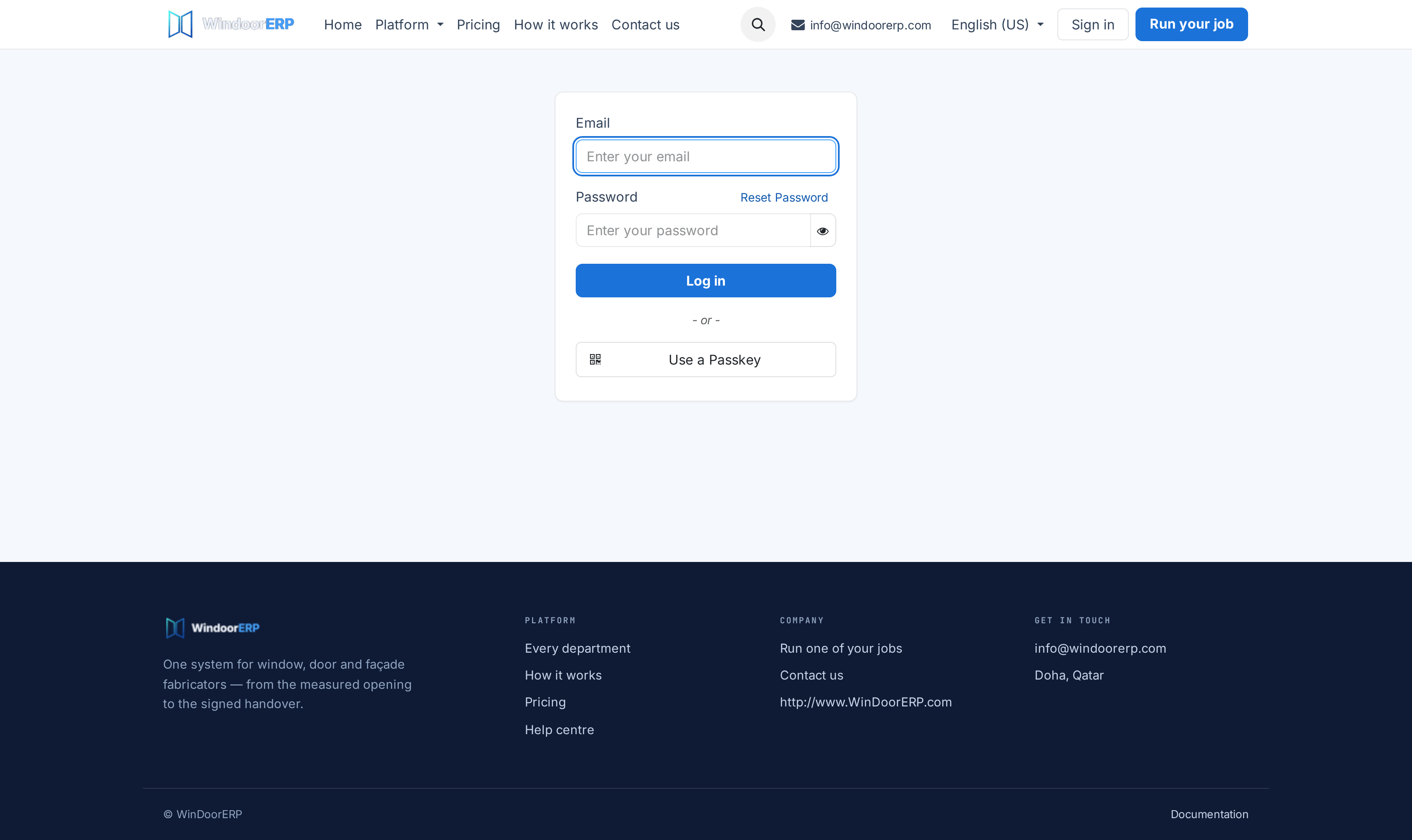
Go to your database address followed by /odoo — for example https://yourcompany.windoorerp.com/odoo.
-
02
Type your Email: the address the invitation was sent to, not a nickname or an employee number.
-
03
Type your Password. The eye icon at the end of the box shows what you typed, so you can read it back before sending it.
-
04
Click Log in.
-
05
If your account uses two-factor authentication, type the six-digit code from your authenticator app and confirm.
Everything on the login page
| Your login. It is the address the invitation was sent to. Placeholder Enter your email. | |
| Password | Placeholder Enter your password, with an eye icon to reveal what you typed. |
| Reset Password | Sits beside the Password label, not under the button. Sends a reset link to the address you type. |
| Log in | Signs you in. |
| Use a Passkey | Signs you in with a passkey — a fingerprint, a face, or a hardware key — instead of a password, if you have registered one. |
Note
Customers and suppliers sign in on the same page, but they land in the portal — their own quotations, orders and invoices — not in the apps menu.
Right after your first login
Three things are worth doing before you start work, all from your avatar at the end of the top bar.
- Set your Language in My Preferences, so menus, buttons and this manual follow you.
- Set your Timezone on the Calendar tab of the same dialog. Every date and time you see is converted into it, so a wrong one quietly shifts deadlines.
- Turn on two-factor authentication from My Preferences ▸ Security. It is the single biggest improvement you can make to an account that prices and approves orders.
Bookmark the /odoo address rather than the screen you end up on. A deep bookmark still works, but it sends you through the login page whenever your session has expired.
The Security tab, control by control
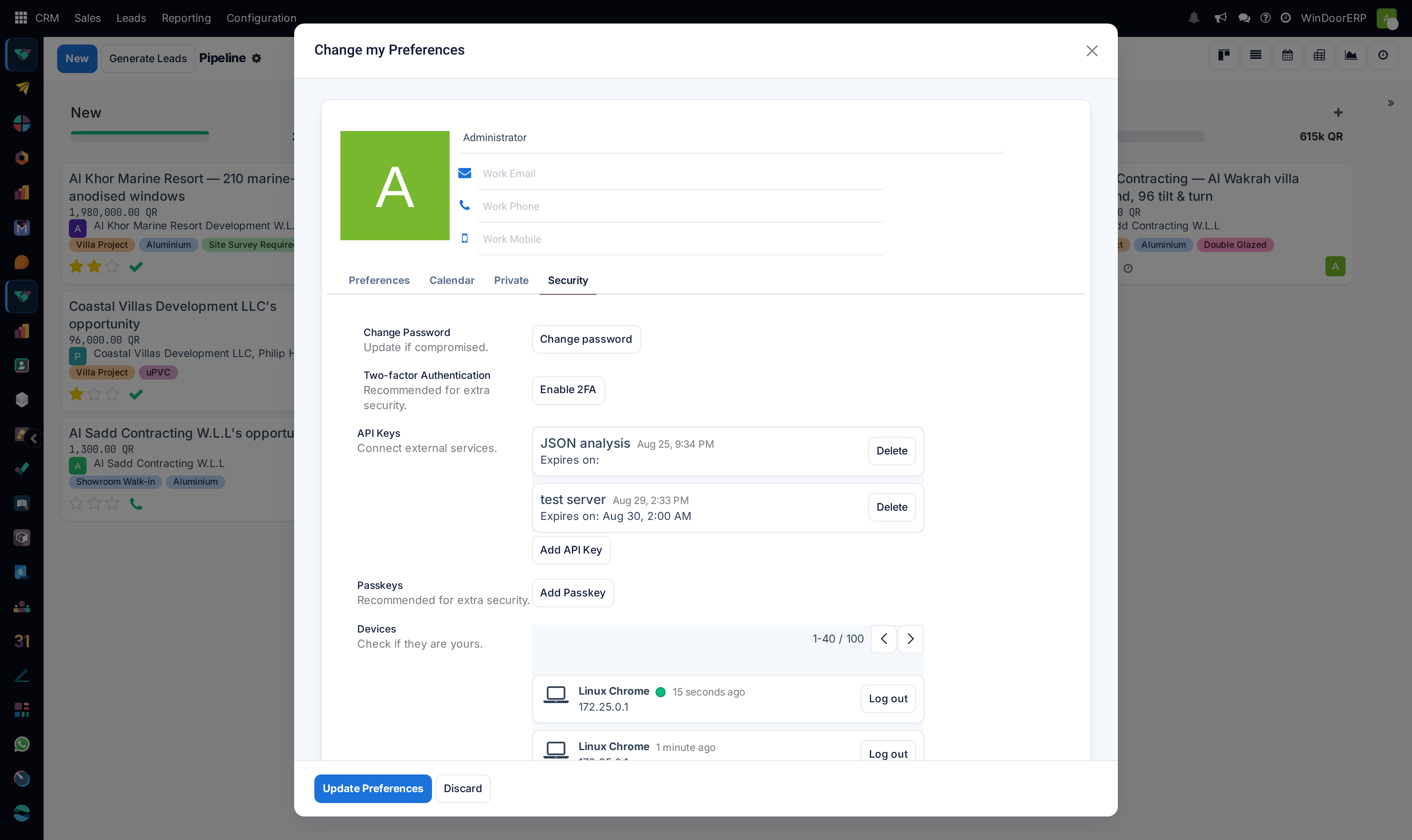
| Change Password | Update if compromised. The Change password button asks for your current password before it accepts a new one. |
|---|---|
| Two-factor Authentication | Recommended for extra security. Enable 2FA walks you through pairing an authenticator app. From then on, a six-digit code is asked for after your password. |
| API Keys | Connect external services. Each key is listed with its name and expiry, with Delete beside it, and Add API Key below. A key logs in as you — treat one like a password. |
| Passkeys | Recommended for extra security. Add Passkey registers a fingerprint, face or hardware key, which is what the Use a Passkey button on the login page then accepts. |
| Devices | Check if they are yours. Every session opened with your account: operating system and browser, when it was last used, and the address it came from. Each row has its own Log out. |
Signing out
Click your avatar and choose Log out. That ends the session you are in.
On a shared or borrowed computer, also open My Preferences ▸ Security and look at Devices. Log out anything you do not recognise, one row at a time — there is no single button that ends every session at once, so work down the list.
The Devices list is also the fastest way to answer "is somebody else using my account?". A row from an operating system or a location you have never used is worth reporting immediately.
Important
Never share an account. Two people on one login means the chatter, the approvals and the audit trail all name the wrong person — and revoking access for one of them locks out both.
Troubleshooting
| Wrong login or password | Check Caps Lock, and that you are typing your email address rather than your name. Then use Reset Password; a link arrives by email. |
|---|---|
| No invitation arrived | Look in spam first, then ask an administrator to re-send it from Settings ▸ Users & Companies ▸ Users. |
| The invitation link no longer works | It has expired. A new invitation, or a password reset, replaces it. |
| Access denied on an account that worked yesterday | The account may have been archived, which is how an administrator frees a seat. Only an administrator can restore it. |
| Nothing loads at all | Wrong address, or you are off the network. Try the address on a phone using mobile data before reporting the system down. |
| Signed out repeatedly | The session expired, or somebody logged that device out from the Devices list. |
| The passkey button does nothing | No passkey is registered for this account on this device. Register one from Security ▸ Add Passkey while signed in. |
| Lost the authenticator phone | Only an administrator can clear two-factor authentication for you. Nothing on the login page can. |
Common mistakes
- Using the password from a different WindoorERP database. Passwords belong to a database, not to a person.
- Letting the browser fill an old password after a reset, then reporting that login is broken.
- Sharing a login with a colleague "just until their account is ready" — every record they create is then filed under your name.
- Creating an API key for a quick integration and forgetting it. It keeps working, as you, until someone deletes it.
- Ignoring the Devices list on a shared machine, and leaving a signed-in session behind.
Was this article helpful?
Thanks — your feedback helps.
Running a window or door factory?
Ask for a demo