Receive and deliver in two steps
What this does
Adds one staging stop at each end of the warehouse. Goods arrive into an input area and a second transfer puts them away; orders are picked to an output area and a second transfer ships them. Nothing about the screens changes — there is simply one more transfer to find and validate in each direction.
What two steps buy you is a separation the one-step flow cannot express. Receiving and putting away become two jobs, done by two people at two different times, and each is recorded when it actually happened rather than both at once when somebody got round to the paperwork.
The two settings are independent. You can receive in two steps and deliver in one, or the other way round, and you can mix two-step receipts with three-step deliveries.
Where this stands on your system
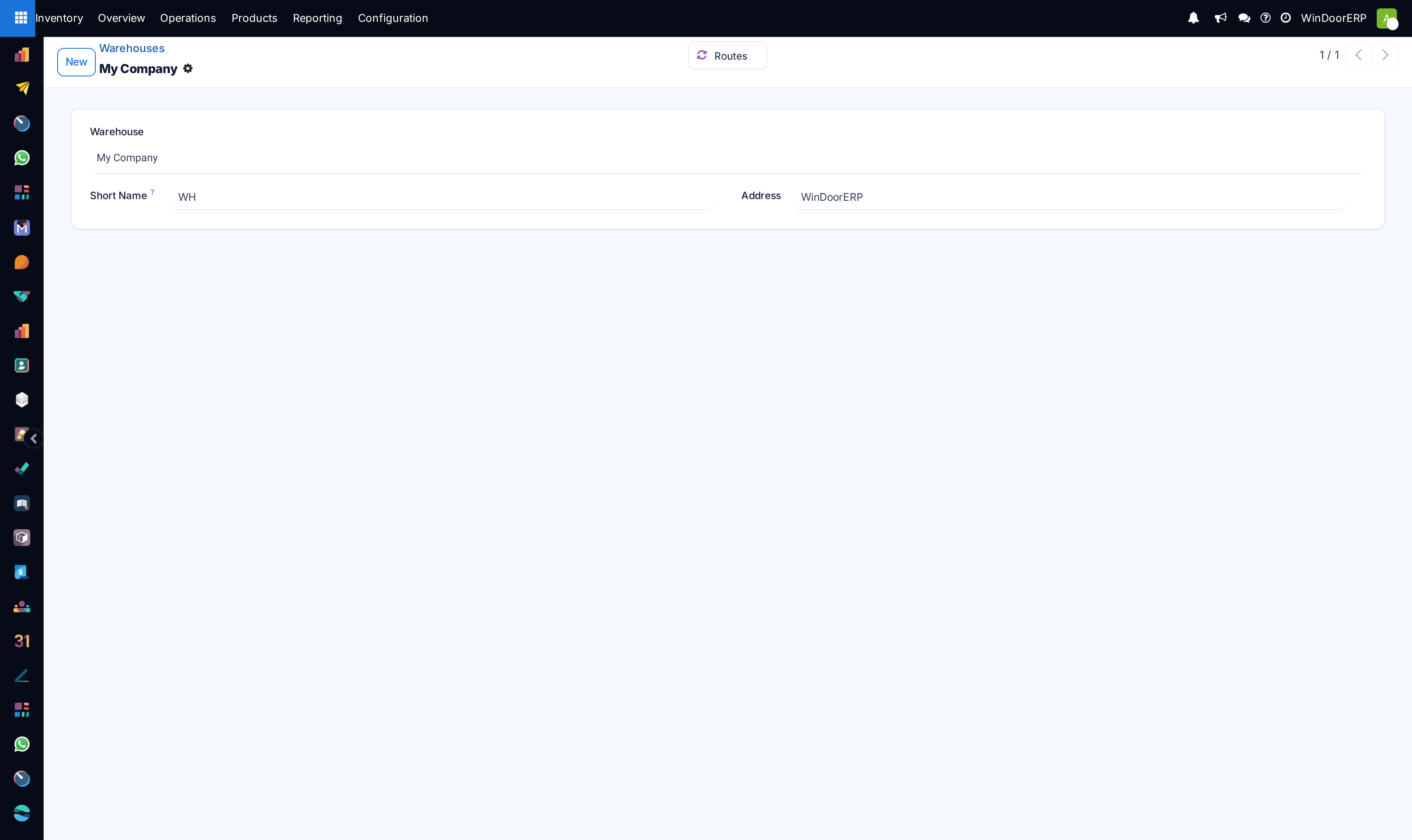
Every warehouse in this installation ships as Receive and Store (1 step) and Deliver (1 step), and the Multi-Step Routes setting that offers anything else is switched off. This article therefore describes a configuration you can move to, not the one you are running. If you open Inventory ▸ Configuration ▸ Warehouse Management ▸ Warehouses today you will find a form with a name, a short name and an address and no shipment options at all — the whole Warehouse Configuration tab appears only once Multi-Step Routes is on.
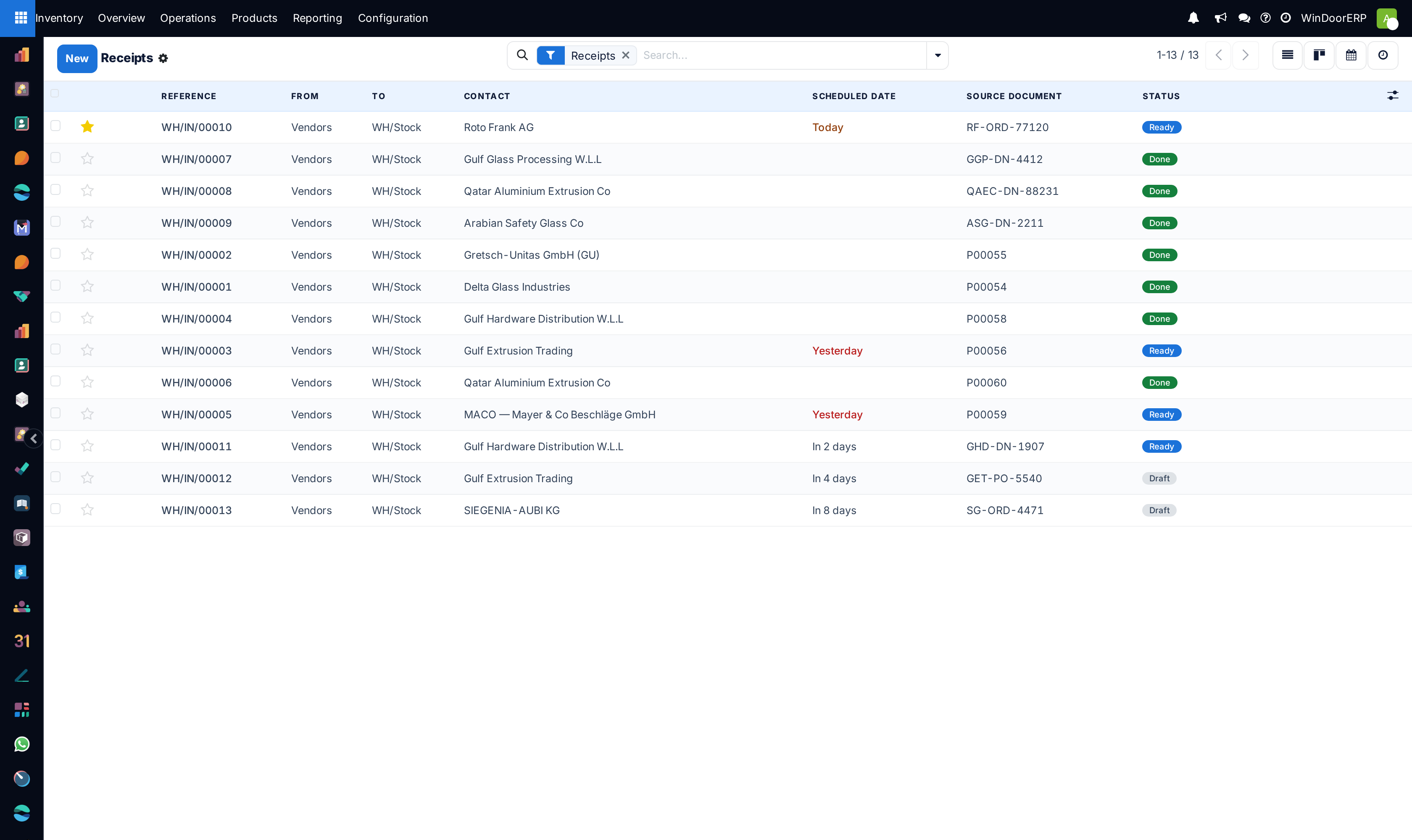
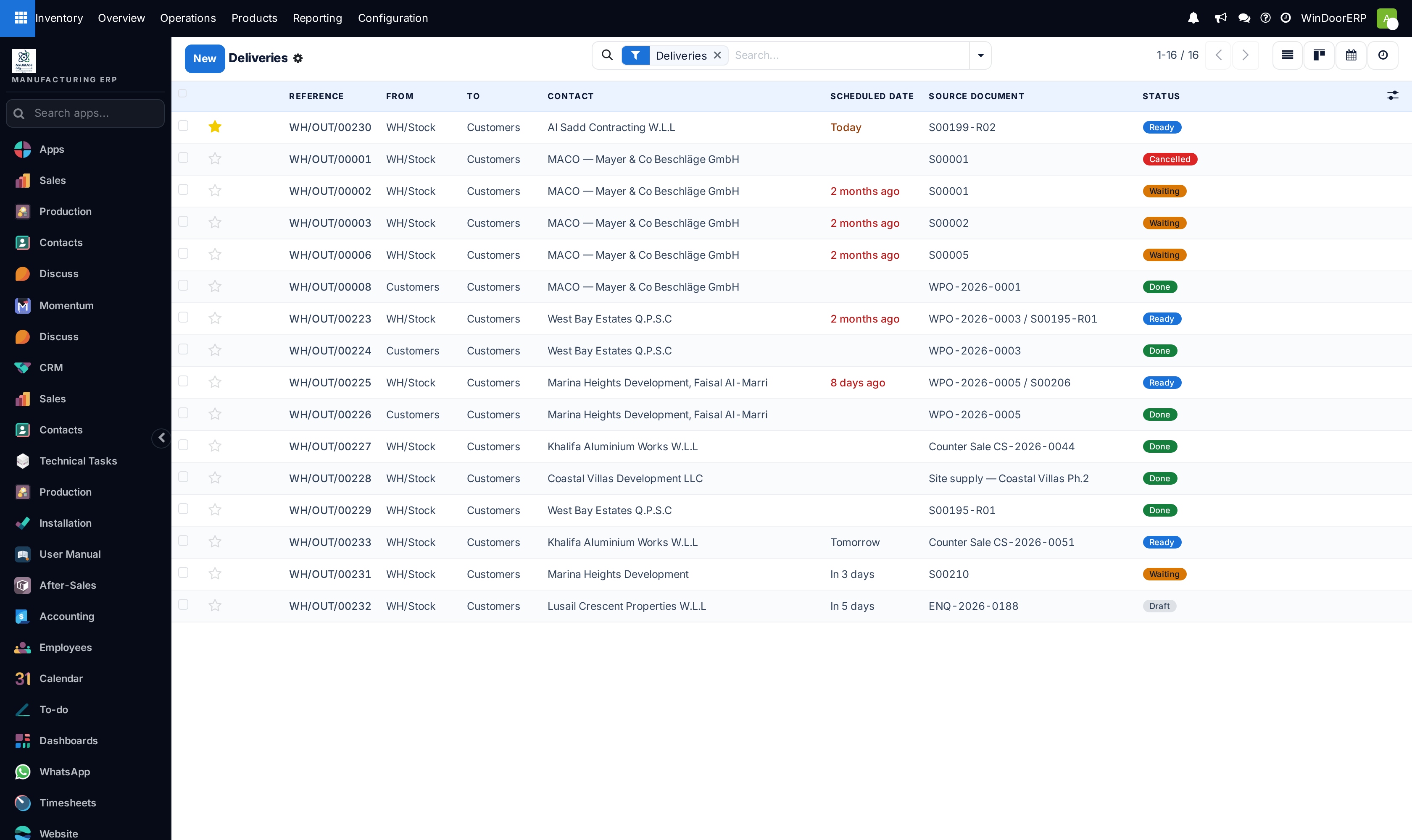
The same is visible in the transfers. Today every receipt runs Vendors to WH/Stock in one hop, and every delivery runs WH/Stock to Customers in one hop. After the change the receipt would stop at WH/Input and the delivery would start from WH/Output. The From and To columns that make this visible are themselves part of Storage Locations, so they appear on the transfer lists only once that setting is on.
Important
Switching modes is an administrator's decision with warehouse-wide effect, not a per-order option. WindoorERP does not stop you changing it while transfers are in flight, and it does not migrate them: transfers that already exist keep the locations and operation types they were created with, and only orders confirmed afterwards follow the new route. Finish or cancel what is open first.
Before you start
- Administrator rights. The setting lives in Inventory ▸ Configuration ▸ Settings, which is restricted to system administrators, and the warehouse form to inventory managers.
- A decision about which end you actually need. Two-step receiving and two-step delivery are separate choices and neither obliges the other.
- Nothing important in flight. Open receipts and deliveries are not converted.
- Somebody who will do the second transfer. An unvalidated second step is stock that exists on the floor and not in the figures, which is worse than one step done honestly.
Steps
-
01
Open Inventory ▸ Configuration ▸ Settings. In the Warehouse block, tick Multi-Step Routes and click Save. Storage Locations switches on with it — the two cannot be separated, and turning Storage Locations off later turns Multi-Step Routes off too.
-
02
Go to Inventory ▸ Configuration ▸ Warehouse Management ▸ Warehouses and open the warehouse. It now has a Warehouse Configuration tab with a Shipments group.
-
03
Set Incoming Shipments to Receive then Store (2 steps).
-
04
Set Outgoing Shipments to Pick then Deliver (2 steps).
-
05
Save. WindoorERP creates or unarchives the locations, the operation types and the routes the modes need. Nothing else is asked of you.
-
06
Optionally rename the new locations under Inventory ▸ Configuration ▸ Warehouse Management ▸ Locations so they read the way the yard talks — Goods-in bay rather than Input. Renaming a location does not disturb anything pointing at it.
-
07
Run one purchase order and one sales order end to end before letting the team loose on it.
What the switch creates
The two extra locations already exist in the database from the day the warehouse was created; choosing a multi-step mode simply activates them. They sit beside WH/Stock under the warehouse, not inside it, which is the whole point: goods parked in them are on hand but outside the location a delivery reserves from.
WH/Input | Named Input. Activated by any receipt mode above one step. Where a validated receipt leaves the goods. |
|---|---|
WH/Output | Named Output. Activated by any delivery mode above one step. Where a validated pick leaves the goods, and where the delivery order takes them from. |
Two operation types are activated with them. They are not the generic Internal Transfers type: each is its own type with its own reference sequence, so the second step is recognisable at a glance in any list.
Storage — WH/STOR/00001 | Type of Operation Internal Transfer. Moves goods from WH/Input to WH/Stock. This is the second half of a two-step receipt. |
|---|---|
Pick — WH/PICK/00001 | Type of Operation Internal Transfer. Moves goods from WH/Stock to WH/Output. This is the first half of a two-step delivery. |
The routes are rebuilt at the same time and renamed after the mode — Receive in 2 steps (input + stock) and Deliver in 2 steps (pick + ship). You never edit them by hand for a standard mode; they are what the warehouse setting produces.
Note
Dropping back to one step later archives the extra locations and operation types automatically — it does not delete them, because transfers in history still refer to them. Everything comes back, with its numbering intact, if you switch the mode on again.
Receiving in two steps
Confirming a purchase order creates one transfer, the receipt, exactly as it does today. The difference is where it ends: the receipt's destination is WH/Input instead of WH/Stock.
Validate the receipt when the lorry is unloaded and the count agrees. At that moment, and not before, WindoorERP creates the second transfer — a Storage transfer from WH/Input to WH/Stock, already Ready. Validate that one when the goods are actually racked. Stock rises then.
Between the two validations the goods are in an odd and perfectly correct state: they count towards the product's on-hand quantity, because WH/Input is an internal location, but they cannot be reserved for a delivery, because deliveries reserve from WH/Stock. A job waiting on those goods stays Waiting until the storage transfer is done. That is the mode working, not a fault.
Finding the storage transfer
The purchase order will not lead you to it. The Receipt smart button on the order counts only the transfers the order itself created — the receipt — and it stays at one however many steps the warehouse uses. Use one of these instead:
- The Storage card on the Inventory overview, whose button reads N To Process.
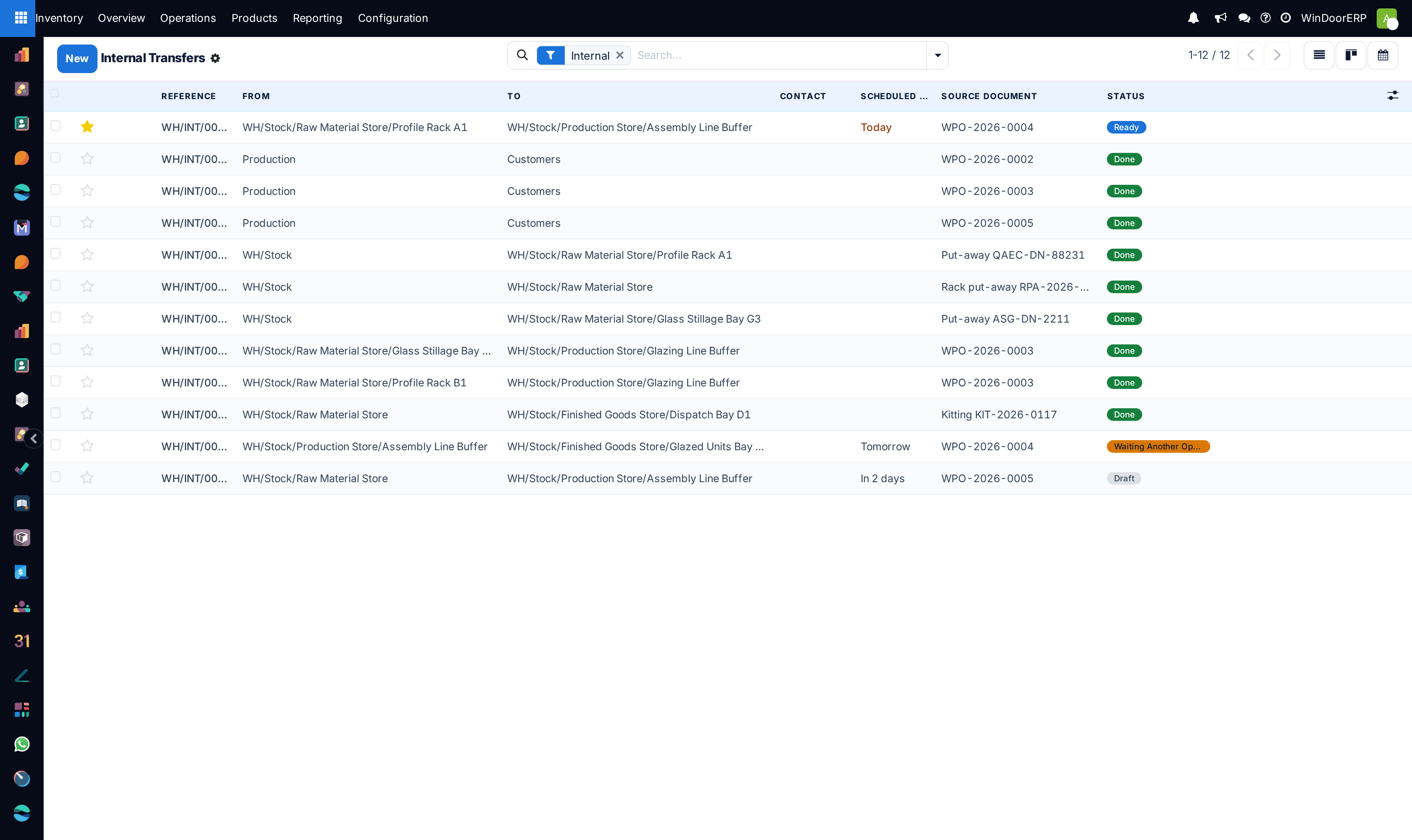
- Inventory ▸ Operations ▸ Transfers ▸ Internal, which lists every internal type together.
- A search on Source Document: the storage transfer carries the purchase order's reference, so searching for
P00058finds both halves.
Delivering in two steps
Confirming a sales order also creates one transfer, and it is the Pick, not the delivery. This surprises people who expect to see the delivery order immediately: the Delivery smart button on the sales order reads 1 at confirmation, becomes 2 once the pick is validated, and only then shows both documents.
Process the pick first. It moves goods from WH/Stock to WH/Output and, on validation, produces the delivery order from WH/Output to the customer. Validate that when the lorry leaves.
Because the delivery order does not exist until the pick is done, you will not see a delivery sitting in Waiting Another Operation the way older versions of the software behaved. If you cannot find a delivery order for a confirmed sales order, the pick has not been validated yet.
What each transfer is for
Receipt — WH/IN | The count against the supplier. Correct the quantities here; this is the number the purchase order's Received column takes. |
|---|---|
Storage — WH/STOR | The put-away. Records that the goods reached the rack and makes them available to reserve. |
Pick — WH/PICK | The picking round. Reserves stock and takes it to the staging area. |
Delivery Order — WH/OUT | The despatch. This is the document the customer's paperwork is built from, and validating it is what says the goods have gone. |
Every one of them behaves like the transfer you already know: the same Validate, the same Check Availability, the same statuses, and the same backorder question if you move less than the line demands. All four operation types ship with Create Backorder set to Ask.
See also
Choose how goods come in and go out compares all six modes and helps you pick one. Receive and deliver in one step covers the transfer screen itself — statuses, buttons and backorders — which this article does not repeat. Receive in three steps through quality control and Deliver in three steps with packing add one further stop to each end.
Troubleshooting
| The warehouse form has no Warehouse Configuration tab | Multi-Step Routes is off, and with a single warehouse there is nothing else to put in the tab, so the tab itself is hidden. Turn the setting on. |
|---|---|
| Stock did not rise after receiving | Correct. It rises when the Storage transfer is validated, not when the receipt is. |
| A delivery says Waiting although the goods arrived this morning | They are in WH/Input. Nothing reserves from there. Validate the storage transfer. |
| The sales order shows one delivery, not two | The pick has not been validated. The delivery order is created by validating the pick. |
| The purchase order's Receipt button still says 1 | It always will. It counts what the order created, and the storage transfer is created by the receipt, not by the order. |
| Goods are stuck in Input weeks later | Nobody is doing the second step. Either assign it or drop back to one step; a queue of unvalidated put-aways is worse than no put-away step. |
| A transfer still uses the old locations after switching modes | It was created before the change. Existing transfers are never rewritten. Finish it as it stands. |
| The Internal menu is missing | Inventory ▸ Operations ▸ Transfers ▸ Internal needs Storage Locations, which Multi-Step Routes switches on. If the menu is absent the setting did not save. |
Common mistakes
- Validating both transfers together at the end of the day, which records a story rather than two events and defeats the whole reason for the second step.
- Reading the on-hand figure and assuming it is available. Goods in input are on hand and unavailable at the same time.
- Changing the mode with receipts and deliveries open, then wondering why some transfers use locations the new route does not.
- Looking for the storage transfer on the purchase order instead of in the internal transfers list.
- Expecting the delivery order at sales-order confirmation. It appears when the pick is validated.
- Turning on two steps at both ends when only one end has a real second stage.
Was this article helpful?
Thanks — your feedback helps.
Running a window or door factory?
Ask for a demo