Export records to a file
What this does
Takes a set of records out of WindoorERP as a spreadsheet: for an analysis the built-in reports do not cover, for an auditor or a bank, or as the first half of a bulk update. You choose the records with the search bar, the columns with a field picker, and the format — .xlsx or .csv.
Exporting reads; it never changes a record. The risk is not to the database, it is to what leaves the building — an export carries cost prices and margins as happily as it carries addresses.
Before you start
- Exporting is a permission, and most people do not have it. It is granted by the Export privilege, which administrators hold automatically. If you are not one, the Export entry is simply absent from the menu — there is no error and no greyed-out button to click.
- Filter before you export. The file contains what the search bar produced, no more and no less.
- Very large exports time out or hit the spreadsheet's own limits. Split them by month, by team, by warehouse — whatever the natural batch is.
Steps
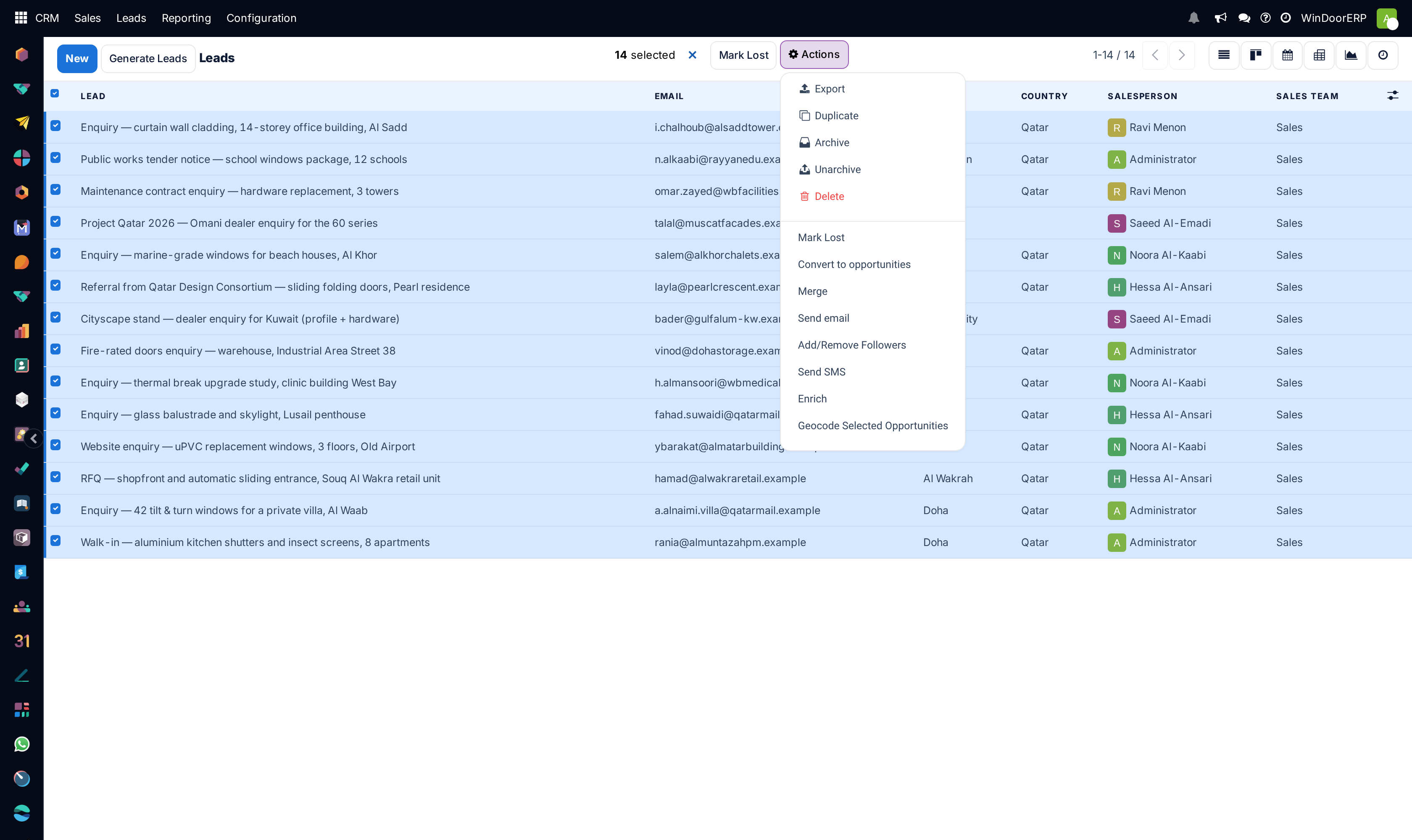
-
01
Open the screen holding the records and switch to the list view.
-
02
Narrow the list with the search bar until it holds exactly what you want.
-
03
Tick the records, or tick the box in the header row to take the whole page. If more records match than fit on the page, a Select all N button appears next to the count — click it, or you will export only the page.
-
04
Click Actions in the selection bar and choose Export.
-
05
Pick the format, build the field list, and click Export.
Selecting the right records
A list shows 80 records at a time. Ticking the header checkbox selects that page and the bar reads 80 selected, with a Select all N button beside it whose tooltip says exactly what it does — Select all records matching the search. Click it and the bar changes to All N selected. That difference is the single most common reason an export comes out short.
The ✕ at the end of the bar, Unselect All, clears the selection. Beside Export, the same Actions menu holds Duplicate, Archive, Unarchive and Delete — read the menu before you click, because they sit together.
Export All: the one-click route
With nothing selected, the ⚙ menu offers Export All instead. It skips the dialog entirely and downloads an .xlsx of everything the current search matches, using the columns the list is showing. It needs the same permission, it works from a kanban board as well as a list, and it is the right answer when the list already shows the columns you want. When you need different columns, or CSV, use the dialog.
The Export Data window
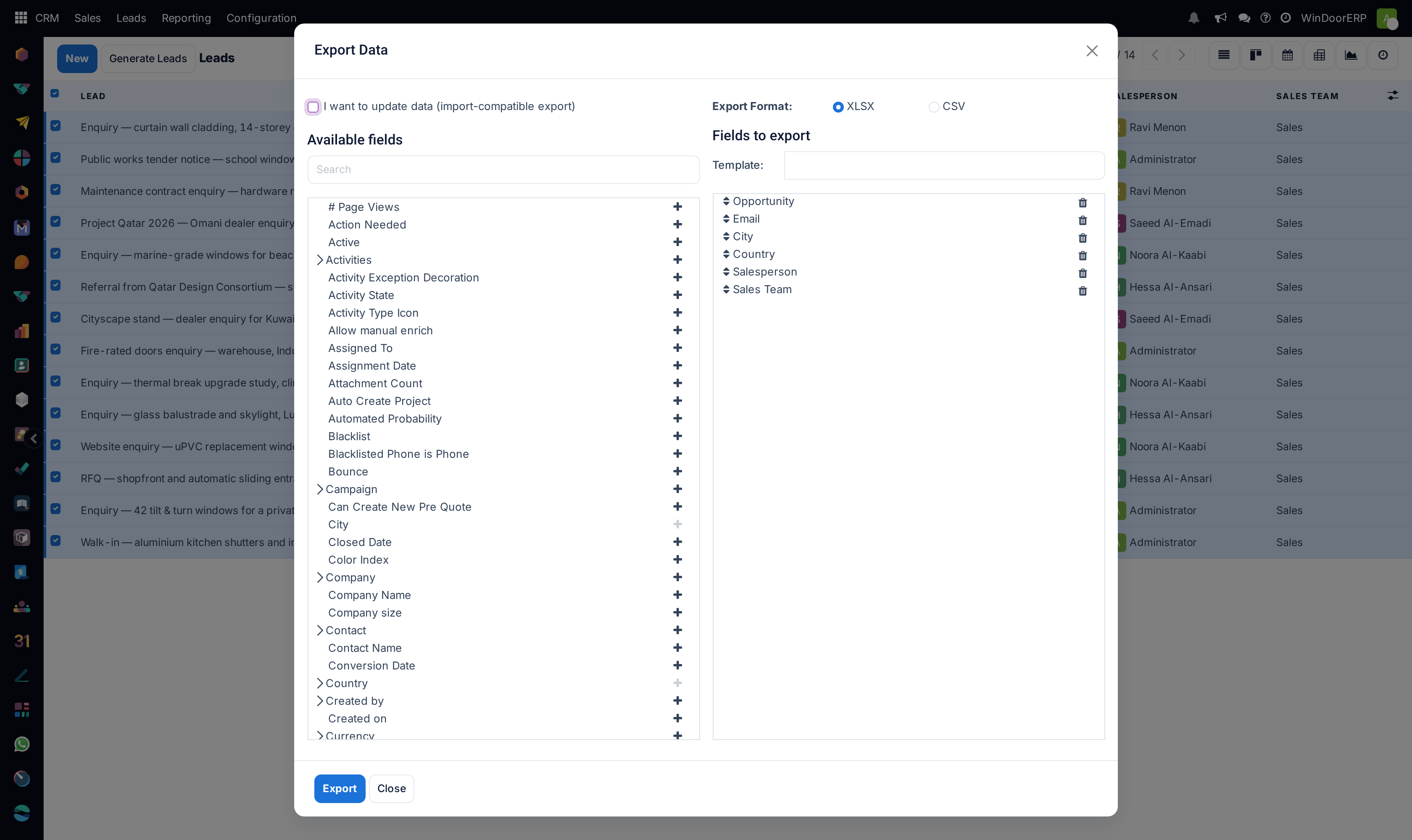
The window opens pre-filled with the columns your list was showing, which is usually most of the way there.
| Control | What it does |
|---|---|
| I want to update data (import-compatible export) | Narrows the field tree to fields that can be imported again, and makes the file round-trip safe. Tick it whenever the export is the first half of a bulk edit. Leave it clear and you get many more fields — computed values, totals, related data — but a file you cannot feed back in. |
| Available fields | The tree of everything on the record. Required fields are shown in bold. A > chevron, Show sub-fields, opens the fields of a linked record — the customer's country lives under the customer, not at the top level. |
| Search | Filters the tree. It searches the expanded tree, so a field one level down is findable without hunting for its parent. No match found. means the word is not a field name here. |
| +, Select field | Adds a field to the export. Double-clicking the name does the same. A field already chosen shows its + greyed out. |
| Export Format: | XLSX (selected by default) or CSV. XLSX is a real spreadsheet with typed cells and dates; CSV is plain text, which is what most other systems want. |
| Fields to export | The chosen columns, in file order. Drag the handle at the start of a row to reorder them; the trash icon, Remove field, takes one out. |
| Template: | Saved field selections. Pick one to load it, or choose New template, type a name in the Save as: box, and click the save icon. The trash icon deletes the selected template after asking “Do you really want to delete this export template?”. |
| Export | Builds the file and downloads it. Hotkey Alt + V. |
| Close | Leaves without exporting. Hotkey Alt + Z. |
Tip
With developer mode on, every field in both panels also shows its technical name in brackets — Related Company reads as parent_id. That is the name a colleague will ask you for when the file has to be mapped to another system.
Exporting in order to re-import
Tick I want to update data (import-compatible export) and two things change: the field list narrows to what can be written back, and each record's External ID travels in the file. That ID is what turns the second import into an update of the same records instead of a second copy of all of them.
The working pattern is: export with the box ticked, edit only the cells you mean to change, leave the External ID column untouched, and import the same file back.
Important
Do not delete, rename or re-sort the External ID column. Without it, an import creates new records rather than updating the old ones, and there is no undo.
Saving a field selection
For a file you produce every month, build the field list once and save it as a template. Open the Template: drop-down, choose New template, type a name in the Save as: box and click the save icon beside it. Next time, choose the template and the whole list comes back in order. Templates are per model, so a template built on quotations does not clutter the contacts export.
Troubleshooting
There is no Export in the Actions menu. You do not have the export permission. It is a privilege an administrator grants; on this system administrators have it and most users do not. Ask rather than hunt for a setting.
The file has fewer rows than the screen showed. You exported the page, not the search. Look at the selection bar: 80 selected is one page; All N selected is everything the filter matched. The Select all button between them is the step people skip.
“There are too many rows … to export as Excel 2007-2013 (.xlsx) format. Consider splitting the export.” The spreadsheet format itself stops at 1,048,576 rows. Filter the list into batches, or export as CSV, which has no row ceiling.
A column you need is not in the tree. It belongs to a linked record. Find the field that points at that record and open its > chevron — the customer's payment terms are under the customer, the product's category is under the product. If it is still missing, the import-compatible box is ticked and hiding it; clear the box for a read-only export.
The exported file will not import back. It was exported without I want to update data, so it carries computed columns that cannot be written and no External ID. Export it again with the box ticked.
Arabic text opens as gibberish in a spreadsheet. That is the spreadsheet guessing the encoding of a CSV file, not a bad export. Open the XLSX instead, or import the CSV declaring UTF-8.
The export never finishes on a very large list. Filter into smaller batches — by month, by team, by warehouse. There is no progress bar to wait on.
See also
A pivot table has its own export button, and its own limit — a spreadsheet stops at 16,384 columns. See Analyse data with graph and pivot views. To load a file back in, see Import records from a file.
Common mistakes
- Exporting the page instead of the search, then reporting that records are missing.
- Exporting without import-compatible ticked and then trying to import the file back — half the columns will not map and the rest will duplicate.
- Editing or deleting the External ID column in the spreadsheet, which turns an update into a pile of duplicates.
- Sending a raw export outside the company without reading the columns. Cost prices and margins travel very easily.
- Rebuilding the same forty-field selection every month instead of saving it as a template once.
- Reaching for the export when a saved favourite on a report would have answered the question inside the system, where it stays current.
Was this article helpful?
Thanks — your feedback helps.
Running a window or door factory?
Ask for a demo