Plan an installation visit
What this does
Plans the visit: who goes, when, and exactly what they are expected to complete — so a crew does not arrive to find the units still in the factory. The tool is the Plan Installation wizard, launched from the work package or the project cockpit.
Before you start
- Open the work package's items and read the quantity funnel — Sale, Surveyed, Produced, Delivered, Installed. "Produced" is not "delivered": the funnel is where you check the units are physically on site.
- Know your crew contact — the installer is a contact, and it is their portal the job will appear in.
Steps
-
01
Open Installation › Work Packages and press Plan on the job's card (or Plan Installation on the form's Installation Items page).
-
02
Tick the Actions Requested — the checklist every opening on this visit will carry. All active actions come pre-ticked.
-
03
Set the Installer / Crew, Planned Start, Days on Site, Time Window and the Target Install Date.
-
04
Choose the Action Order — Sequential forces the checklist order on site; note the wizard proposes sequential and writes the choice onto the whole project.
-
05
Tick Track every unit separately if any line covers several identical windows and you want per-unit ticks and snags.
-
06
Press Generate & Open Grid. The grid — one row per opening, one column per action — is what the crew will tick from their phones.
-
07
Before the day, confirm the site: the customer can press Site ready on their portal tracker (with a photo), or the office ticks Site Ready on the job after the phone call.
Tracking the work
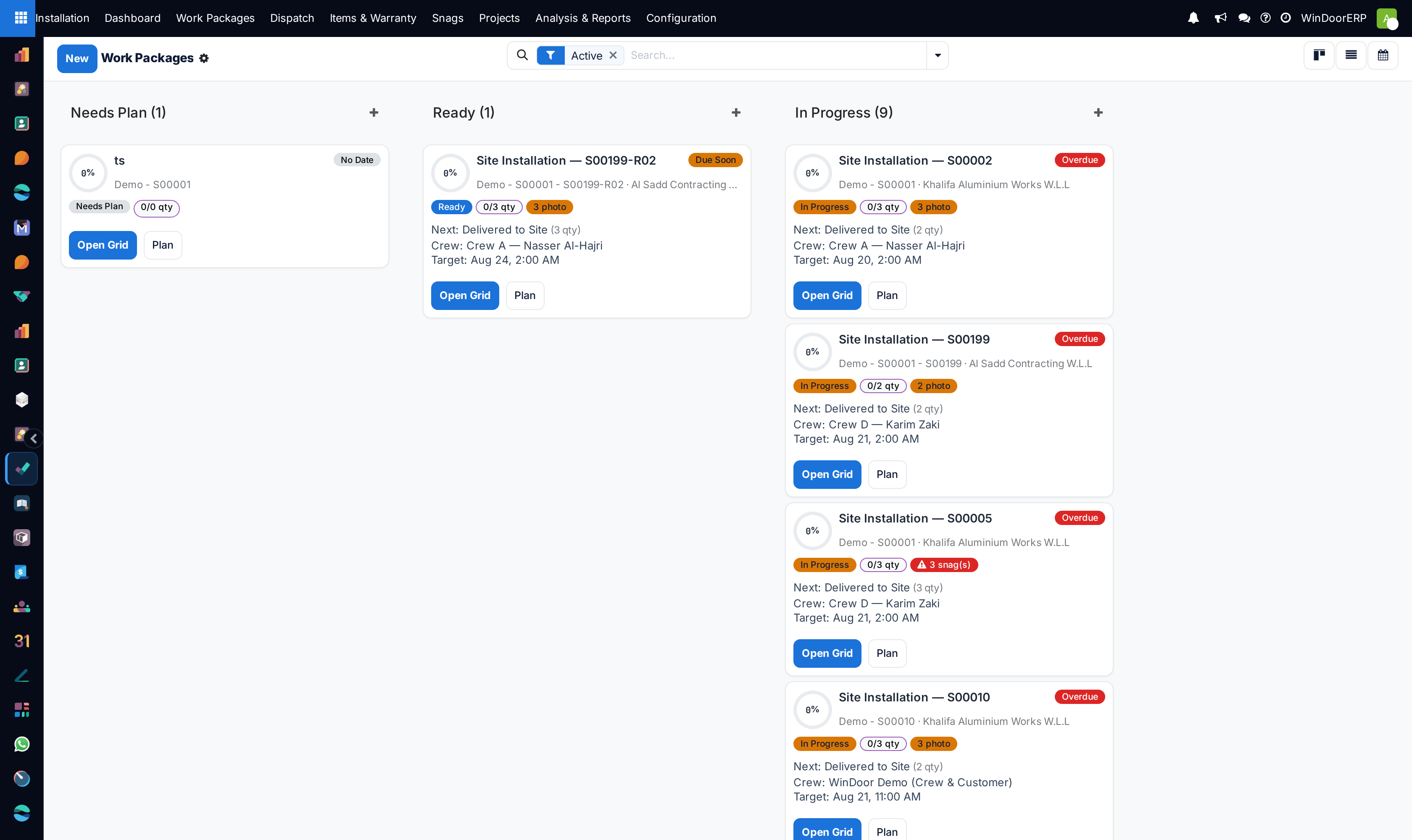
Each opening moves through its own actions, and the board shows the package as Needs Plan, Ready, In Progress and Done, with schedule health — Due Soon, Overdue — beside it. That per-item view is what lets a supervisor answer "what is left?" without a site visit; the Next Action column even says what kind of work is next and for how many units.
If the crew arrives before the site is confirmed ready, their job page carries the banner "The customer has not confirmed the site is ready — call before you drive." — the plan is only as good as that call.
Warning
Sending a crew before the units are physically on site is the most expensive mistake in this process. Check Delivered in the funnel, not the production status — and check Site Ready, not your optimism.
Scheduling collisions
If the wizard books a crew into a window that overlaps another of their open jobs, it posts a chatter warning naming the clash. It warns and never blocks — read the job's chatter after planning, because the double-booking is now yours to resolve.
Common mistakes
- Planning by day instead of by opening, so partial completion has nowhere to be recorded — that is what the grid exists for.
- Booking a visit without confirming site access, and paying a crew to wait at a gate.
- Accepting the wizard's sequential default without meaning it — it rewires the ticking rules for every work package in the project.
- Leaving snags in someone's head instead of on the opening.
Was this article helpful?
Thanks — your feedback helps.
Running a window or door factory?
Ask for a demo