Configure barcode nomenclatures for factory scanning
What this does
A barcode nomenclature tells WindoorERP how to read a scanned code: which part is the product, which part is a quantity or a weight, and which codes mean an action rather than an item.
You need it only if you scan. On a site without scanners this screen is one to leave alone.
Before you start
- Administrator rights, and developer mode — this is a technical screen.
- Barcode Scanner switched on in Inventory ▸ Configuration ▸ Settings.
- Real examples of the codes you actually scan. Designing rules from what the labels are supposed to look like rather than what they are is the usual cause of trouble.
Steps
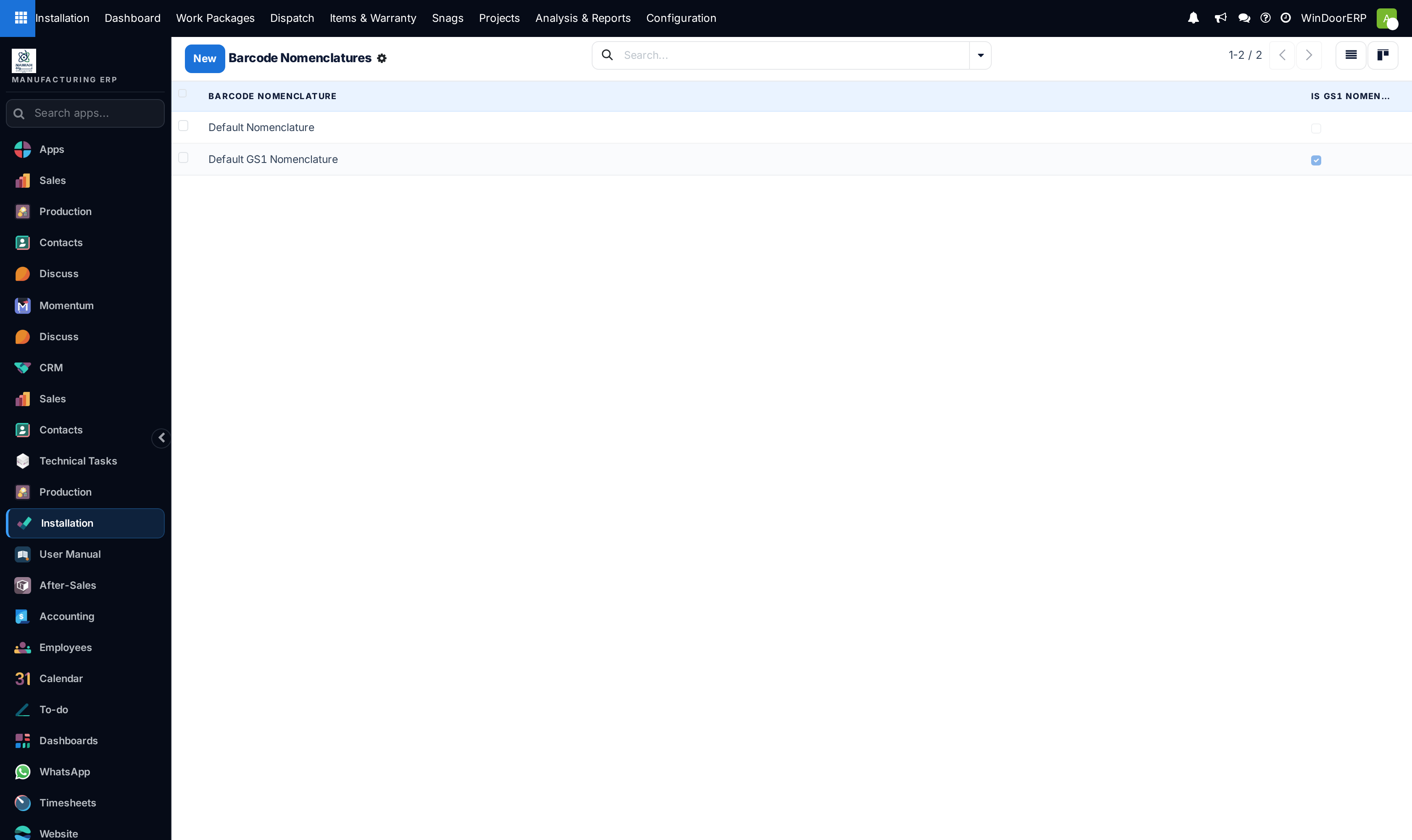
-
01
Open Inventory ▸ Configuration ▸ Barcode Nomenclatures.
-
02
Open the nomenclature in use, or create one and set UPC/EAN Conversion for how the two standards should be reconciled.
-
03
Look at the Rules list. Each rule matches a pattern and says what a matching code means.
-
04
Add a rule with a Rule Name, a Type, an Encoding and a Barcode Pattern.
-
05
Place it in the list by Sequence — order decides which rule wins.
-
06
Test by scanning a real label before rolling it out.
Every field
| Barcode Nomenclature | The named set of rules. A database normally uses one. |
|---|---|
| UPC/EAN Conversion | How codes in one standard are matched against products recorded in the other. |
| Rules | The ordered list that does the work. |
| Rule Name | What the rule is for, in words. |
| Sequence | Match order. The first matching rule wins, so a broad pattern high in the list hides everything below it. |
| Type | What a matching code means — a product, a quantity, a lot, a location, or an action. |
| Encoding | Which barcode standard the pattern is written against. |
| Barcode Pattern | The pattern itself, including where a variable part such as a weight or quantity sits. |
| Alias | An alternative code treated as the same thing. |
Order is the whole game
Rules are tried in sequence and the first match wins. A rule that matches any twelve-digit code, placed above a rule for a specific prefix, means the specific rule never fires — and nothing reports an error, because a rule did match.
So put the most specific patterns first and the general fallbacks last. When a scan does the wrong thing, look at what is above the rule you expected before you edit that rule.
Troubleshooting
| A scan does nothing | No rule matches. Check the pattern against a real code, character by character. |
|---|---|
| A scan matches the wrong thing | A broader rule sits above the one you wanted. Reorder by sequence. |
| Weights or quantities come out wrong | The variable part of the pattern is in the wrong position or the wrong length. |
| The menu is not there | Developer mode is off, or the Barcode Scanner setting is not enabled. |
| It works on one scanner and not another | Scanners can add a prefix or suffix of their own. Compare what each actually sends. |
| Product codes stopped matching after an import | The imported codes are in the other standard; check UPC/EAN conversion. |
Common mistakes
- Adding a broad rule at the top and silently disabling every specific rule beneath it.
- Writing patterns from a label specification instead of from a code that was actually scanned.
- Editing the nomenclature on a live system in the middle of a shift.
- Creating a second nomenclature when the database only ever uses one.
- Touching this screen at all on a site that does not scan.
Was this article helpful?
Thanks — your feedback helps.
Running a window or door factory?
Ask for a demo