Import records from a file
What this does
Loads contacts, products, price lists, opening balances or any other records into WindoorERP from a spreadsheet. It is the fastest way to fill a new database, and the only sane way to change hundreds of records at once — because a file that carries an External ID column updates the records it matches instead of creating duplicates.
The importer is one screen. The left side describes the file, the right side maps its columns onto fields, and two buttons at the top — Test and Import — do the work.
Before you start
- An import cannot be undone. There is no rollback button: the only way back is to find the records again and correct or delete them by hand.
- Import related records first. Categories before products, companies before the people who work for them, currencies and countries before anything that points at them.
- Save the file. If something goes wrong, the file plus the Created on filter is how you work out what the import actually did.
- Very large files are slow and can time out. The importer already splits anything over 100 rows into batches, but a file of tens of thousands of rows is still better cut into several files.
Steps
-
01
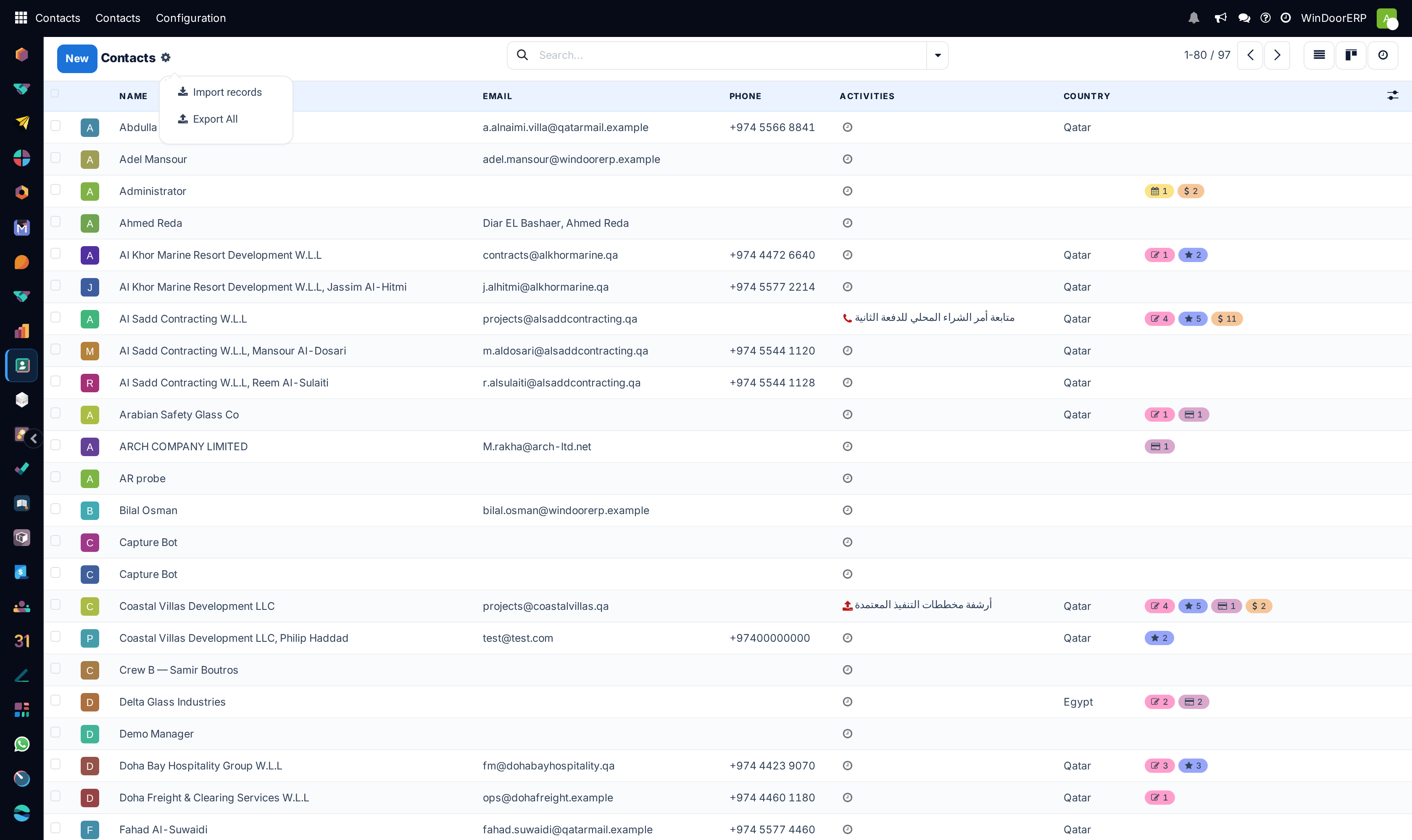
Open the list or kanban view of whatever you are importing, click the ⚙ (Actions) icon beside the view title and choose Import records.
-
02
On the empty screen, download the ready-made template if one is offered, or click Upload Data File and pick a file of your own.
-
03
For a CSV, check the Formatting options in the left panel — separator, text delimiter, encoding, date format — and press Reimport if you change one.
-
04
Work down the mapping table and make sure every File Column points at the right Odoo Field. A column left on To import, select a field… is simply ignored.
-
05
Click Test. Fix whatever it reports and test again until it says Everything seems valid.
-
06
Click Import.
Where the import entry is, and when it is missing
Import records lives in the ⚙ (Actions) menu that sits next to the view title, above Export All. Unlike export, it is not restricted to a user group: any internal user who can create the records can import them. That is worth knowing before you hand the feature to somebody — an import writes as many records as the file has rows.
The entry is absent, with no explanation, in four cases:
| Why it is missing | What to do |
|---|---|
| You are on a form, calendar, pivot, graph or map view. Import is offered on list and kanban views only. | Switch to the list or kanban view with the view buttons at the top right. |
| The view forbids creating records — importing is a form of creating, so a list that cannot create cannot import either. | Nothing here. The records are produced by the system, not typed in. |
| The view turns import off deliberately, even though creating is allowed. | Ask whoever configured that screen; there is usually a reason, such as records that must go through a wizard. |
| You are on a phone-sized screen. | Do the import from a desktop browser. |
The upload screen
Choosing Import records opens a full screen called Import a File, with the model you came from in the breadcrumb. Until a file is loaded there are only two buttons — Upload Data File and Cancel — and the body of the screen offers the download links for any templates that exist for this model, plus a link to the Import FAQ.
The file picker accepts .csv, .xls, .xlsx, .xlsm and .ods. Spreadsheet formats are the safer choice: dates, numbers and encodings are carried in the file itself, so the whole Formatting section below never has to be touched. A CSV is plain text and has to be described to the importer before it can be read.
A file that is not one of those formats is refused with "Unsupported file format …, import only supports CSV, ODS, XLS and XLSX", and an empty or damaged one with "Import file has no content or is corrupt".
Templates: the shortcut worth taking
A template is a spreadsheet with the column headers already written the way the importer expects, so the mapping is guessed correctly on the first try. Templates exist only for the models somebody wrote one for; on every other model the Help panel simply has no download link, and that is normal.
Models that ship a template today include contacts, products, price lists, vendor price lists, chart of accounts, journal entries, journal items, leads and opportunities, employees, timesheets, mailing contacts, bills of materials, project tasks, purchase orders and sales orders.
When there is no template, the reliable substitute is to export a handful of the same records first — Export All in the same ⚙ (Actions) menu, with I want to update data (import-compatible export) ticked. The file that comes back has exactly the column names this importer recognises.
Data to import: the left panel
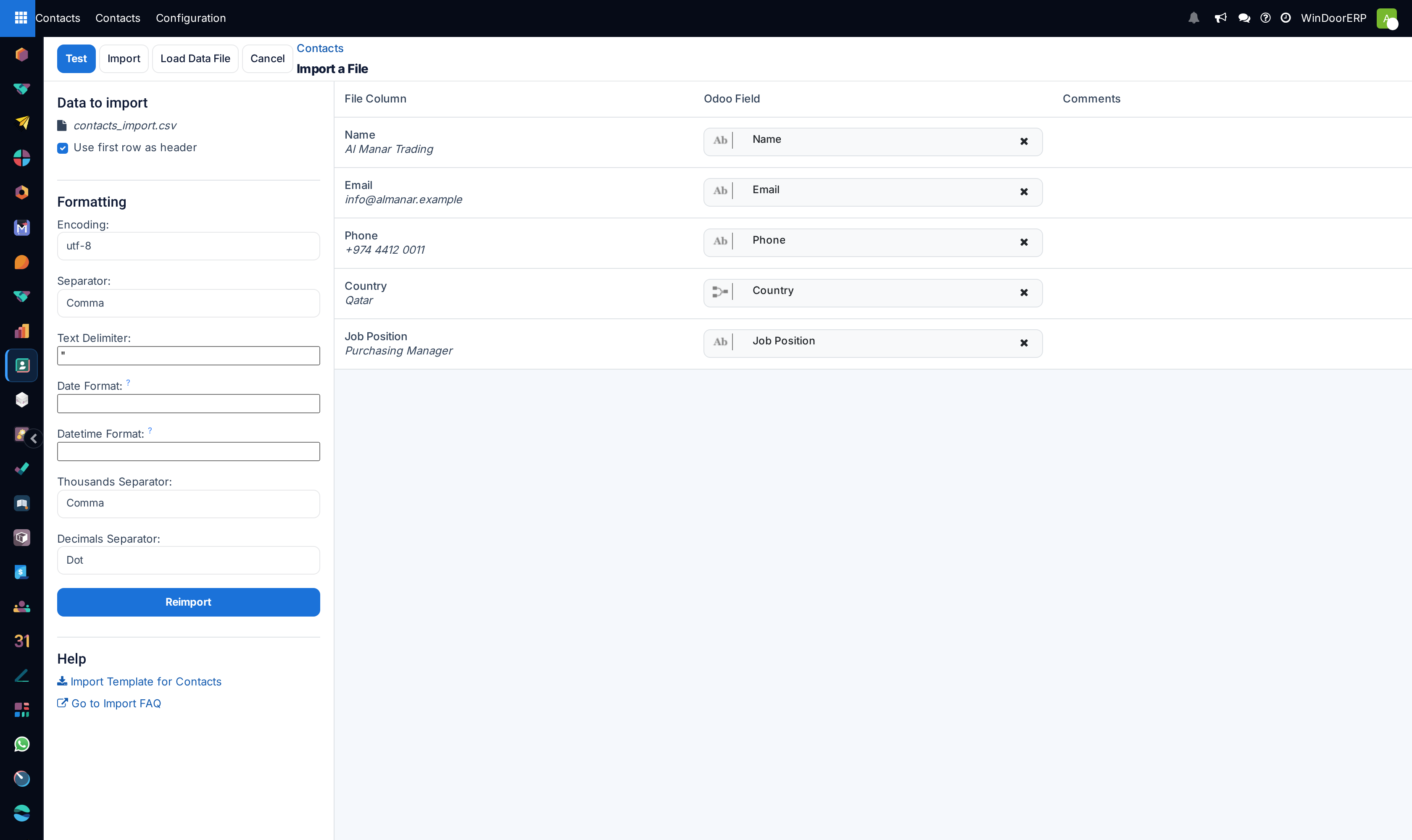
Once a file is loaded, the left panel describes it and the right panel maps it. The top block, Data to import, names the file and offers the settings that decide how it is read at all.
| Setting | What it does |
|---|---|
| Sheet: | Only for a spreadsheet with more than one sheet. Picks which one is imported; changing it re-reads the file. |
| Use first row as header | On by default. The first row is treated as column names and is not imported as data. Turn it off for a file with no header row — the importer then shows a blue notice explaining that column names are what let it guess the mapping, and every column starts unmapped. |
Formatting — CSV files only
This block is absent for .xlsx, .xls, .xlsm and .ods files, because those formats carry their own encoding and cell types. For a CSV the importer guesses these settings from the first rows and shows you what it guessed; changing any of them and pressing Reimport re-reads the file with the new settings.
| Field | What it does |
|---|---|
| Encoding: | How the bytes become letters. Offers utf-8, utf-16, windows-1252, latin1, latin2, big5, gb18030, shift_jis, windows-1251 and koi8_r. Get it wrong and Arabic or accented names arrive as mojibake, or the file is refused with "There was an issue decoding the file using encoding …" — which also tells you whether the encoding was detected automatically or chosen by you. |
| Separator: | Comma, Semicolon, Tab or Space. The wrong one shows the whole row as a single column; the importer warns "A single column was found in the file, this often means the file separator is incorrect." |
| Text Delimiter: | The character that wraps a value containing the separator. Defaults to ". It must be exactly one character — anything longer is refused with "Error while importing records: Text Delimiter should be a single character." |
| Date Format: | Leave it empty and the importer guesses, which is the recommendation in its own tooltip. Fill it in when the guess is wrong — the usual case is a day-month ambiguity such as 01-03-2026. Suggestions offered: YYYY-MM-DD, YYYY/MM/DD, DD/MM/YYYY, DDMMYYYY, MM/DD/YYYY, MMDDYYYY, and any custom pattern built from YYYY, MM and DD with dots, slashes or dashes between them. |
| Datetime Format: | The same, with a time part. HH is a 24-hour clock; II together with p is a 12-hour clock with AM/PM. |
| Thousands Separator: | Comma, Dot or No Separator. Defaults to Comma. |
| Decimals Separator: | Comma or Dot. Defaults to Dot. These two must not be the same character, and together they decide whether 1.250 means one thousand two hundred and fifty or one and a quarter. |
| Reimport | Re-reads the file with the settings above. Nothing you change in this block takes effect until you press it. |
Batch Import — only above 100 rows
A file of more than 100 rows adds a Batch Import block and the notice "The file will be imported by batches". The import then runs in slices, with a progress bar and a control to stop it part-way, instead of as one long request that a worker may abandon.
| Field | What it does |
|---|---|
| Batch limit | Rows per slice. Defaults to 2000. Lower it for a model that does a lot of work per record — a sales order with lines, a production order — because it is the work per row, not the row count, that causes a timeout. |
| Start at line | Where to begin. Set automatically when an import stops part-way, so Resume continues where it left off. Its tooltip is the important part: the count ignores the labels line, empty lines and lines composed only of empty cells, so it is not the row number your spreadsheet shows. |
Files to import — images and attachments
This block appears only once a column has been mapped to a binary field such as Image. Put the file names in that column, then click Upload your files and select the actual image files; the count of selected files appears beside the button. During the import each name is matched to an uploaded file. Names that match nothing are not an error — the record is created without the picture.
Images can also be given as a URL or as base64 text in the cell instead of as uploaded files. Importing by URL is restricted to administrators, because it makes the server fetch arbitrary addresses; everybody else is stopped with "You can not import file via URL, check with your administrator or support for the reason." A cell that is neither a URL, a known file name nor valid base64 is refused with "Found invalid image data, images should be imported as either URLs or base64-encoded data."
Advanced — developer mode only
With developer mode on, two more blocks appear. Neither is needed for an ordinary import, and both are easy to get wrong, which is why they are hidden.
| Option | What it does |
|---|---|
| Track history during import | Off by default. Turning it on makes every imported record post its creation to the chatter and notify its followers. Its own tooltip warns that this makes the import slower; on a few thousand records it also floods everybody's inbox. |
| Allow matching with subfields | Lets a column match on a field of a related record rather than only on the record's own name — the mechanism behind column titles like Country/External ID. |
| Max size per batch | Only with Files to import. How many megabytes of attached files go up in one batch. Defaults to 10, capped by the server's own upload limit. |
| Delay after each batch | Seconds to pause between batches of attached files, so a large picture set does not saturate the server. Defaults to 1. |
The mapping table
The right-hand side is one row per column of your file, under three headings.
| Column | What it holds |
|---|---|
| File Column | The header from your file in bold — or Untitled when the cell was blank — with the first value underneath in italics. Hovering that value shows a Preview tooltip with the first few rows, which is the quickest way to confirm you are looking at the column you think you are. |
| Odoo Field | Where the column lands. This is the field label as WindoorERP shows it, with a small icon for the field type. Required fields appear in bold and underlined in the list. Click the cell to search the field list — the search box says Search a field… — or click the ✕ at the end to clear the mapping again. |
| Comments | Notes and errors for that column: the advice notes described below, the error report after a failed test, and the When a value cannot be matched: chooser. |
The importer guesses each mapping from the column header and from the shape of the first ten rows — a column of nothing but numbers is only offered numeric fields, for example. It also remembers: once you have mapped a column named, say, CUST_REF on this model, the same header is mapped the same way the next time anybody imports into it. That is what makes a recurring import from another system a one-click job after the first run.
A column mapped to nothing is skipped in silence. That is deliberate — it is how you import a file that carries extra columns you do not want — but it also means a column you meant to map and forgot produces no warning at all. If every column is unmapped the import refuses to start: "You must configure at least one field to import".
Two notes appear in Comments on their own, before any error:
- "To import multiple values, separate them by a comma." — on a column mapped to a tags-style field, where one cell holds several values.
- "This column will be concatenated in field …" — when two file columns are mapped to the same field, so their contents are joined rather than one overwriting the other.
When a value cannot be matched
The most common failure is not a broken file — it is a value that has no counterpart in the database: a country spelled differently, a category that does not exist yet, a status word nobody uses. For a column mapped to a link, a status or a yes/no field, the Comments cell then offers a chooser headed When a value cannot be matched:, and what it offers depends on the kind of field.
| Choice | What happens | Offered for |
|---|---|---|
| Prevent import | The default. The import refuses to run until the file or the database is corrected. Nothing is written. | Every kind |
| Set value as empty | The record is created with that field blank. | Links, tags and status fields that are not required |
| Skip record | The whole row is left out. Everything else in the file still imports. | Fields that are not required |
| Create new values | The missing record is created on the fly and linked. Convenient and dangerous in equal measure — a typo becomes a new customer or a new category rather than an error. | Links and tags |
| Set to: <option> | Falls back to a specific value. A status field lists each of its own options here; a yes/no field offers Set to: False and Set to: True. | Status and yes/no fields |
Choose one per problem column, then press Test again. The choice applies to that column for this import only.
Naming the columns so they map themselves
Everything above is easier when the header row already uses the names WindoorERP knows. Start from a template or from an import-compatible export, then:
- Add, remove and reorder columns freely to fit your data. Order does not matter; names do.
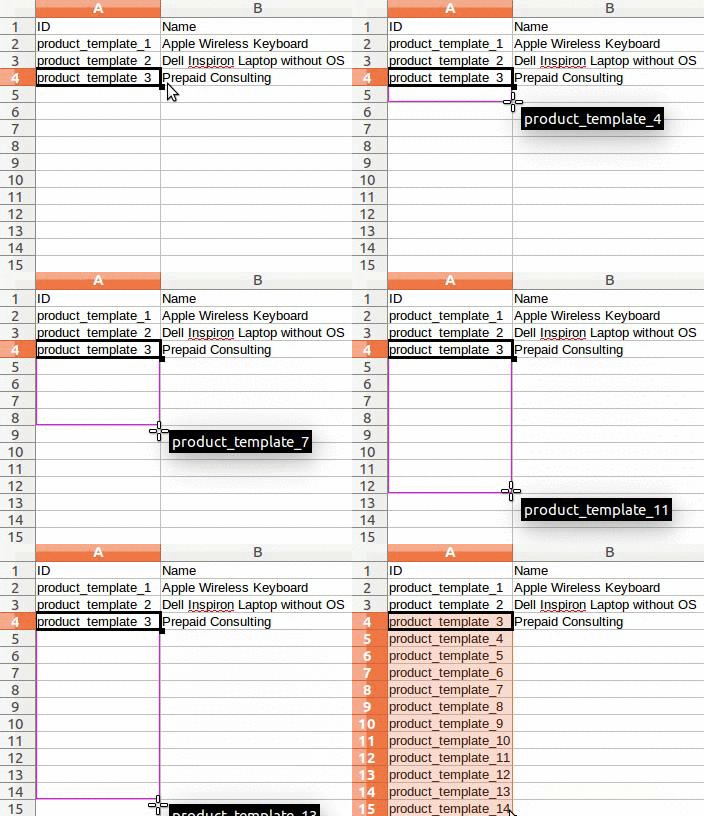
- Keep the External ID column. It is the handle the system uses to recognise a record next time, and it is the difference between a second import correcting your data and a second import doubling it.
- Give every row a unique value in that column. Typing the first one and dragging it down the column is enough — the spreadsheet numbers the rest.
- Prefix external IDs that came from another system with the name of that system's table, so two tables cannot collide:
company_1andperson_1rather than1twice.
If a column stubbornly refuses to map, do not fight the guesser: export the same records, read the header the export produces for that field, and use that name in your file.
Tip
Set the external identifiers once and keep the file. Every later correction to those records is then a two-minute edit of the same spreadsheet and a re-import, instead of a hunt through the list view.
Linking to other records
A field that points at another record can be given three ways, and you must pick exactly one per column. Mapping two of them onto the same field is what produces contradictory data.
| Column title | What goes in the cell | When to use it |
|---|---|---|
| Country | The name or code, e.g. Qatar. | Files written by hand. Easiest, but ambiguous when two records share a name. |
| Country/Database ID | The internal row number, e.g. 21. | Rarely. It never collides, but the number means nothing outside this one database and does not survive a re-install. |
| Country/External ID | The stable identifier, e.g. base.qa. | Migrations from another system, and any file you intend to import more than once. |
When two records genuinely share a name — two product categories both called Sellable under different parents, say — matching by name links every row to whichever the importer finds first, which is almost never what you wanted. Either rename one, or switch that column to /External ID.
Two shapes need particular care:
- Tags and other many-to-many fields. Put every value in one cell, separated by commas, with no space after the comma:
Manufacturer,Retailer. - Lines inside a record, such as the lines of a sales order. Give each line its own row. The first line shares the row that carries the order's own fields; every further line gets a row of its own with those order columns left empty.
Numbers, dates, blanks
Three conversions cause almost all the rejected cells.
| What | What is accepted, and what is not |
|---|---|
| Numbers | Currency symbols are accepted and stripped, and parentheses mean a negative value — but the symbol has to sit inside the brackets. 32.000,00, 32000,00, 32,000.00, -32000.00, (32000.00), $ 32.000,00 and (32000.00 €) all work. ABC 32.000,00 and $ (32.000,00) do not, and produce "Column … contains incorrect values (value: …)". |
| Dates | In a spreadsheet, store dates in real date cells and the format never comes up. In a CSV, the safest form is YYYY-MM-DD — 1981-07-24, never 24-07-81. A cell the format cannot parse is reported as "Error Parsing Date [<field>:L<line>]: …" with the exact line number. |
| Empty cells | A column that is absent from the file leaves the field at its default value. A column that is present with an empty cell writes an empty value. Those are different outcomes, and the second one is how imports quietly erase data. |
Update records instead of creating them
If the file carries an External ID or Database ID column, every row whose identifier already exists is updated; only the rest are created. That makes the round trip the standard way to correct hundreds of records at once:
- In the list, tick the records to change — or none of them, to take the whole list.
- ⚙ (Actions) › Export All, then tick I want to update data (import-compatible export). That adds the external identifier to the file and narrows the field list to fields that can actually be imported back.
- Edit the exported file in a spreadsheet, leaving the identifier column untouched.
- Import it back through the same screen.
The identifier column is the whole mechanism. Edit it, re-sort it away from its row, or delete it, and the second import stops recognising the records and creates a second copy of every one of them.
Important
Export All is restricted; Import records is not. Exporting requires the export permission, which on a typical WindoorERP database only settings administrators have, so most users cannot produce the import-compatible file for themselves. If the round trip above is part of somebody's job, that permission has to be granted deliberately.
Test, import, resume
Test runs the entire import and throws the result away. It is not a sample and not a guess: everything that would fail, fails now, on the real data, with row numbers. It costs the same time as the import itself and saves the clean-up, so there is no good reason to skip it.
A clean test reports "Everything seems valid." A failed one puts a red banner at the top of the table — "The file contains blocking errors (see below)" — and fills the Comments cell of each guilty column.
| What the report says | What it means |
|---|---|
| "No matching records found for the following name in field <field>" | Every offending value is listed with the row it sits on. One cause, several rows. |
| "Multiple errors occurred in field <field>" | The same column failed for more than one reason; read each line separately. |
| "<n> more" | Only the first three rows are listed. Click to unfold the rest. |
| See possible values | On a column matched against a fixed list, prints what the field will actually accept. |
Then press Import. Above 100 rows a progress bar replaces the screen and can be stopped part-way. Whatever was already written stays written — stopping is not an undo. When an import stops early, whether you stopped it or an error did, the panel says "Click 'Resume' to proceed with the import, resuming at line <n>." and "You can test or reload your file before resuming the import.", Start at line is set for you, and the Import button becomes Resume.
Load Data File, beside it, swaps the file without leaving the screen — the way to re-upload the same file after correcting it in the spreadsheet, keeping the mapping you have already fixed.
Troubleshooting
There is no Import records entry. Check the view first: it appears on list and kanban views only, and never where records cannot be created. On a phone-sized screen it is hidden outright.
The whole file shows as one column. Wrong separator. The importer says so — "A single column was found in the file, this often means the file separator is incorrect." — so change Separator: and press Reimport. If your file uses tabs and your spreadsheet will not write them, re-save it from the spreadsheet with the separator options exposed rather than fighting it here.
The preview will not load at all. "Import preview failed due to: … For CSV files, you may need to select the correct separator." Same cause, one step earlier; the encoding is the other suspect.
"Error while importing records: all rows should be of the same size, but the title row has X entries while the first row has Y." The file has been cut into columns wrongly — usually an unquoted separator inside a value, such as a comma in an address in a comma-separated file. Set Text Delimiter: or re-save the file with values quoted.
Arabic or accented text arrives as symbols. Wrong Encoding:. Choose utf-8 and reimport; if the file came out of an older Windows tool, try windows-1252 or windows-1251.
Dates land a month out. A day-month ambiguity the guesser resolved the other way. Set Date Format: explicitly and reimport.
The import fails with no useful message. "An unknown issue occurred during import (possibly lost connection, data limit exceeded or memory limits exceeded). Please retry in case the issue is transient. If the issue still occurs, try to split the file rather than import it at once." Lower Batch limit before splitting the file — it is often enough on a heavy model.
An image column is refused for size. "File size exceeds configured maximum (… bytes)". Resize the pictures before importing; a product thumbnail does not need a 5 MB photograph.
The import ran and you need to find what it touched. There is no undo, but there is a filter. Group or filter the list on Created on or Last Updated on for the minutes the import ran, and you have exactly the records it wrote.
Common mistakes
- Skipping Test. It runs the same work the import does and reports every failure with a row number; the only thing it costs is patience.
- Deleting, renaming or re-sorting the External ID column between two imports, and getting a duplicate of every record instead of an update.
- Choosing Create new values to make a red error go away, and inventing a category, a customer or a tag out of a spelling mistake.
- Leaving a cell empty and expecting the field's default. An empty cell in a mapped column writes an empty value.
- Importing products before their categories, or people before their companies, and then wondering why every link is blank.
- Turning on Track history during import for a large file, and sending a notification for every one of several thousand new records.
Was this article helpful?
Thanks — your feedback helps.
Running a window or door factory?
Ask for a demo