Handle several deliveries in one picking trip
What this does
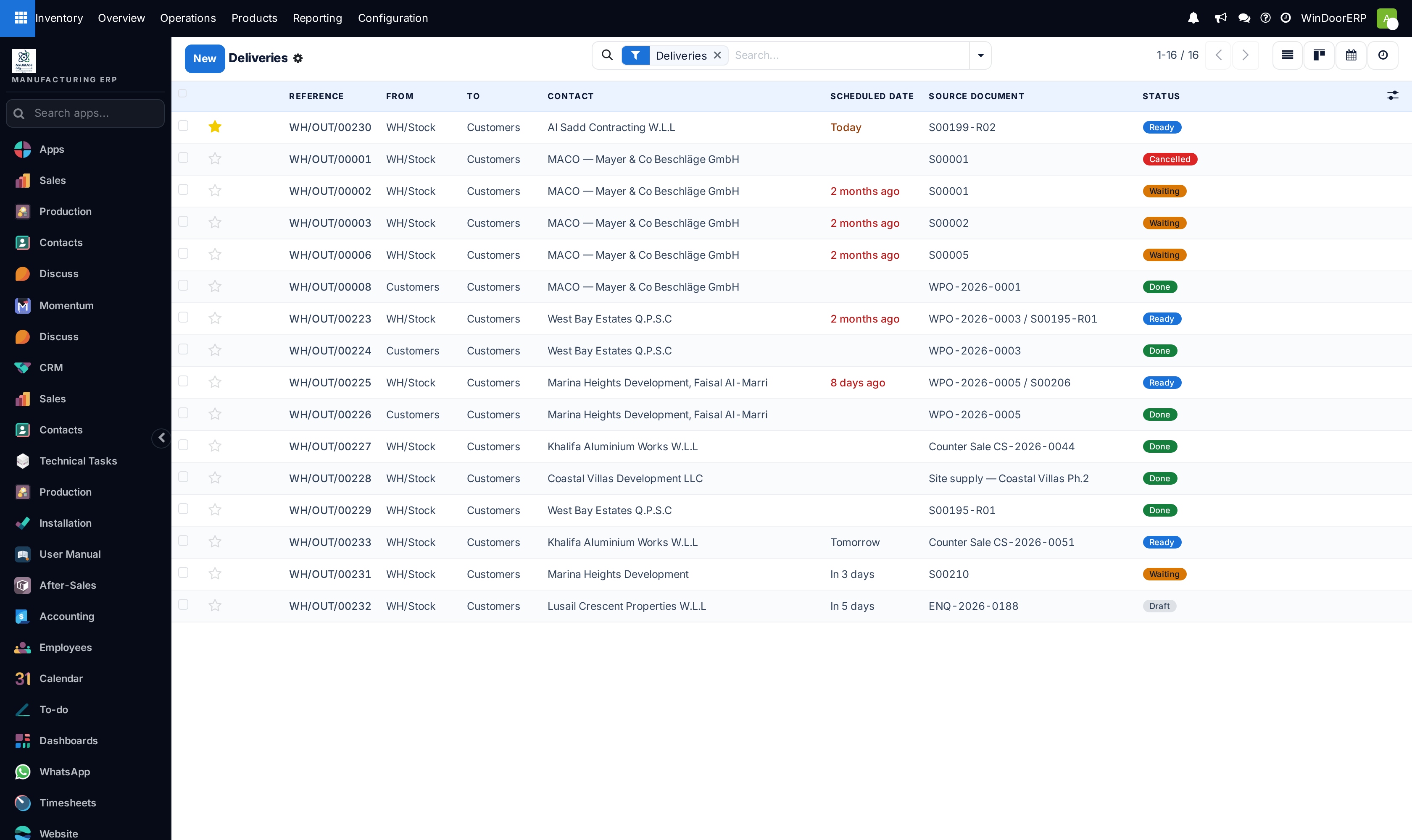
Four deliveries are due today and they all come out of the same racks. Walking the floor once and collecting them together is obviously cheaper than walking it four times. WindoorERP ships a feature built for exactly that — Batch, Wave & Cluster Transfers — and it is not installed on this system: there is no batch transfer document, no wave, no cluster-bin validation and no combined picking screen. What you do have is a Deliveries list that lets you select several transfers at once and act on the whole selection — print them as one document, validate them in one action. This article is that method, followed by an honest account of what installing the feature would add and how to ask for it.
Before you start
- Inventory access as User or Administrator. The Deliveries list and the Validate action both sit behind the Inventory user group.
- Fabricated window and door units are out of scope here — they leave on the finished-goods delivery raised by production, not on a picker's round. This page is about catalogue goods: hardware, sealant, fixings, accessories.
- Put in Pack is not available on this system. The button, the package columns and the Packages menu are all gated on the Manage Packages permission, and no user holds it here — so "one container per order" is a discipline on the trolley, not a fact the system records.
Steps
Important
Validating a multi-transfer selection is not silently forgiving. If any transfer in the selection has nothing to move, the refusal names it — «Transfers WH/OUT/00012: Please add some items to move.» — and the whole selection stops there. Where you picked less than was demanded, the backorder question is asked once for the selection and lists the transfers it covers. Read the references in those dialogs instead of clicking through them.
-
01
Open Inventory › Operations › Transfers › Deliveries. The list arrives already filtered to outgoing transfers; add Ready, Today, Tomorrow, Late or To Do from the filter menu to cut it down to the round you are about to walk.
-
02
Tick the checkbox at the start of each row you intend to pick in one trip. A count of the selected records appears above the list.
-
03
Choose Print › Picking Operations. This returns one PDF holding a page per selected transfer, each headed by the transfer reference and a scannable barcode of it, with the contact, status, responsible, scheduled date, source document and warehouse, and a Product / Quantity table below. It is the nearest thing to a combined picking list this system has.
-
04
Walk the round with that printout and keep one container per transfer. Nothing in the software enforces the separation, so it has to hold on the trolley.
-
05
Back at the bay, open any transfer where you picked less than was demanded and correct its quantities first. Then re-select the finished transfers and run Validate from the Actions menu — it processes every selected transfer in one pass.
What else a selection can do
The same tick-several-then-act pattern drives more than printing and validating. With rows selected, Print also offers Delivery Slip and Return slip; Actions offers Labels for shipping labels alongside Validate; and Send email opens the mail composer once for the whole selection. Unreserve, Lock/Unlock, Scrap and Split exist too, but they are bound to the form view only and act on one transfer at a time by design.
Two columns that would help a picking round do not print here. The From and To location columns on the Picking Operations report appear only for users holding Manage Multiple Stock Locations, which nobody holds on this system — and every internal quantity sits in the single location WH/Stock anyway, so there is nothing for those columns to say.
What the batch, wave and cluster feature would add
Installed, the feature adds a batch transfer: a document that owns several delivery transfers and is worked as one job. It arrives as Inventory › Operations › Jobs › Batch Transfers, with a sibling Wave Transfers list beside it, and it adds two actions to a selection on the Transfers list — Add to batch and Add to wave — which turn today's ad-hoc selection into a real record.
| What it adds | What that changes on the floor |
|---|---|
| A batch record carrying Batch Transfer reference, Description, Responsible, Operation Type, Scheduled Date and its Transfers | The round becomes a named job with an owner and a date, instead of a printout and somebody's memory. |
| A state of its own — Draft, In progress, Done, Cancelled — computed from the transfers inside it | A supervisor can see which rounds are out on the floor right now without opening each delivery. |
| One combined operations screen for the whole batch, plus Confirm, Check Availability, Print, Validate and Merge on the batch itself | One list to pick from and one validation for the round, rather than the same five clicks per transfer. |
| Automatic Batches on the operation type, with Maximum lines, Maximum transfers, Auto-confirm, and grouping by Contact, Destination Country, source location or destination location | Confirmed deliveries drop themselves into the right round as they are confirmed, with nobody selecting anything. |
| Wave grouping by Product, Product Category or Location, with the categories and locations to consider listed on the operation type | Line-level runs across orders: all the glass in one pass, all the hardware in the next. |
| Estimated shipping weight and volume on the batch, and per-operation-type Batch Properties | A round can be checked against what the van will actually carry before anyone starts picking it. |
The cluster half of the name — one bin per order on the trolley, each item dropped into its own bin as it is picked — is the batch document plus packages, because the bin is recorded as a package. Enabling batches on their own gives you the combined round and the single validation, not the bin-by-bin check; that needs Manage Packages as well.
What batching buys is fewer walking metres per order line, and it earns most in a warehouse that ships many small orders a day out of many locations. On this fleet the outbound mix is mostly fabricated units on their own delivery plus a tail of accessories, picked from one stock location — which is the case where it earns least. That is context for the decision, not an argument against making it.
Note
The enabler is Batch, Wave & Cluster Transfers, in the Operations block of Inventory › Configuration › Settings. Ticking it installs a module rather than flipping a permission, which is why it is an administrator decision and not something to try on a live database to see what happens.
Asking for it
Raise it with your WindoorERP administrator or through your support channel. Say how many outbound transfers a picker typically walks in one trip, whether you want the wave layer (line-level runs by product or zone) as well as batches, and whether Manage Packages should be granted at the same time — without packages there is no cluster bin, and the request is really for batches only.
Troubleshooting
| Symptom | Cause and fix |
|---|---|
| There is no Jobs or Batch Transfers entry under Operations | Correct — the module is not installed. The menu is created by the module, so no permission can hide or restore it. |
| Add to batch and Add to wave never appear when transfers are selected | Same reason: both are actions shipped by the batch module, not by the Inventory app. |
| Put in Pack is missing from the transfer | That one is a permission, not a module. The button is gated on Manage Packages, which no user holds here; it can be granted without installing anything. |
| Validate on a selection was refused with a message naming one transfer | Read the reference in the message — that transfer has nothing to move or no quantities set. Fix it, then select and validate again. |
| Goods from two orders were mixed on the trolley | Nothing detects it; bin validation only exists with cluster picking. Recount both transfers against the printout before either leaves the building. |
| The printed sheet does not say which shelf to go to | The From and To columns need Manage Multiple Stock Locations, and there is a single internal location on this system in any case. |
Common mistakes
- Picking several orders into one container "to save a trip", then reconstructing at the loading bay which unit belonged to whom.
- Validating the whole selection from memory at the end of the round instead of correcting each transfer's quantities first — the backorder question then covers transfers nobody has looked at.
- Reading the missing Batch Transfers menu as an access-rights problem and asking for a permission; it is a module, and no group grants it.
- Expecting finished window units to show up in this flow — they ship from production, on their own delivery.
Was this article helpful?
Thanks — your feedback helps.
Running a window or door factory?
Ask for a demo