Build a route with push and pull rules
What this does
A route is a named chain of rules, and a rule is a standing instruction of the form "when goods are needed here, create this kind of transfer from there" or "when goods land here, move them on to there". Routes are why confirming a sales order produces a delivery order without anybody typing one, and why a reordering rule produces a request for quotation instead of a shrug.
Every warehouse gets its routes built for it when it is created, and most WindoorERP sites never edit them. This article explains what is in them, how to read a rule, what your database actually runs today, and what changes if the Multi-Step Routes setting is ever turned on.
Before you start
- The Routes and Rules menus live under Inventory ▸ Configuration ▸ Warehouse Management and are only shown to users in the Manage Push and Pull inventory flows group, which the Multi-Step Routes setting grants. On a standard WindoorERP database nobody is in that group, so the two menus are not on the screen for anyone.
- Turning Multi-Step Routes on also turns Storage Locations on — the software forces it, because a multi-step flow needs somewhere for goods to sit between the steps.
- A route with no rules does nothing at all. The rules are the route.
- Editing a shipped route changes behaviour for every future transfer in that warehouse. Transfers already created keep the path they were created with.
Steps
-
01
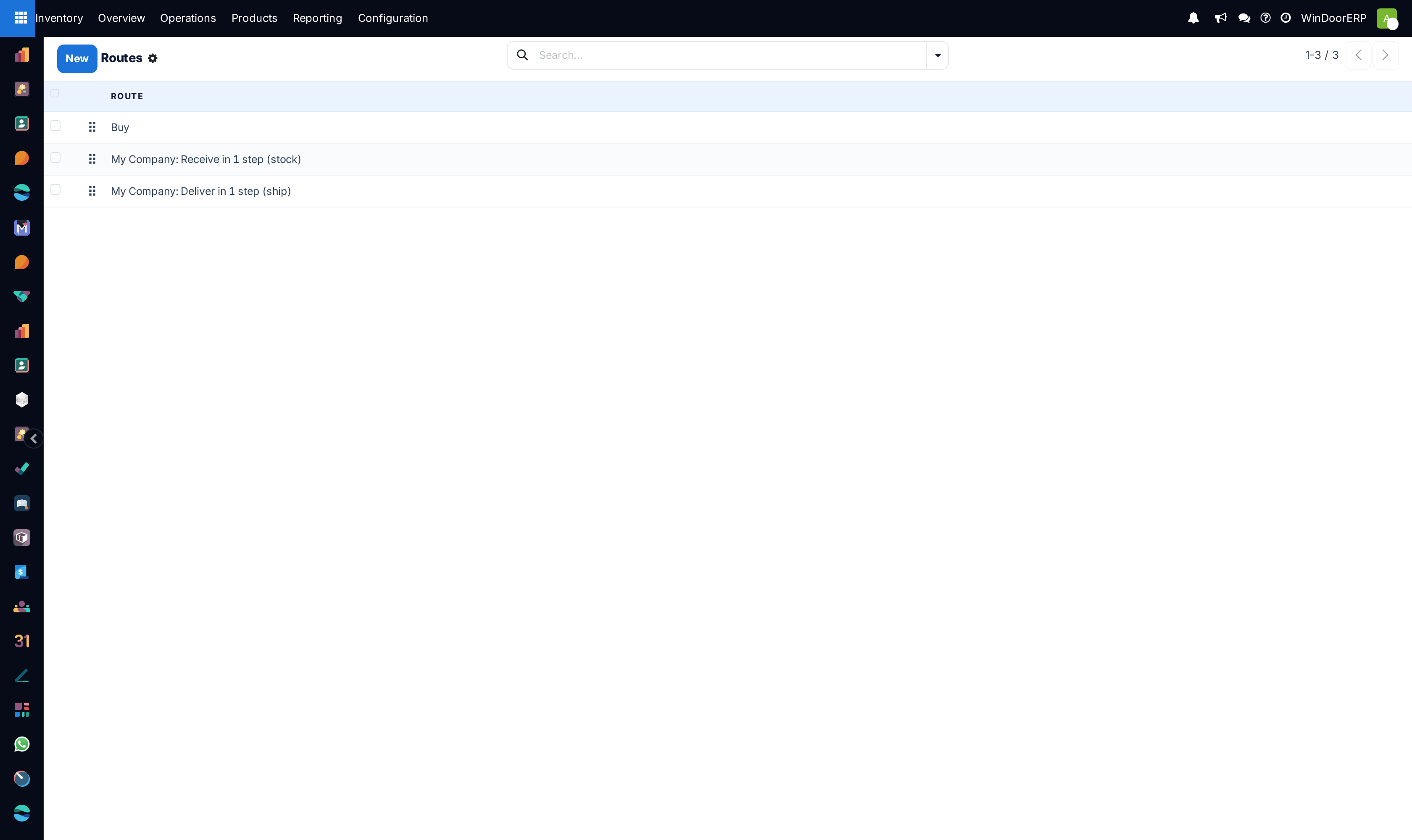
Open Inventory ▸ Configuration ▸ Warehouse Management ▸ Routes. Read the existing routes first — most requirements turn out to be a warehouse step-count change rather than a new route.
-
02
Click New and give the route a name that says where goods go, not what the project is called. The placeholder suggests e.g. Two-steps reception.
-
03
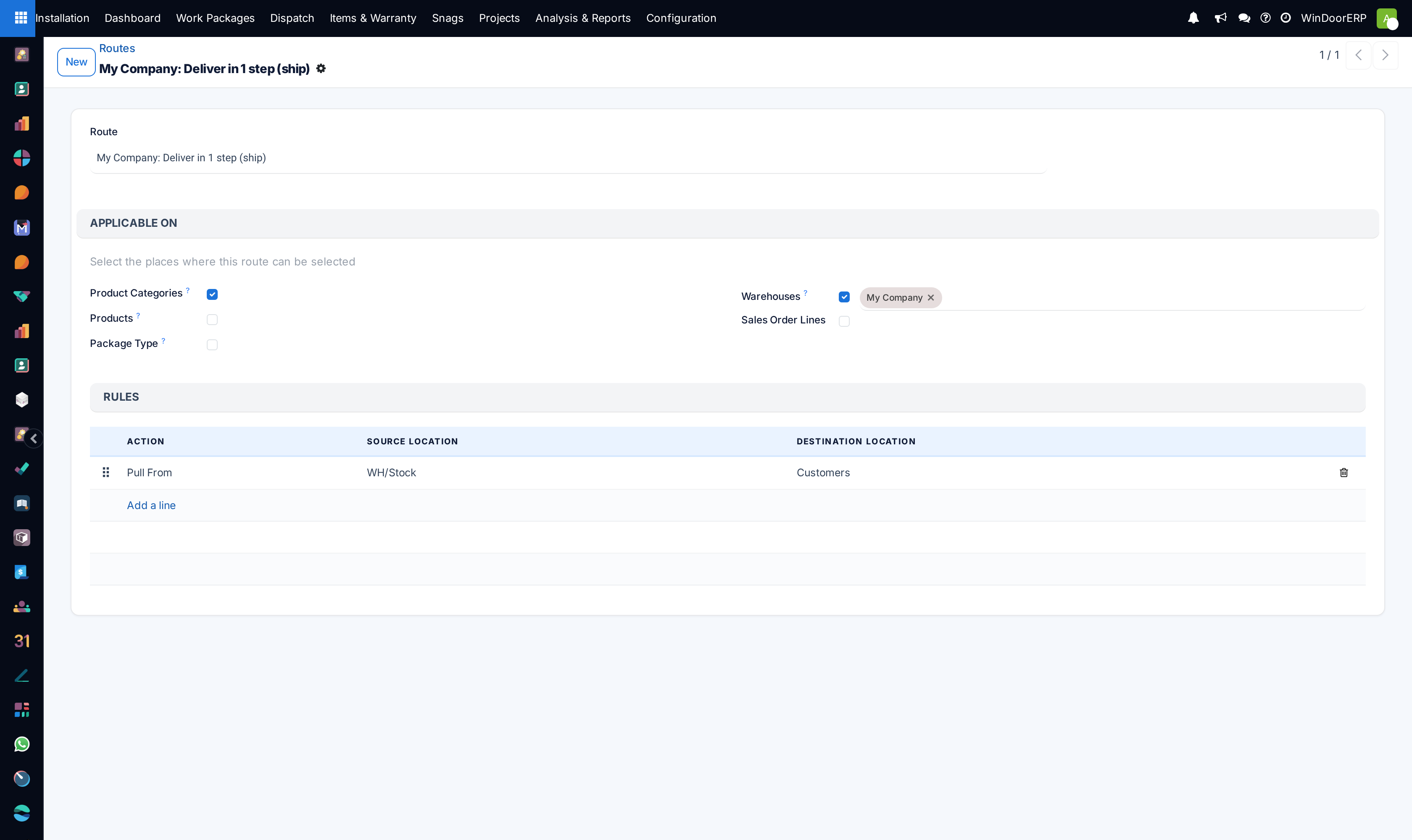
Under Applicable On, tick only the places this route may be chosen from: Product Categories, Products, Package Type, Warehouses or Sales Order Lines. Ticking Warehouses reveals a tag field where you name them.
-
04
In the Rules table click Add a line. Each line is one hop, and the dialog that opens is the full rule form described below.
-
05
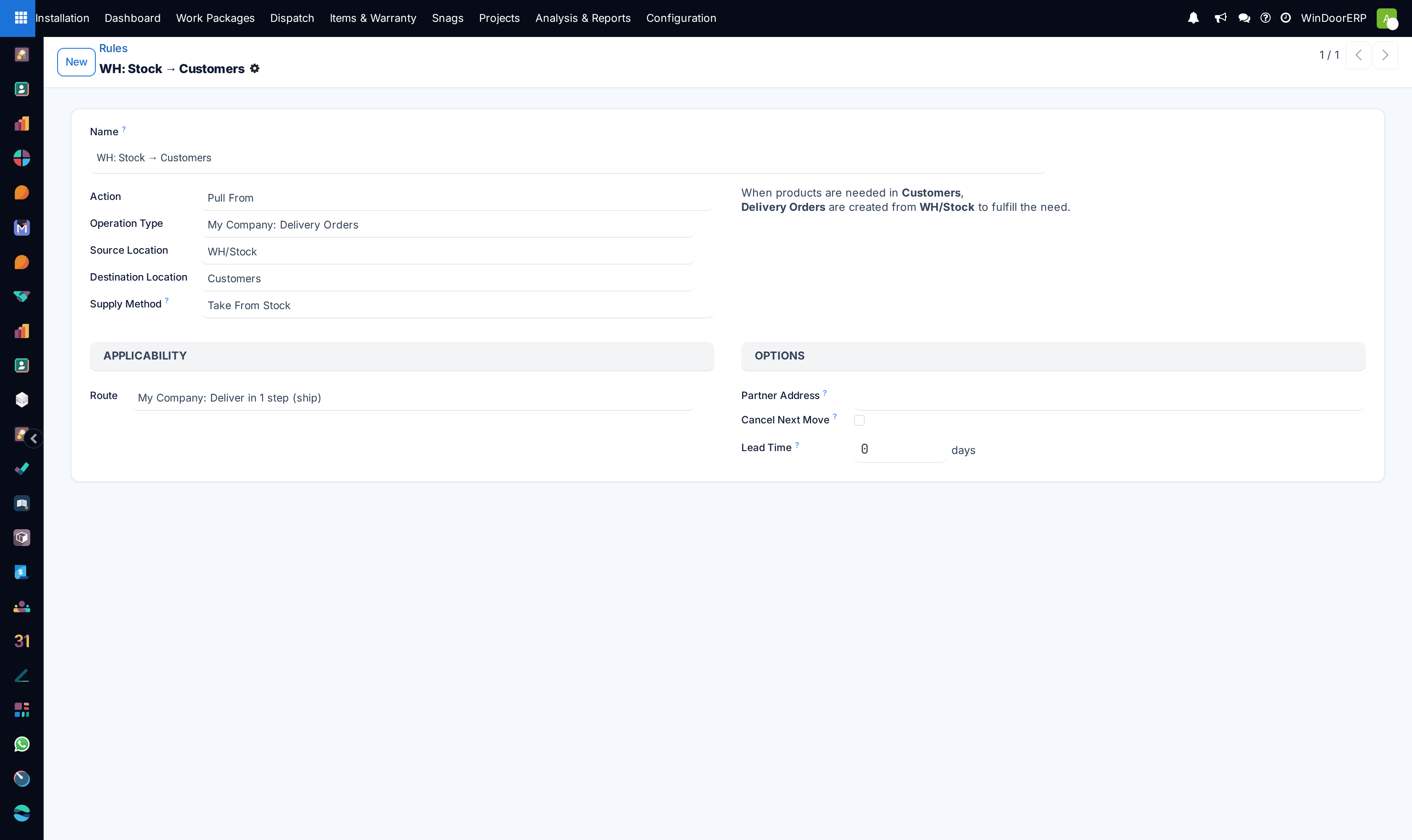
On the rule, set the Action, the Operation Type, and the Source Location and Destination Location. Read the sentence the form writes back at you on the right — it is generated from what you just chose and it is the fastest way to catch a rule pointing the wrong way.
-
06
For a pull rule, set the Supply Method. This is the field that decides whether the chain stops here or triggers the next rule up.
-
07
Save, then go and tick the route where it applies — on the product, the product category, the warehouse, or the quotation line. A saved route that nobody has selected changes nothing, and this is the single most common reason a new route "does not work".
The routes your database ships with
A one-step warehouse carries three active routes and one archived one. The two named after the warehouse were generated when the warehouse was created, and they keep the warehouse's name as it was at that moment — rename the warehouse later and the routes are not renamed with it, which is why a database whose warehouse is now WinDoorERP can still show routes called My Company: ….
| Route | What it is |
|---|---|
| Buy | One Buy rule with no source and WH/Stock as destination. When something is needed in stock and nothing else can supply it, this raises a request for quotation. Applicable on warehouses. |
| … Receive in 1 step (stock) | The receipt path. Its only rule is archived along with the two- and three-step locations, because a one-step receipt does not need a rule: the receipt operation type already puts goods from Vendors straight into WH/Stock. Applicable on product categories and warehouses. |
| … Deliver in 1 step (ship) | The delivery path, and the one rule that fires on every order you ship: a Pull From rule taking goods from WH/Stock to Customers through the Delivery Orders operation type. Applicable on product categories and warehouses. |
| Replenish on Order (MTO) | Archived. Its rule pulls from stock to the customer with the supply method set to trigger another rule, so demand chains straight through to a purchase instead of consuming stock. It is switched on by the Replenish on Order (MTO) setting, not by unarchiving it by hand. |
The route form
The form is three parts: the name, the Applicable On group, and the Rules table. A Company field appears only on a multi-company database; Sequence and Supplied Warehouse appear only in developer mode. Nothing else is on it.
| Field | What it does |
|---|---|
| Route | Required, and translatable. This is the label people see wherever the route can be ticked. |
| Product Categories | Lets the route be ticked in a product category's Logistics section, where it then applies to every product in that category. |
| Products | Lets the route be ticked on a product's Inventory tab. On a brand-new route this box is the only one already ticked. |
| Package Type | Lets the route be ticked on a package type. Only useful once packages are in play. |
| Warehouses | Ticking it reveals a tag field. Every transfer inside a named warehouse that matches a rule then follows this route, with nothing to select per product. |
| Sales Order Lines | Adds the route to the Routes column on quotation lines, so one line of an order can take a different path from the rest. The column itself is only visible with Multi-Step Routes on. |
| Rules | The ordered list of hops, showing Action, Source Location and Destination Location per line, with a drag handle to re-order and Add a line underneath. |
Warning
Archiving a route archives all of its rules, and unarchiving it brings them back. That is convenient, and it also means a route you tidied away is a route whose transfers silently stop being created.
Reading a rule
Open a rule and the right-hand side of the form writes a plain sentence describing what you have configured — "When products are needed in Customers, Delivery Orders are created from WH/Stock to fulfill the need." It is generated from the fields, it updates as you change them, and it is the only part of the screen that tells you the direction in words. Read it before saving.
| Field | What it does |
|---|---|
| Name | Required. It is copied onto the transfers and moves the rule creates, so it is what you will see in a move's origin. |
| Action | Pull From · Push To · Pull & Push · Buy. The first three ship with Inventory; Buy is added by Purchase. There is no Manufacture action on this platform. |
| Operation Type | Required. Decides what kind of document appears — a receipt, a delivery, an internal transfer — and therefore its numbering, its reservation policy and its backorder policy. Choosing it overwrites the two location fields with that type's defaults. |
| Source Location | Where the goods come from. Required for push, pull and pull & push rules. |
| Destination Location | Where they end up. |
| Supply Method | Only shown for Pull From and Pull & Push. Three values, described below. |
| Automatic Move | Only shown for Push To and Pull & Push. Manual Operation creates a second move after the first; Automatic No Step Added rewrites the original move's destination instead, so no extra document appears. |
| Route (Applicability) | Which route the rule belongs to. Hidden when you opened the rule from inside its own route. |
| Partner Address (Options) | An optional delivery address for the goods this rule moves. |
| Cancel Next Move (Options) | Off by default. When on, cancelling the move this rule created also cancels the move after it. |
| Lead Time (Options) | Days, default 0. Shifts the expected date of the transfer this rule creates, which is how you build a realistic date for a multi-hop path. |
| Push Applicability | A filter, shown only for push rules, restricting the rule to moves matching a condition. |
The Rules menu shows the same records as a flat list with Action, Source Location, Destination Location and Route, and can group by route, destination location or warehouse. The rule form is covered in more depth in Configure individual supply and movement rules.
Push and pull
The two actions are triggered by opposite events, and that is the whole distinction.
- Push To is triggered by arrival. Goods land in the source location and the rule creates a transfer moving them onward. A push rule can only fire if no pull rule has already produced the movement, so pushes are the fallback in a chain, not the leader.
- Pull From is triggered by need, and it works backwards. A customer needs goods at the customer location, so a rule creates the delivery from stock. If stock cannot cover it and the supply method says so, the need moves one hop back and the previous rule fires — which is why on a multi-step route the last document in the physical process is the first one created.
- Pull & Push is both rules in one record, for a hop that has to work in either direction.
- Buy is a pull-shaped rule whose answer to a need is a request for quotation rather than a transfer.
Supply methods
Only pull rules have one, and it decides what happens at the source when the need arrives.
| Supply Method | Behaviour |
|---|---|
| Take From Stock | Use whatever is available at the source location and no more. The default, and the right answer for the last hop of any ordinary flow. |
| Trigger Another Rule | Ignore the available stock entirely and ask the previous step to bring the goods. This is what makes a make-to-order chain: the need travels all the way back to a purchase. |
| Take From Stock, if unavailable, Trigger Another Rule | Use what is there, and only chain backwards for the shortfall. The pragmatic middle, and usually the right answer on an intermediate hop. |
What actually runs on your database today
Strip away the archived records and a WindoorERP database has exactly two live rules:
- Pull From,
WH/Stock→ Customers, supply method Take From Stock, on the delivery route. This one runs every time you confirm an order. - Buy, into
WH/Stock, on the Buy route. This one runs when a reordering rule or a make-to-order chain says stock is needed and nothing else can supply it.
There is no push rule anywhere. Receipts are not created by a rule at all on a one-step warehouse — the receipt operation type carries Vendors as its source and WH/Stock as its destination, and that is enough. If you have read elsewhere that "receive in one step is one push rule", that describes a two-step configuration, not this one.
Applying a route once you have built it
A route only does something where it has been selected, and each place behaves differently.
| Where | How it behaves |
|---|---|
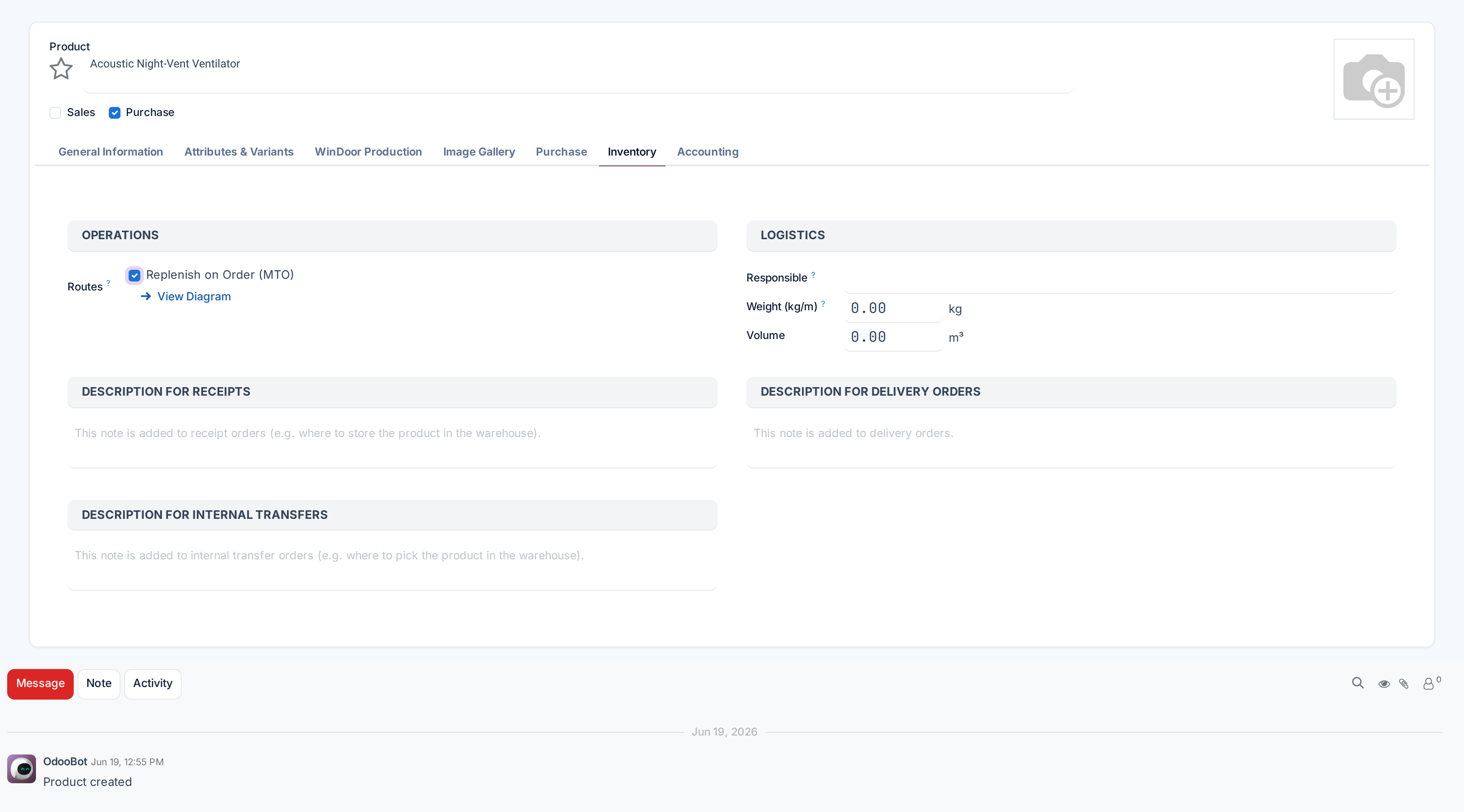
| Product ▸ Inventory tab ▸ Operations ▸ Routes | A checkbox list of every route marked applicable on products, with a View Diagram link beside it. On a WindoorERP database the only such route is Replenish on Order (MTO), and the whole block disappears from the tab while that route is archived. |
| Product Category ▸ Logistics ▸ Routes | Applies to every product in the category, and the products then show it as a read-only tag. The field is only visible with Multi-Step Routes on. |
| Route form ▸ Warehouses | No per-product selection at all: every matching transfer in the named warehouses follows the route. This is how the shipped receipt and delivery routes are attached. |
| Quotation line ▸ Routes column | Chosen by hand, per line, so one item on an order can take a different path. Also only visible with Multi-Step Routes on. |
| Package type | Rarely used, and needs the Packages feature before it means anything. |
Troubleshooting
| Symptom | Cause and fix |
|---|---|
| No Routes or Rules menu | Multi-Step Routes is off, which is the normal state here. It is an administrator decision and it also switches Storage Locations on — raise it with the WindoorERP team rather than trying it to see. |
| A new route changes nothing | Either it has no rules, or nobody has ticked it anywhere. Both are silent. |
| The route is not offered on the product | Products is not ticked under Applicable On, or the route is archived. The product form hides the whole Routes block when no product-selectable route is active. |
| Transfers appear in the wrong order on the floor | That is the design. Pull chains create the last document first; each transfer stays Waiting Another Operation until the one feeding it is done. |
| The route names say My Company but the warehouse is not called that | Routes keep the warehouse name they were generated with. Rename them by hand if it bothers people; nothing depends on the text. |
| A rule refuses to save on a multi-company database | "Rule … belongs to … while the route belongs to …" — the rule and its route must be in the same company, or the route must be shared. |
| Changing a route did not change an existing transfer | Rules are read when the transfer is created. Cancel and re-create the document, or fix that transfer by hand. |
Common mistakes
- Building a route before checking whether a warehouse step-count change does the same job. Two-step delivery is a dropdown, not a project.
- Ticking every box under Applicable On so the route can be selected anywhere. It will then be selected somewhere you did not expect.
- Saving the route and forgetting to select it on the product or category. Nothing warns you.
- Setting the supply method to Trigger Another Rule on the last hop, so the system refuses to use stock it can see sitting in the warehouse.
- Editing a shipped route instead of copying it. The originals are what the warehouse regenerates against when its step count changes.
Was this article helpful?
Thanks — your feedback helps.
Running a window or door factory?
Ask for a demo