Set up a warehouse
What this does
Creates a warehouse: a physical site with an address, its own stock, and its own receipts and deliveries.
Most WindoorERP installations need exactly one. Create a second only when there is genuinely a second site whose stock is counted separately — not for a different room, and not for a different product line.
Before you start
- Administrator rights, and Storage Locations switched on in Inventory settings.
- The site's address, and a short code you are happy to live with — it prefixes every reference the warehouse generates.
- Decide the receipt and delivery steps before you save. Changing them later creates and abandons locations.
Steps
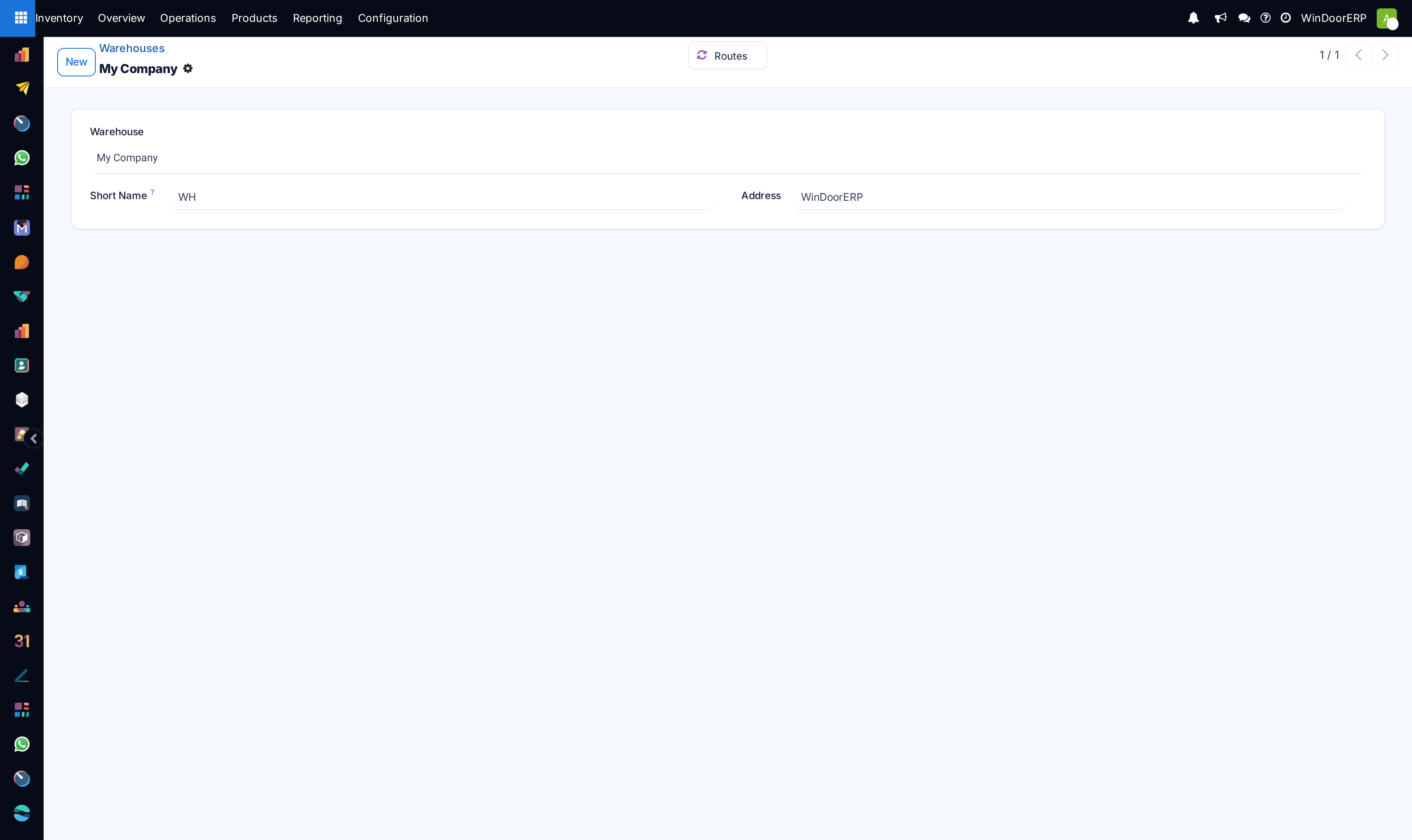
-
01
Open Inventory ▸ Configuration ▸ Warehouses and click New.
-
02
Enter the Warehouse name and a Short Name — two or three characters is usual.
-
03
Set the Address. It is what prints on delivery paperwork.
-
04
Choose Incoming Shipments and Outgoing Shipments. See Choose how goods come in and go out for what each option means.
-
05
Save. WindoorERP creates the warehouse's locations and operation types for you.
-
06
Check Inventory ▸ Configuration ▸ Locations and Operations Types to see what was created before you start using it.
Every field on the warehouse
| Warehouse | The site's name, as people say it. |
|---|---|
| Short Name | The code in front of every reference this warehouse produces. Changing it later does not rewrite existing references, so old and new documents will disagree. Choose once. |
| Address | The physical address, printed on delivery documents. |
| Incoming Shipments | Receive and Store (1 step) · Receive then Store (2 steps) · Receive, Quality Control, then Store (3 steps). |
| Outgoing Shipments | Deliver (1 step) · Pick then Deliver (2 steps) · Pick, Pack, then Deliver (3 steps). |
| Buy to Resupply | Whether purchase orders may replenish this warehouse directly. |
| Resupply From | Other warehouses that feed this one, for a central store supplying a branch. |
Several fields on the record are filled in for you and should be left alone: the stock location, the input, quality control, packing and output locations, the routes, and the operation types. They are consequences of the two step settings, not independent choices.
What saving actually creates
A new warehouse is not just a row. Saving builds a location tree — a view location with the warehouse's stock beneath it — plus an operation type for receipts, one for deliveries and one for internal transfers, and the routes that connect them.
Choose two- or three-step receipts and it also creates the input and quality control locations, and the extra operation types that move goods through them.
Everything downstream refers to those records, which is why deleting a warehouse is not offered once it has been used, and archiving is the way to retire one.
When a second warehouse is the wrong answer
A second warehouse means separate stock, separate receipts and deliveries, and every report gaining a dimension. That is right for a genuinely separate site and wrong for almost everything else.
For a different room, a mezzanine or an outdoor yard at the same address, create locations instead. For goods belonging to a different legal entity, that is a different company, not a different warehouse.
The test is simple: if you would count it separately and deliver from it separately, it is a warehouse. Otherwise it is a location.
Troubleshooting
| There is no Warehouses menu | Storage Locations is off in Inventory settings. |
|---|---|
| References still show the old code | Expected. The short name is stamped when a document is created and is never rewritten. |
| New locations appeared that I did not create | The step settings created them. That is how multi-step receipts and deliveries work. |
| Old locations are still there after going back to one step | They are left behind deliberately, because moves reference them. Archive them once nothing is in flight. |
| The warehouse cannot be deleted | It has history. Archive it. |
| Stock is not where I expect after a receipt | With two or three steps the goods stop at input or quality control first. That is the mode working, not a fault. |
Common mistakes
- Creating a warehouse for a room. Use a location.
- Choosing a short name casually, then finding it on every document ever printed.
- Changing the step settings on a live warehouse with transfers in flight.
- Editing the generated locations and operation types by hand instead of changing the setting that produced them.
- Creating a second warehouse when the real requirement was a second company.
Was this article helpful?
Thanks — your feedback helps.
Running a window or door factory?
Ask for a demo