Schedule a follow-up activity
What this does
An activity is a follow-up task pinned to a record: call this customer, chase this approval, book the site survey before the drawings go out. It carries a deadline and an owner, it shows on the record, it shows in the owner's clock menu, and it does not go away until somebody closes it. A note records what happened; an activity is what makes something happen.
That difference is the whole point. Nothing in WindoorERP chases a job on its own — a quotation does not remind anyone to follow it up, and a stage does not move itself. An activity is the only object in the system whose job is to come back and find you.
Before you start
- Activities exist on every record that has a chatter — opportunities, quotations, orders, projects, tasks, contacts, installations.
- The activity types available on this system are To-Do, Email, Call, Meeting and Document, plus two that only appear on their own screens: WhatsApp Follow-up on a contact and Certifications on an employee. There is no signature-request type — that belongs to an application this system does not have.
- An activity notifies the person in Assigned to. That is not the same list as the record's followers, and assigning one to yourself out of habit is the most common way work goes missing.
Steps
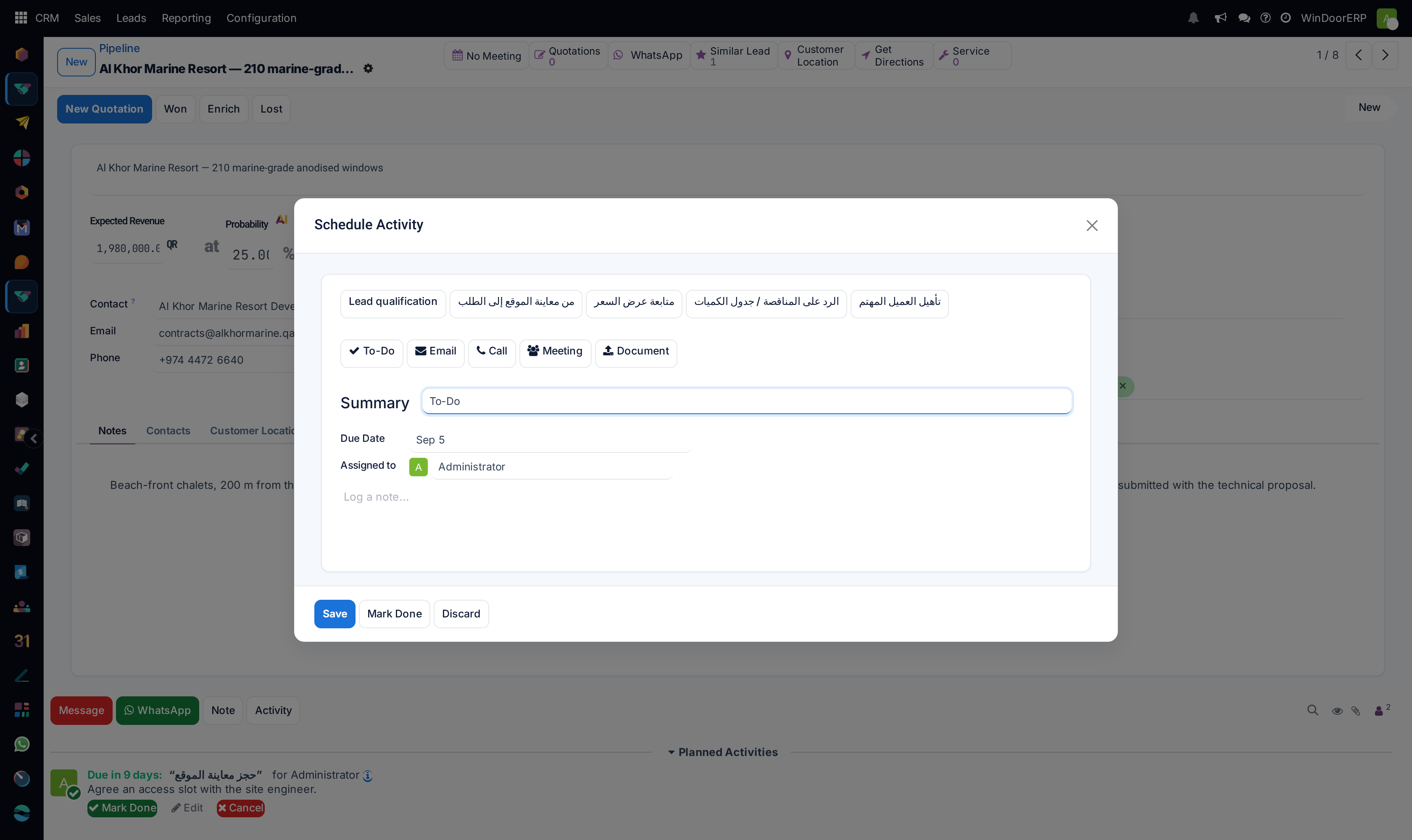
-
01
Open the record and click Activity in the chatter, at the bottom of the form. From anywhere at all,
Alt + Shift + Adoes the same thing. -
02
In the Schedule Activity window, click the badge for the type you want. The badges carry icons, and the one you pick fills the summary with that type's default.
-
03
Replace the Summary with something a colleague could act on — Agree an access slot with the site engineer beats follow up.
-
04
Set the Due Date, and change Assigned to if the work is not yours.
-
05
Add anything the owner needs in the note box, then click Save.
The Schedule Activity window
One window serves every route in, so it is worth reading once.
| Control | What it does |
|---|---|
| Plan badges (top row) | Shown only when this kind of record has activity plans — a whole sequence of activities scheduled in one click. Pick one and the window changes: the type badges disappear and you get a Due Date, a Responsible where the plan asks for one, a read-only Plan Summary of what will be created, and a Schedule button instead of Save. |
| Type badges | The activity types available for this record. Picking one loads that type's Default Summary, Default User and Default Note, all of which you can still change. |
| Summary | The line everyone reads in every list. Placeholder: e.g. Discuss Proposal. |
| Due Date | The deadline. A date, not a time. It is what makes the activity green, orange or red. |
| Assigned to | Who owes the work. Defaults to you; placeholder Unassigned. Changing it hands the activity over — it leaves your clock menu and lands in theirs. |
| Link to | Only appears when you opened the window with no record in context, as from Alt + Shift + A on a screen that is not a form. It is required when you assign the activity to somebody other than yourself. |
| Note box | Free text, placeholder Log a note.... This is what the owner reads before starting. |
| Save | Creates the activity. Hotkey Alt + Q. |
| Mark Done | Creates it and immediately closes it, writing the whole thing into the chatter as history. Use it to record something you have already done. It disappears for a type whose chaining is set to Trigger Next Activity. Hotkey Alt + W. |
| Discard | Closes without creating anything. Hotkey Alt + X. |
Note
In the Arabic interface the Due Date field is labelled «موعد إجراء المكالمة» — literally call date. That is a mistranslation in the shipped language pack, not a different field: it is the deadline of whatever type of activity you are scheduling. Arabic readers should read that label as the deadline.
Where you can schedule one
Four routes, one window. Which you use is a matter of where you happen to be.
From the chatter
Open the record, click Activity. The chatter's other two buttons are Message (Alt + M) and Note (Alt + Shift + M), and the difference between them and Activity is the difference between recording the past and scheduling the future.
From a kanban board
Click the clock icon on a card, then + Schedule An Activity. This is the fast way to work down a pipeline column assigning next steps.
From a list
Use the clock in the Activities column. If that column is not shown, switch it on from the column picker at the end of the header row, then click the clock on the row you want.
From the activity view
Many applications offer an activity view behind the clock icon among the view switchers. It is a grid: every record is a row, every activity type a column, and each cell shows the summary, the deadline and the owner's avatar of what is planned there.
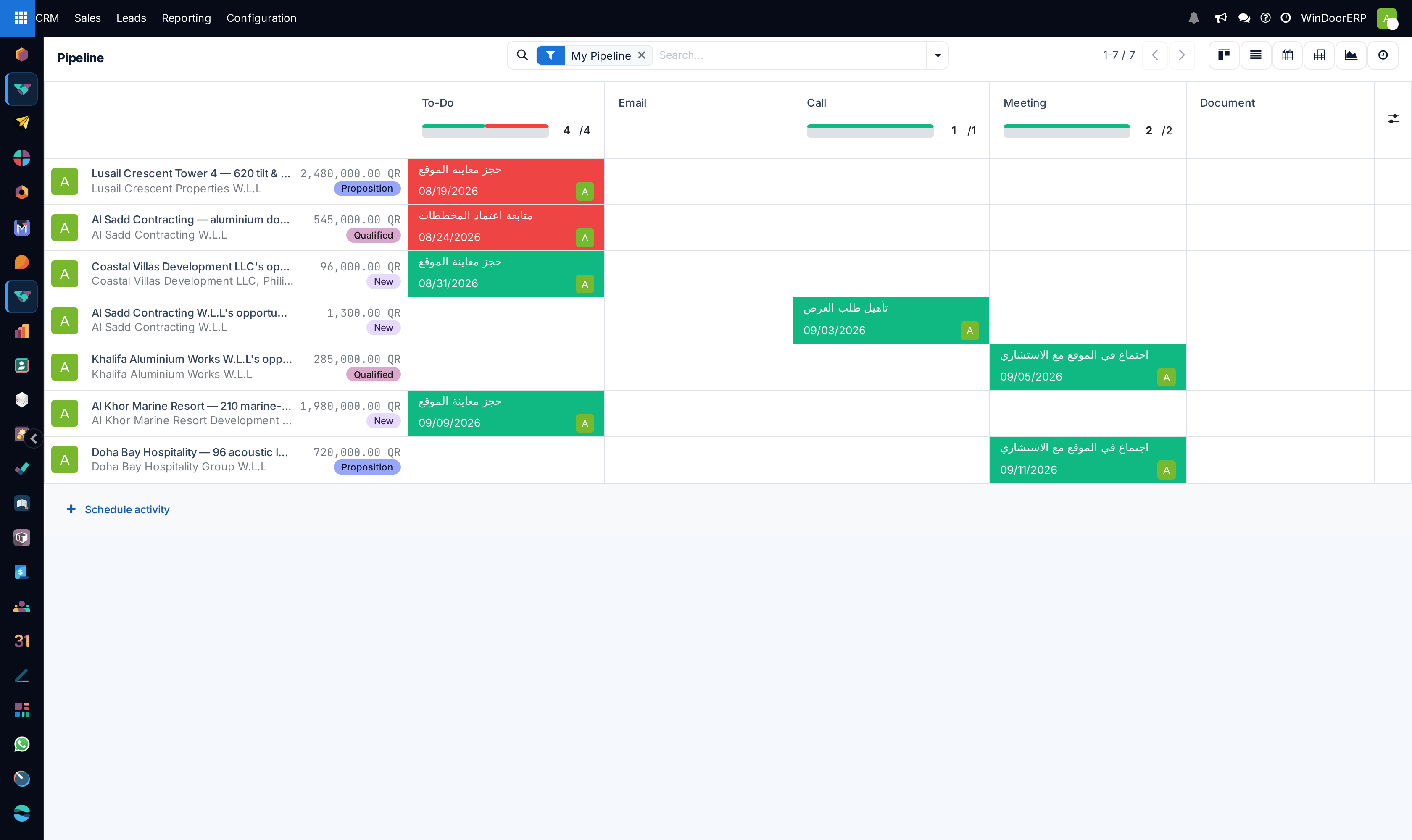
Green cells are planned, orange are due today, red are overdue. Hover an empty cell and a + appears, tooltip Create, which schedules straight into that record and type. The column headings carry a progress bar you can click to filter the grid to just the overdue or just the planned, and a column picker at the end lets you hide types you do not use. Schedule activity at the foot adds a record that has nothing planned yet. Where a type has email templates attached, a small ⋮ menu on its heading offers to send one — the tooltip warns you plainly: “This action will send an email.”
Note
Where a record already has an activity, the clock icon is replaced by the icon of that activity's type. Clicking it adds a second one; nothing is overwritten. A number on the cell means more than one is planned, shown as open / total when some of them are already done.
Reading and closing an activity
On the record, planned activities sit above the message history under Planned Activities. Each one opens with how long you have — Today:, Tomorrow:, Due in 9 days:, Yesterday:, 3 days overdue: — coloured orange, green or red, then the summary and for whoever owns it.
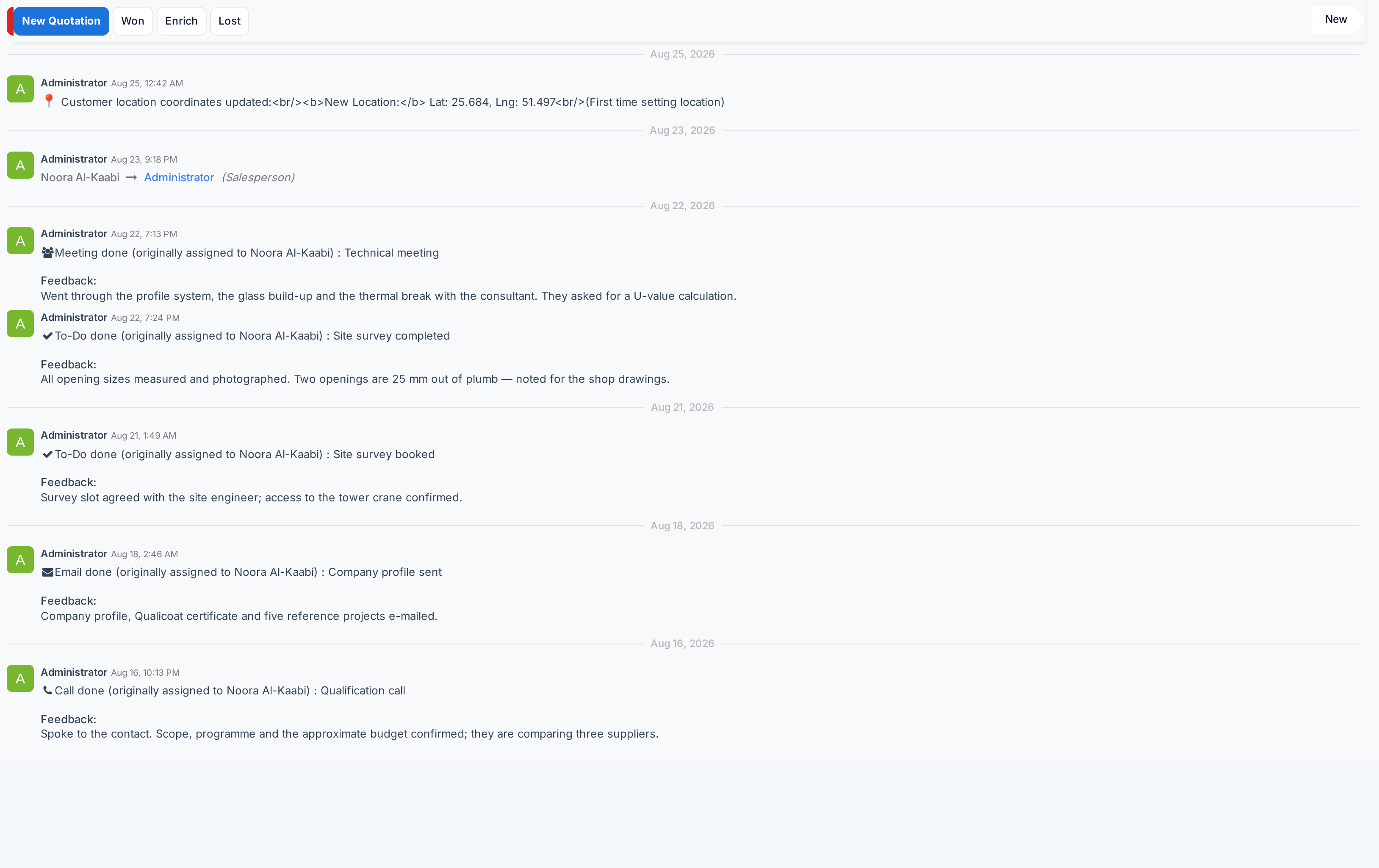
The ⓘ icon expands the detail: activity type, who created it and when, who it is assigned to, and the due date. Three buttons close it out:
- Mark Done — the honest ending. See below for what it actually does.
- Edit — reopens the window to change the summary, date or owner.
- Cancel — in red, and it means it: the activity is deleted outright. Nothing is written to the chatter and there is no confirmation. Use it for an activity created by mistake, never for one that was done.
Where the type's action is Upload Document, an upload control appears beside those buttons; attaching the file closes the activity and files the attachment on the record.
What Mark Done actually does
Marking an activity done is not a delete, and knowing the difference matters when somebody asks what happened three months ago.
- A message is posted to the record's chatter recording the activity, its type, and whatever feedback you typed.
- Any files attached to the activity are moved onto that message so they survive.
- If the type is chained with Trigger Next Activity, the next activity is created immediately.
- The activity itself is archived — kept, with a Done Date and your feedback, but hidden from every list by default.
Two related buttons exist elsewhere. Done & Schedule Next closes this one and opens the window for the follow-up. And in the list of activities, the header buttons Today, Tomorrow and Next Week push the deadline without closing anything.
Note
You can mark your own activity done on a record you are not allowed to read. That is deliberate: the task is yours even when the record is not.
Everything you owe: the clock menu
The clock in the top bar is your whole workload, whatever application it came from, with the count in a badge beside it.
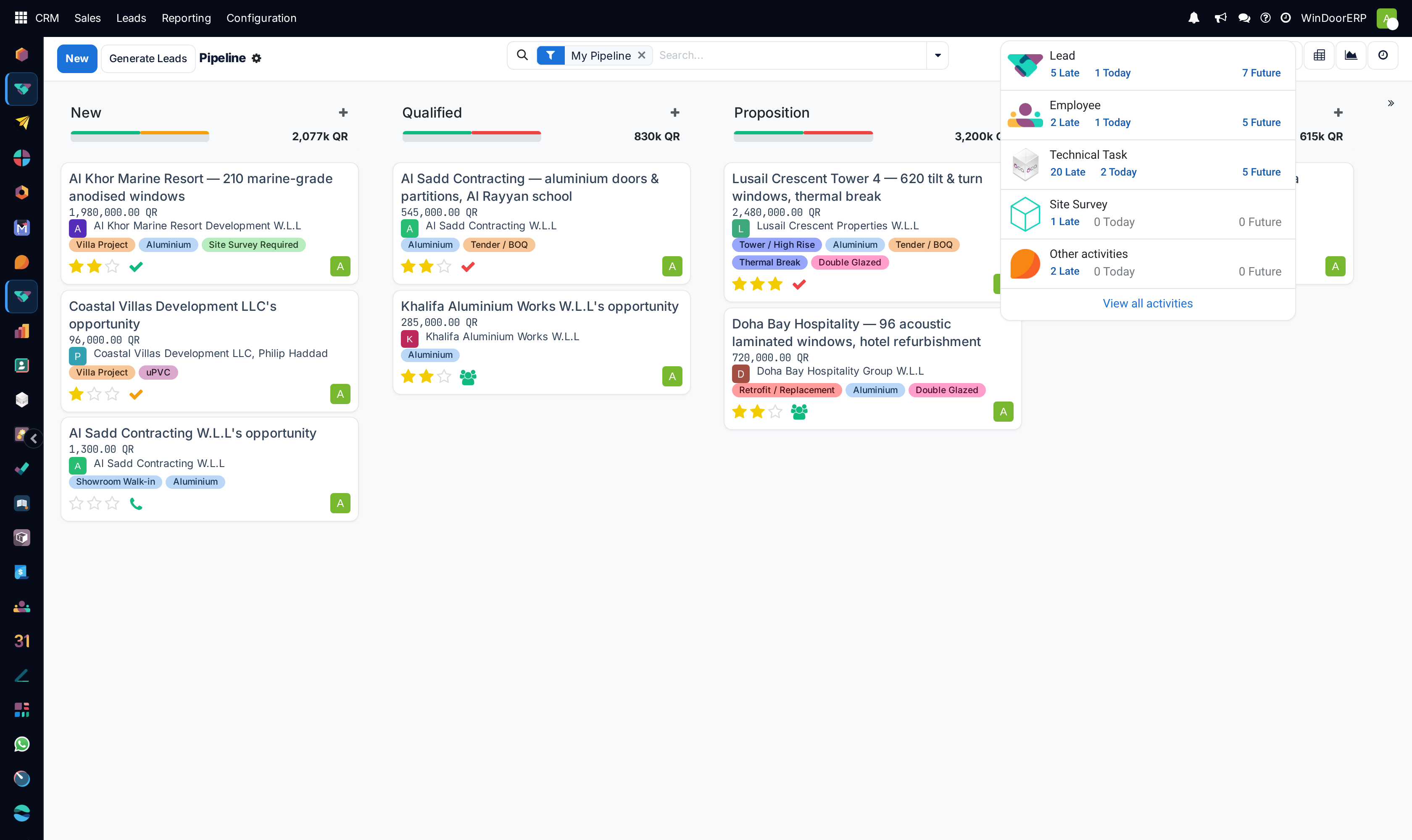
Activities are grouped by the kind of record they sit on, and each group reports three numbers: Late, Today and Future. Click a number to open exactly those records. Work Late before Today and Today before Future; there is no other sensible order. When there is nothing left the menu says so: “Congratulations, you're done with your activities.”
At the foot of the menu, Add a To-Do — hotkey Alt + Shift + T — creates a personal to-do that belongs to no record at all. It is the right home for “ring the glass supplier back”, which no opportunity owns.
The full list
The clock menu shows counts; the list behind it shows the work. It opens filtered to My Activities plus Overdue and Today, and offers Unassigned Activities, Tomorrow, This week, Future and — separately — Done, which is how you see the archived ones. Group by Deadline, Document Model, Assigned To, Created By or Activity Type.
Its columns are Summary, Activity Type, Assigned to, Linked to and the deadline as a countdown; Done Date and Feedback are hidden columns you can switch on, and they are the two worth switching on when you are reviewing what a week actually produced.
Activity types
Activity types decide which follow-ups exist, what they are called, who they land on and what happens after one is closed. They are shared settings — changing one changes it for everybody.
| Where | What it takes to get there |
|---|---|
| CRM › Configuration › Activities › Activity Types | The Sales Administrator role. No developer mode. |
| Project › Configuration › Activity Types | The Project Administrator role. |
| Sales › Configuration › Activities › Activity Types | Sales Administrator and developer mode. |
| Settings › Technical › Activities › Activity Types | Developer mode. This is the database-wide list; the app menus above show the same records. |
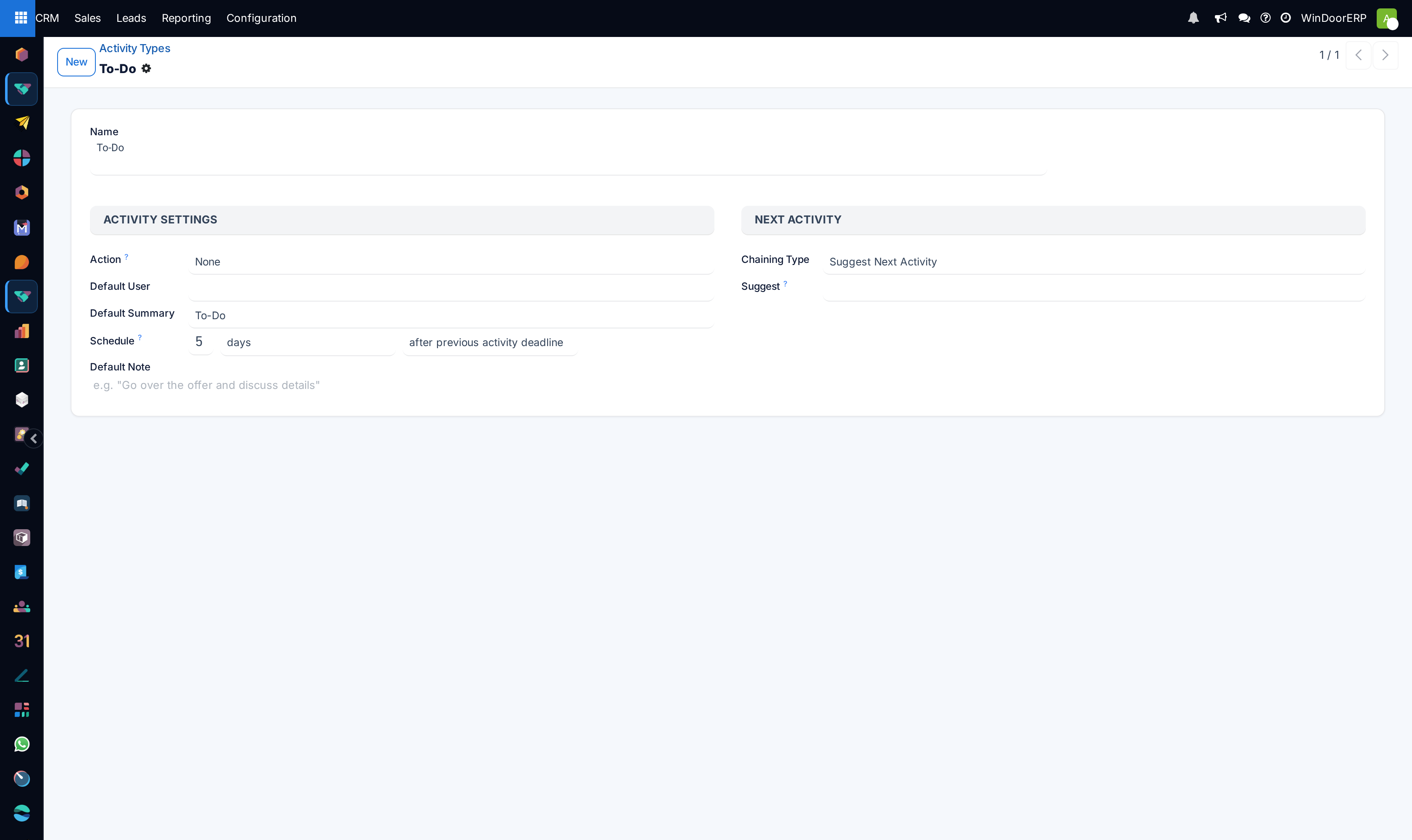
| Field | What it does |
|---|---|
| Name | What the badge says. Translated, so Arabic users see an Arabic badge. |
| Action | Behaviour attached to the type. Four values on this system: None, Upload Document (adds an upload control to the planned activity and closes it when a file arrives), Phonecall, and Meeting (which links the activity to a calendar event). There is no signature action here. |
| Default User | Who this type is always assigned to. Empty means whoever schedules it. |
| Default Summary | Pre-filled summary, still editable when scheduling. |
| Schedule | Three controls together: a number, a unit (days, weeks, months) and a starting point — after previous activity deadline or after previous activity completion date. It sets the default deadline offset. |
| Default Note | Standing instructions carried by every activity of this type — the checklist for a site survey, for instance. Placeholder: e.g. "Go over the offer and discuss details". |
| Model | Restricts the type to one kind of record. This is why WhatsApp Follow-up is offered on a contact and nowhere else. Leave it empty and the type is offered everywhere. |
| Preceding Activities | The types that suggest this one. It is the other end of Suggest, filled in for you. |
| Decoration Type | Alert or Error — tints the background of activities of this type so an exception stands out. |
| Icon | The icon on the badge, written as a font-awesome name such as fa-tasks. |
| Email templates | Templates offered from this type's column heading in the activity view. |
Important
Two settings that older documentation describes are not on this form and never were in this release: there is no Folder for uploaded documents, and there is no Keep Done tick-box. Completed activities are archived, and the way to see them is the Done filter on the activity list.
Chaining the next activity
The Next Activity section is what turns single tasks into a process.
- Chaining Type — Suggest Next Activity offers the follow-up when this one is closed and lets the user decline it; Trigger Next Activity creates it with no choice at all, the moment the first is marked done.
- Suggest — with Suggest chosen, this is a list: you may offer several sensible follow-ups.
- Trigger — with Trigger chosen, it is a single type, because the system has to pick one without asking.
The two are mutually exclusive: switching the chaining type clears the other field.
Example
A Site survey type triggers a Confirm measurements with customer call two days after completion. The surveyor never has to remember it, and a survey closed last week with no confirmation call shows up as an overdue activity on somebody's clock.
Activity plans
A plan is a whole sequence of activities scheduled in one click, with the deadlines worked out from a single date you supply. This system ships plans for opportunities, contacts, quotations, projects, project tasks and employees — onboarding a new customer, taking a lead from site survey to order, chasing drawing approval, handing over an installation.
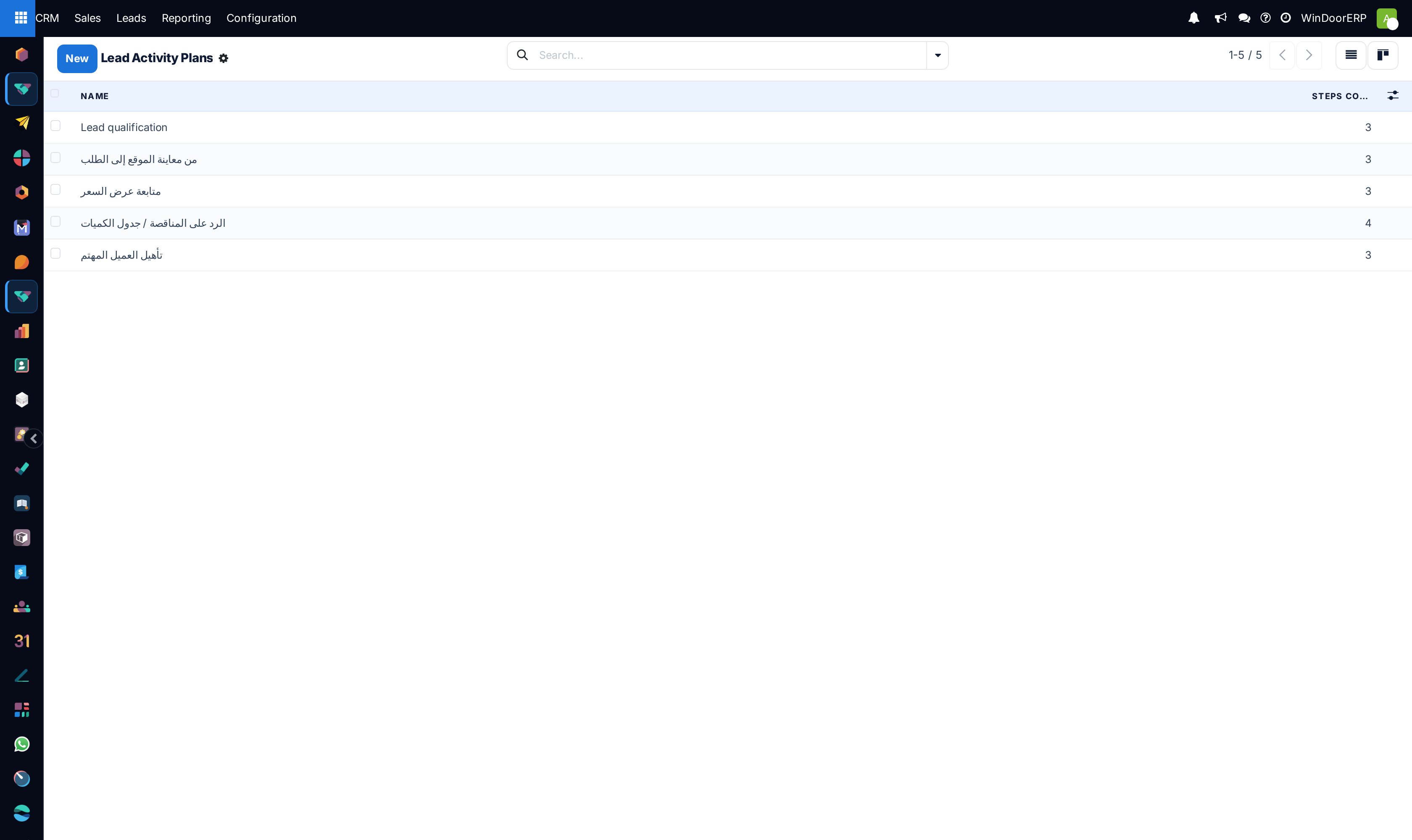
To run one, open the Schedule Activity window on a record and click the plan's badge instead of a type badge. Set the Due Date — every step is measured from it — fill in a Responsible if the plan asks for one, check the Plan Summary that lists exactly what is about to be created, and click Schedule.
Plans live beside the types, at CRM › Configuration › Activities › Activity Plans and the equivalent menu in the other applications. Each step of a plan carries an Activity Type, a Summary, an Interval in days, weeks or months, a Trigger of Before Plan Date or After Plan Date, and an Assignment that is either Default user — a named person — or Ask at launch, which is what puts the Responsible box in the window.
See also
Activities and stages answer different questions: a stage says where a job is, an activity says what happens next. Use both — see Move work through stages.
Troubleshooting
An activity you scheduled reached nobody. Check Assigned to. An activity notifies its assignee, not the record's followers, and those are different lists.
The clock badge counts something you cannot find. It counts every open activity assigned to you across every application. Open the menu and read the grouping rather than hunting screen by screen — and remember activities can sit on records you cannot otherwise open.
An activity you completed is still in the list. Editing the deadline is not closing it. Only Mark Done (or Cancel, which deletes it) takes it out of the queue.
You cannot find an activity you closed last month. It was archived, not deleted. On the activity list, apply the Done filter; Done Date and Feedback are optional columns you can switch on there. The chatter of the record also holds the message that was posted when it closed.
Today, Tomorrow or Next Week does nothing. Those buttons skip archived activities entirely, so on a list filtered to Done they change nothing and say nothing. Clear the filter first.
The reschedule dropdown on a record list does nothing. That dropdown moves your own next activity on that record. If none of the record's open activities is assigned to you, it silently does nothing at all — no message, no error. And if you have two on that record, it moves only the one with the earliest deadline.
A second activity appeared by itself after you marked one done. The type is chained with Trigger Next Activity. That is the configuration working, not a bug; change the chaining if it is not what you wanted.
Mark Done is missing from the Schedule Activity window. The type you picked is chained with Trigger Next Activity, and closing an activity at the moment of creating it would fire the follow-up immediately. Pick another type, or save it and close it afterwards.
Link to is asking for a record. You opened the window with no record in context and assigned the activity to somebody else. An activity handed to a colleague has to say what it is about.
An activity type you expected is not offered. Its Model restricts it to another kind of record. WhatsApp Follow-up is offered on contacts, Certifications on employees, and neither appears on an opportunity.
Common mistakes
- Logging a note instead of scheduling an activity. A note is a record of the past; only an activity comes back to find you.
- Using Cancel to close finished work. It deletes the activity outright and writes nothing to the chatter — the history of what was done is simply gone.
- Pressing Mark Done at the moment of scheduling, which files a task as complete before anyone has done it.
- Assigning everything to yourself. The workload then looks balanced when it is not.
- Vague summaries. Follow up, in a list of forty activities, tells the owner nothing.
- Setting a type to Trigger Next Activity without telling the team, so follow-ups appear on their clocks with no explanation.
- Letting the red count grow. Overdue activities are the earliest visible symptom of a job going wrong, and the cheapest one to act on.
Was this article helpful?
Thanks — your feedback helps.
Running a window or door factory?
Ask for a demo