Set access rights for a user
What this does
Decides what each person can see and do. Access is granted by choosing a permission level on each area of the system, and this topic explains what those choices actually control.
It also explains why a permission you removed sometimes stays — the single most confusing thing about access rights, and the reason most "it did not work" reports happen.
Before you start
- Administrator rights. Access rights are set on the user record under Settings ▸ Users & Companies ▸ Users.
- Decide what the person's job needs. Copying a colleague's rights is quick and propagates whatever was wrong with theirs.
- Change one thing at a time and have the person confirm. Two changes at once tells you nothing about which worked.
Steps
-
01
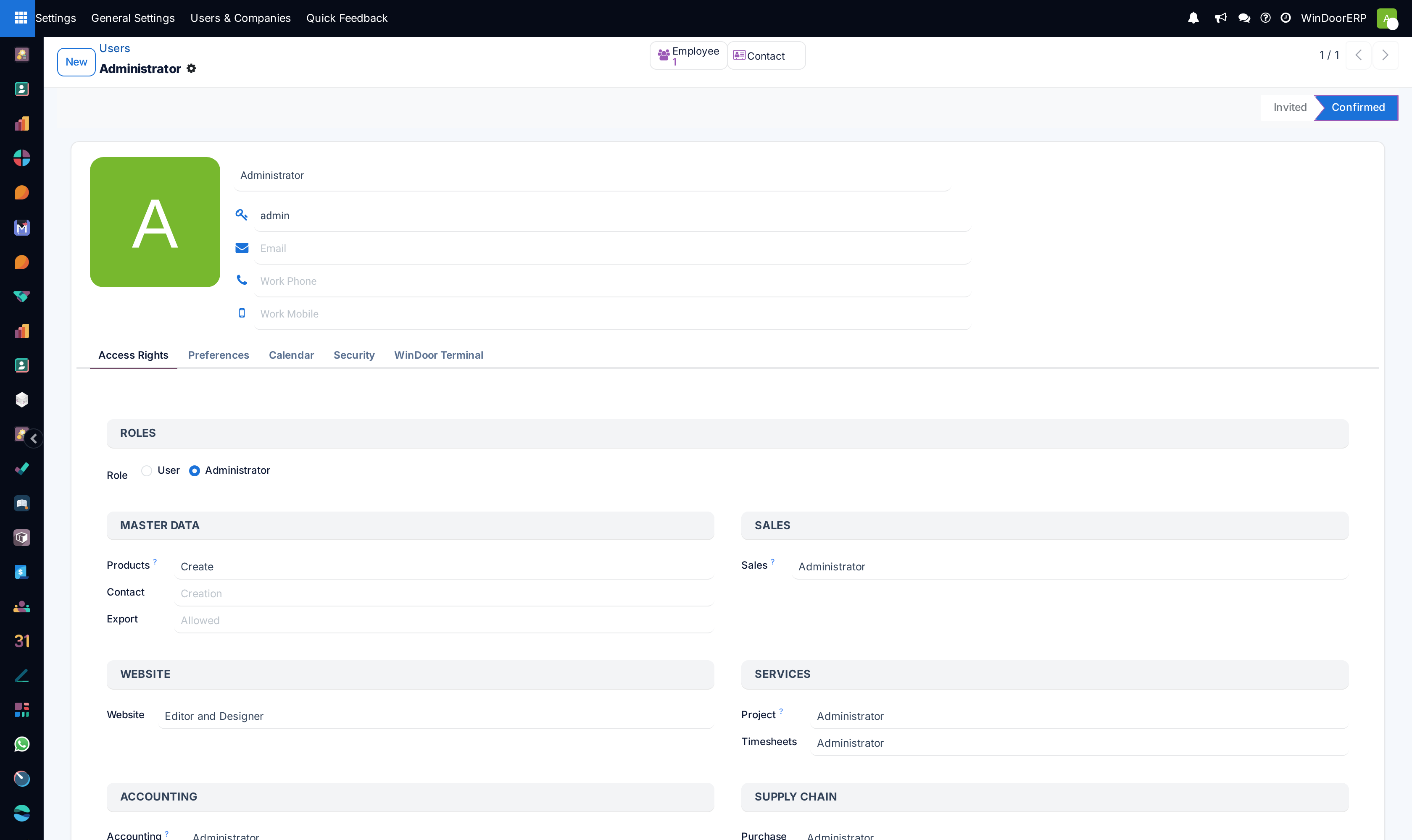
Open the user and go to the Access Rights tab.
-
02
Set Role first: User for ordinary staff, Administrator for someone who configures the system. It is the broadest switch on the page.
-
03
Work down the blocks — Sales, Accounting, Supply Chain, Master Data and the rest — and set the level each area needs. Leaving one empty means no access to that area.
-
04
Save, and have the person reload their browser. Rights are read when the interface loads, so an open session keeps the old ones.
-
05
Ask them to confirm what they can now see, rather than assuming.
How access is put together
Three levels sit behind that tab, and knowing the words makes the screens make sense.
| Category | The grey block heading — MASTER DATA, SALES, ACCOUNTING. Purely a grouping, so the tab is readable. |
|---|---|
| Privilege | The row inside a block — Products, Contact, Export. One decision to make. |
| Group | The value you pick on that row — the actual permission. A group is what carries the underlying rights. |
So "give them Products: Create" means putting the user in the group called Create, which sits under the Products privilege, in the Master Data category. Everything else is presentation.
Why a permission you removed comes back
Groups can imply other groups: holding one automatically grants another. A manager group normally implies the ordinary user group for the same area, so that granting the higher level does not require granting the lower one separately.
The consequence is the thing that catches people out. Take a permission away, and if any group the user still holds implies it, they keep it — and the screen gives no hint. Nothing is broken; it is doing what it was configured to do.
Before concluding a permission was not revoked, look at what the user's remaining groups imply. The group record shows both the groups it implies and the ones that imply it, including the full chain rather than only the direct links.
The Groups screen
Under Settings ▸ Users & Companies ▸ Groups, in developer mode.
| Name / Group Name | The group, and its full name including the privilege it belongs to. |
|---|---|
| Privilege | Which row of the Access Rights tab this group appears on. |
| Implied Groups | What holding this group also grants. |
| Implying Groups | Which groups grant this one. Read this when a permission will not go away. |
| Transitively Implied / Implying Groups | The complete chain, not just one step. This is the honest answer to "what does this actually give?" |
| Disjoint Groups | Groups that cannot be held at the same time as this one. |
| # Users | How many users hold it — including those who hold it only by implication, which is usually more than the list of names suggests. |
| Access Controls | The create, read, write and delete matrix, per model. This is where a group's power really lives. |
| Access Menu / Views / Rules | Which menus and views the group may see, and which record rules apply to it. |
| API Keys maximum duration days | Caps how long an API key belonging to a member may live. |
| Share Group | Marks a portal or public group rather than an internal one. |
Editing groups, and when not to
You can create groups and change what they control. You should almost never need to, and doing it casually is how a system becomes impossible to support.
Editing a group affects everyone in it, now and in future — including people added next year by someone who has no idea it was customised. If one person needs something unusual, prefer a new group for that need over widening a standard one.
Record rules deserve particular caution: they decide which records a person sees, not which menus, and a mistake there silently shows people other teams' or other companies' data.
Being signed out automatically
A session lasts seven days. There is also an inactivity limit, set by a system parameter, and out of the box it is the same seven days — so on a database nobody has tuned, users are not logged out for being idle.
To log people out sooner when idle, an administrator sets that parameter to a shorter period. An invalid value is ignored, with a warning in the log, and the default applies — so a mistyped setting looks exactly like no setting at all.
Troubleshooting
| I removed a permission and they still have it | Another group they hold implies it. Check the transitive implications, not the direct ones. |
|---|---|
| The change did nothing | They did not reload. Rights are read when the interface loads. |
| They see the menu but the records are empty | That is a record rule or the wrong company, not a menu permission. |
| They can see another team's records | A record rule is wider than intended, or a group grants more than it appears to. |
| Two people with "the same rights" behave differently | Compare the Access Rights tabs side by side. One usually holds an extra group whose implications differ. |
| A permission cannot be set at all | It may be disjoint with one they already hold — the two cannot coexist. |
| Users are logged out unexpectedly | The inactivity parameter was shortened. Check it before blaming the network. |
| An area is missing from the tab entirely | The module is not installed, or its feature is switched off in Settings. |
Common mistakes
- Granting Administrator because a specific permission was hard to find. It grants far more than the thing you were looking for.
- Concluding a removal failed without checking implications.
- Editing a standard group for one person's benefit, and changing it for everyone.
- Copying a colleague's rights without knowing what they contain.
- Changing several permissions at once, so nobody learns which one mattered.
- Testing with your own administrator account, which can see everything and proves nothing.
Was this article helpful?
Thanks — your feedback helps.
Running a window or door factory?
Ask for a demo