Audit every order line in one list: quantities, delivered, invoiced and amount
What this does
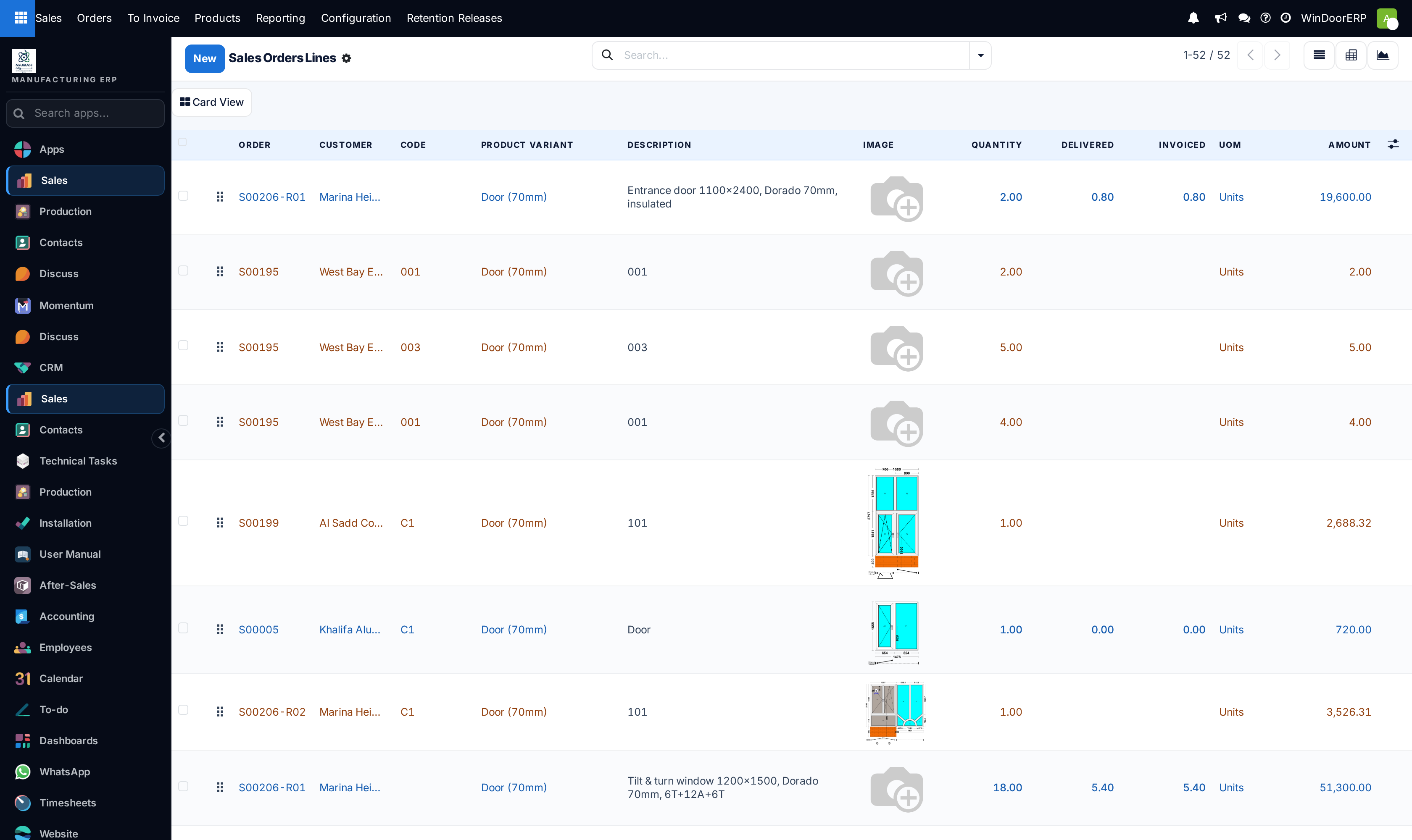
Sales › Orders › Sales Orders Lines flattens every line of every sales order in the company into one list. Instead of opening twenty orders to find out what is still undelivered, or which lines carry a code the workshop can read, you scan one table and sort it.
It is a working list, not a report. The rows are editable in place, the ⚙ column picker hides and shows columns, and a Card View button swaps the table for a picture-and-specification card per line. What it cannot do is add anything up: the list declares no column totals, so a sum belongs in the pivot — see Analyse order lines in the pivot and the chart, which is the same data seen from the other end.
One expectation to set straight before you start. This screen shows what was sold: quantity, delivered, invoiced, amount. It shows no cost and no margin, because the margin feature is not installed on this system. The section What this screen does not have says exactly what is missing and where the profitability question does get answered.
Before you start
- You need salesperson access. The menu is gated on it, and without it the entry is simply absent from Orders.
- The list has no filter of its own. Quotations, sent quotations, confirmed orders and cancelled orders are all in it from the first second. Every total you read is a total of all four unless you filter.
- Rows arrive sorted by each line's position inside its own order, so lines from different orders interleave. Click a column header to sort the list the way you are actually reading it.
- Eighty rows to a page. The arrows beside the counter move you through the rest.
Steps
-
01
Open Sales › Orders › Sales Orders Lines.
-
02
Decide what you are looking at and say so in the search bar: type an order number, a customer, a product or a salesperson, or take a filter from the dropdown — To Invoice, My Sales Order Lines, Invoice Related, Not Invoice Related.
-
03
Group the result. Order, Product, Salesperson, Order State and Invoice Status are offered ready-made; anything else on the line can be added from the Custom Group picker at the foot of the Group By menu.
-
04
Set the columns you need from the ⚙ picker at the end of the header row: Forced company, Last Updated on, Lead Time and Total are shipped hidden.
-
05
Read each row across: Quantity ordered, Delivered, Invoiced, and the Amount the customer is being charged for that line.
-
06
Press Card View when the number is not enough and you need the drawing, the dimensions, the colours and the glass on the same screen.
The columns, one by one
Four of these are shipped hidden and have to be switched on in the ⚙ picker; they are marked below. The picker sits at the end of the header row — on the far right in English, on the far left in Arabic.
| Column | What it holds |
|---|---|
| The drag handle | Moves a line up or down within its own order. It is the same handle as on the order form, and here it is a trap: the list mixes orders, so dragging a row between two rows of a different order silently re-numbers it inside its own document. Re-order lines on the order, not here. |
| Forced company (hidden) | The company the line belongs to, taken from its order — or from you, on a line that has no order yet. It becomes read-only the moment there is an order. |
| Order | The order reference — S00195, or S00206-R01 for a revision. A link: click it to open the document. Read-only once set. |
| Customer | The order's customer. Required, and read-only once the line has both a customer and an order. |
| Last Updated on (hidden) | The date the line was last written to — useful when you are auditing what changed this week. |
| Code | The free-text item code carried by the line: the C1, 001, 101 that ties a window to the elevation drawing and the cutting list. It is typed by whoever built the quotation and is not validated. |
| Product Variant | The catalogue item. Read-only once the line can no longer be re-pointed — that is, once it has been delivered or invoiced. |
| Description | The line text as it prints on the quotation and the invoice, in the customer's language. |
| Image | The design drawing saved on the line, and the product's own picture when the line has no design. Always shown; it is what makes this list readable at a glance. |
| Quantity | The ordered quantity. Read-only on a down-payment line. |
| Delivered | How much has gone out. Blank on anything that is not a confirmed order — the column is hidden per row until the order reaches Sales Order. Typable only where the line's delivered quantity is maintained by hand; where stock moves maintain it, it is read-only. |
| Invoiced | How much has been billed. Same rule: blank until the order is confirmed. Always read-only. |
| UoM | The unit of measure. Required, and read-only once the order has been confirmed or cancelled — up to that point it can still be changed. |
| Lead Time (hidden) | The line's own delivery lead time in days. Editable while the order is a quotation or a confirmed order, and never on a down payment. |
| Amount | The line's money column, and the one people misread. This company prices tax-excluded, so Amount is the untaxed subtotal. It is not the tax-inclusive figure that appears at the foot of the order. |
| Total (hidden) | The mirror of the column above: with tax-excluded pricing it holds the tax-inclusive figure. Switch it on when you need both side by side. |
There is no total row
None of the money columns declares a sum, so the list never shows a total under Amount — however you filter or group it. That is not a permission problem and not a bug to report: totalling is the pivot's job, and one click on the chart icon gets you there.
What the row colours mean
Rows are coloured from the order's state and the line's invoicing status. The four cases are mutually exclusive in practice, because a line only acquires an invoicing status worth colouring once its order is confirmed.
| Colour | What it means |
|---|---|
| Orange | The order is still a Quotation — nothing here is committed. A quotation that has been sent is not coloured, so a plain black row can still be an unconfirmed offer. |
| Blue | The line is To Invoice: confirmed, and there is something on it left to bill. |
| Green | The line is Fully Invoiced. |
| Grey | The order was cancelled. The line is still in the list and still counted by anything you group or export. |
Card View: the fields the table hides
The list stores a good deal it does not show: the width, height, area and sill height of the opening, the profile name, the inside and outside colours, the glass, the accessory and its colour, the floor, the location and the install position, and the line note. None of those are columns — you cannot switch them on in the ⚙ picker, because the list holds them invisibly.
Card View is how you read them. The button sits above the table; pressing it replaces the rows with one card per line, each with the drawing large on one side and, on the other, the line grouped into Dimensions, Product Details, Note and Pricing — the last showing unit price and subtotal, which the table itself does not carry either. Pressing Table View puts the rows back.
Two limits worth knowing. It is a reading view: cards cannot be edited, and it only renders the rows already loaded, so the page you are on is the page you get. And it is desktop-only — below roughly 768 pixels of window width the button removes itself.
Card View is English-only
The card is drawn by the browser, not by the server, and its labels — Card View, Table View, Dimensions, Product Details, Note, Pricing, Unit Price, Subtotal — are fixed English strings. They stay English for an Arabic user. The data inside the card is your own, in whatever language it was entered. The card's money figures are printed without a currency symbol.
Narrowing the list
The search bar takes free text against Order, Customer (including a customer's sub-contacts), Product, Description and Salesperson. Beyond that:
| Filter or group | What it selects |
|---|---|
| To Invoice | Lines with a quantity still waiting to be billed. This is the filter to reach for before a billing run. |
| My Sales Order Lines | Lines whose salesperson is you. |
| Not Invoice Related | Lines that have never been touched by an invoice — nothing billed, not even partly. |
| Invoice Related | The complement: lines that appear on at least one invoice, whatever its state. |
| Group by Product / Order / Salesperson | The three obvious cuts. Grouping by Order turns the flat list back into documents. |
| Group by Order State | Quotation, Quotation Sent, Sales Order, Cancelled. Use it first, every time, to see how much of what you are reading is not real yet. |
| Group by Invoice Status | Nothing to Invoice, To Invoice, Fully Invoiced, Upselling Opportunity. |
| Group by UoM | Separates the pieces from the metres and the square metres — worth doing before anyone adds a Quantity column up. |
What this screen does not have
The older version of this page described a Cost column, a Margin column, a Margin (%) column and a margin total on the quotation. None of them exist here. The margin feature is an optional module, and it is not installed on this system — there is no Margins setting to switch on, no cost on the line and no margin anywhere in the Sales app.
Three more absences that are deliberate rather than missing:
- No Unit Price column. It is defined in the list and commented out; the money the table shows is the line total, not the rate. The unit price is on the order, on the line's own form, and on the Card View card.
- No Discount column. Per-line discounting is switched off across this fleet, so the column and the field are invisible to everybody.
- No Analytic Distribution column. Analytic accounting is likewise not granted to any user here.
Where profitability does get answered: cost sits in the production and purchasing side of the system, and the revenue side is analysed in Sales Analysis: measures, groupings and the two filters that are already on. Do not reconstruct a margin by eye from this list — nothing on it is a cost.
The single-line form
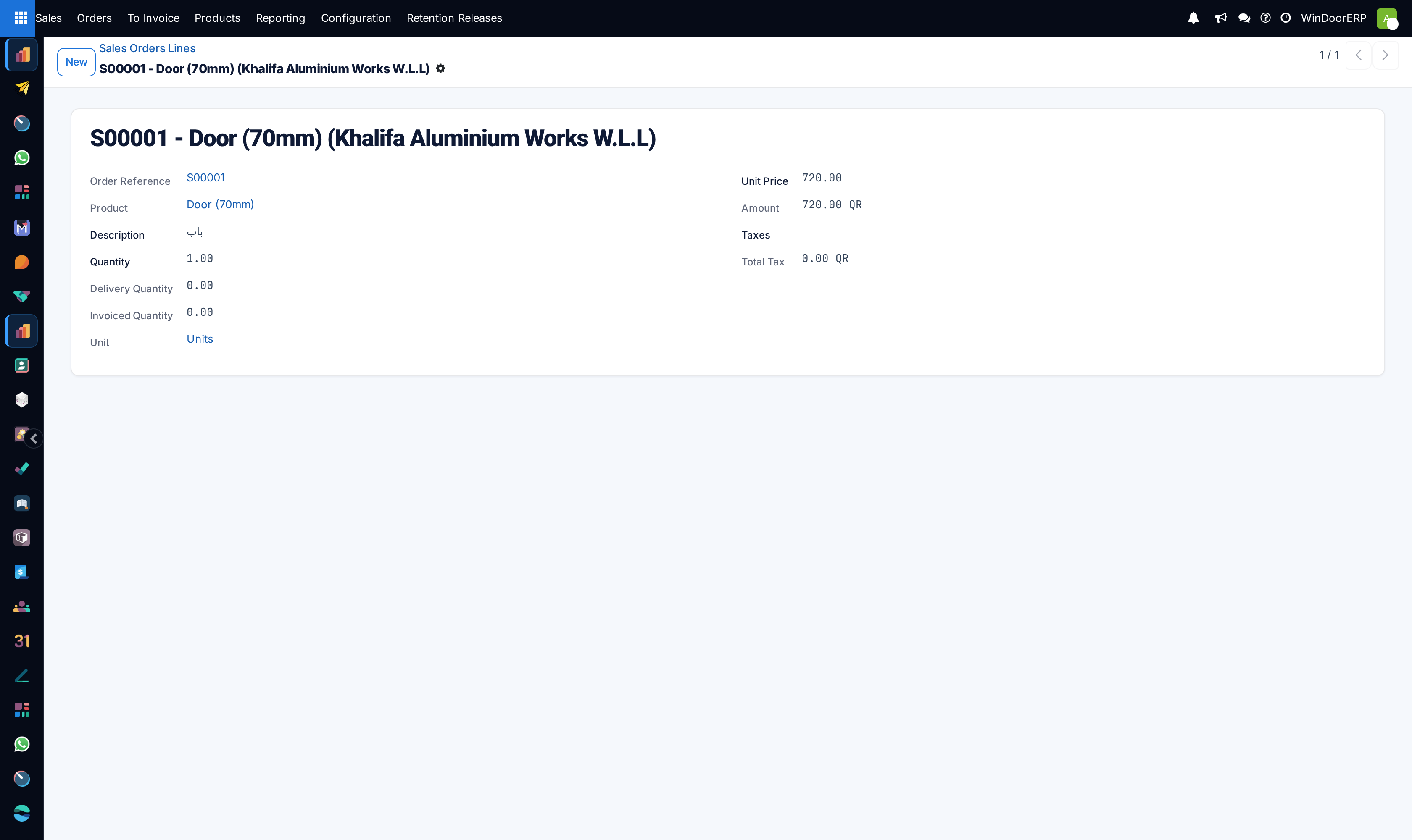
A line opened on its own shows a small read-only record titled with the order, the product and the customer. It carries the order reference, product, description, quantity, delivery and invoiced quantities and unit on one side, and unit price, amount, taxes and total tax on the other. There is no edit button: this form exists to be read and linked to, and editing happens in the list or on the order.
Troubleshooting
| What you see | Why, and what to do |
|---|---|
| Delivered and Invoiced are blank on a lot of rows | Those cells are hidden until the order is confirmed. Blank means "still a quotation", not "nothing has moved". Group by Order State to see it plainly. |
| You cannot type in Delivered | That line's delivered quantity is maintained by the warehouse through stock moves. Only lines whose delivery is recorded by hand accept a typed figure. |
| There is no total under Amount | By design — this list declares no sums. Switch to the pivot for any figure you intend to quote. |
| The rows are in an order that makes no sense | The default sort is each line's sequence inside its own order, which means nothing across orders. Click a column header. |
| No Margin, Margin (%) or Cost column in the ⚙ picker | The margin module is not installed. There is nothing to switch on. |
| The Card View button is not there | The window is too narrow — it is a desktop-only control and hides itself below about 768 pixels. |
| An empty draft quotation you did not mean to create | You pressed New and picked a Customer. See the warning below. |
| The whole Sales Orders Lines entry is missing from the menu | You do not have salesperson access. |
New here creates an order, before you save anything
The list allows creation, and a new row starts with no order behind it. The moment you choose a Customer on that row, a draft sales order for that customer is created in the database — not when you save the line, but on the spot, so that taxes and pricing can be worked out. Abandoning the row afterwards leaves the empty quotation behind. Start orders from Sales › Orders › Quotations, and use this screen to read and correct lines that already exist.
Common mistakes
- Quoting Amount as the customer-facing figure. It excludes tax on this system; the tax-inclusive number is the hidden Total column.
- Summing a filtered list by eye because there is no total row, and being out by the cancelled and draft lines nobody excluded.
- Reading a blank Delivered cell as zero delivered, when it means the order was never confirmed.
- Adding up Quantity across a mixed list of pieces, metres and square metres.
- Dragging the row handle to tidy the list, and re-numbering someone's order lines in the process.
- Hunting the ⚙ picker for a margin column that no version of this system has ever had.
Was this article helpful?
Thanks — your feedback helps.
Running a window or door factory?
Ask for a demo