Turn on email
Make the database able to send
Why this step
Outgoing mail is what makes quotations, invitations and password resets reach anyone at all.
What this does
Sets up how the database sends email: which server carries it, which address it appears to come from, and where replies and delivery failures go back to.
WindoorERP runs on your own hosting, so nothing sends until you configure it. There is no built-in mail service to fall back on.
Before you start
- Administrator rights, and developer mode for the alias-domain screens.
- SMTP details from your mail provider: host, port, encryption, username and password.
- Control of the domain's DNS, or someone who has it. Deliverability is decided there, not in WindoorERP.
Steps
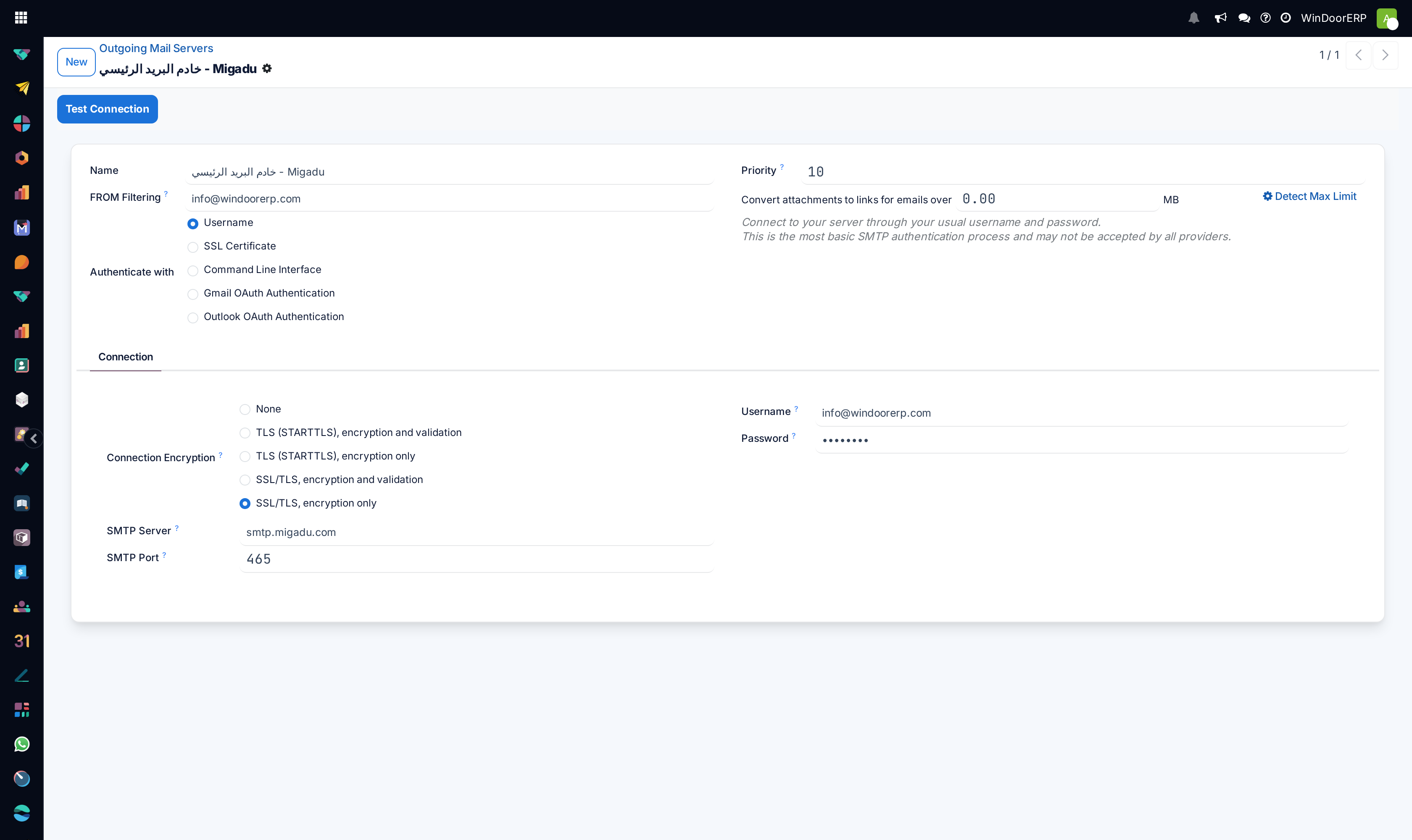
-
01
Open Settings ▸ Technical ▸ Email ▸ Outgoing Mail Servers and click New.
-
02
Give it a Name you will recognise later — the sending address is the usual choice.
-
03
Set FROM Filtering to the address or domain this server is allowed to send as. Leave it empty only if this is the single catch-all server.
-
04
Choose Authenticate with. Username covers ordinary SMTP; the OAuth options are for Gmail and Outlook accounts.
-
05
On the Connection tab set SMTP Server, SMTP Port, Connection Encryption, Username and Password.
-
06
Click Test Connection before saving anything else. It proves the credentials in seconds and saves an afternoon of guessing.
-
07
Send one real message from a record's chatter and confirm it arrives — the queue runs hourly, so allow for that.
Every field on an outgoing mail server
| Name | Free text. With several servers, naming each after the address it sends as is the only labelling that stays true. |
|---|---|
| FROM Filtering | The address or domain this server may send as. This is the field that decides which server carries a given message, and the most common cause of a provider rejecting one outright. |
| Priority | Lowest number wins when more than one server matches. Defaults to 10. |
| Authenticate with | Username · SSL Certificate · Command Line Interface · Gmail OAuth Authentication · Outlook OAuth Authentication. Username is plain SMTP, and the form warns that not every provider accepts it. |
| Connection Encryption | None · TLS (STARTTLS), encryption and validation · TLS (STARTTLS), encryption only · SSL/TLS, encryption and validation · SSL/TLS, encryption only. Match what the provider documents; the validating variants are the safer choice. |
| SMTP Server / SMTP Port | Host and port. 587 goes with STARTTLS, 465 with SSL/TLS. |
| Username / Password | Shown for Username authentication. Often the full mailbox address rather than a short name. |
| SSL Certificate / SSL Private Key | For certificate authentication only. |
| Convert attachments to links for emails over ⟨N⟩ MB | Large attachments are replaced by download links past this size. Detect Max Limit beside it asks the provider what it accepts. |
| Debugging | Writes the whole SMTP conversation to the server log. Turn it on to diagnose, off again afterwards. |
| Active | Unticking retires a server without deleting its history. |
| Test Connection | Header button. Opens a connection with the credentials as entered and reports the result. |
Which server carries which message
WindoorERP matches the message's sender address against each server's FROM Filtering, and uses Priority to break a tie. A server with no filter accepts anything, which makes it the fallback.
This is why mail can work for one address and fail for another. On this installation, for example, separate servers carry info@, notification@ and bounce@, each filtered to its own address — a message from a fourth address matches none of them.
Running one server per sending address is more work to set up and far easier to diagnose: a rejection names the address, and the address names the server.
The addresses the database sends from
Three system addresses are built from the company's alias domain, in developer mode under Settings ▸ Technical ▸ Email ▸ Alias Domains.
| Default From Alias | The sender on outgoing mail. A local part such as info keeps the domain flexible. A full email address here overwrites the sender on every outgoing message, including ones you expected to come from a salesperson. |
|---|---|
| Catchall Alias | Where replies come back to, so they can be filed against the record that sent them. |
| Bounce Alias | Where delivery failures come back to. This is what fills the red envelope on a failed message. |
Warning
Change an alias only deliberately. Mail already in flight is addressed to the old alias, and once it no longer exists those replies and bounces are lost with no record that they arrived.
Every alias must have a real mailbox on that domain. An alias that resolves to nothing produces silent failures rather than errors.
Why a reply looks like it came from the wrong person
Messages sent from a chatter go out from the system address, not from the salesperson's own mailbox, because the reply has to come back to the database rather than to a personal inbox. The person's name is still shown; the address underneath is the system one.
When a customer replies, the reply lands in the same chatter and is relayed to the record's followers — by email or in the app, according to each person's own notification preference.
If you want mail to appear to come from the individual, that is a deliverability decision, not a display one: the domain must authorise the database to send as that person, which is a DNS matter.
Separating transactional and marketing mail
Quotations, invoices and notifications are transactional — low volume, and they must arrive. Campaigns are bulk, and a provider may throttle or block them.
Give them different servers, filtered to different sending addresses, so a throttled campaign cannot delay an invoice. Many providers are explicit that their standard mailbox service is not for bulk sending; check before you route a campaign through it.
Troubleshooting
| Test Connection fails | Host, port, encryption or credentials. Try the other encryption variant on the same port before assuming the password is wrong. |
|---|---|
| Test Connection passes but nothing arrives | The message is queued. The queue runs hourly, and only a few flows send immediately. |
| One address is rejected, others work | No server's FROM Filtering covers that address. Add it, or add a fallback server with no filter. |
| Everything lands in spam | The domain's DNS records do not authorise this sender. Nothing inside WindoorERP fixes that. |
| Every email comes from the same address | Default From Alias holds a full email address, which overrides the sender on all outgoing mail. Use a local part instead. |
| Replies never come back | The catchall has no mailbox, or the receiving half was never configured. |
| A campaign stalled and normal mail stopped too | They share one server and the provider is throttling. Separate them. |
| The red envelope with no reason | Open the message in Settings ▸ Technical ▸ Email ▸ Emails; the failure reason is stored on the record. |
Common mistakes
- Assuming mail works out of the box. On a self-hosted database nothing sends until a server is configured.
- Putting a full address in Default From Alias and overwriting the sender on every message.
- One server with no FROM filtering for every address, then being unable to tell which address a rejection belongs to.
- Renaming an alias on a live system and losing the replies already addressed to the old one.
- Pushing a marketing campaign through the same server as invoices.
- Blaming WindoorERP for spam placement, which is decided by DNS.
Checkpoint
A test message leaves the database and arrives in an outside mailbox — not in the failed queue.