Attributes & Variants tab
Attributes, Configure and the attribute settings
Why this step
Selectable options such as type and colour, never profile sizes. Add the attribute, save, click Configure for each value's image, colour and price effect, then open Configuration › Attributes to choose the display type and how variants are created.
What this does
The Attributes & Variants tab lets one product offer a short list of selectable options, such as a finish or a hardware colour, and decides whether each option becomes a stock item of its own. It is the right tool for a handle sold in white, black and silver. It is the wrong tool for profile sizes: widths and heights of a window are continuous and belong to the FrameStudio designer, and a profile's cut length comes from the cutting list, never from a variant.
The tab is a list of attribute lines. The attributes themselves, with their display type and their variant-creation mode, are configured once under Inventory › Configuration › Products › Attributes and reused across products.
Before you start
- Variants must be enabled in Inventory or Sales settings, or the tab is not shown.
- Never model profile sizes, glass dimensions or sash counts as attributes. Those live in the design; an attribute is for a choice with a handful of named values.
- Count the combinations before adding a second attribute. Two attributes of ten values set to create variants instantly produce a hundred stock items the moment you save.
- Adding or deleting an attribute on a product that already has variants deletes and recreates them, and any customisation on the old variants is lost; the tab says so in grey under the list.
Steps

-
01
Open the Attributes & Variants tab and click Add a line.
-
02
Type the attribute name, for example Finish / Colour, and pick it from the list. An attribute that does not exist yet can be created from here, but it is better to prepare it in Configuration first so its display type and creation mode are set deliberately.
-
03
In Values, pick the values this product offers. Only values that exist on the attribute can be chosen.
-
04
Save the product. Depending on the attribute's Variant Creation mode, variants are created now, when a value is first sold, or never.
-
05
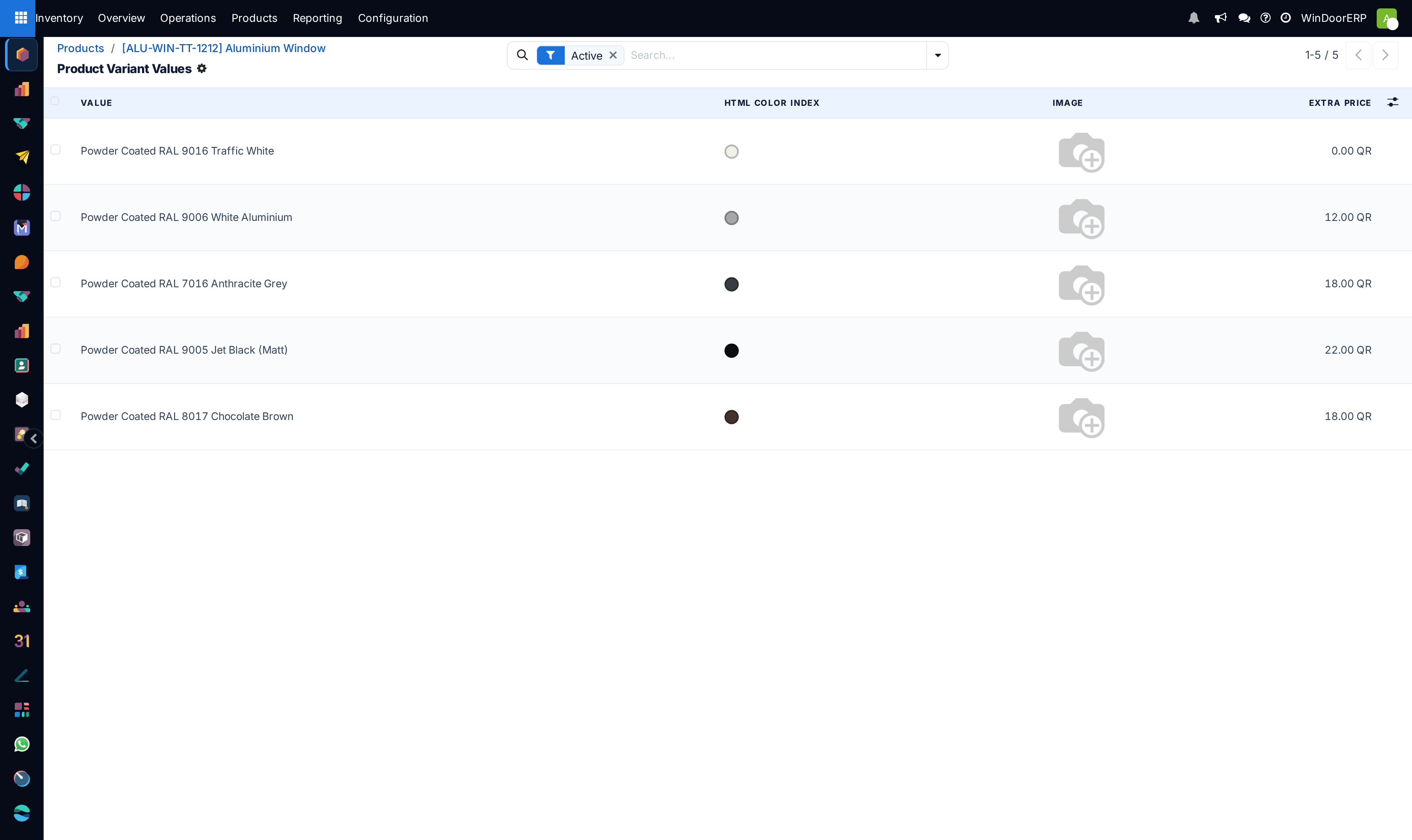
Click Configure at the end of the line. The Product Variant Values list opens with one row per value: its Value, its HTML Color Index or Image for colour attributes, and its Extra Price, the amount added to the sales price when that value is chosen. Edit the extra prices here; several rows can be changed at once.
-
06
Go back to the product. The Variants button at the top now shows how many variants exist when the attribute creates them.
-
07
To change how the attribute itself behaves, open Inventory › Configuration › Products › Attributes and edit it there.
The attribute line and the Configure list
| Column | What it does |
|---|---|
| Drag handle | Orders the attributes; the order is the order in which the choices are presented. |
| Attribute | The attribute. Read-only once the line is saved; delete the line and add another to change it. |
| Values | The values this product offers, as tags. A line with a single value is shown in blue: it records a fixed property rather than a choice. |
| Configure | Opens the per-product list of values with their colour, image and extra price. Rows cannot be created or deleted there; add or remove values on the line instead. |
The Configure list, titled Product Variant Values, opens filtered to active values and shows the Value, the colour swatch or image for a colour-type attribute, and the Extra Price. The hidden columns behind the column picker are Attribute, Display Type and Active; archiving a value here removes it from this product only.
The attribute form
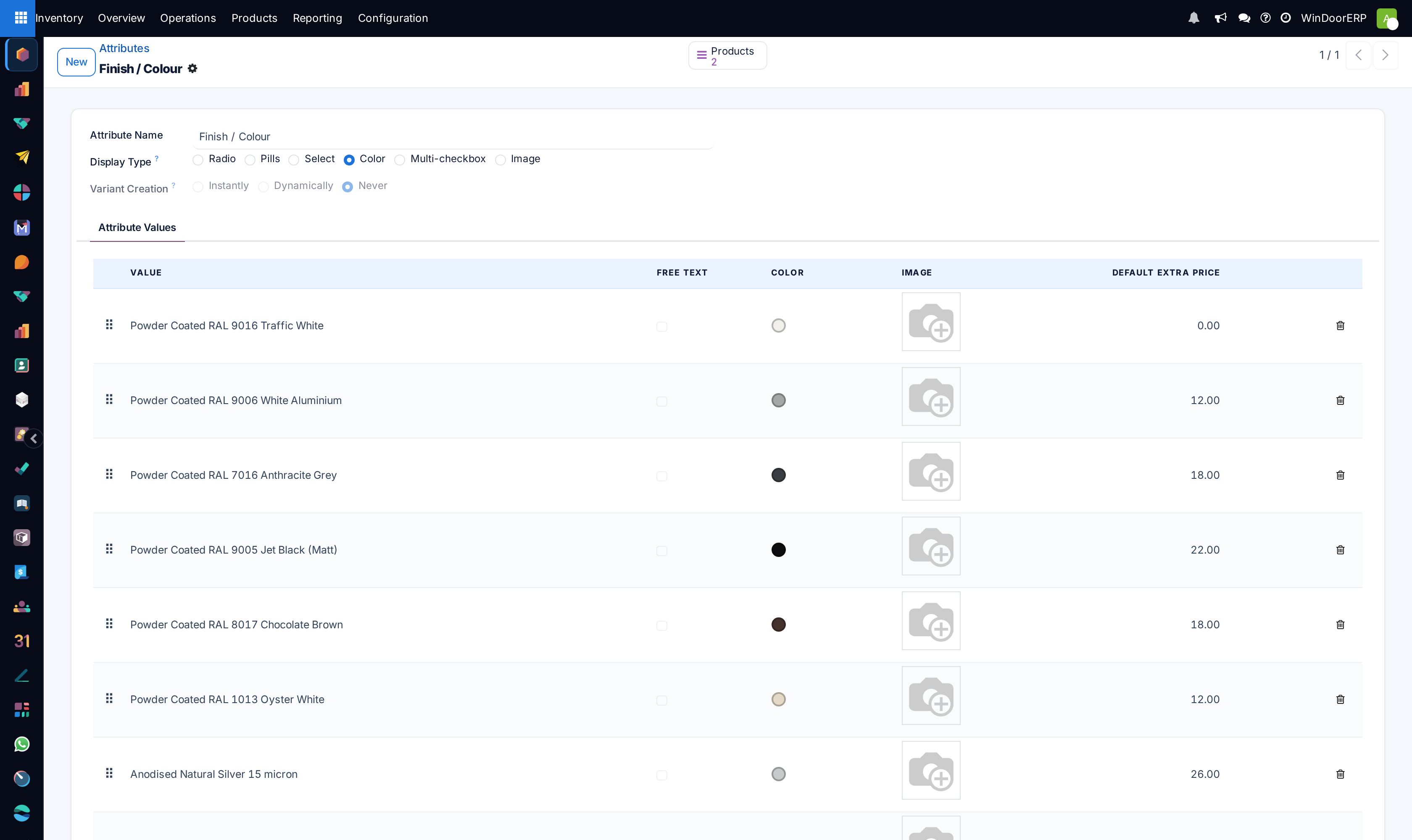
An attribute is configured once and shared. Its form, under Inventory › Configuration › Products › Attributes, has the following fields.
| Field | Options and effect |
|---|---|
| Attribute | The name, such as Finish / Colour, Hardware Brand or Handle Colour. |
| Display Type | How the choice is presented when the product is configured: Radio buttons, Pills, a Select dropdown, a Color swatch selector, a Multi-checkbox that allows several values at once, or an Image selector. |
| Variant Creation | Instantly: every combination becomes a variant as soon as the attribute is added to a product. Dynamically: a variant is created only when that combination is first used on a sales order. Never: the choice is recorded on the order line and no variant exists. It cannot be changed once the attribute is used on a product, and a Multi-checkbox attribute is always Never. |
| Attribute Values tab | One row per value: Sequence, Value, Free text to let the customer type their own, the Color code and Image for colour attributes, and the Default Extra Price proposed when the value is added to a product. Add to products pushes a new value to every product already using the attribute; Update extra prices pushes a changed default price to them. |
| Products button | Every product that uses the attribute. |
Choose Instantly only when each value really is a separate stock item with its own quantity, cost and barcode, for example a handle stocked in three colours. Choose Never for options that describe a made-to-order unit, such as a powder-coat colour on a window, which is a specification on the line rather than a thing on a shelf. Most attributes shipped with WindoorERP, from Finish / Colour to Opening Type, are set to Never for that reason.
Troubleshooting
The tab is missing: Variants is not enabled in settings, or the product is a combo, which cannot have attributes.
Variant Creation is greyed out on the attribute: the attribute is already used on a product, or its display type is Multi-checkbox.
This configuration of product attributes, values, and exclusions would lead to no possible variant: every combination has been excluded. Remove an exclusion or archive the product.
The Reference and Barcode fields have gone from the General Information tab: the product now has more than one variant, and each variant holds its own.
The extra price is not applied on the quotation: it is a per-product value set through Configure, not the default on the attribute. Check the row for this product.
Common mistakes
- Using attributes for profile sizes or window dimensions. Those are drawn in the designer and cut from the cutting list.
- Setting Instantly on a specification attribute and creating hundreds of variants that will never hold stock.
- Editing extra prices on the attribute and expecting existing products to change. Only Update extra prices pushes them.
- Deleting an attribute line on a product with sales history. The variants are recreated and lose their customisations.
Checkpoint
The product offers its real options as attributes, each value with its colour and extra price, and no attribute pretends to be a dimension.