Sales tab
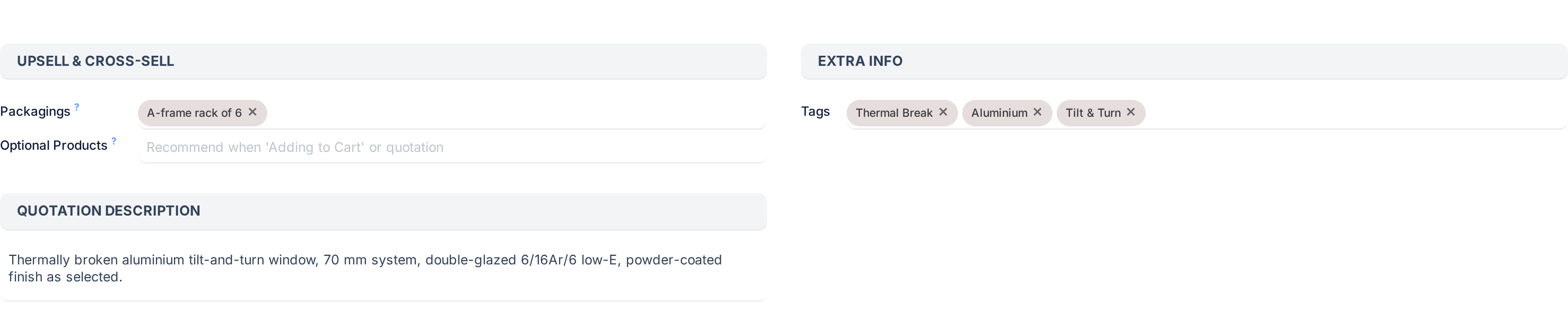
Packagings, Tags, quotation description, Optional Products
Why this step
Package sizes as units, created with a name, a quantity, a reference unit and a package type; tags that organise the catalogue; the description printed on the quotation; and the optional products recommended alongside.
What this does
The Sales tab holds what a salesperson needs beyond the price: the package sizes a product can be sold in, the products to recommend alongside it, the tags that organise the catalogue, and the description that prints on the quotation, the delivery and the invoice. The Prices tab next to it lists the pricelist rules that already apply to the product.
Both tabs exist only while the Sales checkbox on the header is ticked.
Before you start
- Packagings are units of measure in WindoorERP 19. A box of 100 screws is a unit that contains 100 of the reference unit, defined under Units & Packagings.
- Optional products are recommendations; nothing on this installation adds them to the order automatically.
- Write the sales description for the customer, not for the factory. It prints.
Steps
-
01
Open the Sales tab.
-
02
In Packagings, type the name of a packaging unit, such as Box of 100, and pick it. Search the list, or type a new name and choose Create and edit to define it.
-
03
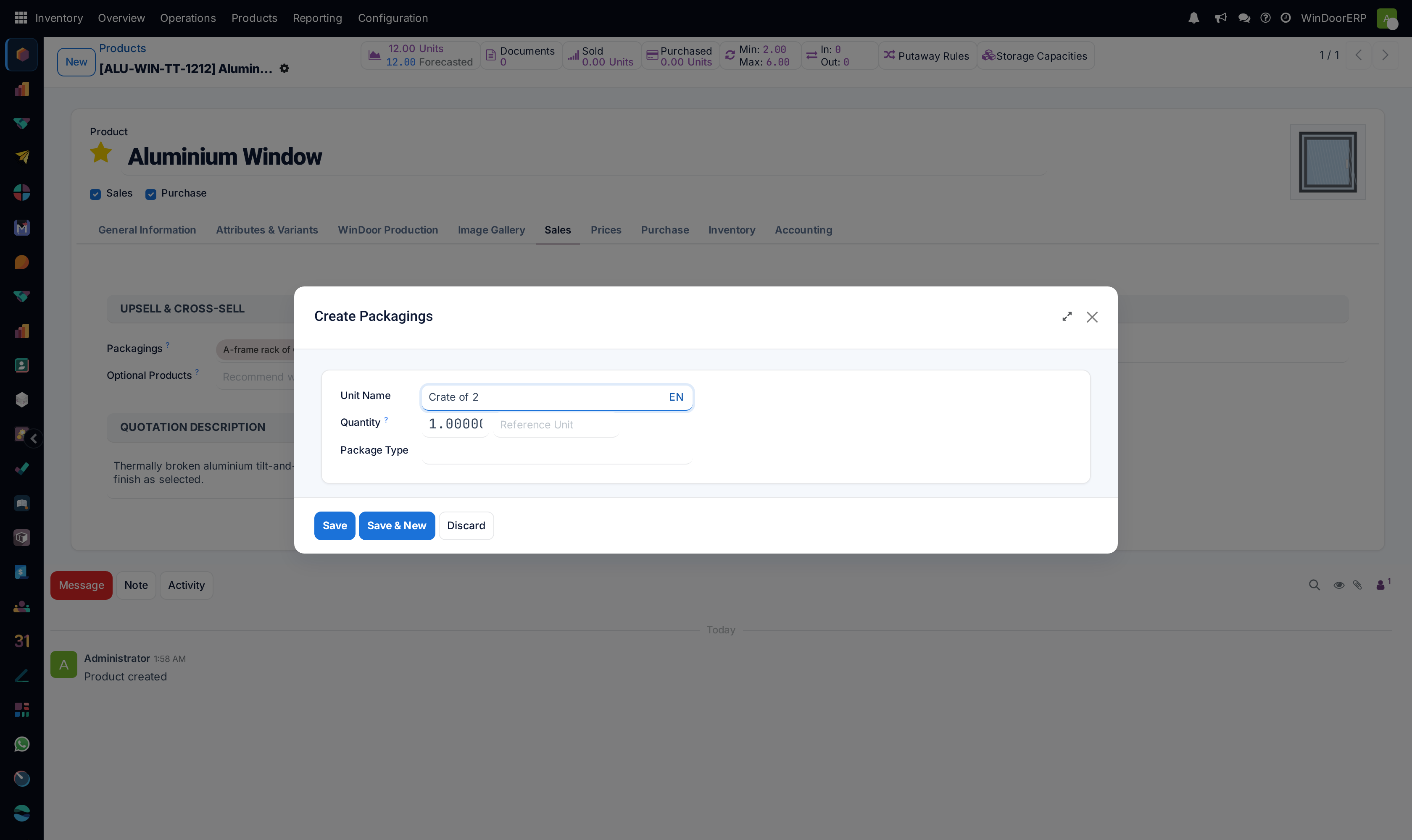
When creating a packaging unit, enter its Unit Name, the Quantity it holds, the Reference Unit that quantity is counted in, and optionally the Package Type used for shipping. Save.
-
04
In Optional Products, pick the products to suggest on a quotation with this one, such as an insect screen with a sliding window.
-
05
In Tags, add tags such as Aluminium, uPVC, Sliding or Hardware. Tags are a list column and a group-by, and make the catalogue searchable by family.
-
06
Write the Sales Description. It is copied onto every sales order line, delivery order and customer invoice or credit note that carries the product.
-
07
Open the Prices tab to see the pricelist rules that already target this product.
Field by field
| Group and field | What it does |
|---|---|
| Upsell & Cross-Sell › Packagings | Additional packagings for this product which can be used for sales. Each is a unit of measure other than the product's own unit; on an order line the salesperson can pick the packaging as the line's unit and the quantity is converted. |
| Upsell & Cross-Sell › Optional Products | Products to recommend with this one. The placeholder reads Recommend when 'Adding to Cart' or quotation. Without an online shop or a product configurator installed, the list is a recorded recommendation the salesperson reads; nothing is added to the order by itself. |
| Extra Info › Tags | Free tags from Sales › Configuration › Products › Product Tags. A tag has a Name, a Visible to customers switch and, when visible, a Color and an Image. Show the Tags column in the product list to filter and group by them. |
| Quotation Description › Sales Description | A description of the product that you want to communicate to your customers. It is copied to every sales order, delivery order and customer invoice or credit note, so it is the place for the customer-facing specification text. |
| Expense › Re-Invoice Costs | Only shown when analytic accounting is in use: whether validated expenses and vendor bills for the product are re-invoiced to the customer at cost or at the sales price. |
Creating a packaging unit
WindoorERP 19 has no separate packaging screen. A packaging is a unit of measure defined relative to another unit, on the same form as every other unit, and it can be created from the Packagings field or under Inventory › Configuration › Products › Units & Packagings.
| Field | What it does |
|---|---|
| Unit Name | The name shown on lines and labels, for example Box of 100 or Pallet of 12 bars. |
| Quantity (labelled Contains on the Units & Packagings screen) | How much bigger or smaller this unit is compared to the reference unit: 100 for a box of a hundred pieces. |
| Reference Unit | The unit the quantity is counted in, usually the product's own unit. |
| Package Type | The physical package used when shipping in this unit, from Inventory › Configuration › Delivery › Package Types. Optional. |
| Barcodes | Packaging barcodes, editable only when the unit is opened from a product. |
The article on units of measure and material packaging covers the units screen in full, including what changing a factor does to quantities already recorded.
The Prices tab
The Prices tab lists every pricelist rule written for this product: the Pricelist, what the rule is Applied On, the Price and the Min Quantity from which it applies, with the start and end dates hidden behind the column picker. Rules can be added here, but they are pricelist configuration and are explained in the article on building pricelists.
Troubleshooting
The Sales and Prices tabs are missing: the Sales checkbox on the header is off.
A packaging cannot be chosen on the order line: it is not in the product's Packagings list, or the line's unit is fixed by the pricelist rule.
The new packaging has the wrong quantity: Quantity was entered against the wrong Reference Unit. Fix it before any order is confirmed in that unit.
The optional product was not added to the quotation: that is expected. It is a suggestion the salesperson adds by hand.
The description on the invoice is the internal note: the text was typed into Internal Notes on the General Information tab, not into Sales Description.
Common mistakes
- Writing the sales description as a manufacturing note. It prints on the customer's documents.
- Creating a packaging with Quantity 1. It converts nothing and only adds a unit to pick from.
- Using tags as categories. A product has one category and any number of tags; accounting follows the category, never the tag.
- Expecting optional products to upsell by themselves.
Checkpoint
The product can be sold in its package sizes, carries its tags, prints a customer-facing description and recommends its companions.