Build the warehouse
Receive and deliver in one step
Why this step
Walk one delivery of material in and one order out on the simplest configuration there is. Prove the routes work before you complicate them.
What this does
Walks the everyday flow on a one-step warehouse: goods arrive and are in stock; goods are picked and gone. One transfer each way, one confirmation each way.
This is the mode most WindoorERP sites run. If your warehouse uses two or three steps, the screens are the same but there is another transfer after each one.
Before you start
- The warehouse set to Receive and Store (1 step) and Deliver (1 step).
- Inventory user access. Receiving and delivering need no administrator rights.
- Something to receive against — a purchase order — or to deliver against — a confirmed sales order.
Steps
-
01
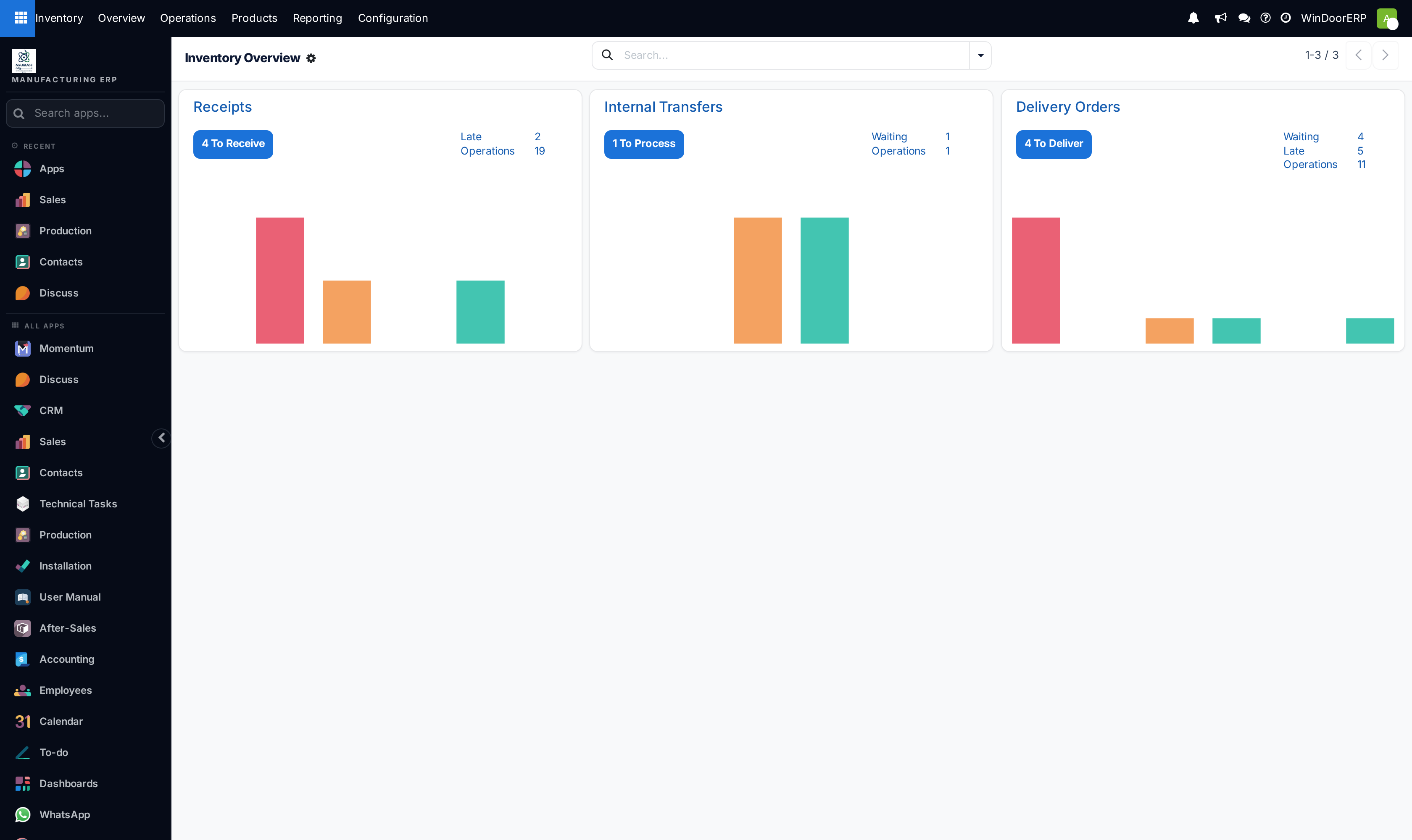
Open Inventory. The overview shows a card per operation type, each with a count of what is ready.
-
02
Click Receipts to see what is due in, or Delivery Orders to see what is due out.
-
03
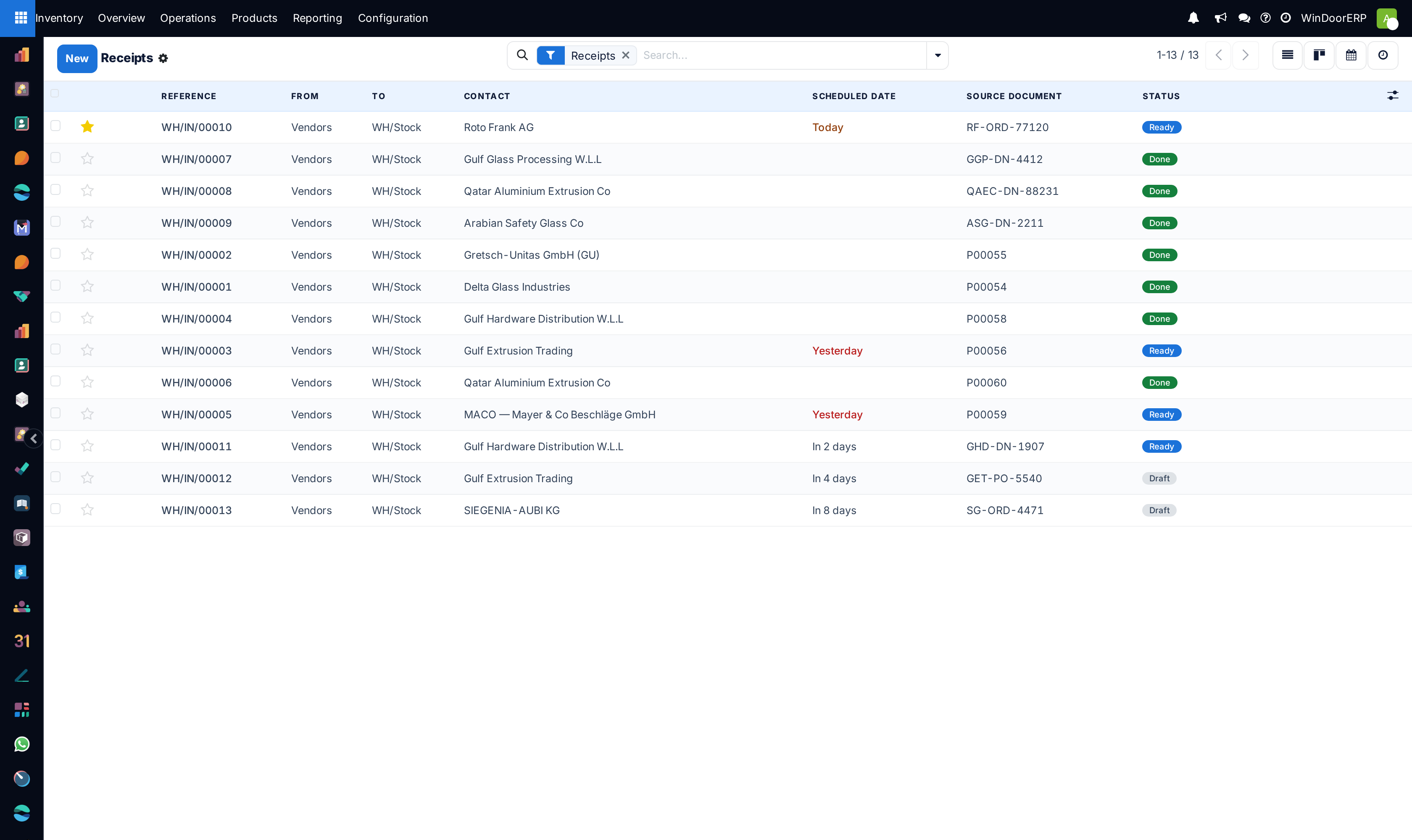
Open the transfer. Its status bar shows where it is: Draft, Waiting, Ready or Done.
-
04
Check the quantities line by line, correcting any that differ from what physically moved.
-
05
Click Validate. Stock changes at that moment, not before.
-
06
If you moved less than was ordered, answer the backorder question — see below.
What each status means
| Draft | Not yet confirmed. Nothing is expected and nothing is reserved. |
|---|---|
| Waiting | Confirmed, but the goods are not available yet. |
| Waiting Another Operation | Something earlier in the chain has to happen first. Common in multi-step flows; rare in one step. |
| Ready | The goods are reserved and it can be done now. This is what the count on the overview card means. |
| Done | Validated. Stock has moved and the record is history. |
| Cancelled | Abandoned. Nothing moved. |
The buttons on a transfer
| Validate | Commits the movement. Nothing changes stock until this is pressed. |
|---|---|
| Check Availability | Asks the system to reserve what it can, now. Use it after stock arrives for a delivery that was waiting. |
| Unreserve | Releases the reservation so the stock can go to another order. The transfer stays. |
| Mark as Todo | Confirms a draft transfer so it starts expecting goods. |
| The picking list or delivery note. | |
| Cancel | Abandons the transfer. |
| Details | Opens the line's detail — where lots, serial numbers and the exact source location are set when those features are on. |
Receiving
Receipts usually exist already, created by a purchase order, so the storeman's job is to find the right one and confirm what actually arrived.
Correct the quantities before validating rather than after. A receipt validated at the ordered quantity and fixed later leaves two entries in the history and a moment where the figures were wrong.
On a one-step warehouse the goods are in stock the instant you validate. There is no put-away step to remember.
Delivering
A confirmed sales order creates the delivery. It becomes Ready once stock can be reserved for it; until then it waits, which is the system telling you the goods are not there.
Validate when the goods physically leave. Validating early to clear the list means the system says delivered while the pallet is still in the yard — and the customer's paperwork says so too.
When you move less than was ordered
Validate a smaller quantity than expected and WindoorERP asks what to do with the remainder. The answer depends on the operation type's Create Backorder setting.
| Ask | You are asked each time. Creating the backorder keeps a second transfer for the shortfall; declining closes the order at the quantity moved. |
|---|---|
| Always | A backorder is always created. Nothing is forgotten, at the cost of a list of small open transfers. |
| Never | The shortfall is dropped. No backorder, no record of what did not ship. This is the setting behind most "the rest of the order disappeared" reports. |
Troubleshooting
| The delivery stays Waiting | Stock cannot be reserved. Either it is not there, or it is reserved by another order — check the product's forecast. |
|---|---|
| Ready, but the shelf is empty | The system's figure is wrong. Count it and adjust; do not validate a move that did not happen. |
| Validate is not offered | The transfer is Draft — press Mark as Todo first — or it is already Done. |
| The remainder of an order vanished | The operation type has Create Backorder = Never. |
| Stock is reserved for the wrong order | Unreserve the one holding it, then Check Availability on the one that should have it. |
| A validated transfer was wrong | It cannot be edited. Reverse it with a return, which leaves both movements visible. |
| The overview card shows a count nobody can find | The count is transfers in Ready. Clear the filters on the list. |
Common mistakes
- Validating at the ordered quantity because it is quicker, then correcting the count later.
- Validating a delivery before the goods leave, so the paperwork and the yard disagree.
- Leaving Create Backorder on Never and losing the shortfall silently.
- Unreserving to make one order ready without checking what the stock was reserved for.
- Treating Waiting as a fault. It is the system saying the goods are not available.
Checkpoint
A receipt and a delivery are both validated, and the on-hand quantity moved in the direction you expected.