Add a language for your team
What this does
Activates a language on the database so that everyone can choose it. Until a language is activated it does not appear in anybody's preferences, cannot be set on a customer, and no document can be printed in it.
This is done once, by an administrator. Each user then picks their own language afterwards.
Before you start
- Administrator rights. The Translations menu sits under Settings and is not visible to ordinary users.
- Time. Activating a language loads translations for every installed module, so it is not instant on a large database.
- Do it outside working hours on a busy system, and take a backup first if the database matters.
Steps
-
01
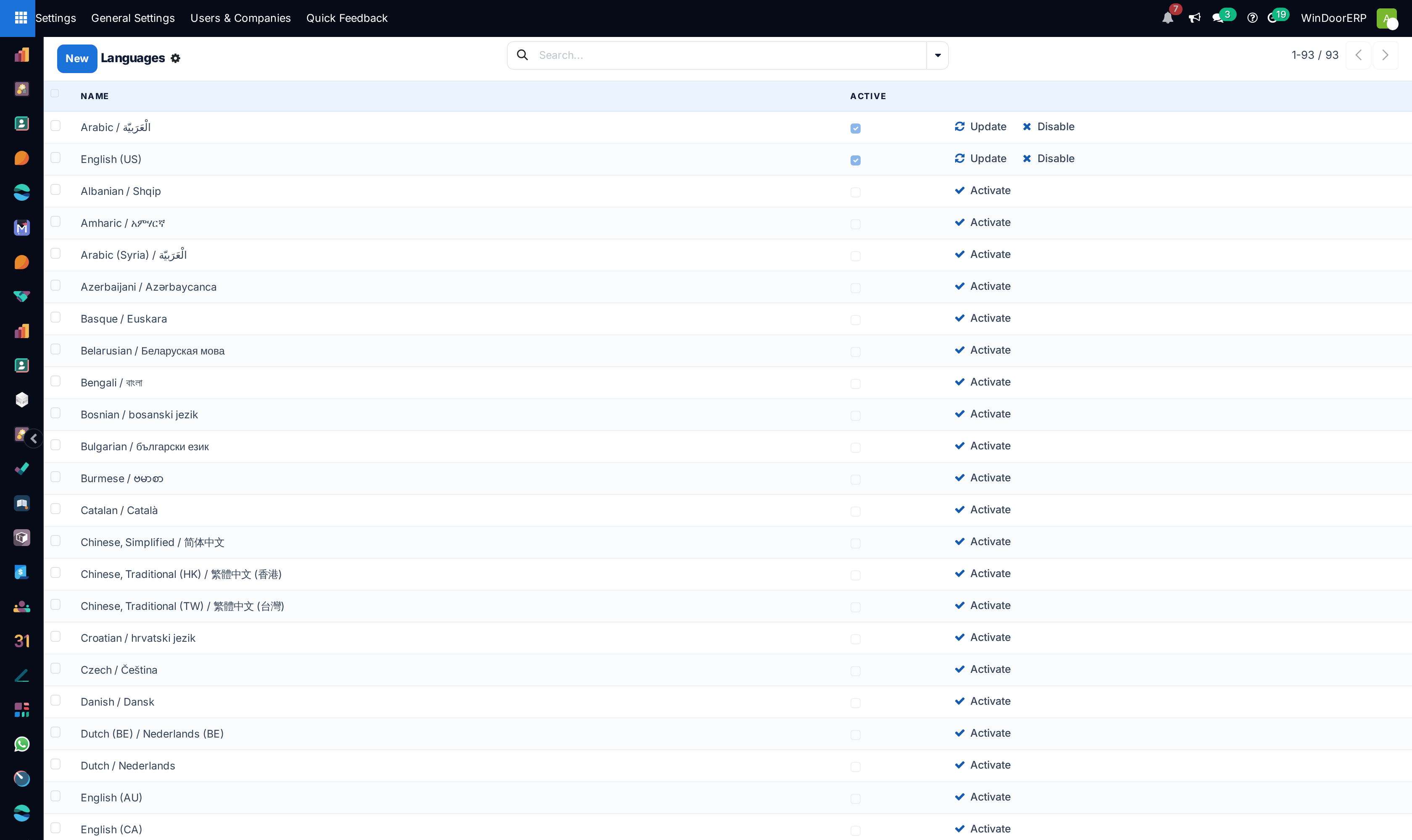
Open Settings ▸ Translations ▸ Languages to see what is already there. Activated languages are the ones users can choose.
-
02
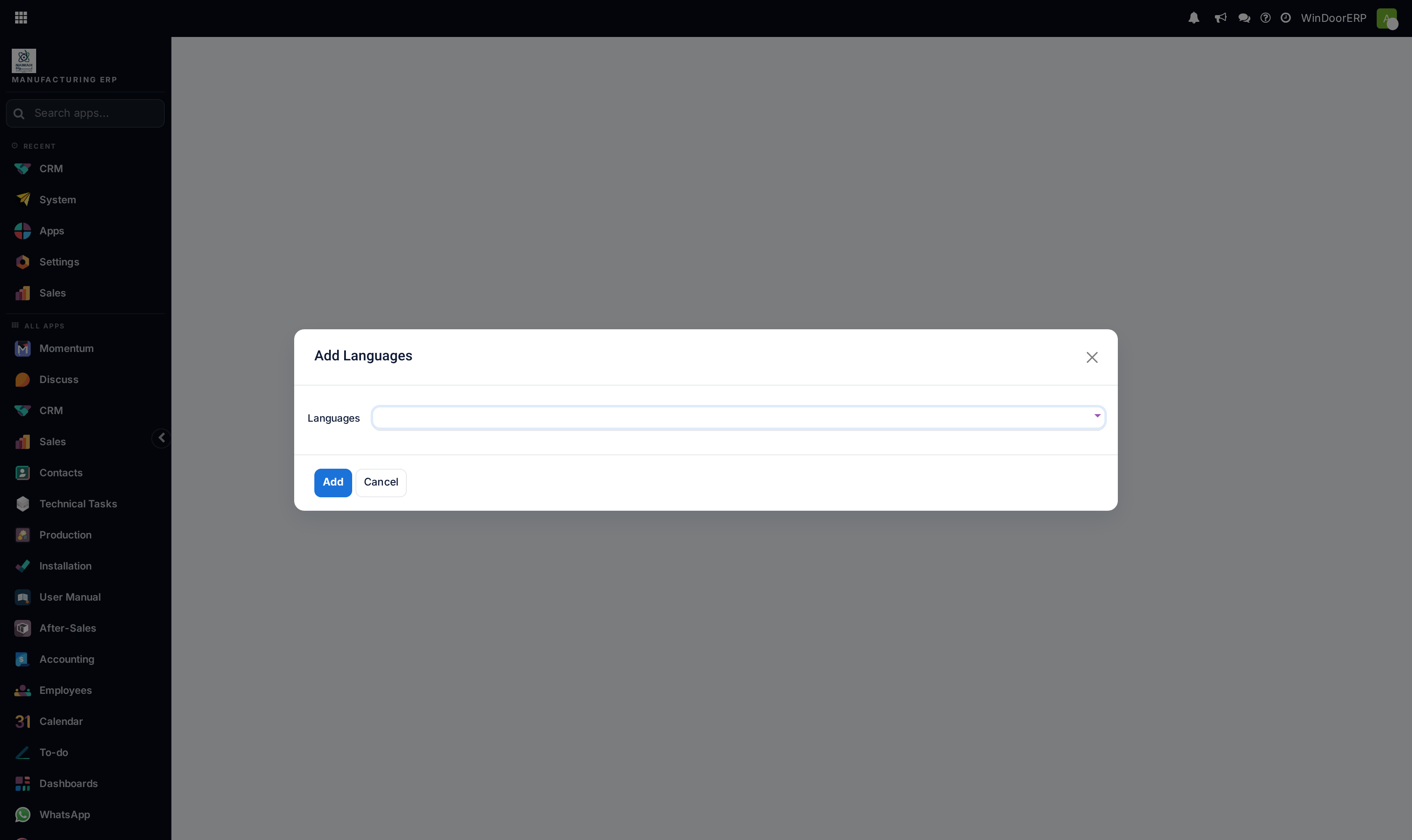
To add one, open Settings ▸ Translations ▸ Add Languages. The same dialog is reachable from the globe button beside Language in My Preferences.
-
03
Pick one or more Languages. The field accepts several at once, and lists languages that are not yet active.
-
04
Click Add. WindoorERP activates them and loads the translations for every installed module.
-
05
If you added a single language, a second dialog offers Switch to <language> & Close or just Close. If you added several, a message confirms it instead.
-
06
Tell your team. Each person then sets their own language in My Preferences.
The Add Languages dialog
| Languages | Required. Accepts several at once as tags. It deliberately lists inactive languages too — that is the point of the screen. |
|---|---|
| Overwrite Existing Terms | Hidden unless developer mode is on, and on by default. It replaces any translation someone has customised with the official one. It applies whether or not you can see it, which is the trap: re-running this screen on a database whose Arabic has been hand-corrected will undo those corrections. |
| Add | Activates the languages and loads their translations across every installed module. |
| Cancel | Closes without changing anything. |
Every field on a language record
Open Settings ▸ Translations ▸ Languages and click a language to see how it is formatted. These control how numbers, dates and layout appear for everyone using it.
| Name | What users see in the language list, for example Arabic (Modern Standard). |
|---|---|
| Locale Code | The internal code, such as ar_001 or en_US. This is the code used everywhere in the system and in translation files. |
| ISO code | The short standard code, such as ar. |
| URL Code | What appears in a website address, which is why the Arabic site is served under /ar/. |
| Active | Whether users may choose it. Deactivating hides the language without deleting anything. |
| Direction | Left-to-right or right-to-left. This is what mirrors the whole interface for Arabic. |
| Date Format / Time Format | How dates and times are written for this language. |
| First Day of Week | Which day a calendar or week view starts on — Sunday in the Gulf, Monday in much of Europe. |
| Decimal Separator / Thousands Separator / Separator Format | How numbers are punctuated and grouped. Changing these changes how every amount is displayed for that language. |
| Image / Flag Image Url | The flag shown beside the language. |
What activating a language does and does not do
It loads the translations shipped with each installed module, and makes the language selectable for users, for customer contacts and for the website.
It does not translate your data. Product names, descriptions, notes and anything else people typed stay exactly as typed. Translating those is a separate, per-record job.
It also does not translate a module installed afterwards. Install a new module later and its terms arrive in English until the language is loaded again.
Troubleshooting
| The Translations menu is not there | You are not an administrator, or developer tools are needed for the sub-menu you are looking for. |
|---|---|
| A user still cannot pick the language | They have not reloaded, or the language was deactivated again on the Languages screen. |
| Some screens stayed English | Those terms have no translation in that module, or the module was installed after the language was loaded. Re-run Add Languages for it. |
| Our corrected Arabic wording reverted | Add Languages was re-run and Overwrite Existing Terms did its job. It is on by default and hidden outside developer mode. |
| Numbers or dates look wrong | Those come from the language record's format fields, not from a user setting. |
| The layout did not mirror | The language's Direction is not right-to-left. |
| Adding the language took a long time | Expected. It walks every installed module. Do it out of hours on a large database. |
Common mistakes
- Expecting activation to translate your catalogue. It translates the software, not your data.
- Re-running Add Languages on a live system after someone has corrected the translations, and silently overwriting their work.
- Activating a language and never telling anyone, so nobody selects it.
- Deactivating a language that users have already chosen, instead of leaving it in place.
- Doing it in the middle of a working day on a large database.
Was this article helpful?
Thanks — your feedback helps.
Running a window or door factory?
Ask for a demo