Configure individual supply and movement rules
What this does
A rule is the atom a route is built from. It says that when stock is needed in one place — or arrives in one place — a move of a particular operation type is created between two locations. Routes are the recipe; rules are the ingredients, and this article is the field-by-field reference for one of them.
See also
Build a route with push and pull rules assembles rules into a working route and is the article to read first. Come here when you need to understand or adjust a single rule, or to work out why the shipped ones behave as they do.
Before you start
- The Rules menu only appears once Multi-Step Routes is ticked in Inventory › Configuration › Settings, under Warehouse. It is not a developer-mode screen, and it is off on this platform today — so nobody currently sees it. Ticking it also switches Storage Locations on, which changes several other screens.
- Creating or changing a rule needs the Inventory Administrator access level. Everyone else has read-only access to rules, and the parent Warehouse Management menu is Administrator-only in any case.
- Know the operation type, the source location and the destination location before you start; a rule is those three plus an action.
- Most rule changes are better made somewhere else. A warehouse's Incoming Shipments and Outgoing Shipments settings generate, archive and rewrite these rules for you, and hand-edits get overwritten when someone changes the step count.
Steps
-
01
Turn on Multi-Step Routes in Inventory › Configuration › Settings if the menu is not there, and save.
-
02
Open Inventory › Configuration › Warehouse Management › Rules. The list shows action, source, destination and route for every rule on the system.
-
03
Open an existing rule to read it, or click New and give it a Name.
-
04
Choose the Action, then the Operation Type — in that order, because picking an operation type overwrites both locations with that operation type's own defaults.
-
05
Set the Source Location and Destination Location, and, on a pull rule, the Supply Method.
-
06
Under Applicability attach the rule to its Route, then read the sentence WindoorERP prints beside the fields — it restates the rule in plain language and is the fastest way to catch a rule pointing the wrong way — and save.
The rule form
| Field | What it does |
|---|---|
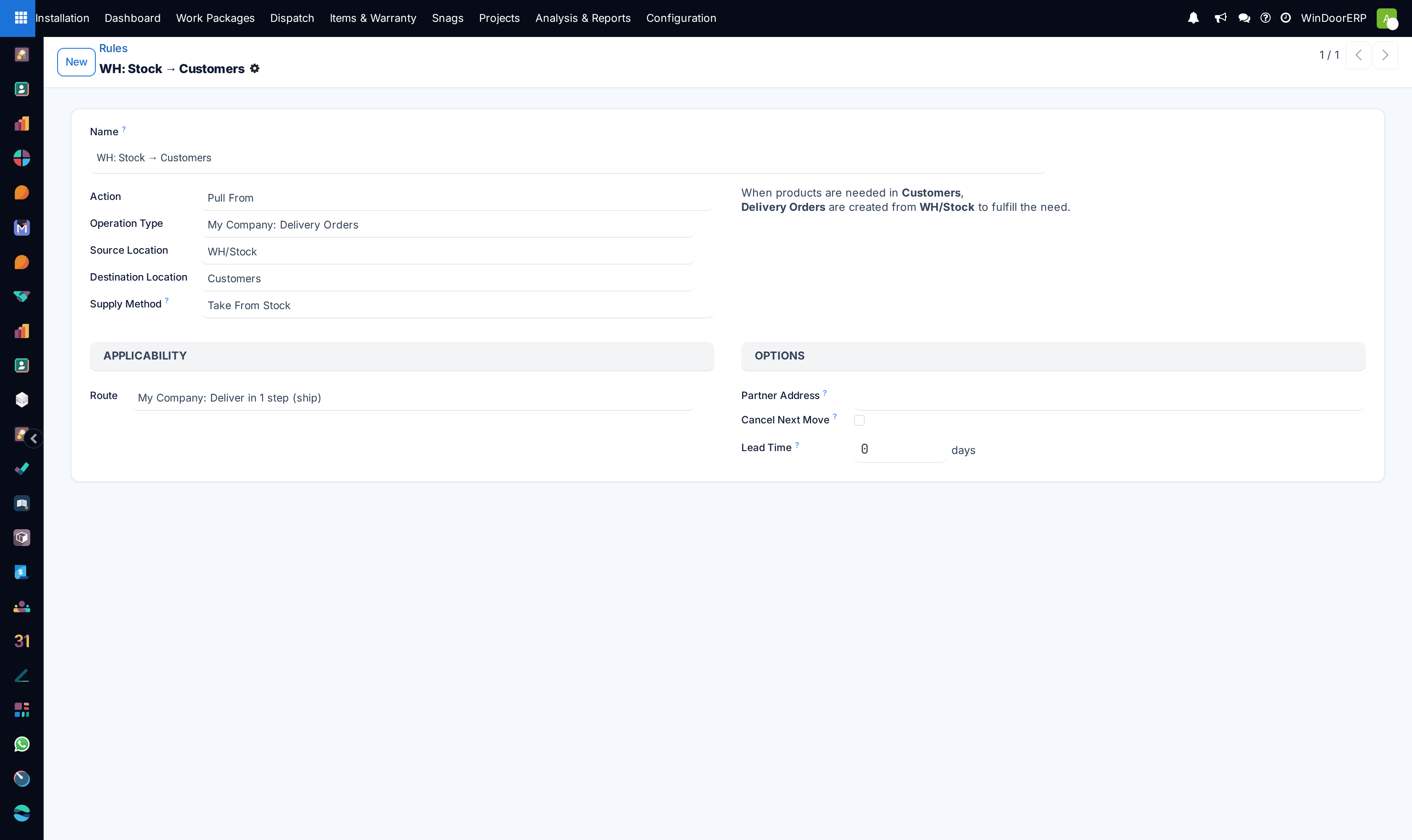
| Name | Required. It fills the origin and the name of every move the rule creates, so it is what somebody reading a mysterious transfer will see. The shipped rules are named after their path — WH: Stock → Customers. |
| Action | What kind of thing the rule does. Four values, covered in the next section. |
| Operation Type | Required. The kind of transfer the rule creates, which also decides the reference prefix and the default locations. The list is filtered to the operation kinds the chosen action allows — a Buy rule accepts only a receipt type. Choosing one replaces whatever was in the two location fields. |
| Source Location | Where the goods come from. Required for the three movement actions and hidden entirely on a Buy rule, which has no source inside your warehouse. |
| Destination Location | Required. Where the goods are wanted. On pull rules the move's real destination is normally taken from the operation type rather than from here; when they differ, the summary sentence tells you so. |
| Supply Method | Pull rules only. What happens at the source location. Three values, covered below. |
| Automatic Move | Push rules only. Manual Operation creates a second move after the current one, so the step is visible and someone processes it. Automatic No Step Added instead rewrites the destination of the original move, so no extra transfer appears. |
| Route | Required, under Applicability. The route the rule belongs to. Changing it makes the rule adopt the route's company, and clears the operation type if that type belongs to a warehouse in a different company. |
| Company | Multi-company databases only. It must match the route's company; if it does not, saving is refused with "Rule … belongs to … while the route belongs to …". |
| Warehouse, Sequence | Developer mode only. Sequence decides which rule of a route is tried first; it defaults to 20 and there is no reason to touch it on a straight-line route. |
| Partner Address | Under Options. An address the goods should be delivered to. Optional, and rarely set outside dropshipping. |
| Cancel Next Move | Off by default. When ticked, cancelling the move this rule created also cancels the move that follows it in the chain. |
| Lead Time | Days, default 0. The expected date of the transfer the rule creates is pushed out by this much — how you tell the system that a pick takes a day before the van leaves. |
| Push Applicability | Push rules only. A filter on the incoming move, so a push rule can be made to fire for some arrivals and not others. |
The four actions
| Action | When it fires |
|---|---|
| Pull From | Demand-driven. Something is needed at the destination, so the rule creates a transfer to bring it from the source. This is how a delivery pulls from stock. |
| Push To | Arrival-driven. Stock lands in the source location and the rule pushes it onward to the destination — how a two-step receipt moves goods from Input to Stock. Goods arriving as a return are deliberately exempt, so sending something back does not set the chain off again. |
| Pull & Push | Both behaviours in one rule, for a step that has to work whichever end the trigger comes from. |
| Buy | Not a movement at all: the need becomes a request for quotation to a vendor instead of a transfer. It is contributed by the Purchase app, it hides the Source Location, and it quietly brings the warehouse's own receipt route along with it so the goods have a way in once the order is confirmed. |
Note
There is no Manufacture action on this platform — that value is contributed by the Manufacturing app, which is not installed. Fabricated units are not produced through stock rules; they come from WindoorERP's own production flow and arrive in stock as finished goods. A rule will never be the reason a window gets made.
Supply Method: where the source gets it
A pull rule brings goods from the source location, which raises the obvious question of how the source location came to have them. That is what Supply Method answers, and it is the single field that turns a set of independent rules into a chain.
| Supply Method | What happens at the source |
|---|---|
| Take From Stock | The goods are taken from whatever is available at the source location. If there is not enough, the transfer waits. This is the default and it is what both live rules on this platform use. |
| Trigger Another Rule | Available stock at the source is ignored; the system looks for another rule to bring the goods into the source location. This is what chains a pick to a pack to a ship. |
| Take From Stock, if unavailable, Trigger Another Rule | Use what is there, and only reach further back for the shortfall. |
What actually ships here
Reading your own rules is the fastest way to understand your supply chain, and on this platform there is very little to read. Four routes exist: Replenish on Order (MTO), which ships archived, the warehouse's Receive in 1 step (stock) and Deliver in 1 step (ship) routes, and Buy. Between them they own four rules, and only two are live.
| Rule | State and effect |
|---|---|
WH: Stock → Customers | Active. Pull From, Delivery Orders, WH/Stock to Customers, Take From Stock. Every delivery you make is this rule. |
WH: Stock (Buy) | Active. Buy, on a receipt type, destination WH/Stock. Every replenishment that ends in a request for quotation is this rule. |
WH: Vendors → Stock | Archived. It is the receipt pull rule, and with one-step reception it is not needed: the Buy rule raises the order and the receipt lands straight in WH/Stock. |
WH: Stock → Customers (MTO) | Archived, along with its route. Make-to-order is not in use here, so this rule can never fire. |
Move the warehouse to a two- or three-step receipt or delivery and the missing push and pull rules are created and un-archived for you, between locations that are also created for you. That is why hand-editing is usually the wrong tool: change the step count on the warehouse and the whole set is rewritten consistently.
Tip
Rules are also what the Replenish Quantities tick box on a scrap order runs, and what a reordering rule runs when it reaches its minimum. If replenishment produces the wrong kind of document — a transfer where you wanted a purchase order, or nothing at all — the rule set is where the answer is, not the reordering rule.
Troubleshooting
| Symptom | Cause and fix |
|---|---|
| The Rules menu is not there | Multi-Step Routes is off, or the account is not an Inventory Administrator. Turning developer mode on does not help — this is a settings switch, not a debug screen. |
| Choosing the operation type wiped my locations | By design: the operation type carries its own default source and destination and imposes them. Set it first, then the locations. |
| The Source Location field disappeared | The action is Buy, which has no source location inside your warehouse. |
| There is no Manufacture action | The Manufacturing app is not installed on this platform. Production is handled outside stock rules. |
| "Rule … belongs to … while the route belongs to …" | The rule's company and the route's company disagree. Change one of them; a rule cannot straddle two companies. |
| A rule exists but never fires | It is archived, or its route is not applied to the products, categories or warehouse in question, or an earlier rule in the route's sequence already satisfied the need. |
| Demand produces no move at all | No rule matches the requested destination. The error names the product and the location — read it as "no route covers this path" and add the rule or apply the route. |
| Changing a rule did not fix an existing order | Rules apply when demand is created. Moves that already exist keep the path they were given — cancel and re-create the demand if it has to change. |
| Moves appear between unexpected locations | Read the route rather than the rule: open the route form and look at its rules in sequence. A chain is much easier to follow from the route. |
Common mistakes
- Editing rules by hand when changing the warehouse's receipt or delivery steps would generate the right ones automatically.
- Setting the locations before the operation type, and losing them.
- Building a loop: two rules that each pull from the other's destination.
- Turning on Multi-Step Routes to see one screen, and not noticing that Storage Locations came on with it.
- Expecting a rule change to repair transfers that already exist.
Was this article helpful?
Thanks — your feedback helps.
Running a window or door factory?
Ask for a demo