Decide when stock gets reserved
What this does
Reserving ties specific units in the warehouse to a specific transfer, so nobody else can take them. Reserve too early and material sits locked for a job that ships next month while an urgent one goes short; reserve too late and the goods are gone when the picker arrives. The Reservation Method sets that policy — not per product, not per warehouse, but per operation type: your delivery orders can reserve one way while internal transfers reserve another.
Before you start
- Access to Inventory configuration (the Administrator access right on Inventory).
- A decision per operation type: is stock promised the moment an order confirms, on a countdown before the ship date, or only when a person says so?
Setting the policy
-
01
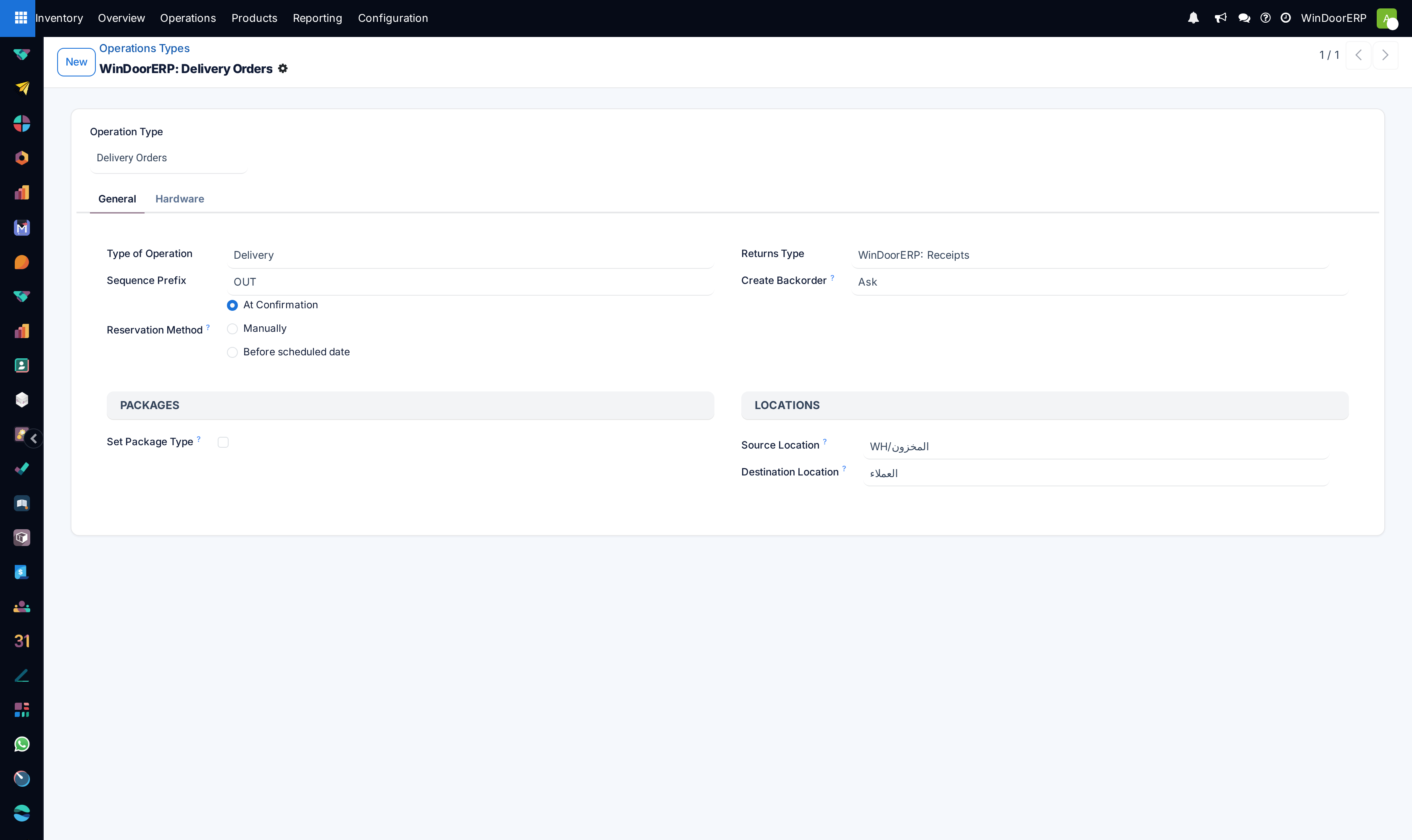
Go to Inventory › Configuration › Operations Types and open the type — Delivery Orders is the one that matters most.
-
02
On the General tab, pick a Reservation Method: At Confirmation, Manually, or Before scheduled date.
-
03
If you picked Before scheduled date, fill the two day counts that appear — days before the scheduled date, and a separate (usually larger) count for starred transfers.
-
04
Save. The change is not only for future orders: switching to Before scheduled date re-stamps a reservation date on every open move of that type, and switching away clears it.
The three methods — and what this system runs
At Confirmation reserves the instant the transfer is confirmed — for a delivery, the moment the sales order confirms. Whatever is on hand is locked to the order; what is missing waits. Manually reserves nothing, ever, until someone opens the transfer and clicks Check Availability — the right choice when the same profile is wanted by three jobs and a human should pick the winner. Before scheduled date holds off, then reserves automatically once the transfer is within the configured number of days of its scheduled date — material stays free for whatever comes up in the meantime, but is still locked in before the load is picked.
On this system, all three operation types — Receipts, Delivery Orders, Internal Transfers — ship set to At Confirmation, and Receipts do not show the field at all: incoming goods are not reserved from anyone. So out of the box, confirming a sales order reserves its delivery immediately; the other two methods are there when you decide the default fights you.
Reading what the reservation did
Reserving is silent about failure. A transfer whose goods are all on hand goes to Ready; one with nothing available stays at Waiting; one with part of the demand becomes Partially Available at the move level. No message tells you which happened — the state and the colours do: the Product Availability field beside the scheduled date reads Available in green, Exp plus a date in yellow when incoming stock will cover it, or Not Available in red, and each product line carries the same pill. Priority matters too: the star on a transfer means it is served first when several transfers compete for the same units.
Troubleshooting
An order confirmed but its delivery is still Waiting — reservation ran and found nothing to take. Nothing is wrong with the mechanism; there is no stock. Check the line's red pill and the product's forecast.
Stock sits reserved for far-future orders — that is what At Confirmation does. Either unreserve the far-future transfers by hand, or switch the operation type to Before scheduled date with a sensible day count.
The Reservation Method field is missing on Receipts — by design; incoming goods have nothing to reserve.
Two transfers want the same units — the starred one wins when the automatic passes run; for a manual tie-break, unreserve the loser and Check Availability on the winner.
Common mistakes
- Treating the method as a per-product setting — it is per operation type, and one delivery type covers every delivery.
- Reading "Ready" as "everything is available" — with partial reservation a transfer can be partially covered; read the line pills, not just the state.
- Expecting an error when reservation finds nothing — there is none; silence is the failure mode.
Was this article helpful?
Thanks — your feedback helps.
Running a window or door factory?
Ask for a demo