Find your way around WindoorERP
What this does
WindoorERP puts every screen in the same frame. Once you know the four parts of that frame — the app rail, the menu bar, the systray and the control panel — you stop hunting for screens, because a screen you have never opened is laid out exactly like one you use every day.
Nothing here is specific to sales or production. It is the shell every application is drawn inside.
Before you start
- Nothing. Every part of this topic is visible to any signed-in user.
- Some of the icons described below come from optional modules, so a given tenant may show fewer of them.
Steps
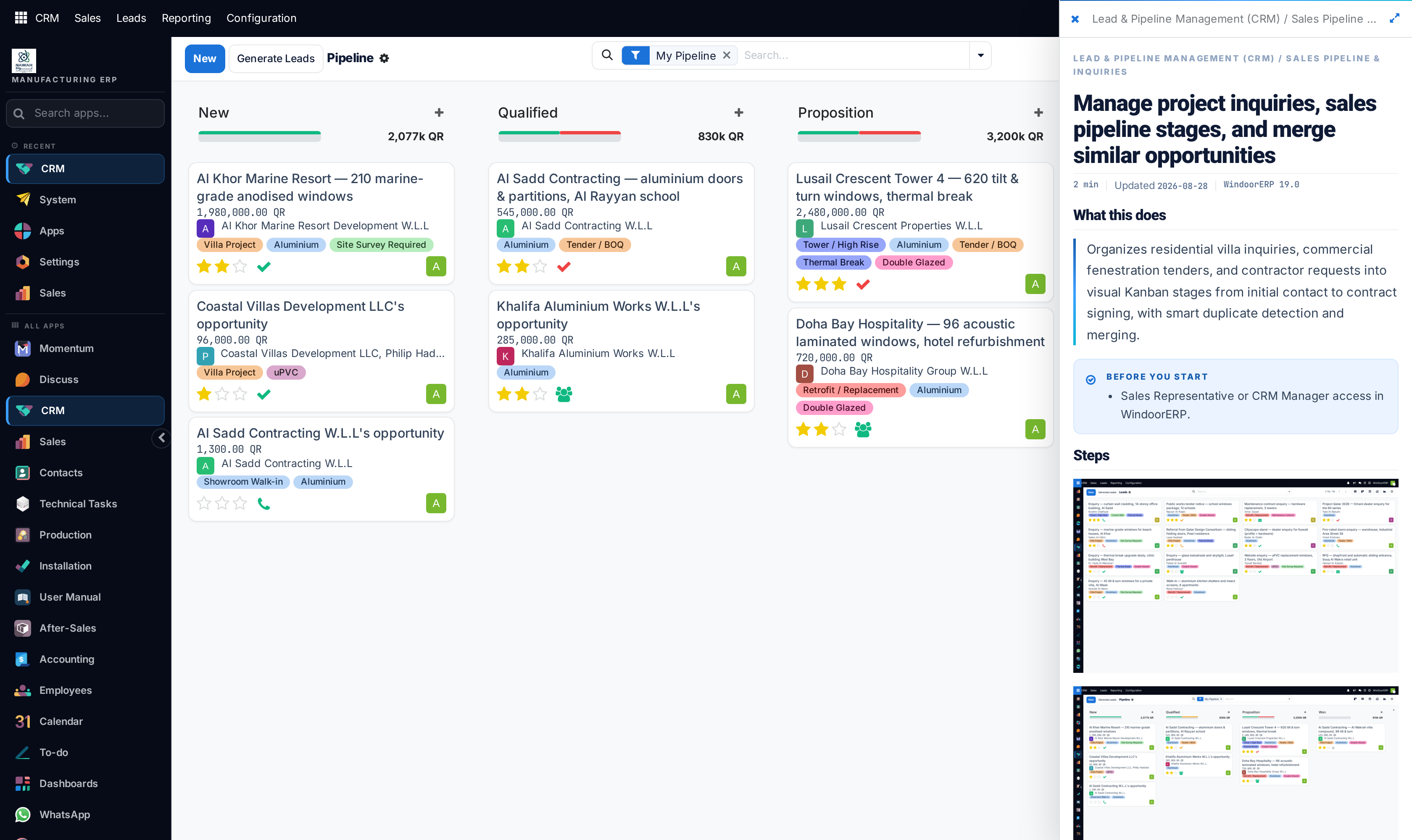
-
01
Look at the app rail down the side of the window. It holds one icon per application. Click one to open it.
-
02
Press Ctrl+Shift+B to widen the rail into a full list with names, a search box and a Recent section. Press it again to shrink it back to icons.
-
03
Use the menu bar along the top of the open application. Nearly every application follows the same order: the working menus first, then Reporting, then Configuration.
-
04
Use the breadcrumb just under the menu bar to go back. It shows the path you took, and each part of it is clickable.
-
05
Use the view switcher at the top right of the control panel to look at the same records as a list, kanban, calendar, pivot or graph. The switcher only offers the views that screen actually has.
-
06
Click your avatar at the far end of the top bar for My Preferences, Appearance and Log out.
The systray, icon by icon
The icons at the top right are the same on every screen. Several belong to optional modules, so your tenant may show only some of them.
| Bell | Open shop-floor Andon calls, with a count of how many are waiting. Only present where the shop-floor module is installed. |
|---|---|
| Arrows / Compact | UI density. Switches the interface between a roomier and a tighter layout. |
| Megaphone | Send feedback to the WindoorERP team without leaving the screen you are on. |
| Speech bubbles | Messages — your inbox for chatter notifications, with the unread count. |
| Question mark | Help. Opens this manual, filtered to the screen you are on. Also Alt+Shift+H. |
| Clock | Activities — every follow-up assigned to you across all applications, with the number due. |
| Company name | Which company you are working in. On a multi-company database this is also where you switch. |
| Avatar | Your account: preferences, appearance, online status, and sign out. |
The control panel
Every list, kanban and report screen carries the same bar above the records.
| New | Creates a record on this screen. Absent where the screen is read-only, such as most reports. |
|---|---|
| Breadcrumb | Where you are, and the way back. The ⚙ beside it holds screen-level actions such as Export, Duplicate, Archive and Delete once records are selected. |
| Search box | Type and press Enter to filter. What you type becomes a removable facet, so several searches stack instead of replacing each other. |
| Dropdown arrow | Opens Filters, Group By and Favorites. A favourite saves the whole search, and can be made the default for that screen or shared with everyone. |
| View switcher | The same records drawn differently. Switching view keeps your filters. |
| Pager | Record count and arrows. Click the count to type a range. |
Reading a form
Every record is laid out the same way, top to bottom, which is why someone who knows one screen can work another.
| Status bar | Top right. The stages of the record's life. On many screens you can click a stage to move the record there. |
|---|---|
| Header buttons | Top left. The actions that advance the record — Confirm, Validate, Won, Lost. What is shown depends on the state the record is in. |
| Smart buttons | The boxed counters under the header. Each one opens the related records it counts. |
| Title and fields | The record's own data, in one or two columns. |
| Tabs | Grouped detail — lines, other information, notes. A tab is hidden when the feature behind it is switched off, which is why two tenants can show different tabs on the same screen. |
| Chatter | Underneath or beside the form: the message history, logged notes, planned activities, followers and attachments. Everything that happened to this record, in order. |
Getting somewhere quickly
The rail's search box, reached with Ctrl+Shift+F or by widening the rail, filters the application list as you type.
Inside an application, the fastest route to a record is the control-panel search rather than the menus: open the top-level list, type part of the name, press Enter.
The user menu lists a Shortcuts entry labelled Ctrl+K. On the current build that key combination does nothing — see Troubleshooting.
Troubleshooting
| Ctrl+K opens nothing | A known fault on this build: two modules claim the same shortcut and neither panel opens. Use the rail's search, or the control-panel search, until it is fixed. |
|---|---|
| An application is missing from the rail | Either it is not installed, or your user has no access to it. The rail only draws what you may open. |
| A menu you were told about is not there | Most menus are gated by a setting or a group. Check the application's Settings page first, then your access rights. |
| The screen has no New button | The screen is read-only — usually a report or an analysis view. |
| A filter will not go away | Filters are facets in the search box. Click the × on the facet; the search box being empty is not the same as no filter. |
| The rail keeps coming back expanded | Its width is stored on your user account, not in the browser, so it follows you to any machine you sign in from. |
Common mistakes
- Navigating by browser Back. Use the breadcrumb — Back can drop you outside the record you were editing.
- Retyping a search you use daily instead of saving it as a favourite and making it the default.
- Assuming a colleague sees what you see. Menus, tabs and buttons follow each person's access rights.
- Reading the form and ignoring the chatter, then asking a question the record already answers.
- Treating a missing tab as a fault. It usually means the feature behind it is switched off in Settings.
Was this article helpful?
Thanks — your feedback helps.
Running a window or door factory?
Ask for a demo