Get help without leaving your screen
What this does
Opens this manual next to whatever you are doing, already filtered to the screen you are on. The answer arrives without you losing your place, and the form behind stays editable while you read.
There are two parts to it: a Quick Help dropdown for finding an article in seconds, and a drawer beside your work for reading one.
Before you start
- Nothing. Help is open to every signed-in user, in English and Arabic.
- Nothing you do here changes a record — reading, searching and rating are all safe.
Steps
-
01
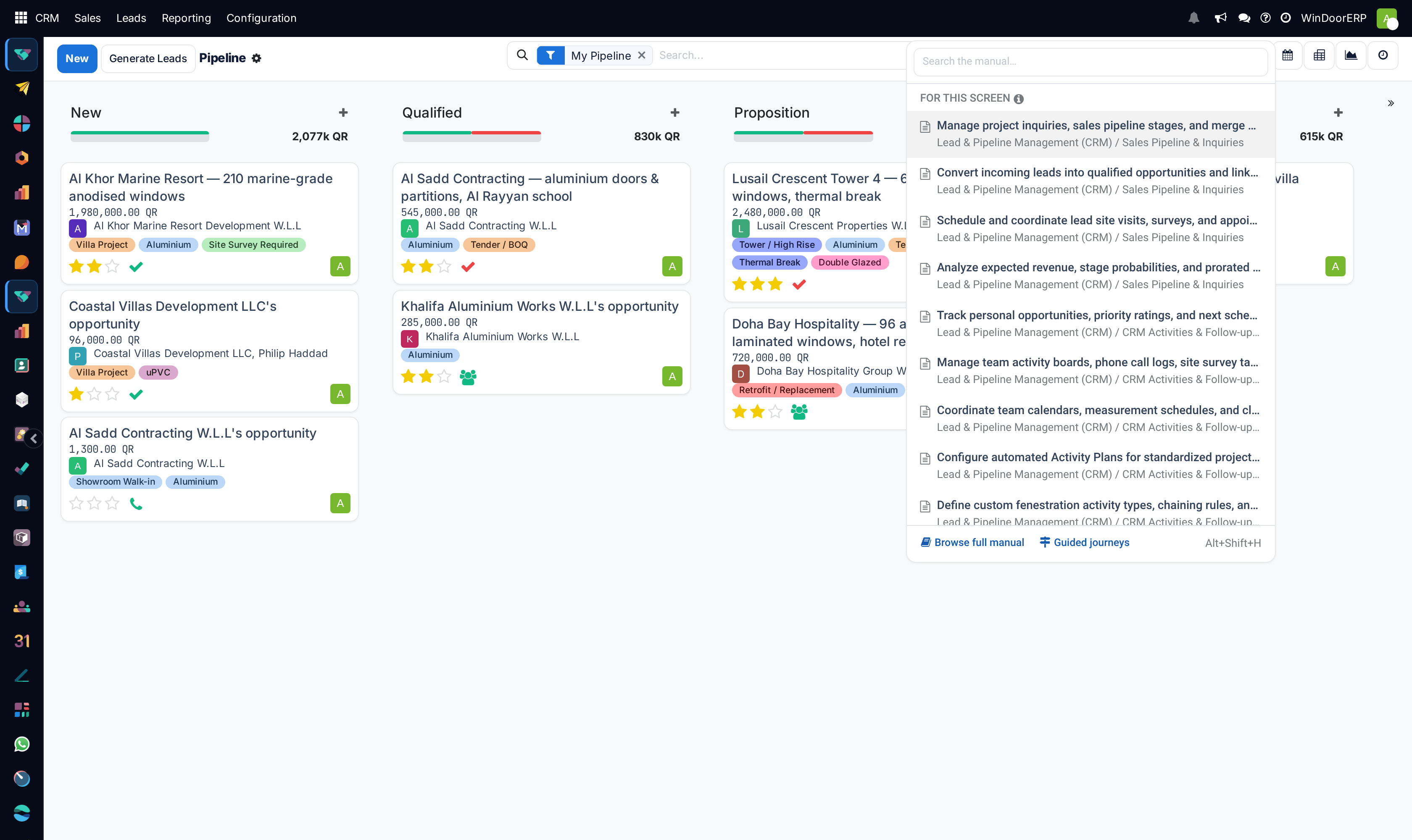
Click the question-mark icon in the top bar, or press Alt+Shift+H.
-
02
Read what is already listed under For this screen before typing anything — those articles were matched to the screen you came from, so the answer is often already visible.
-
03
Type a few words to search the whole manual. Search works in English and Arabic.
-
04
Click an article. It opens in the drawer beside your form.
-
05
If the article has numbered steps, click Task mode to walk them one at a time while you work on the real screen.
-
06
Answer Was this helpful? before you close it. That answer is what tells the people who maintain the manual which articles are failing.
The Quick Help dropdown
Its job is to find, not to read. Everything in it is one click from the drawer.
| Search the manual… | The search box, focused the moment the dropdown opens, so you can type straight away. It searches titles, keywords and body text in both languages. |
|---|---|
| For this screen | Articles matched to the application and screen you opened help from. This is the part that makes help contextual; it is filled before you type. |
| Recently viewed | Articles you opened before. Kept in your browser, so it is per device and disappears if you clear site data. |
| Did you mean: | Alternative spellings, offered when a search returns little. |
| What did you want to find? | Appears when a search finds nothing. Type what you were after and press Send; the miss is recorded so the gap can be filled. |
| Browse full manual | Opens the User Manual application — the whole library with its section tree. |
| Guided journeys | Ordered paths through a whole task rather than single articles. |
The drawer
The drawer opens beside your screen, not over it. Your form stays visible and editable the whole time.
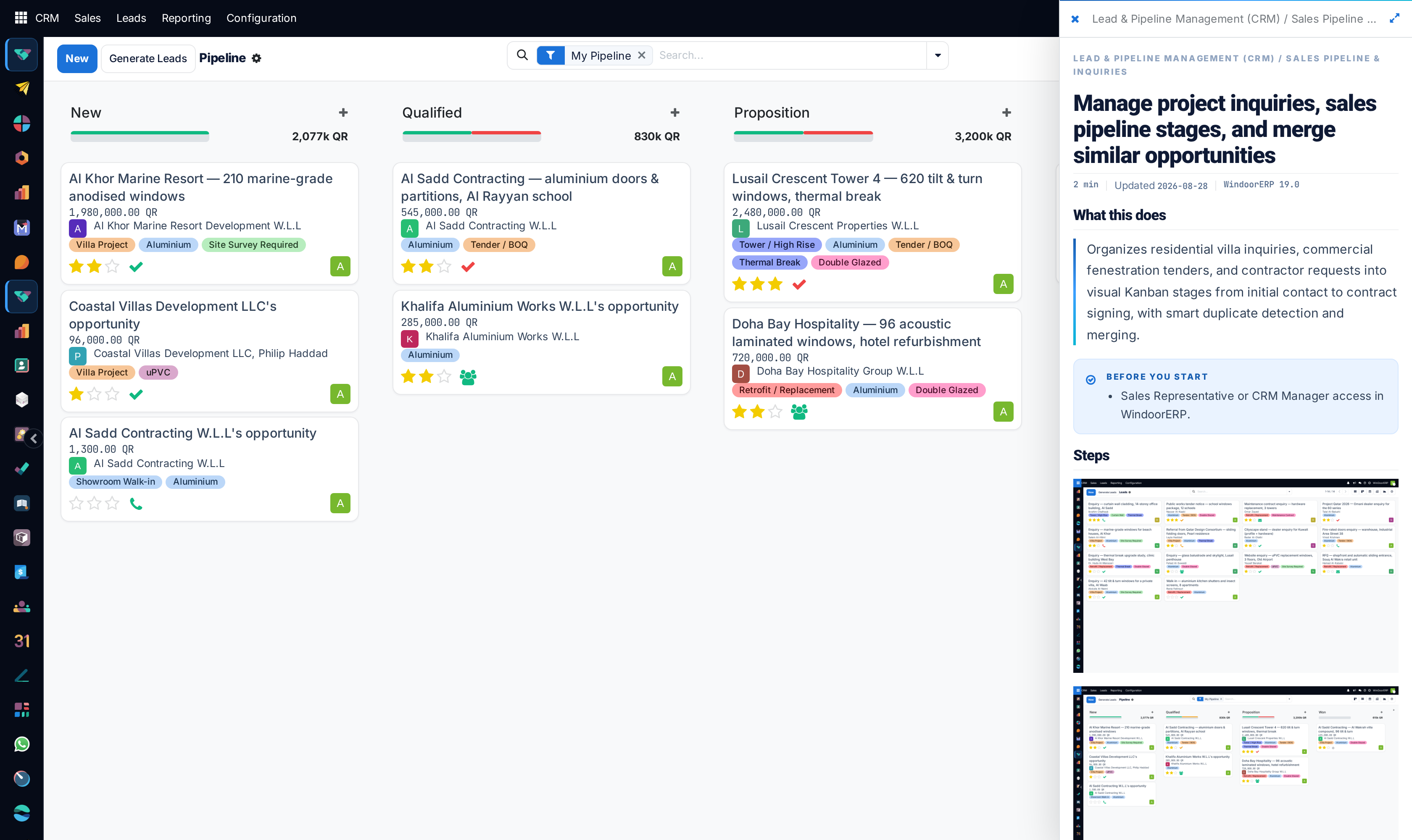
| Task mode | Only offered when the article has numbered steps, and it shows how many. It then presents one step at a time — Step 3 of 8 — with Previous, Next step and Exit task mode. It deliberately keeps no record of where you got to: leave it and come back and you start at step one. |
|---|---|
| Open this screen | Jumps to the screen the article describes, without closing the drawer. Only shown where the article names a screen. |
| In this section | The article's own headings, for moving around a long reference article. |
| Next steps / Related topics | Where to go after this article, and what sits beside it. |
| Was this helpful? | Thumbs up is recorded immediately. Thumbs down opens What went wrong?. |
| Expand | Widens the drawer for an article with wide tables or large screenshots. |
| Close | Closes the drawer. Nothing you were editing is affected. |
Telling us an article is wrong
Thumbs down asks What went wrong? and offers five reasons: I couldn't find what I needed, The instructions were unclear, The instructions are out of date, Something doesn't work as described, and Other. You can add a comment.
Pick the reason that fits rather than always Other. The reason is what gets counted, and an article with ten out of date reports is fixed before one with ten unlabelled complaints.
An article written against an older version carries a marker saying so. Treat that as a warning that a screen may have moved since it was written.
Other ways in
The User Manual application opens the full library: the section tree, search across everything, and the guided journeys.
Guided journeys are ordered routes through a whole piece of work — setting up a warehouse, taking an enquiry to an installed job — rather than single articles. Start one and it tells you which screen to open at each step.
The manual is also published on the web, so it can be read on a phone or sent as a link to someone who has no account.
Troubleshooting
| Alt+Shift+H does nothing | The cursor is in a text box that swallows the keys. Click an empty part of the screen first, or use the question-mark icon. |
|---|---|
| "For this screen" is empty | No article is bound to that screen yet. Search instead, and use Send on the not-found box so the gap is recorded. |
| There is no Task mode button | The article has no numbered steps. It is reference material rather than a procedure. |
| There is no "Open this screen" button | The article is not tied to a single screen — a concept article, or one that spans several. |
| Recently viewed is empty on another machine | It is stored in the browser, not on your account, so it does not follow you. |
| The article is in English while my interface is Arabic | That article has no Arabic version yet. Report it with thumbs down and Other. |
| The drawer covers too much of the form | Collapse the expanded drawer, or close it and reopen it after the step you are on. |
Common mistakes
- Typing a search before reading For this screen, which was filled for you.
- Closing the drawer to work and reopening it for every step, instead of using Task mode.
- Leaving a thumbs down without a reason. The reason is the part that gets acted on.
- Expecting Task mode to remember where you stopped. It is a stepper, not a saved tour.
- Reading an article marked as written for an older version and assuming the screen still matches.
Was this article helpful?
Thanks — your feedback helps.
Running a window or door factory?
Ask for a demo