Order stock only when a job is sold
What this does
The Replenish on Order (MTO) route holds no stock at all: confirming the customer's order is what creates the purchase, and the two documents stay linked so anyone can trace the material to the job. Use it for goods bought for one specific window — a special colour, non-standard hardware, bought-in glass.
Before you start
- The route ships switched off. Enable Replenish on Order (MTO) under Inventory › Configuration › Settings, in the Logistics section, and save.
- The product needs the Purchase checkbox on and a Vendor with a price on its Purchase tab — without one, confirming the sale fails with an error telling you to complete the vendor list.
Steps
-
01
Open the product and go to its Inventory tab.
-
02
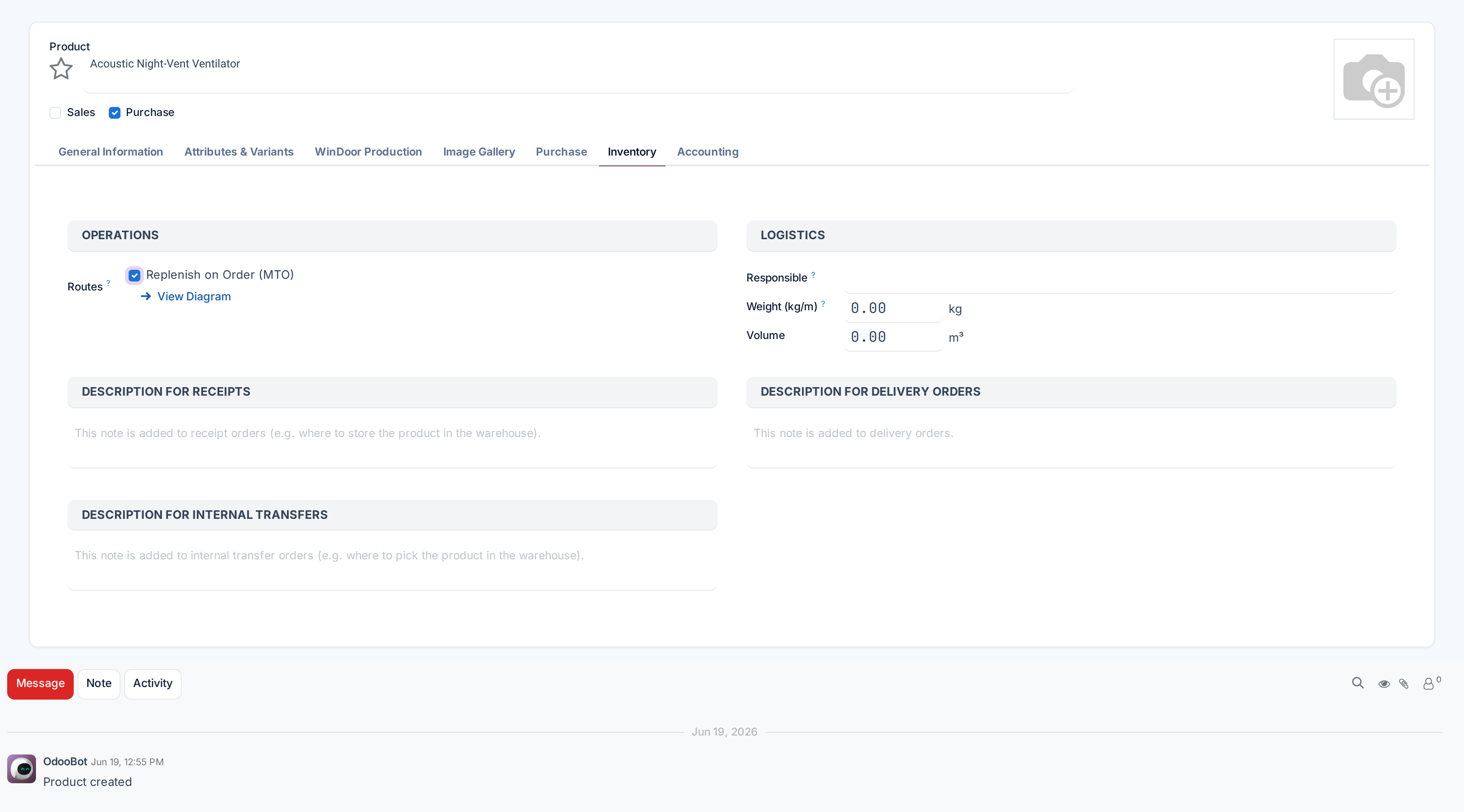
In Routes, tick Replenish on Order (MTO) and save. (You will not see a Buy checkbox — buying is applied by itself to any purchasable product with a vendor.)
-
03
Confirm a sales order containing the product.
-
04
Open the Purchase smart button that appears on the order: it holds the request for quotation created for exactly this sale. Check the price and the Expected Date, then Confirm Order.
-
05
When the goods arrive, validate the receipt from the purchase order, then the delivery from the sales order's Delivery smart button.
What makes it different
A replenishment order is created on every confirmation, even when stock exists — that is the point of the route: this unit belongs to this customer. The links run both ways: the sales order gains a Purchase smart button, the purchase order a Sale one. And while the generated document is still a draft, its quantities follow the sale — increase the ordered quantity and the draft RFQ grows with it.
Compare the 0/0 reordering rule from the previous topic, which also buys on demand but pools the arrivals: MTO reserves the arriving units for their sale and keeps the paper trail; the 0/0 rule leaves them free for whoever needs them and consolidates purchases.
When the job changes
Adjust the generated purchase order; do not cancel it. A cancelled document is not replaced automatically, and a manually created replacement can never be linked back to the sale.
If the sales order itself is cancelled, its delivery is cancelled with it, but the purchase stays — a note appears in its chatter. Cancel it yourself or reuse it for another job.
Troubleshooting
The route does not appear in the product's Routes — the setting is off. Enable Replenish on Order (MTO) in the Inventory settings; the checkbox appears on products once the route is active.
Confirming the sale throws "There is no matching vendor price to generate the purchase order…" — the product has no usable vendor line: none defined, a minimum quantity you did not reach, or validity dates that exclude today. Complete the vendor list on the product's Purchase tab.
No Purchase smart button appeared — the product on the order does not actually carry the MTO route (check its Inventory tab), or the line was added after confirmation without the route applying. The stock came from the shelf instead.
Stock was on the shelf and it bought more anyway — that is the designed behaviour, not a bug. If pooling stock is what you want, use a reordering rule instead of MTO.
Common mistakes
- Cancelling the generated purchase and raising a fresh one, breaking the link everyone downstream relies on.
- Putting the route on a stock item, which then gets bought separately for every order even though the shelf is full.
- Enabling it on a product with no vendor and wondering why the confirmation fails.
Was this article helpful?
Thanks — your feedback helps.
Running a window or door factory?
Ask for a demo