Read the forecasted report
What this does
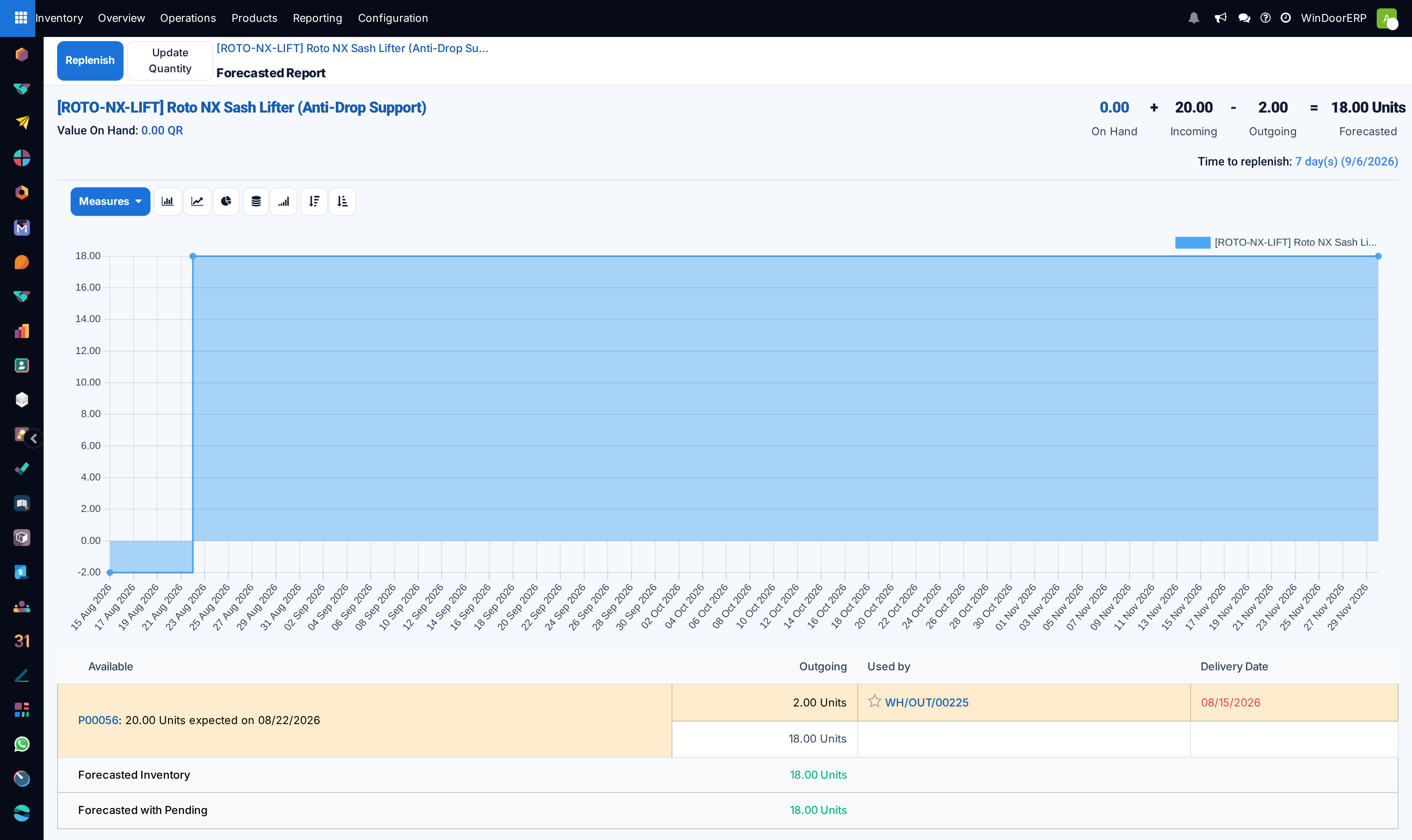
Shows where a product's stock is heading: what is on the shelf now, what is coming in, what is already promised out, and what will be left. It is the report that tells you a job will fail before it fails — and it lets you act on the spot: reserve, unreserve, prioritise, or buy.
Steps
-
01
Open the product and click the Forecasted smart button. From a sales or purchase order line, click the (chart) icon on the line and choose View Forecast; the replenishment report's chart icon lands here too.
-
02
Read the headline numbers — On Hand, Incoming, Outgoing, Forecasted — and the graph of the level over time.
-
03
Read the table: each incoming document with its quantity and expected date on the left, each demand under Used by with its Delivery Date on the right. A demand with no stock to come is marked Not Available in red; a late pairing is highlighted.
-
04
Act from the table: Reserve gives a demand the free stock, Unreserve takes it back, the star raises the delivery's priority, and every document name is a link.
-
05
Act from the top: Replenish opens the purchase wizard — quantity, scheduled date, route and vendor — and Update Quantity corrects the on-hand figure (that is a stock adjustment, not supply).
Reading the bottom rows
| Row | Meaning |
|---|---|
| Forecasted Inventory | What will be left once every confirmed in and out has happened. Green positive, red at zero or below. |
| Forecasted with Pending | The same figure counting also the drafts — RFQs not yet confirmed, transfers still being prepared. The gap between the two rows is exactly the paperwork somebody has not confirmed yet. |
That distinction answers the commonest confusion on this screen: a request for quotation does not raise the forecast. Only a confirmed purchase counts as incoming; until then the quantity appears only in Forecasted with Pending.
When the number goes negative
A negative forecast means promised demand exceeds everything available and expected. It is an early warning, not an error: prioritise one order over another with the star and the reserve buttons, push the supplier, or tell the customer now rather than on the delivery date.
Is the delivery going to be late?
Compare the expected date of the incoming goods with the Delivery Date of the demand waiting for them. A receipt that lands after the delivery is a late job — the row is highlighted and the date shown red. Expedite the supplier or move the promise.
Where it applies in this business
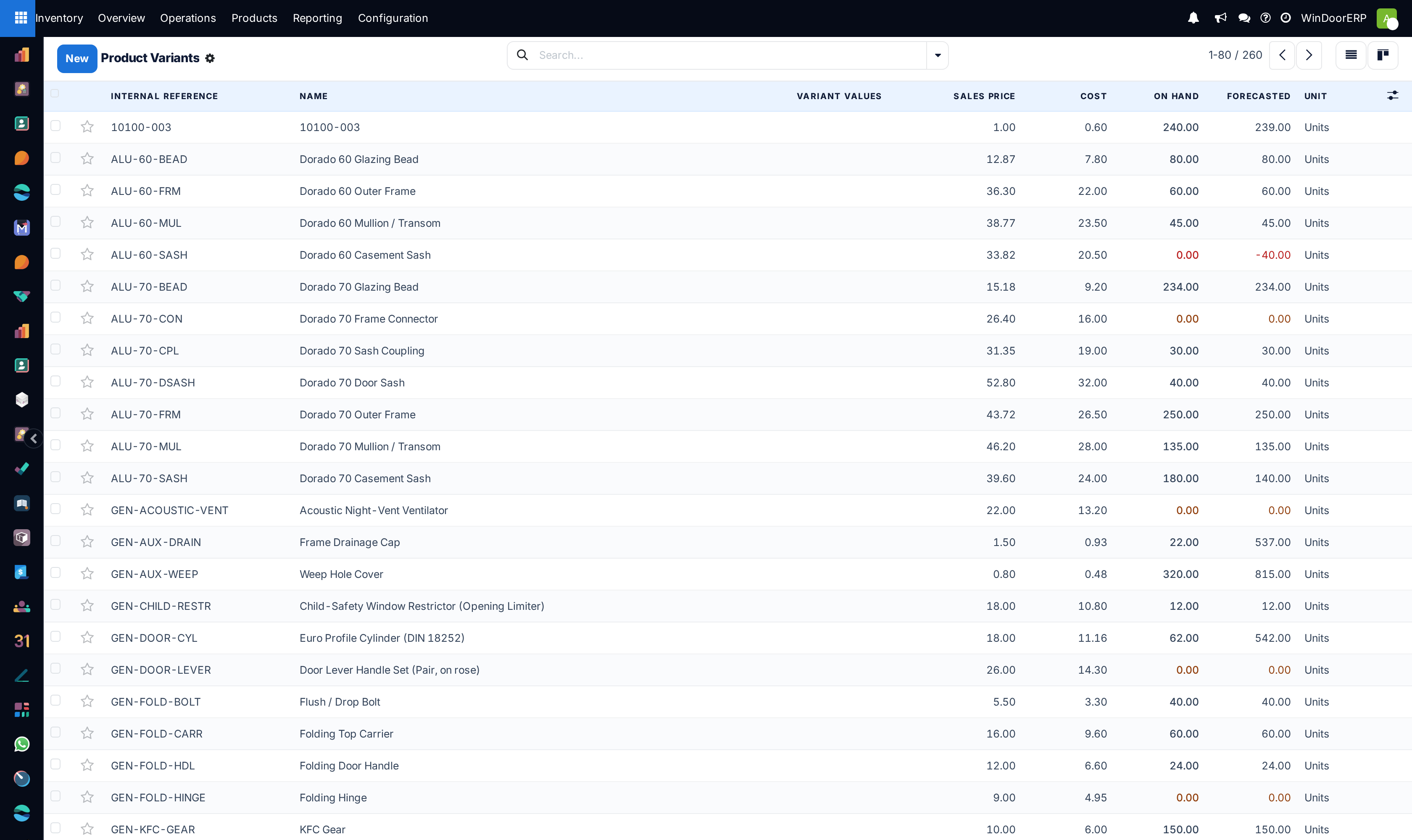
The report exists only for products whose inventory is tracked — run it on profile, hardware, glass and consumables. Fabricated windows and doors follow their production orders instead; what this screen protects is the material those orders will consume, and the bought-in items that ship alongside them.
Troubleshooting
Stock exists but a demand shows nothing to reserve — the stock is already reserved elsewhere. Unreserve the less urgent demand first; free-to-use, not on-hand, is the number that matters.
An expected purchase does not lift the forecast — it is still a draft RFQ. Confirm it, or read the Forecasted with Pending row for the picture including drafts.
The Forecasted smart button is missing — the product's inventory is not tracked (Product Type Goods + Track Inventory); untracked items have no stock level to forecast.
The figures disagree with the replenishment report — the two look through different windows: this report shows all scheduled moves; the replenishment line stops at its lead-time-plus-horizon date.
Common mistakes
- Expecting a request for quotation to lift the forecast. Only a confirmed purchase counts as incoming.
- Reading the on-hand figure and ignoring what is already reserved — free-to-use is the number that matters.
- Using Update Quantity to make a shortage disappear instead of fixing the supply.
Was this article helpful?
Thanks — your feedback helps.
Running a window or door factory?
Ask for a demo