Reserve stock by hand
What this does
Manually means nothing is ever reserved until a person decides. Every confirmed transfer waits, whatever is on the shelf, until somebody opens it and clicks Check Availability — exactly what you want when the same aluminium profile is wanted by three jobs and a human, not confirmation order, should choose who gets it. The trade: someone must actually do it, every day, or nothing ships.
Before you start
- The operation type's Reservation Method switched to Manually (Inventory › Configuration › Operations Types — the shipped default is At Confirmation, so this is a deliberate change).
- A routine for who works the Waiting list, and when.
Reserving by hand
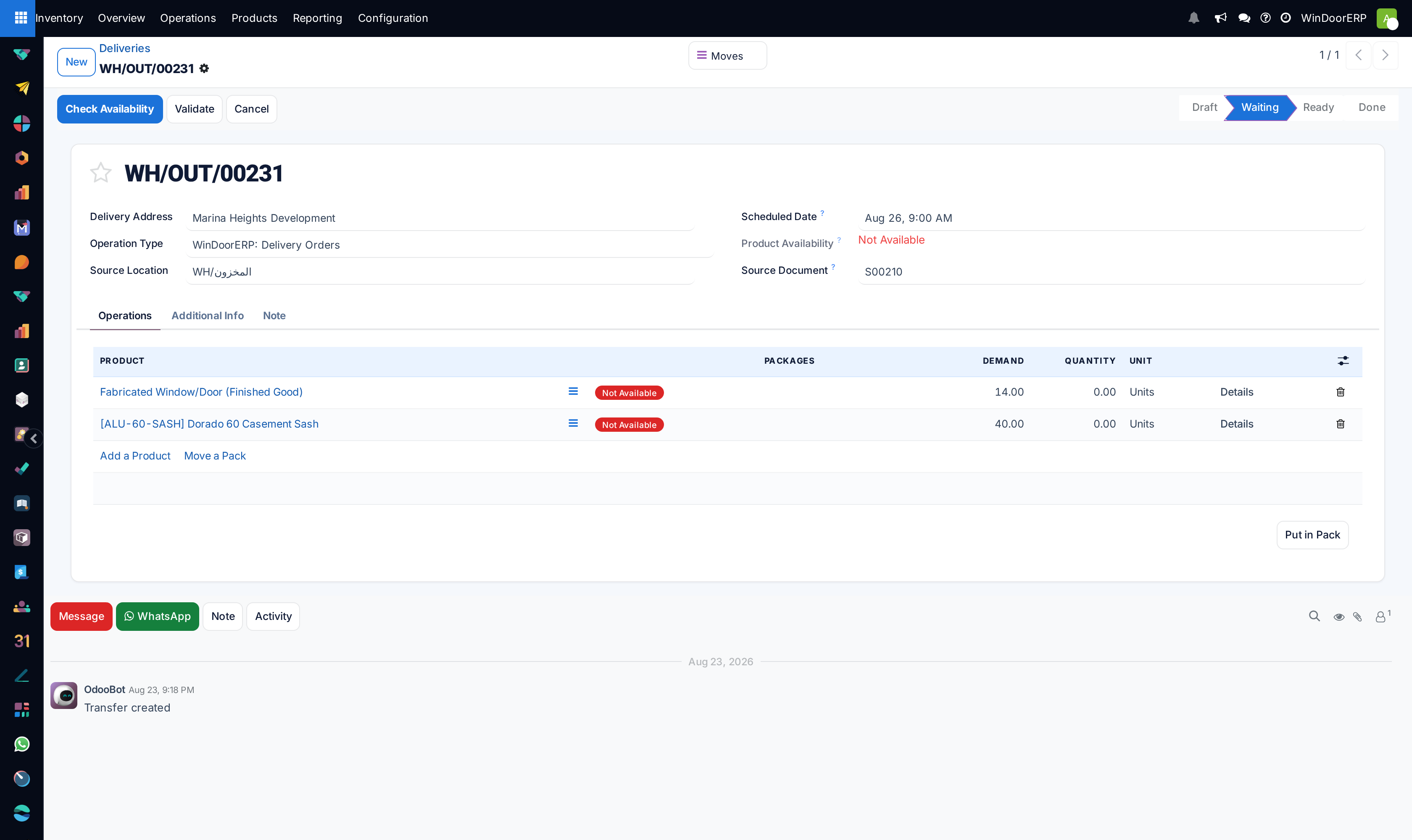
-
01
Open Inventory › Operations › Transfers › Deliveries — the Waiting transfers are your queue, and the Product Availability column — add it from the column chooser if your list hides it — tells you which are worth reserving (green Available) before you open them.
-
02
Open a transfer and click Check Availability. What is on hand is reserved; the button only shows while there is still something unreserved to try.
-
03
Check the result on the lines — a full reservation turns the transfer Ready; a short one leaves lines partially covered, with no message. The silence is the same as every other method.
-
04
To change your mind, use ⚙ › Unreserve on the form (it is in the gear menu, not a header button) — the goods return to free stock and any other order can take them.
-
05
To work in bulk, stay on the list: tick several transfers and the Check Availability and Unreserve buttons appear in the list header.
What Unreserve will and will not do
Unreserve releases reserved-but-untouched lines. Two limits: quantities already picked on the shop floor keep their reservation — silently — and a transfer already Done refuses outright ("You cannot unreserve a stock move that has been set to 'Done'."). Clicking Check Availability on a transfer with nothing left to reserve answers "Nothing to check the availability for." — that one message is the only chatter in the whole workflow.
Troubleshooting
The Check Availability button is missing — the transfer is fully reserved already, or it is in a state that cannot reserve (Draft, Done, Cancelled). The button appears only when there is work for it.
"Nothing to check the availability for." — every line is either reserved or zero-demand; there was nothing to do.
Unreserve freed less than expected — the picked quantities stayed reserved; only untouched lines were released.
Fresh receipts did not wake the waiting deliveries — by design under Manually: the automatic catch-up that re-reserves after a receipt only serves the other two methods. Your queue is yours alone; nothing reserves without a click.
Common mistakes
- Switching to Manually without assigning an owner for the Waiting queue — under this method, an unworked queue is a warehouse that ships nothing.
- Hunting the form for an Unreserve button — it lives in the ⚙ gear menu; only the list view has it as a header button.
- Reserving everything every morning "to be safe" — that recreates At Confirmation by hand and gives up the whole point of choosing manually.
Was this article helpful?
Thanks — your feedback helps.
Running a window or door factory?
Ask for a demo