Resupply one warehouse from another
What this does
Feeds a branch, a showroom or a site store from the central warehouse automatically, creating the delivery at one end and the receipt at the other. Between the two, the goods sit in a transit location — out of both warehouses, still yours, still valued.
Before you start
- Each site that holds stock must be its own warehouse — a branch is a warehouse, not a location. The moment a second warehouse exists, the multi-warehouse features (and the Resupply From option below) switch on by themselves.
- Decide the trigger before wiring anything: transfers per customer order (MTO), or a stock floor at the branch (a reordering rule).
Steps
-
01
Go to Inventory › Configuration › Warehouse Management › Warehouses and create or open the branch warehouse — give it a name and a Short Name, which prefixes all its transfer references. Creating a second warehouse warns that it activates the Storage Locations setting as well — that is expected.
-
02
In its Warehouse Configuration tab, under Resupply, tick the warehouse that supplies it in Resupply From. Tick several if more than one can.
-
03
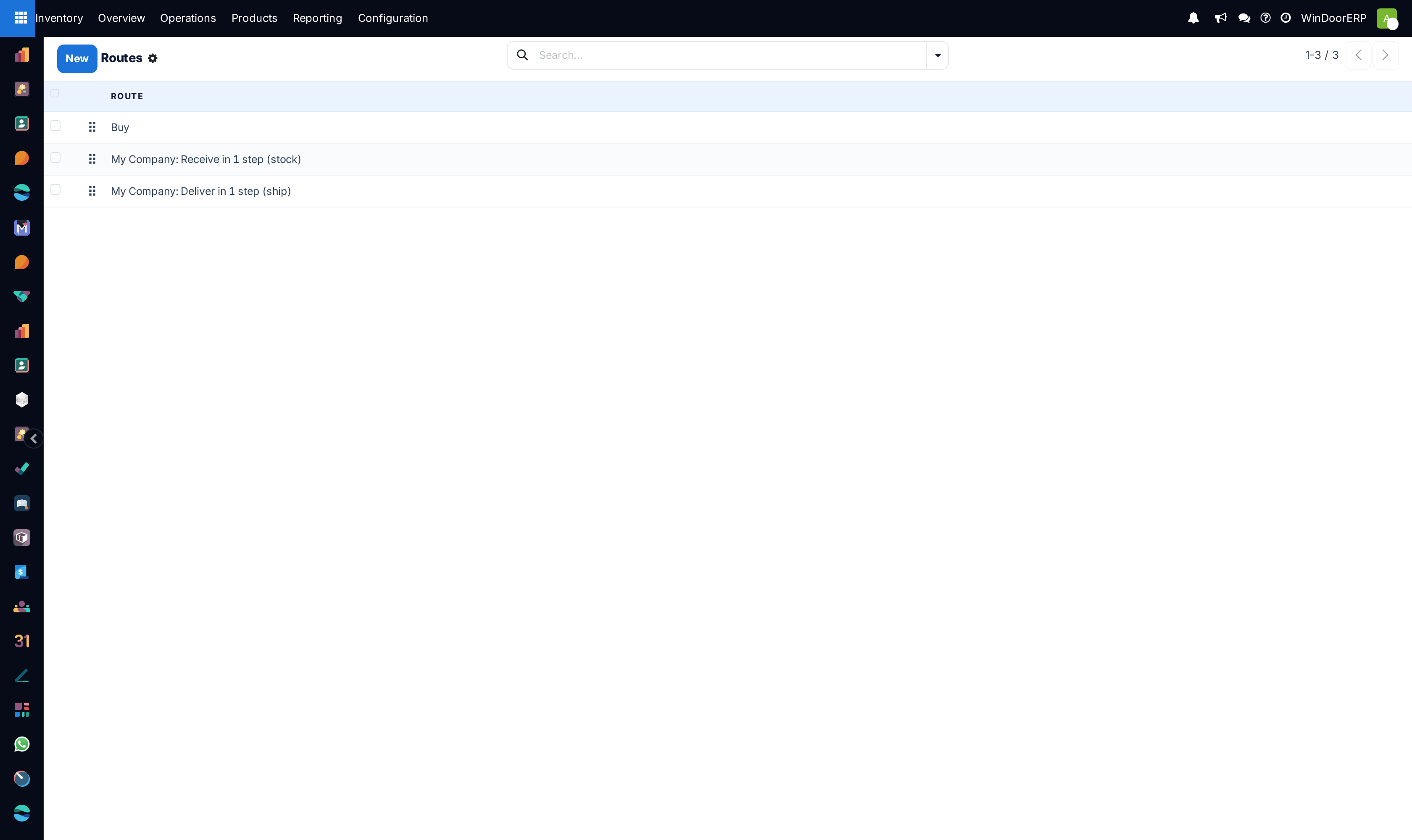
Save. A new route appears, named Branch: Supply Product from Central (your warehouse names in place).
-
04
Open each product concerned, go to its Inventory tab, and tick that route.
-
05
Decide what triggers the transfer: also tick Replenish on Order (MTO) for per-order transfers, or add a reordering rule whose Location is the branch's stock and whose Route is the supply route.
Triggering a transfer
Any of these starts the flow:
- The branch's reordering rule fires — its forecast fell to the minimum, exactly as in the reordering-rules topic, except the "supplier" is your central warehouse.
- A sale is made from the branch — set the Warehouse in the quotation's Other Info tab — and the rule or the MTO route reacts.
- You click Replenish on the product and pick the branch as the receiving Warehouse; the wizard's Preferred Route offers the supply route.
Two documents result: a delivery at the central warehouse and a receipt at the branch, each in that warehouse's own transfer list, moving through the transit location in between. On the replenishment report, the info popup's Warehouses tab shows what each source warehouse holds and lets the buyer pick the source per line with Select Route.
Troubleshooting
Resupply From is not on the warehouse form — there is only one warehouse so far; the option appears once a second warehouse exists.
The supply route is not on the product — routes gate products deliberately: setting the warehouse option creates the route, but each product that may travel this way must tick it on its Inventory tab. Nothing moves for products without it.
The rule fired but the central warehouse shipped nothing — the
reordering rule points at the wrong Location: a rule
protecting WH/Stock reorders the central warehouse; the
branch's rule must protect the branch's stock location, with the
supply route in its Route column.
Stock has "vanished" mid-transfer — look in the transit location before counting it as lost: validated out of the source, not yet received at the destination, it lives there by design.
Common mistakes
- Setting the resupply option on the warehouse and forgetting to tick the route on the product — nothing moves.
- A reordering rule pointed at the central stock when it should protect the branch: the central warehouse reorders and the branch stays empty.
- Modelling a stock-holding branch as a location of the main warehouse — transfers, replenishment and reporting all assume a branch is a warehouse.
Was this article helpful?
Thanks — your feedback helps.
Running a window or door factory?
Ask for a demo