Send feedback to the WindoorERP team
What this does
Sends a private message — with screenshots, files or a voice note — straight to the WindoorERP team, without leaving the screen you are on and without opening an email program.
It goes to the people who build the software. It is not a way to reach your own colleagues.
Before you start
- Look for the megaphone icon in the top bar, beside the messages icon. If it is not there, Quick Feedback is not installed on your database — write to info@windoorerp.com instead.
- Open the screen that shows the problem before you click. The screenshot and the technical details are taken from the page you are on.
- To reach your own people about a specific record, use the chatter on that record instead.
Steps
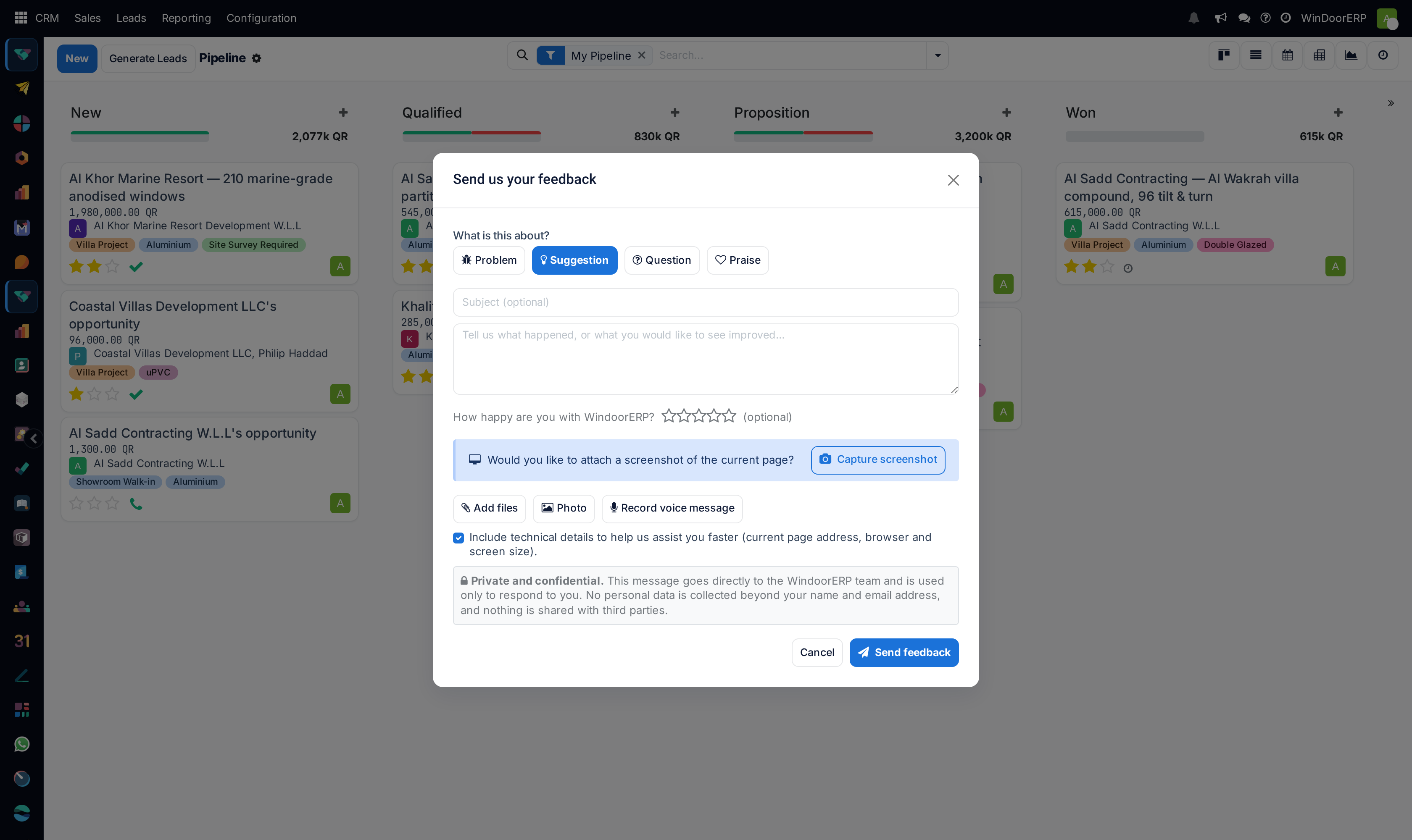
-
01
Click the megaphone icon. Send us your feedback opens.
-
02
Under What is this about? choose Problem, Suggestion, Question or Praise. Suggestion is selected for you.
-
03
Add a Subject if it helps — it is optional — then describe what happened in the message box. That box is the only thing you must fill in.
-
04
Rate your satisfaction with the stars if you want to. It is optional.
-
05
Attach whatever shows the problem: Capture screenshot, Add files, Photo or Record voice message.
-
06
Leave Include technical details ticked unless you have a reason not to. It sends the page address, the browser and the screen size — often the very thing that identifies the fault.
-
07
Click Send feedback. A reference such as FB00042 appears; quote it if you follow up.
Everything in the dialog
| What is this about? | Four badges: Problem, Suggestion, Question, Praise. Suggestion is the default. Pick the one that fits — it is what routes and prioritises your message. |
|---|---|
| Subject | Optional, marked as such in the box itself. A short one helps a long message get read. |
| Message | Required. Placeholder: Tell us what happened, or what you would like to see improved. What you expected and what you got instead is worth more than a paragraph of apology. |
| How happy are you with WindoorERP? | Five stars, optional. Clicking the same star again clears it. |
| Capture screenshot | Offered with a prompt asking whether to attach a picture of the current page. It captures the page you were on when you opened the dialog. |
| Add files / Photo / Record voice message | Attach existing files, take a photo with the device camera, or record a voice note. Recording shows a running timer and a stop control. |
| Include technical details | Ticked by default. Sends the current page address, the browser and the screen size — nothing else. |
| Send feedback / Cancel | Send returns your reference number. Cancel discards everything, including anything you attached. |
Limits worth knowing
You may attach at most 10 files, and they must total no more than 25 MB. Passing either shows a message and refuses the attachment rather than sending a broken submission.
If you have more than that, send the clearest two or three and say the rest is available. A screenshot of the failing screen beats a folder of logs.
What happens to your message
The submission is stored on your own database first, with a reference of the form FB followed by five digits, and then forwarded to the WindoorERP team.
Forwarding is done by a scheduled job that runs every fifteen minutes, so each submission is pending for a short while before it becomes sent. If forwarding fails, it is retried and the error is kept against the record — nothing is silently lost.
The dialog states the privacy position plainly: the message goes directly to the WindoorERP team and is used only to respond to you; no personal data beyond your name and email address is collected; nothing is shared with third parties.
Troubleshooting
| There is no megaphone icon | Quick Feedback is not installed on this database. Email info@windoorerp.com. |
|---|---|
| Send feedback does nothing | The message box is empty. It is the one required field. |
| "Attachments exceed the 25 MB limit" | Remove the largest file. Screenshots are usually enough. |
| "You can attach at most 10 files" | Send the clearest few and mention that more is available. |
| The screenshot shows the wrong page | It captures the page you were on when the dialog opened. Close it, go to the failing screen, and open it again there. |
| Voice recording will not start | The browser is blocking microphone access. Allow it in the browser's site settings. |
| No reply yet | Quote your FB reference when you follow up; it identifies your submission exactly. |
| I sent it to the wrong audience | This never reaches your colleagues. For something about one record, use that record's chatter instead. |
Common mistakes
- Writing "it does not work" with no screen, no step and no screenshot. The technical details and a picture are what make a report actionable.
- Un-ticking Include technical details out of caution, and removing the very thing that would have identified the fault.
- Using Quick Feedback to ask a colleague something. It reaches the WindoorERP team, not your team.
- Opening the dialog from a different screen than the one that failed, so the screenshot shows nothing useful.
- Not writing down the reference, then having nothing to quote when following up.
Was this article helpful?
Thanks — your feedback helps.
Running a window or door factory?
Ask for a demo