Work faster with keyboard shortcuts
What this does
Keeps your hands on the keyboard for the things you do fifty times a day: create, save, discard, page through records, jump to another menu. WindoorERP has its own shortcut layer — it even takes over the browser's access keys — so the same combinations behave the same way in Chrome, Firefox and Safari.
You do not have to memorise anything. Hold the modifier and the interface tells you every key that works on the screen in front of you.
Before you start
- The modifier differs by platform: Alt on Windows and Linux, Ctrl on macOS. The letters are identical. Everywhere below, Alt means Ctrl if you are on a Mac.
- A second family uses Ctrl on Windows and Linux and ⌘ on macOS. Only one shortcut in normal use belongs to it: the command palette.
- Shortcuts are scoped to what is on screen. A key only fires if the button it belongs to is visible, and when a dialog is open only the dialog's own shortcuts work. That is why the same combination can do two different things ten seconds apart.
Steps
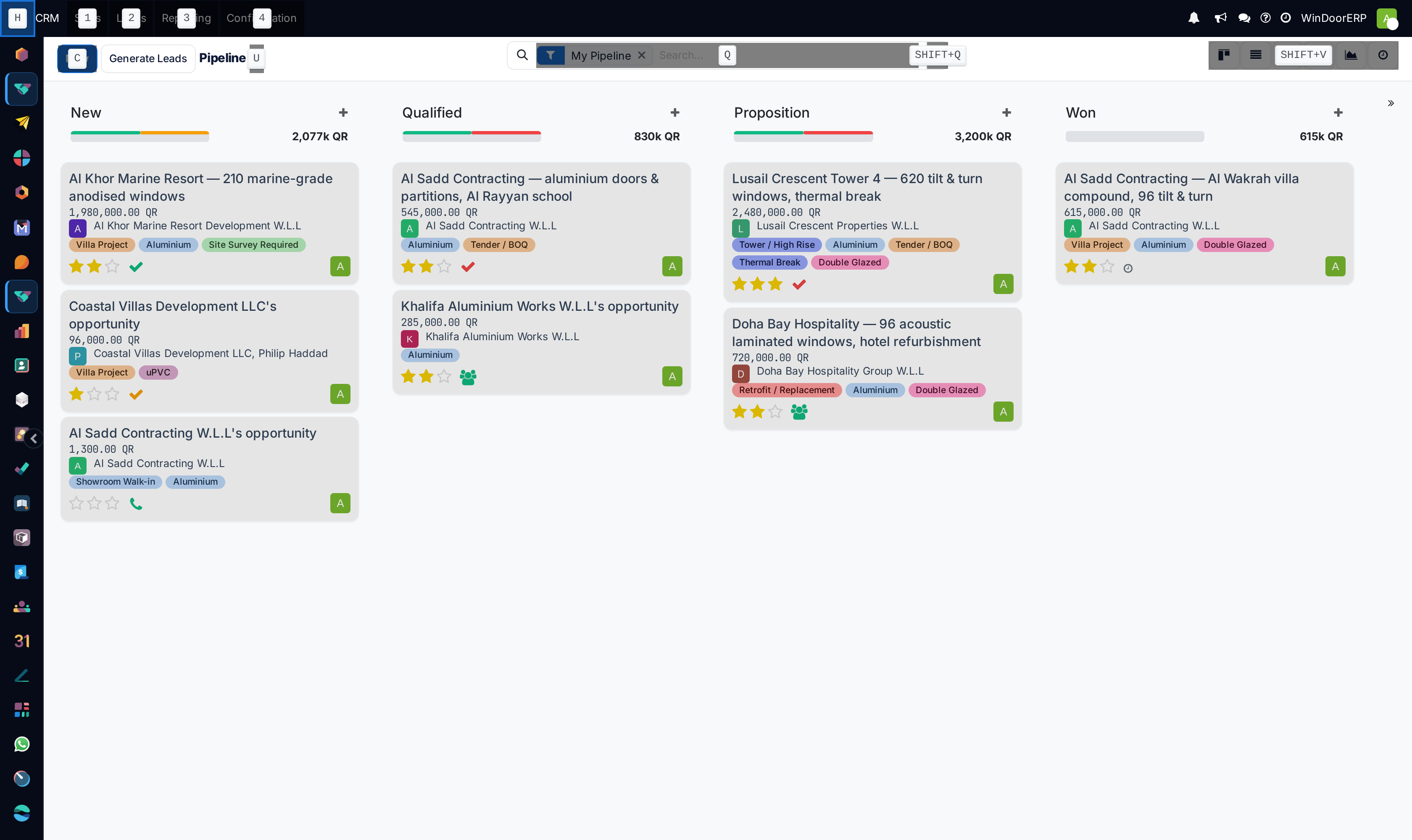
Read that picture and the system explains itself: H on the home button, 1 2 3 4 on the app's menus, C on New, U on the cog, Q in the search box, SHIFT+Q on the search-panel toggle and SHIFT+V on the view switcher. Every badge you see is a shortcut that works right now, on this screen.
-
01
Hold Alt (or Ctrl on macOS). A small badge appears over every control that has a shortcut, showing its key.
-
02
Press that key while still holding, and the control is activated.
-
03
Release. Nothing is remembered — the badges are a reference card, not a mode.
-
04
For anything not on screen, press Ctrl + K (⌘ + K) to open the command palette and type what you want.
The shortcuts worth learning
These are the ones that appear on nearly every screen.
| Windows / Linux | macOS | What it does |
|---|---|---|
| Alt + C | Ctrl + C | New — create a record. Works on lists, forms and kanban boards. |
| Alt + S | Ctrl + S | Save the record you are editing. |
| Alt + J | Ctrl + J | Discard your unsaved changes. |
| Alt + B | Ctrl + B | Go back one step in the breadcrumb. Use this rather than the browser's Back button. |
| Alt + N / Alt + P | Ctrl + N / Ctrl + P | Next and previous — the pager. On a form it moves to the next record in the list you came from. Sub-lists inside a form deliberately do not take these keys. |
| Alt + Q | Ctrl + Q | Put the cursor in the search box. In an open confirmation dialog the same combination presses the confirm button instead — see the warning below. |
| Alt + Shift + Q | Ctrl + Shift + Q | Open and close the Filters / Group By / Favorites panel. |
| Alt + U | Ctrl + U | Open the ⚙ Actions menu. |
| Alt + Shift + U | Ctrl + Shift + U | Open the Print menu, on records that have printable documents. |
| Alt + H | Ctrl + H | The home screen — the list of applications. |
| Alt + 1 … Alt + 9, Alt + 0 | Ctrl + 1 … | Open the current application's menus in order — the first nine, then 0 for the tenth. In Sales that is Orders, To Invoice, Products, and so on. |
| Alt + Shift + V | Ctrl + Shift + V | Cycle through the views a screen offers — list, kanban, calendar, graph, pivot — without reaching for the switcher. |
| Ctrl + K | ⌘ + K | The command palette. This one uses Ctrl on Windows and ⌘ on macOS, not the Alt family. |
Important
Alt + Q means search box on an ordinary screen and confirm inside a confirmation dialog, where Alt + X is the cancel. Both are correct: shortcuts belong to whatever is on top. Before pressing a remembered key over a dialog, hold the modifier and read the badges — a confirmation dialog is exactly where a wrong key is expensive.
Shortcuts inside dialogs and sub-lists
Dialogs have their own small set, consistent across the system: confirm, discard, and remove.
| Key | Where | What it does |
|---|---|---|
| Alt + Q | Confirmation dialogs | The confirm button — Ok, Delete, whatever it is called. |
| Alt + X | Confirmation dialogs, and Remove on a form | Cancel out of the dialog. |
| Alt + C | A line opened as a dialog | Save & Close. |
| Alt + N | A line opened as a dialog | Save & New — save this line and start the next. |
| Alt + J | A line opened as a dialog | Discard, or Close on a read-only one. |
| Alt + K | A line opened as a dialog | Remove that line from the parent record. |
| Alt + V / Alt + Z | The export window | Export / Close. |
Chatter and activity shortcuts
Any record with a chatter carries three more, and they are the ones that save the most time in a day of follow-ups.
| Key | What it does |
|---|---|
| Alt + M | Message — opens the composer to write to the customer. |
| Alt + Shift + M | Note — the internal one. |
| Alt + Shift + A | Schedule Activity. It works on a record, and it works from anywhere at all — from a list or a dashboard it opens the same window with a Link to box for choosing the record. |
| Alt + Shift + T | Add a To-Do — a personal task that belongs to no record. |
| Alt + I | Assign to… on records that have an assignee, opening a picker. |
| Alt + Shift + I | Assign to me, in one keystroke. |
| Alt + Shift + H | Open this manual on whatever screen you are on. |
The command palette
Ctrl + K — ⌘ + K on a Mac — opens a search box over the whole interface. It is the fastest route to a screen you cannot see, and it works from inside a text field.
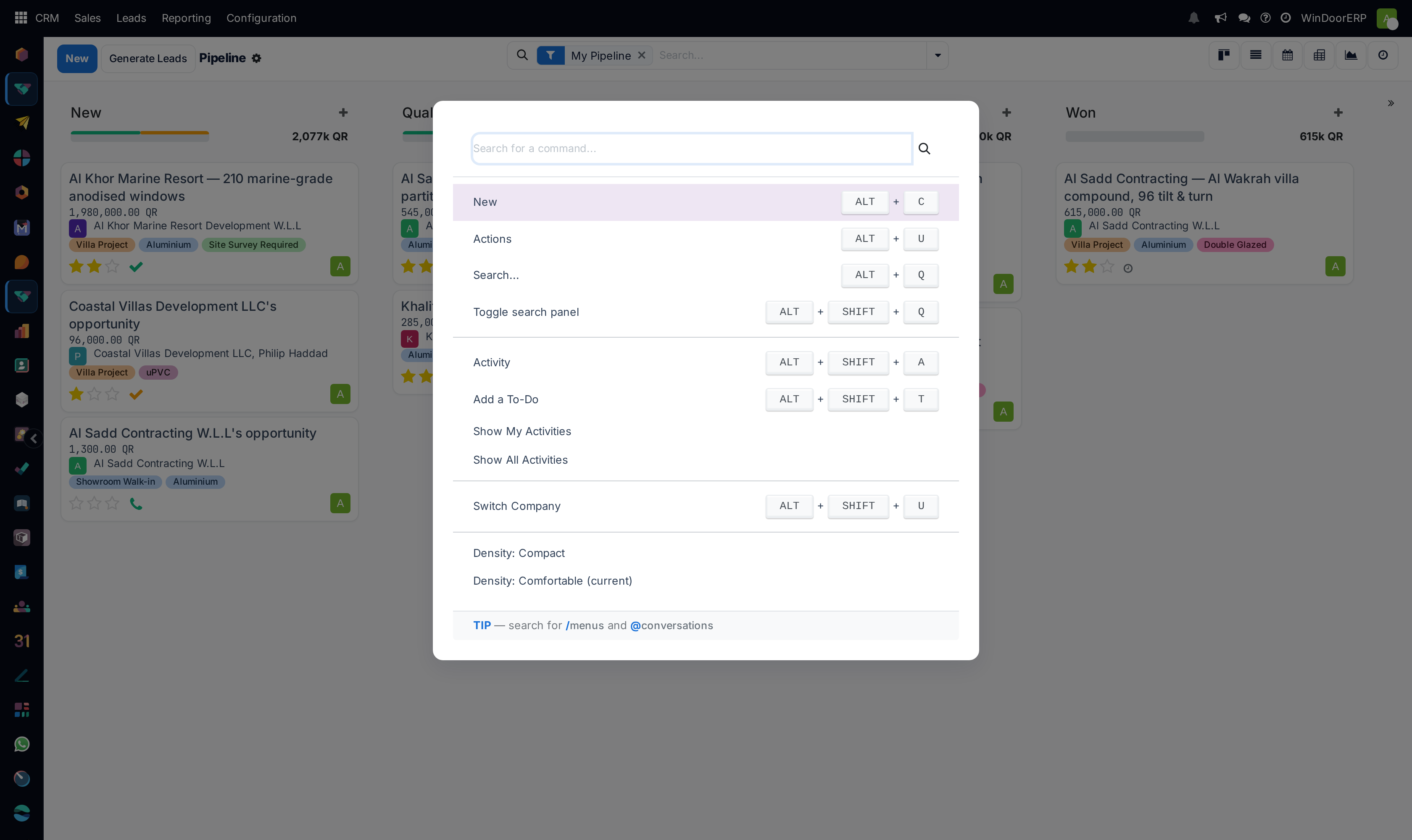
It opens on the commands available where you are — switching view, assigning to yourself, scheduling an activity — each showing its own shortcut beside it. Type to filter. A first character changes what it searches:
| Type first | It searches | Empty result reads |
|---|---|---|
| nothing | Commands available on this screen | No command found |
/ | Menus, applications and modules across the whole database | No menu found |
@ | Conversations — colleagues and Discuss channels | No conversation found |
Move through the results with the arrow keys and press Enter. Ctrl + Enter (⌘ + Enter) opens the highlighted result in a new browser tab — the palette shows that hint next to whichever line is selected. Escape closes it.
Note
Older documentation lists a # prefix for channels and a ? prefix for knowledge articles. Neither exists here: channels are found under @ along with people, and the knowledge application is not part of this system.
Troubleshooting
A shortcut does nothing on this screen. Shortcuts are contextual: the key only fires when the control it belongs to is actually present and enabled. Alt + S does nothing on a record with no unsaved changes, because there is no save button to press. Hold the modifier — if no badge appears, the shortcut is not available here.
The Alt combinations do nothing on a Mac. The modifier is Ctrl on macOS, not Alt or ⌘. The letters are unchanged. The one exception is the command palette, which is ⌘ + K.
A shortcut opened the wrong thing. A dialog was on top. While a dialog is open only the dialog's shortcuts respond, and Alt + Q in particular means confirm there rather than search.
Nothing happens and the browser does something instead. A few combinations are claimed by the browser or the operating system before the page ever sees them, and a browser extension can claim one too. Test in a private window with extensions off before reporting it; if it is genuinely taken, use the on-screen button.
Alt + N moves the wrong records. You are inside a sub-list on a form. Those pagers deliberately carry no shortcut, so the key reaches the record pager at the top of the page instead.
Alt + Shift + U does nothing. That is the print menu, and it only exists on records that have a printable document. Most configuration screens have none.
You cannot remember any of them. Learn two: the one that saves and the one that opens this manual. Then hold the modifier whenever you are on a screen you use daily and pick up one more.
Common mistakes
- Using the browser's Back button instead of Alt + B. The browser leaves the page and unsaved changes are lost; the breadcrumb saves your place.
- Assuming a shortcut is broken when a browser extension has taken the same combination — test in a private window before reporting it.
- Pressing a remembered key over an open dialog. Hold the modifier and read the badges first.
- Memorising the table instead of holding Alt. The badges are always right for the screen you are on; a list in a manual is not.
- Looking for # and ? in the command palette. They belong to features this system does not have.
Was this article helpful?
Thanks — your feedback helps.
Running a window or door factory?
Ask for a demo