Work the replenishment report
What this does
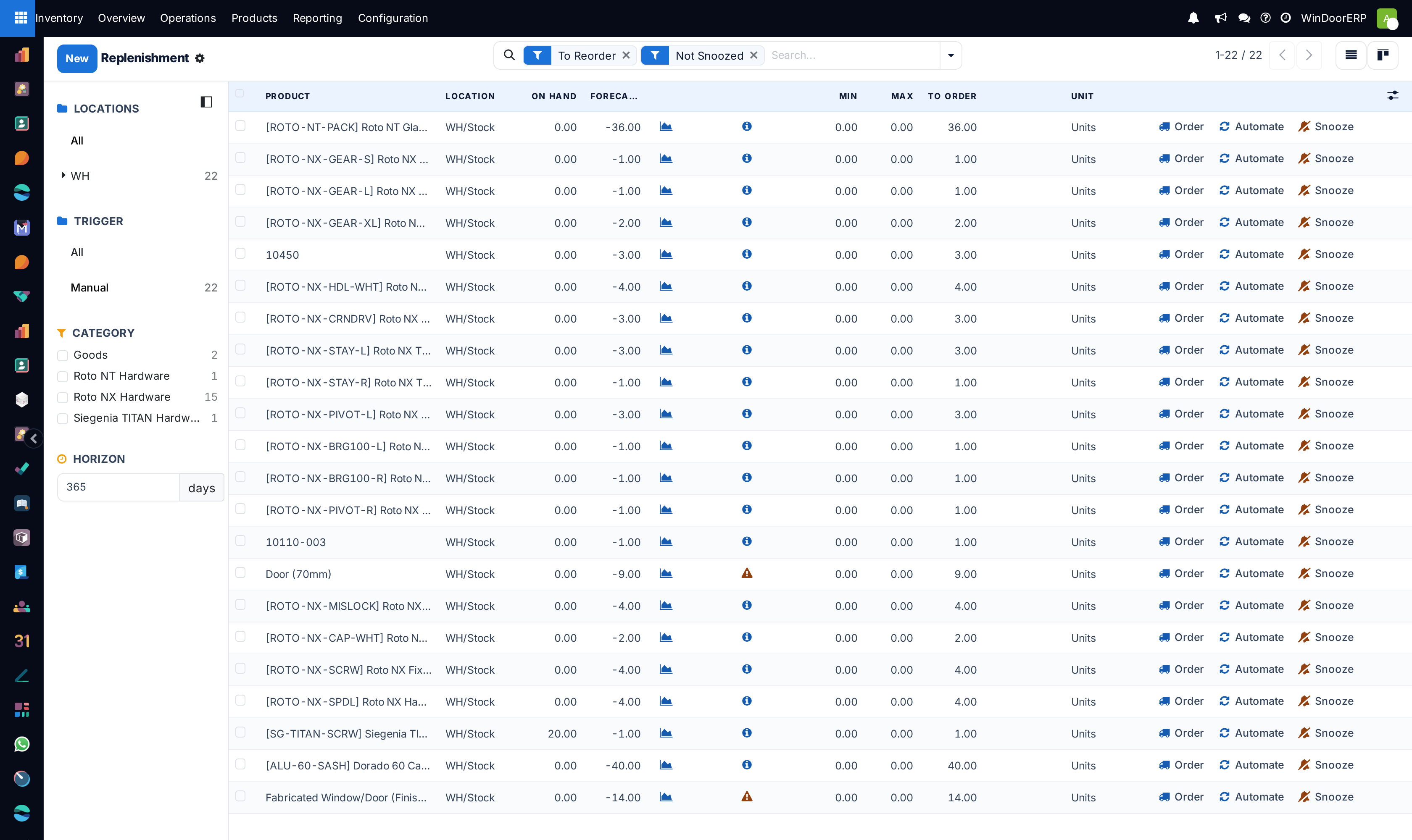
The replenishment report is the buyer's daily list: every product whose forecast will not cover what is coming, with the quantity to order and the date it has to be ordered by. It is where manual reordering rules wait for a decision — and where the system volunteers a line for any product that is short with no rule at all.
Steps
-
01
Go to Inventory › Operations › Procurement › Replenishment (a stock manager's screen). It opens filtered To Reorder and Not Snoozed, with Manual preselected in the sidebar — only what needs acting on.
-
02
Read each line's To Order — the amount that brings the product back to its maximum — and change it if you have a reason to; the undo arrow restores the computed number.
-
03
Click Order to create the purchase. Click Automate instead to order and convert the rule to automatic, so it never waits for you again.
-
04
Use Snooze to hide a line — for a day, a week, a month or a custom date — when you already know the answer.
-
05
Tick several lines to act in bulk: the Order dropdown that appears offers Order and Order To Max, and a bulk Snooze sits beside it.
Reading the sidebar
The left panel filters by Location,
Trigger and product Category — and at
the bottom sits Horizon, a days box that controls how
far ahead this view looks. Demand scheduled within the horizon (plus the
product's lead time) counts in the forecast; demand beyond it does not.
The company default — 365 days, set under Inventory ›
Configuration › Settings › Advanced Scheduling › Replenishment
Horizon — means the report effectively shows a year of known
demand. Typing a smaller number tightens the view for this session:
7 answers "what must I order this week", 0 is
strict just-in-time. The next topic is entirely about this timing.
Lines you never created
Besides your manual rules, the report generates a temporary line for any product that is forecast short and has no reordering rule — typically a sales order for something nobody thought to set a rule on. Order it and the line has done its job and disappears; if the product deserves a permanent floor, press Automate or create a real rule from the line by setting its Min and Max.
Order more than you need
When a bigger order earns a better price or saves a delivery charge, tick the products and choose Order To Max from the Order dropdown — each gets an RFQ up to its maximum even where the system did not think it necessary.
Why is this line here?
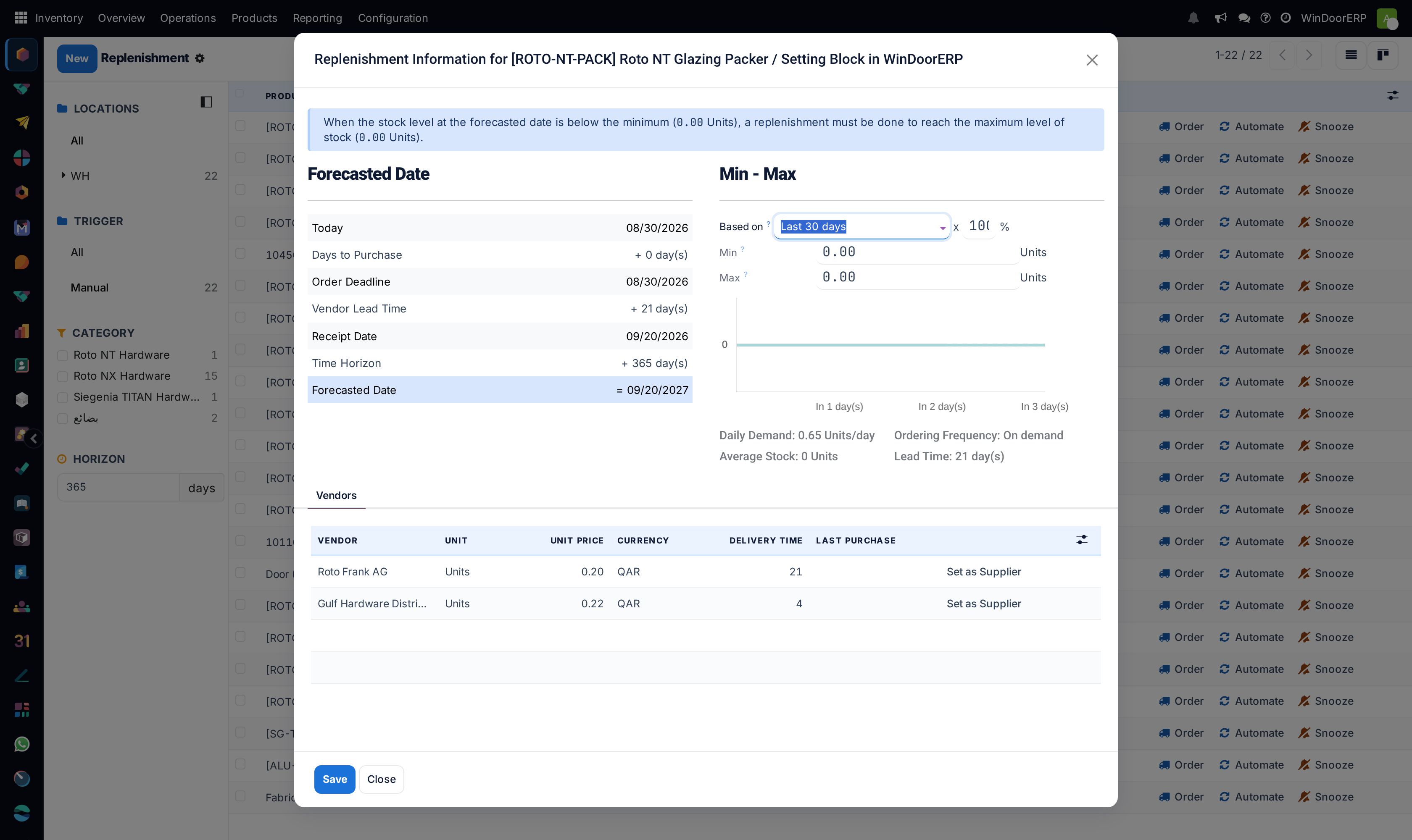
The (info) icon on a line opens Replenishment Information: the lead-time arithmetic as a dated timeline — today, days to purchase, the order deadline, the vendor lead time, the receipt date, the horizon — a demand graph, and the Min and Max, editable right there. The graph's Based on selector reads demand from a past period (last week, last month, last year, the same month last year…) with a percentage factor, so you can set levels against how the product actually moves rather than from memory. A Vendors tab compares the product's suppliers on price and delivery time, with Set as Supplier to switch the rule; where another of your warehouses can supply the product, a Warehouses tab offers it as the source instead.
The (chart) icon on the same line opens the product's forecasted report — the long view, covered later in this journey.
Group by vendor before ordering
Reveal the Vendor column with the (adjust settings) icon and group by it: one delivery from one supplier instead of five. Lines ordered together for the same vendor land on one request for quotation.
Troubleshooting
A line you expected is missing — check the Horizon first: demand scheduled beyond it does not count yet. Then check Not Snoozed: a colleague may have snoozed it.
The report is empty and you distrust it — an empty report filtered To Reorder genuinely means nothing is due within the horizon; widen the horizon to peek further ahead.
The To Order number looks wrong — open the info icon and read the forecast arithmetic before overriding; incoming purchases already count, which is the usual surprise.
You snoozed a line and it came back — snooze only hides; the rule behind it still has the same numbers. Fix the Min or the Max instead of snoozing it again.
Common mistakes
- Snoozing a line instead of fixing the rule behind it — it comes back with the same wrong numbers.
- Ordering to max out of habit and tying up cash in profile.
- Working the report with the horizon at 365 and mistaking next quarter's demand for this week's emergency — set the horizon to your ordering rhythm before reading the list.
Was this article helpful?
Thanks — your feedback helps.
Running a window or door factory?
Ask for a demo