See what you actually spend
Read the spend, and the price drift
Why this step
Setup finishes where reporting starts. Spend by supplier and material, and the variance between what you agreed and what you were billed, are what tell you a year later whether any of this worked.
What this does
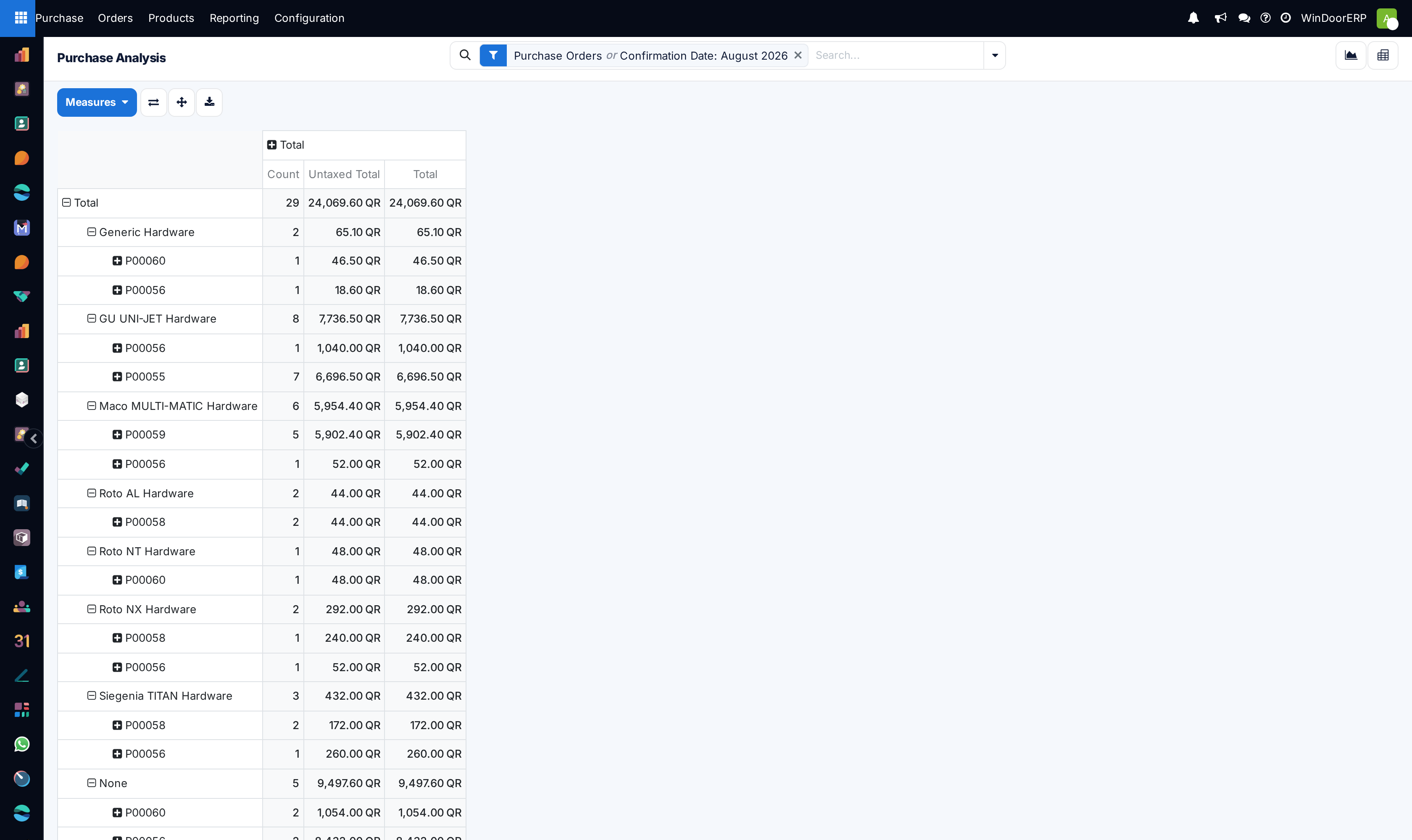
Purchase Analysis answers the money questions — what was spent, with whom, on what, and how fast vendors deliver — from one report over every purchase line. It is a Purchase-administrator screen.
Before you start
- The Reporting menu appears only for Purchase administrators.
- Amounts are converted into the company currency; the report is deliberately single-currency.
Steps
-
01
Open Purchase › Reporting › Purchase. It opens as a line chart of Untaxed Total by confirmation day, pre-filtered to Purchase Orders and the current month's confirmation dates.
-
02
Widen the window first — clear or change the date filter chip; a quiet month is not a quiet year.
-
03
Switch to the Pivot, group rows by Vendor and columns by month, and pick the measures that answer the question.
-
04
For sourcing decisions, group by Product and read Average Cost across time — the quantity-weighted real price paid.
-
05
For discipline, compare Days to Confirm and Days to Receive per vendor; for delivery reliability, open the vendor's On-time Rate from their contact form.
The measures, verbatim
| Measure | What it counts |
|---|---|
| Untaxed Total / Total | Spend without and with taxes, in company currency. |
| Average Cost | Quantity-weighted average unit price — the honest "what do we really pay". |
| Qty Ordered / Qty Received / Qty Billed / Qty to be Billed | The volume funnel; "to be billed" follows each product's Control Policy. |
| Days to Confirm | From order deadline to confirmation — how long deciding takes. |
| Days to Receive / Effective Days To Arrival | Promised versus actual arrival intervals. |
| # of Lines, Gross Weight, Volume, Count | Line counts and logistics totals. |
Reading it honestly
- The default Purchase Orders filter covers confirmed and to-approve documents; switch to the Requests for Quotation filter to analyse the unconfirmed pipeline instead.
- Draft RFQ is how the draft state is labelled inside this report's Status dimension.
- The Warehouse dimension is the receiving operation type — useful with multiple sites.
- Vendor on-time delivery is its own report (quantity-weighted, per receipt line against the promised date), reached from the vendor form's On-time Rate or the % link on a draft RFQ — not from this menu.
Troubleshooting
| Symptom | Cause and fix |
|---|---|
| The report looks almost empty | The preset filter is this month's confirmation dates. Clear the date chip or pick a longer range. |
| Numbers differ from the accounting ledgers | This is order-side analysis in company currency, not the posted journal entries — small conversion and timing differences are normal. |
| An RFQ you expect is missing | Unconfirmed documents are excluded by the default filter; use the Requests for Quotation filter. |
Common mistakes
- Comparing vendors on Total spend alone — volume differences hide price differences; use Average Cost.
- Judging delivery performance from this report's date averages instead of the on-time delivery report, which weighs quantities and real receipts.
Checkpoint
You can name your three largest materials by spend, and whether their unit price has moved this year.