Tune the transfers
Configure an operation type
Why this step
Operation types are the templates behind every transfer: what it is called, which locations it moves between, and what happens when an order is only half fulfilled. Change one and every future transfer of that kind follows.
What this does
An operation type is the template behind every transfer. It sets where goods come from and go to by default, how references are numbered, when stock is reserved, and what happens when you move less than was ordered.
Each warehouse gets its own set automatically. You edit them rarely, but when a transfer behaves oddly, this is almost always where the answer is.
Before you start
- Administrator rights on Inventory ▸ Configuration ▸ Operations Types.
- Understand that a change here affects future transfers only. Anything already created keeps the settings it was made with.
- Do not create new types to solve a routing problem — that is what the warehouse's step settings are for.
Steps
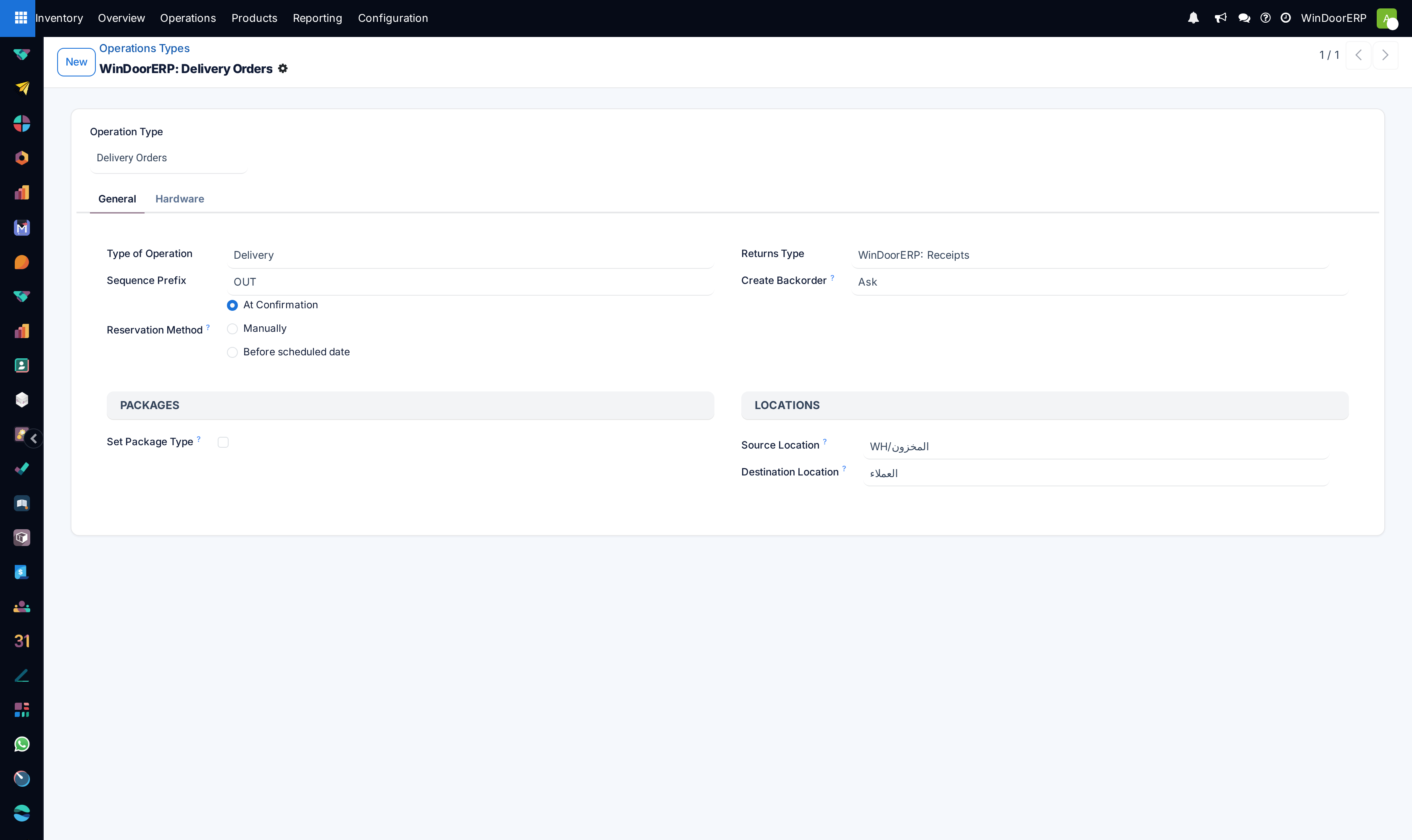
-
01
Open Inventory ▸ Configuration ▸ Operations Types. Each warehouse has at least a receipt, a delivery and an internal transfer.
-
02
Open the one whose behaviour you want to change.
-
03
Adjust the setting you need — most often Create Backorder or Reservation Method.
-
04
Save, then create one new transfer of that type and check it behaves as intended.
Every field on an operation type
| Operation Type | The name people see on the overview card and in the transfer's breadcrumb. |
|---|---|
| Type of Operation | Receipt · Delivery · Internal Transfer. This decides the shape of the operation and cannot be sensibly changed later. |
| Sequence Prefix | What every reference of this type starts with. Changing it affects new references only, so old and new documents will look different. |
| Warehouse | Which warehouse owns this type. |
| Source Location | Where goods come from by default. Overridable on the individual transfer. |
| Destination Location | Where they go by default. |
| Operation Type for Returns | Which type a return of this operation creates. |
| Create Backorder | Ask · Always · Never. What happens to the shortfall when you validate less than expected. Never discards it silently. |
| Reservation Method | At Confirmation reserves as soon as the transfer is confirmed · Manually reserves only when someone presses Check Availability · Before scheduled date reserves a set time ahead. |
| Show Detailed Operations | Shows the per-line detail — source location, lots — directly on the transfer. |
| Create New Lots/Serial Numbers | Whether this operation may create new lot or serial numbers. Only meaningful with lot tracking on. |
| Use Existing Lots/Serial Numbers | Whether it may select existing ones. |
| Generate Shipping Labels | Produces carrier labels where a shipping connector is set up. |
| Auto Print Delivery Slip | Prints the slip automatically on validation. |
| Barcode | The code that selects this operation type on a scanner. |
| Active | Unticking retires the type without deleting its history. |
The two settings that cause most surprises
Create Backorder decides what happens to the part of an order you did not move. Ask puts the decision with the person doing the work. Always never loses anything but leaves a tail of small open transfers. Never drops the shortfall with no record at all — it is the right choice only where a partial delivery genuinely completes the order, and it is behind most reports of quantities disappearing.
Reservation Method decides who gets scarce stock. At Confirmation is first-come-first-served: an order confirmed this morning holds the stock even if a more urgent one arrives this afternoon. Manually leaves the choice to a person, which is better when demand exceeds supply and someone has to prioritise.
When to create a new type
Rarely. The types a warehouse needs are created for it, and adding more without a routing reason produces cards on the overview that nobody uses.
Good reasons: a genuinely separate flow with its own numbering and its own default locations — a returns desk, a subcontractor collection point. Bad reasons: wanting a different name on the card, or trying to reproduce a step that the warehouse's step settings would create properly.
Troubleshooting
| Quantities disappear on partial delivery | Create Backorder is Never. |
|---|---|
| Stock is reserved by an old order | Reservation Method is At Confirmation. Unreserve the old transfer, or switch the type to Manually. |
| New transfers start in the wrong location | The type's Source or Destination Location. Existing transfers keep what they were created with. |
| References changed format midway | Sequence Prefix was edited. Old references are not rewritten. |
| Lot numbers cannot be entered | Either lot tracking is off, or this type has both lot settings unticked. |
| An unused card clutters the overview | Archive the operation type rather than deleting it. |
| Changing a setting did not fix an existing transfer | It only applies to transfers created afterwards. |
Common mistakes
- Setting Create Backorder to Never to stop the prompt, and losing the shortfall.
- Expecting a change here to fix a transfer that already exists.
- Creating extra operation types instead of setting the warehouse's steps.
- Changing Type of Operation on a type that has history.
- Deleting a type instead of archiving it, and breaking the transfers that reference it.
Checkpoint
You have opened an operation type, changed its default source or destination, and seen the change on a new transfer.