Invoice the delivery charge
What this does
Transport has to be paid for, and it usually has to appear on the customer's invoice. WindoorERP's Delivery Methods feature exists to price carriers and add a shipping line to the order automatically — and it is not enabled on this platform. The Delivery Costs module is not installed, so there are no delivery methods, no providers, no Add shipping button and no rate lookup anywhere.
What you do have is an ordinary priced line, and on window and door work that is very often the better answer. This article covers how to charge and invoice for delivery as the system stands, and exactly what enabling the feature would add.
Before you start
- Decide what you are charging for. Transport to site on a fitted job is normally part of the installation package rather than a freight service, and the honest form of that is a priced line saying so.
- Agree the charge before the quotation goes out. Adding it after the customer has signed is a conversation, not a click.
- Decide whether it is taxable in the same way as the goods. It is an ordinary line, so it takes the customer's fiscal position and the product's tax like any other.
Steps
-
01
Create, or reuse, a service product for the charge — Delivery to site, Transport, Crane hire — with its own sales price and tax.
-
02
Add it to the quotation as an ordinary line and set the amount you agreed. It prints on the quotation with everything else.
-
03
If the charge varies by job, price it per unit that the customer can check: per trip, per lorry, per square metre. A number nobody can reproduce is a number that gets disputed.
-
04
Invoice it with the order. On a progressively billed contract it is claimed like every other line, through the progress claim.
-
05
If the real cost lands differently from the estimate, add or credit a line on the next invoice. There is no mechanism that will do it for you.
Where the charge does not live
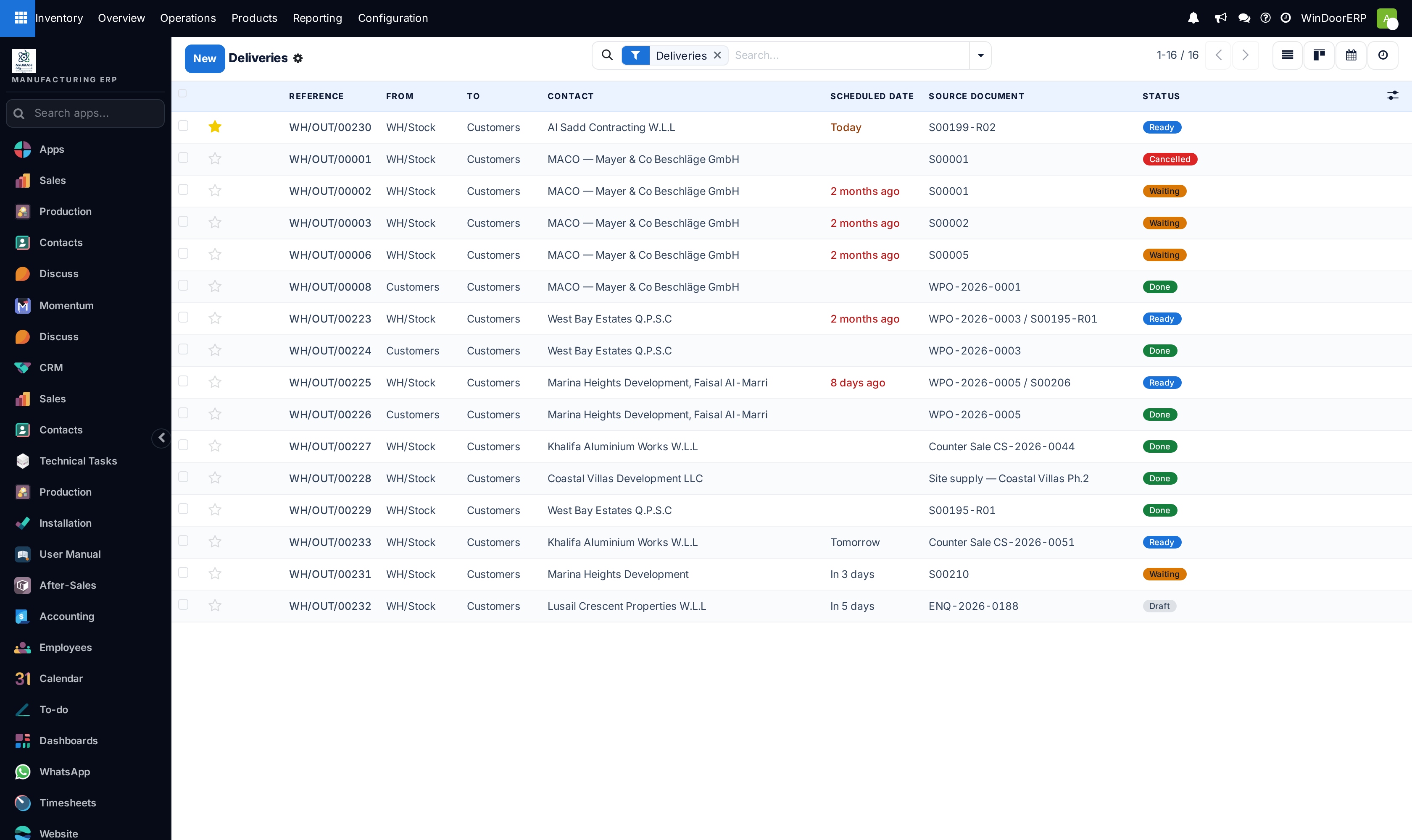
The delivery order is a stock document and it carries no money at all. Its columns are the reference, the source and destination locations, the contact, the scheduled date, the source document and the status — there is no cost, no carrier and no tracking field on this platform, because those are added by the module that is not installed.
What the Delivery Methods feature would add
Ticking Delivery Methods installs the Delivery Costs module, and because its companion stock module installs itself alongside, both arrive together. The result is a Delivery Methods screen — reachable from Sales ▸ Configuration and from a new Delivery section of Inventory ▸ Configuration — where each method is a record with the following on it.
| Field | What it would do |
|---|---|
| Delivery Method | The name the salesperson picks. Translatable. |
| Provider | Fixed Price or Based on Rules out of the box. Named carriers — DHL, FedEx, UPS, USPS, bpost, Easypost, Sendcloud, Shiprocket, Starshipit, Envia — are each a further module of their own, listed under Shipping Connectors in the settings. |
| Delivery Product | Required. The product whose line gets inserted on the order, and where a fixed price is actually stored. |
| Invoicing Policy | Estimated cost — the customer is invoiced the quoted figure. With the stock companion installed, also Real cost, which updates the sales order after the delivery so you bill what it actually cost. |
| Margin and Fixed Margin | A percentage and a flat amount added on top of the computed shipping price. |
| Free if order amount is above | A threshold, with its own amount field. Above it the customer is not charged for shipping. |
| Max Weight · Max Volume | The method stops being offered once the order exceeds either. |
| Countries · States · Zip Prefixes | Where the method is available at all. |
| Must Have Tags · Excluded Tags | Product tags that make the method eligible or ineligible for a given order. |
| Tracking Link | A URL template with a placeholder for the tracking number, shown to the customer in the portal. |
| Generate Return Label · Return Label Accessible from Customer Portal | Produce a return label at delivery, and let the customer download it. |
| Integration Level | Get Rate or Get Rate and Create Shipment — whether validating a delivery also books the shipment with the carrier. |
| Environment · Debug logging | Whether the carrier credentials are live, and whether requests are logged for diagnosis. |
On the sales order an Add shipping button would appear below the order lines, becoming Update shipping cost once a shipping line exists, and the line would turn amber when the order changes enough for the quoted price to be stale. On the delivery order you would gain a Carrier, a computed Shipping Cost, a Tracking Reference and a tracking link, plus the order's total weight.
Note
The enabler is a checkbox in Inventory ▸ Configuration ▸ Settings, under Shipping: Delivery Methods. Ticking it installs a module, which is an administrator decision — raise it with the WindoorERP team rather than switching it on to see what happens. The companion article Create a delivery method covers the same feature from the configuration side.
What you give up, and what you do not
The trade-off is smaller than it looks on this fleet. WindoorERP jobs are delivered by your own crews to sites you priced individually, which is precisely the case where a carrier rate table earns least: there is no parcel weight to look up and no third-party tariff to reproduce. What a priced line gives you that a computed one does not is that the customer accepted the number in writing before the job started.
What you genuinely lose is the safety net. Nothing reminds you to add the charge, nothing recalculates it when the order grows, and nothing reconciles the estimate against what the transport actually cost.
Troubleshooting
| Symptom | Cause and fix |
|---|---|
| There is no Add shipping button on the sales order | Correct — it ships with the Delivery Costs module, which is not installed. Add a priced service line instead. |
| No Delivery Methods menu under Sales or Inventory configuration | Same reason. |
| The delivery order shows no charge | Transfers move goods; they never carry money on this platform. The charge belongs on the sales order. |
| The shipping line was invoiced but the delivery slipped | An ordinary line invoices on the order's own policy, not on the transfer. If it should follow the goods, invoice it on delivered quantity like the rest of the order. |
| A customer disputes the transport charge | Because it is an ordinary line, it is on the quotation they accepted — point at that line rather than at a rate nobody can reproduce. |
| The charge is missing from a progress claim | It is claimed at the same percentage as everything else. If it should be billed in full up front, put it on its own claim line. |
Common mistakes
- Burying transport inside the unit price of the windows, so a later quantity change silently changes the freight too.
- Adding the charge after the order is confirmed and expecting the customer not to notice.
- Quoting a transport figure nobody can explain. Price it per trip or per square metre so the arithmetic survives a challenge.
- Waiting for a carrier integration that is not installed instead of pricing the line.
- Using a storable product for the charge. It is a service; a storable one creates a stock move and a delivery line for something nobody picks.
Was this article helpful?
Thanks — your feedback helps.
Running a window or door factory?
Ask for a demo