See which departments WindoorERP serves
What this does
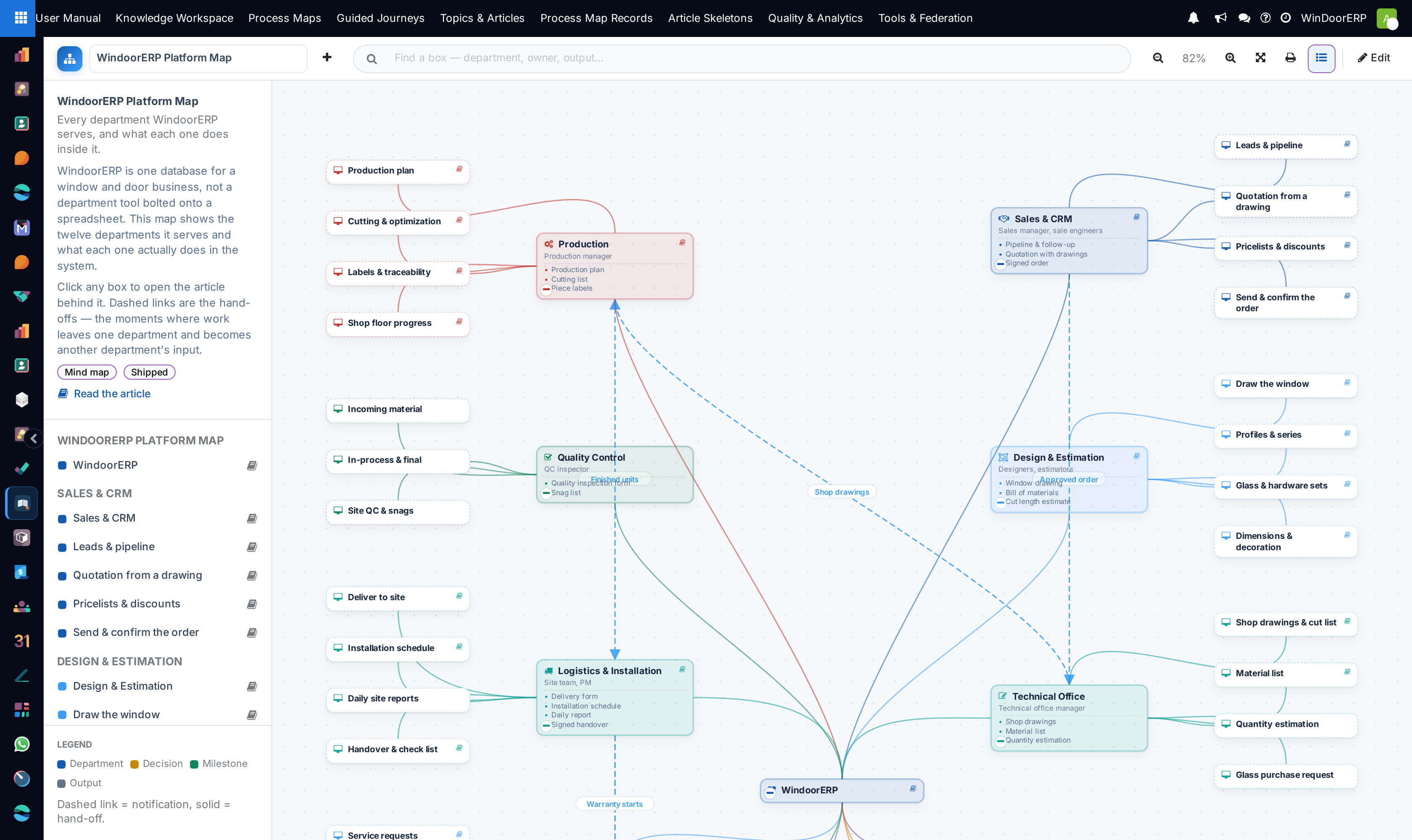
Shows the whole platform on one canvas: the twelve departments WindoorERP serves, what each one does inside the system, and the five points where work crosses from one department to the next.
Use it the way you would use a floor plan — to find out where you are, what is next door, and which door to open. It is the map to hand a new employee, an auditor or a consultant before any of the task articles make sense.
Before you start
- This is a mind map, not an org chart. It shows responsibilities, not reporting lines — in a small company one person owns three of these boxes.
- It shows what the platform covers, not what you have bought. A department whose app is not installed still appears; its boxes simply have no screen behind them.
- It is data, not a picture. Every box is a record somebody here can rename, recolour, move and point at a different article.
Steps
-
01
Go to User Manual › Process Maps.
-
02
Choose WindoorERP Platform Map from the dropdown at the top left of the toolbar. Three maps ship with the manual and this is the first of them.
-
03
Drag the background to move around, scroll to zoom, and use Fit to screen to bring the whole drawing back into view.
-
04
Click any box that carries a small book icon. The article behind it opens in a drawer beside the map, without losing your place on the canvas.
-
05
Use the − button on a department box to fold its branch away when the canvas gets crowded, and + to bring it back.
The twelve departments
The centre box is the platform itself. Twelve department boxes radiate from it, and the forty-five smaller boxes hanging off those are the screens and procedures each department actually works in.
| Department | What it owns in the system |
|---|---|
| Sales & CRM | Enquiries, quotations priced from the drawing, and the contract. |
| Design & Estimation | The window configurator: geometry, profiles, glass and hardware. |
| Technical Office | Shop drawings, material lists and the quantities the factory builds from. |
| Project Management | The schedule, the project log and the cost log, on one record. |
| Procurement | Purchase requests, supplier quotations, purchase orders and their approvals. |
| Inventory | The raw-material, work-in-progress and finished-goods stores. |
| Production | The production plan, cutting lists, labels and shop-floor progress. |
| Quality Control | Incoming, in-process and on-site inspection. |
| Logistics & Installation | Delivery, the install schedule, daily site reports and handover. |
| After-Sales & Service | Service requests, warranty work and maintenance contracts. |
| Finance & Accounting | Advance, progress and final invoicing against what was actually delivered. |
| Management | The approvals that gate the process, and the numbers behind them. |
How to read it
Everything on the canvas means something, and most of it is not decorative.
| What you see | What it means |
|---|---|
| A blue box at the centre of a branch | A Department. Twelve of them, plus the platform itself in the middle. |
| A smaller box hanging off a department | An ERP Screen — something that department does in WindoorERP. |
| A small book icon in the corner of a box | An article explains this box; clicking it opens that article. Thirty-four of the fifty-eight boxes have one. |
| A box with no book icon | Part of your process the manual has not written up yet. The missing icon is the honest signal, not a fault, and the list of them is a useful thing in itself. |
| A grey line under the box title | The owner — the role accountable for it, never a person's name. |
| The small bulleted list inside a box | What that step produces: the form, the document or the record the next person needs. |
| A dashed link between two departments | A hand-off. There are exactly five, and each is named for the thing that changes hands. |
The five hand-offs are the spine of the whole business, and they are worth reading on their own: Approved order from Sales & CRM to the Technical Office; Shop drawings from the Technical Office to Production; Finished units from Production to Logistics & Installation; Signed handover from Logistics & Installation to Finance & Accounting; and Warranty starts, from the same handover to After-Sales & Service.
Important
The Legend at the foot of the rail is the same on every map: a four-colour key — Department, Decision, Milestone, Output — followed by the line "Dashed link = notification, solid = hand-off." That last sentence is written for the project workflow map and is wrong on this one: this map has five links, all of them dashed, and all of them hand-offs — as the map's own description, in the panel just above the legend, says in as many words. Where the two disagree, believe the description; it belongs to the map, and the legend does not.
Moving around the canvas
The toolbar across the top carries the map picker, a search box and the view controls.
| Control | What it does |
|---|---|
| The dropdown at the top left | Switches between the maps published on this database. A map still in draft is listed with — draft after its name and is visible only to authors. |
| Find a box — department, owner, output… | Filters the outline rail as you type, matching on the box name and on its owner. Clicking a result centres the canvas on that box and selects it. |
| Zoom out, the percentage, Zoom in | Step the zoom, with the current level shown between them. Scrolling over the canvas does the same. |
| Fit to screen | Frames the whole map. On a fifty-eight-box map that makes the labels tiny — it is for finding your place, not for reading. |
| Print or save as PDF | Sends the canvas to the browser's print dialogue, which is also how you get a PDF of it. |
| Outline | Shows and hides the rail on the side. It is on by default. |
The rail beside the map
The rail is the map in words, and on a crowded canvas it is often faster than the canvas. From top to bottom it holds the map's title and subtitle, its description, badges saying whether it is a Mind map or a Workflow and whether it is Shipped, Edited here or still Draft, a Read the article button where the map has an explaining article, then the outline itself, then the legend.
On this map the outline is grouped as the map is drawn: one heading per department, and under it that department's boxes, each with a book icon where an article exists. That grouping is how you answer "does the manual cover procurement yet" in a couple of seconds.
Troubleshooting
Clicking a box does nothing. Only boxes with the book icon are links. The rest have no article yet, and the click is deliberately inert rather than opening an empty page.
You cannot find a department you expected. The map shows the departments WindoorERP serves, not the apps you have installed. If it is genuinely not on the map, it is a gap in the drawing — and the drawing is editable, so it can be added.
The labels are unreadable after Fit to screen. Fitting fifty-eight boxes to one screen makes the type tiny by arithmetic. Zoom back in and drag, or use the search box and let it centre the box for you.
The legend contradicts the description. On this map it does, and the description is the one to trust — see the note above. The legend is part of the viewer and says the same thing on every drawing; the description is written per map.
The map does not match how your company works. That is expected, and the fix is not to argue with it. Edit the map — see Draw your own process map — and say what changed in the article the box points at.
Process Maps is not in the menu. The whole User Manual app is restricted to manual readers. Ask whoever administers users to add you.
Common mistakes
- Reading the map as an org chart. It shows responsibilities, not who reports to whom.
- Expecting every department to be installed. Apps you did not buy still appear; their boxes simply have no screen behind them.
- Taking the legend's sentence about dashed lines at face value on this map. It is the viewer's fixed text, written for the workflow map, and here it is the wrong way round.
- Carrying an assumption from the project workflow map over to this one. They are different drawings with different conventions.
- Treating the shipped map as the final word on your company. It is the starting point you edit.
Was this article helpful?
Thanks — your feedback helps.
Running a window or door factory?
Ask for a demo