Send arriving goods to the right shelf
What this does
A putaway rule decides which shelf a product goes to when it arrives, so the storeman is told the bay instead of choosing one. Type the rule once and every receipt after it lands on the right rack by itself.
It is also how incompatible materials are kept apart. Sealant away from glass, hardware off the profile racks — the rule is the instruction, and it is enforced on every arrival rather than remembered by whoever is on shift.
Putaway does not create a transfer. It changes the destination that the arriving move suggests, so the receipt you were going to validate anyway now points at WH/Stock/Profile Rack A1 instead of WH/Stock.
Where this stands on your system
Putaway rules live behind the Storage Locations setting, not behind Multi-Step Routes. On this installation Storage Locations is off for ordinary users, so Inventory ▸ Configuration ▸ Warehouse Management ▸ Putaway Rules is not in the menu and no rules exist. Everything below describes what turning that setting on gives you.
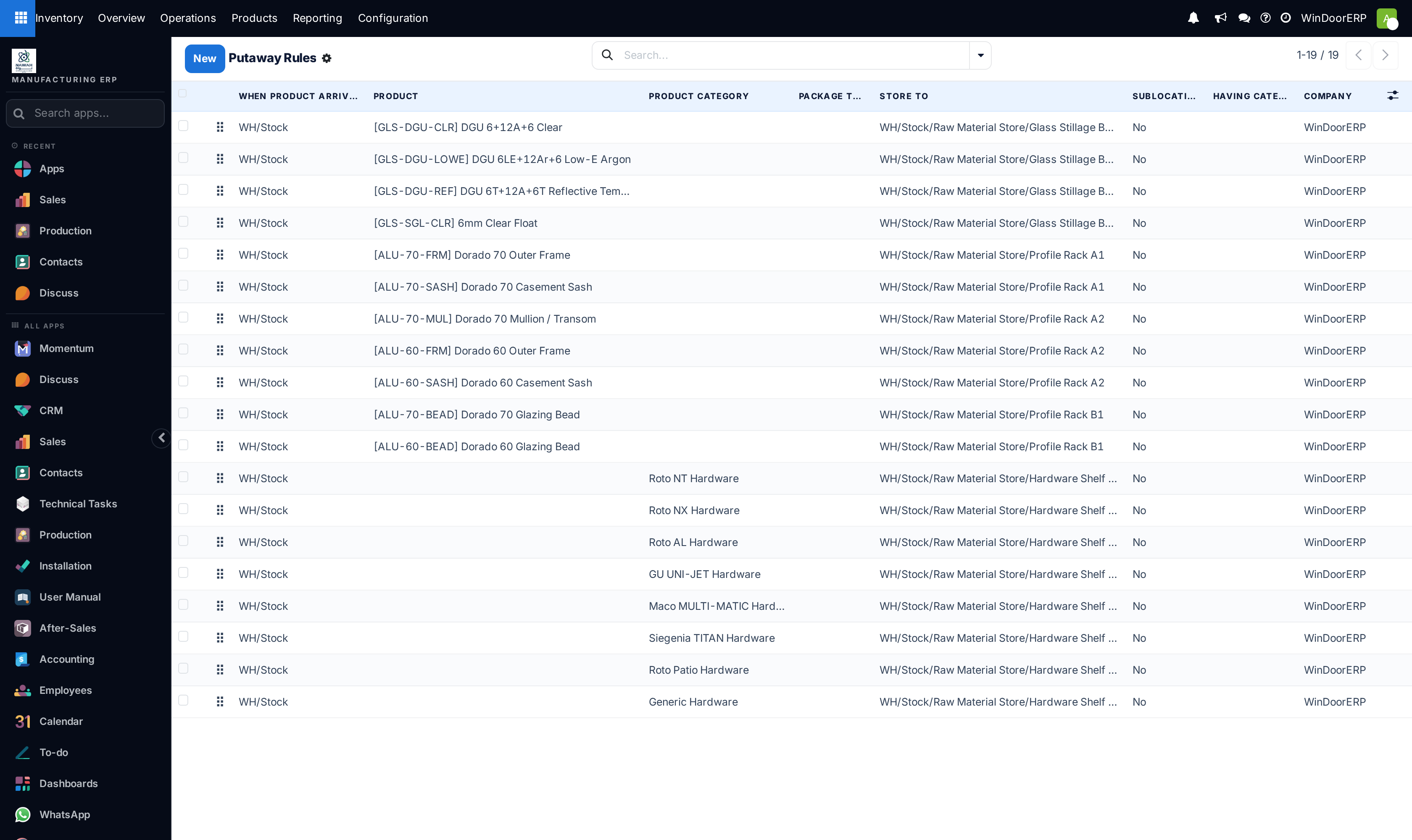
The demonstration warehouse used for the screenshots in this manual has it on, with nineteen rules, so the pictures show a working configuration rather than an empty screen.
Note
Only Storage Locations is required. Multi-Step Routes brings Storage Locations with it, which is why the two are often confused, but you can run a one-step warehouse with full putaway rules and nothing else changed.
Before you start
- Administrator rights: Inventory ▸ Configuration ▸ Settings ▸ Warehouse ▸ Storage Locations, then Save.
- Sublocations that exist. A rule can only send goods to a location inside the one they arrive in, so
WH/Stockneeds children before there is anywhere to send anything. - A decision per product family, not per product. Rules by product category cover a catalogue; rules by product are for the handful of exceptions.
- Packages as well, but only if you want rules that depend on the package type goods arrive on. It is a separate setting and most sites do not need it.
Steps
-
01
Open Inventory ▸ Configuration ▸ Warehouse Management ▸ Putaway Rules.
-
02
Click New. This adds an editable line in the list — there is no separate form to fill in, and the rule is saved as a row.
-
03
Set When product arrives in to the location goods land in, usually
WH/Stock. Only locations that have children can be chosen. -
04
Fill in Product or Product Category — never both. Filling one makes the other read-only. Leaving both empty makes the rule a catch-all for everything arriving at that location.
-
05
Set Store to — the shelf they belong on. The field stays locked until When product arrives in is set, and it only offers locations inside it.
-
06
Leave Sublocation on No unless you want the more elaborate behaviour described below.
-
07
Save the line, and add the next one. Order matters only between rules of equal specificity — drag the handle at the start of a row to move a rule up.
What is on a rule
| Priority | The drag handle at the start of the row. Only breaks ties between rules that are equally specific — it does not let a category rule beat a product rule. Hidden when the list is opened from a product. |
|---|---|
| When product arrives in | The trigger. The rule is consulted when a move's destination is this location. Only locations that already have sublocations may be chosen. |
| Product | One product variant. Placeholder All Products. Read-only once a category is set. |
| Product Category | One product category. Placeholder All Categories. Read-only once a product is set. A rule on a parent category still applies to its children, but ranks below a rule on the product's own category. |
| Package type | Several package types may be listed. Shown only with the Packages setting on. Matches on the type of package the goods arrive on. |
| Store to | The destination. Must be the arrival location or one of its descendants; the dropdown enforces it. Changing the arrival location resets this field to match. |
| Sublocation | No, Last Used or Closest Location. Required. See below. |
| Having Category | A storage category. Required when Sublocation is Closest Location, cleared automatically when it is anything else, and read-only on No. Placeholder Any Category. |
| Company | Which company the rule belongs to. Fixed when the list is opened from a location. |
The three Sublocation modes
| No | Goods go to the Store to location itself. The simplest and by far the most common answer. All nineteen rules in the screenshot use it. |
|---|---|
| Last Used | Goods go wherever that same product was last put away underneath Store to — read from the most recent completed move. If the product has never been stored there, it falls back to Store to. Good on a catch-all rule, so the system keeps suggesting the bay a product actually lives in. |
| Closest Location | Goods go to a child of Store to that carries the storage category named in Having Category and still has room. This is the only mode that reads capacity. |
Choosing Closest Location and then picking a category that no sublocation of Store to actually carries raises a warning as you type it: "Selected storage category does not exist in the 'store to' location or any of its sublocations". It is a warning, not a refusal — the rule saves and then never matches anything.
Which rule wins
When goods arrive, every rule on the arrival location whose product, category and package type are compatible is collected, and the most specific one is used. Specificity is decided in this order, each level beating everything below it:
| 1 — has a package type | Any rule naming the package type the goods arrived on outranks any rule that names no package type. |
|---|---|
| 2 — names the product | Within that, a rule on the exact product beats a rule on a category. |
| 3 — names the product's own category | A rule on the category the product is actually in beats a rule on one of that category's parents. |
| 4 — names any category | Then parent-category rules, then the catch-all with neither product nor category. |
Two rules that tie on all four are separated by Priority — the row order. That is the only thing the drag handle decides.
Where else you can reach the rules
The same rules are reachable from three other screens, all of which open the list already filtered, and all of which need Storage Locations:
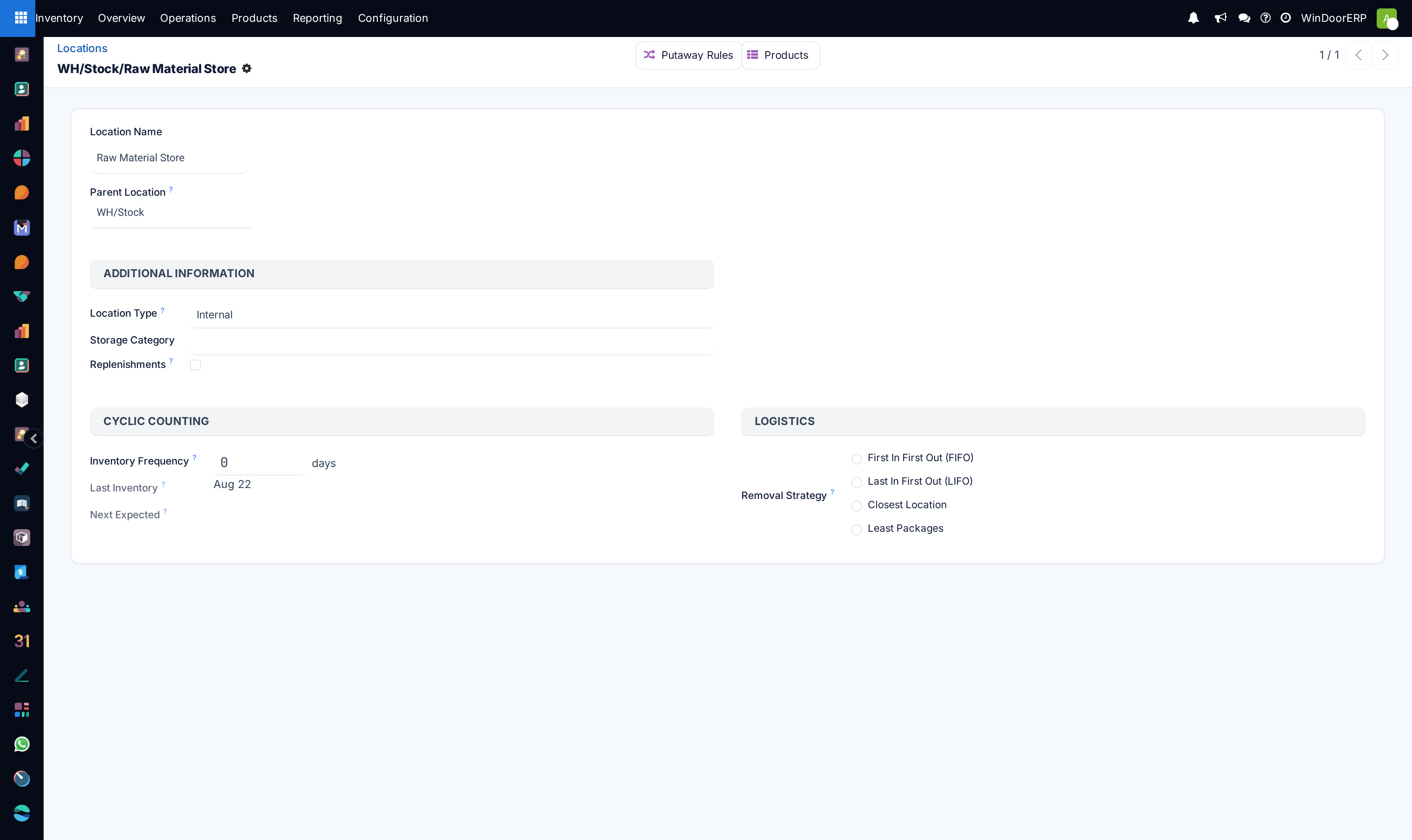
- A location's form, via the Putaway Rules button at the top — shows every rule that either arrives in or stores to that location.
- A product's form, via Putaway Rules — the rules for that product, with the Priority handle hidden.
- A product category's form, via Putaway Rules — the rules for that category, with the category locked.
What putaway will not do
It never splits a quantity. One move line goes to one location; there is no arrangement of rules that puts eight bars on rack A1 and four on A2. If you need that, split the line by hand on the transfer.
It never overrides a destination you typed. Putaway suggests, and the suggestion appears as the move's destination; edit it on the transfer and your edit stands.
And when no rule matches, or the only matching rule points at locations that are all full, goods simply stay at the location they arrived in. Nothing is refused and nothing is reported — the absence of a rule looks exactly like the absence of putaway.
See also
Limit what a location can hold covers storage categories, which are what the Closest Location mode reads. Create storage locations covers building the sublocation tree a putaway rule needs in the first place.
Troubleshooting
| There is no Putaway Rules menu | Storage Locations is off. It is in Configuration ▸ Settings under Warehouse, and it is the only setting putaway needs. |
|---|---|
| The arrival location I want is not in the dropdown | It has no sublocations. A location with nothing inside it cannot be a putaway trigger. |
| Store to will not let me pick the shelf | The shelf is not inside the arrival location. Putaway can only push goods deeper into the tree, never sideways. |
| I cannot type both a product and a category | By design — each locks the other. Two rules, not one. |
| The rule exists and goods still land in WH/Stock | Either a more specific rule won, or the destination on the transfer was edited by hand, or Closest Location is set and every candidate is full. |
| Having Category is greyed out | Sublocation is on No. The category is only read by Closest Location, and switching away from it clears the field. |
| The Package type column is missing | The Packages setting is off. That is a separate switch from Storage Locations. |
| Everything went to one shelf and overfilled it | Putaway does not split quantities, and only Closest Location looks at capacity at all. |
Common mistakes
- Turning on Multi-Step Routes to get putaway. It works, but it also rebuilds your receipt and delivery flows; Storage Locations alone is what putaway needs.
- Writing a rule per product on a catalogue of thousands. Work by category and add the exceptions.
- A Store to location that is not inside the arrival location — the rule saves and never fires.
- Choosing Closest Location without a storage category on any sublocation, then wondering why nothing moves.
- Using Priority to try to make a category rule beat a product rule. Specificity decides first; priority only breaks ties.
- Expecting putaway to split an arrival across two bays. It routes the whole line to one location.
Was this article helpful?
Thanks — your feedback helps.
Running a window or door factory?
Ask for a demo