Track material by lot or serial number
What this does
A lot or a serial number is the level below a location. Locations tell you there are forty bars of a profile on rack A2; a lot tells you which forty bars, and which delivery they arrived on. WindoorERP then keeps the whole history of that number, so a complaint about one installed window can be walked back to the glass unit, the profile batch and the purchase order behind it.
A lot and a serial number are one mechanism at two group sizes. A lot is a group of many — one delivery of sealant, one batch of powder coat. A serial number is a group of exactly one — this sash, this finished door. Everything else about them is identical.
Before you start
- Administrator rights. Traceability is a setting, and it is off on a new database — until it is on, nothing in this article is visible on screen.
- A decision about which products earn it. Tracking is set per product, and from then on every receipt and every delivery of that product needs a number entered or scanned.
- Ideally an empty shelf. Turning tracking on for a product that already has stock leaves that quantity with no number against it, and somebody has to count it out and give it one.
Steps
-
01
Open Inventory ▸ Configuration ▸ Settings, find the Traceability block and tick Lots & Serial Numbers. Save.
-
02
Open the product. Beside Track Inventory a selector has appeared: choose By Lots or By Unique Serial Number.
-
03
Open Inventory ▸ Configuration ▸ Operations Types and check the two lot switches on the types that will handle the product — the table below says what they do.
-
04
Receive the product. On the receipt line press Details, and enter one line per lot or serial number in the Detailed Operations dialog.
-
05
Validate the receipt. Each number now exists as a record of its own under Inventory ▸ Products ▸ Lots / Serial Numbers.
-
06
Open one of them and press Traceability to see every document that number has passed through.
Choosing the tracking mode, product by product
| By Quantity | The default, and untracked. The system counts how many you have and nothing else. Right for screws, sealant, packaging film — anything nobody will ever ask "which one" about. |
|---|---|
| By Lots | Numbers a batch. Right for material bought and consumed in deliveries: powder coat, sealant, gaskets, a pallet of glass from one production run. |
| By Unique Serial Number | Numbers every single unit, and the system then insists on one number per piece. Right for finished windows and doors, and for anything carrying an individual warranty. |
The selector sits beside Track Inventory on the product's General Information tab, and only appears once the setting is on. Only storable goods can be tracked: a service or an untracked consumable cannot carry a number.
Serial tracking is a commitment
Serial numbers mean one detailed operation per piece on every transfer. Ten windows on a delivery are ten numbers to select. That is exactly what you want for finished units under warranty, and exactly what you do not want for hinges.
What the operation type decides
Two switches on each operation type say what its transfers may do with numbers. Both live on the Inventory ▸ Configuration ▸ Operations Types form, and both arrive ticked; WindoorERP re-ticks Create New Lots/Serial Numbers on a receipt type and Use Existing Lots/Serial Numbers on a delivery type whenever the type of operation changes, and you are free to untick either afterwards.
| Create New Lots/Serial Numbers | The transfer may invent numbers that do not exist yet. This is how goods arrive: you type the supplier's batch number and the record is created behind it. Untick it and the system refuses with You are not allowed to create a lot or serial number with this operation type. |
|---|---|
| Use Existing Lots/Serial Numbers | The transfer may select numbers already in the system. This is how goods leave: you say which of the units on the rack is going out. |
| Both ticked | The flexible setting, and the usual answer for internal transfers. |
| Neither ticked | The transfer moves the product with no number at all, even though the product is tracked. A legitimate choice for a flow you do not want to slow down, and a confusing one to inherit. |
Entering numbers on a transfer
Numbers are entered in the detail behind a line, not on the line itself. Open the transfer, press Details at the end of the product line, and the Detailed Operations dialog lists one entry per number, each with its own quantity and its own location.
Two shortcuts sit at the top of that dialog. Generate Serials/Lots asks for a First Serial Number and a Number of SN — or, on a lot-tracked product, a First Lot Number, a Quantity per Lot and the Quantity Received — then builds the lines for you, incrementing the digits it finds in the number you typed. Import Serials/Lots takes a pasted list, one number per line, which is the fastest way through a supplier's packing list. Both offer Keep current lines, so a second batch can be added to what is already there.
A product can also carry its own numbering. Custom Lot/Serial on the product's Inventory tab sets a prefix — dates are allowed in it — and products sharing a prefix share one sequence.
The lot or serial record
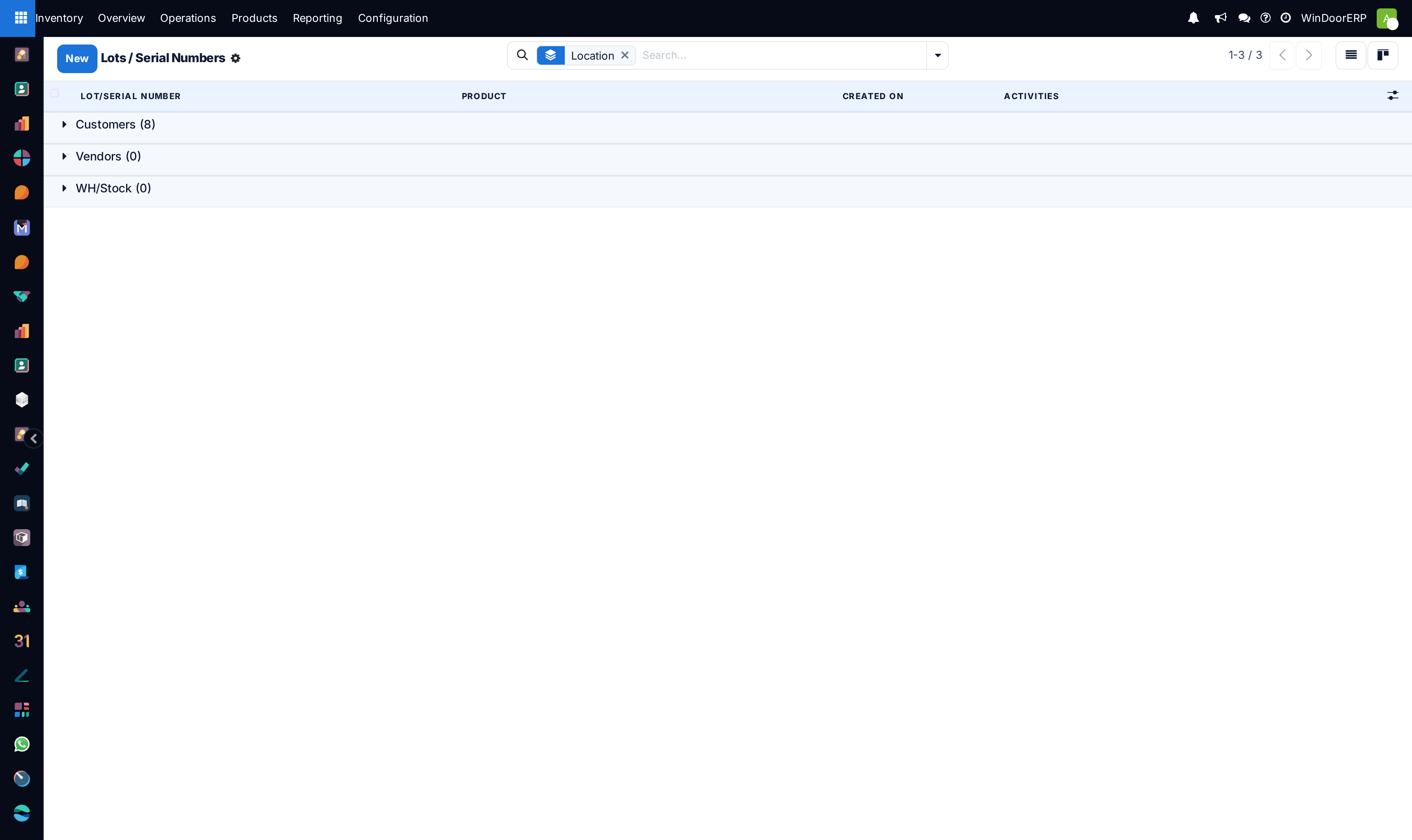
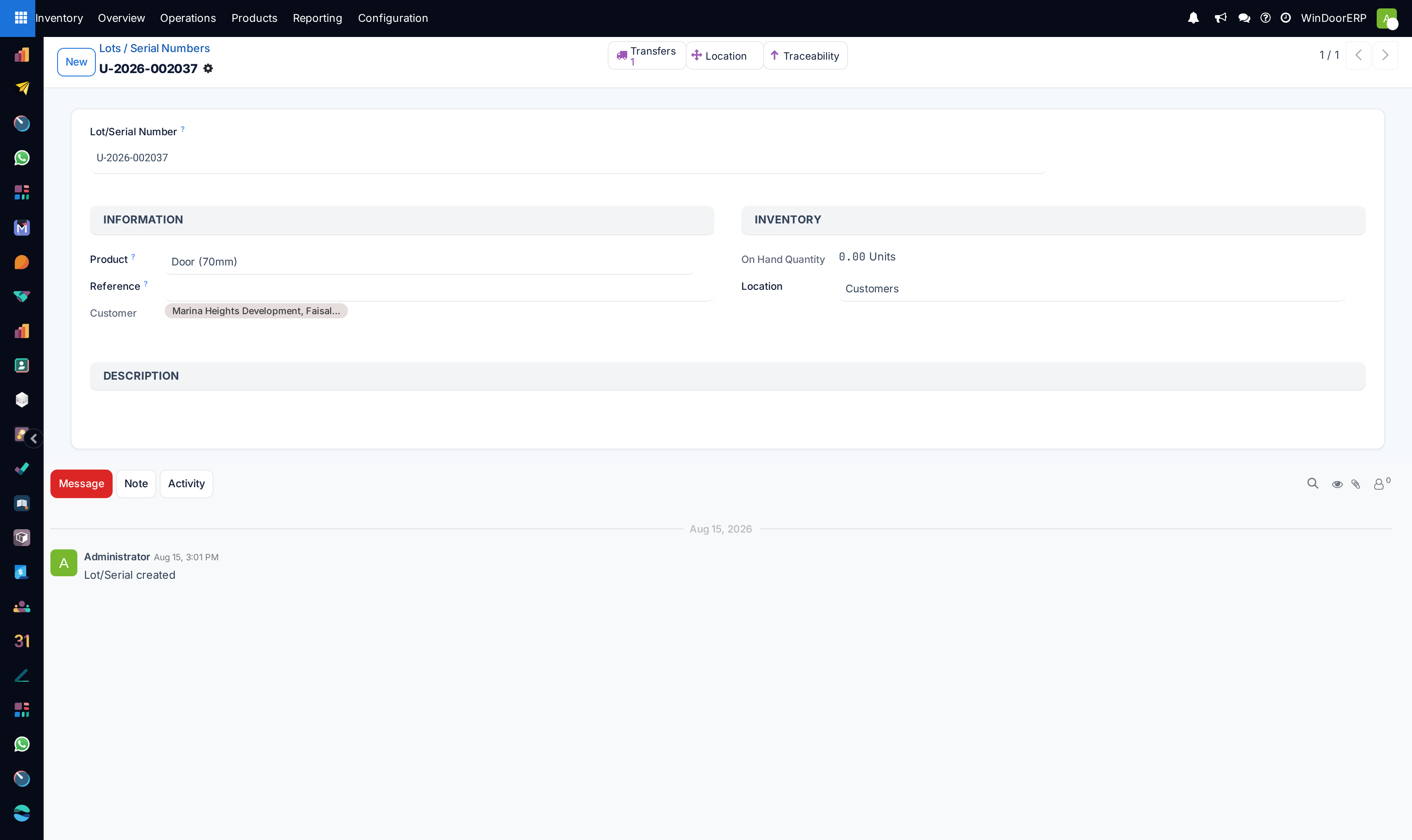
Every number is a record under Inventory ▸ Products ▸ Lots / Serial Numbers, with its own quantity, its own history and its own chatter.
| Lot/Serial Number | The number itself. Unique per product per company — a duplicate is refused with The combination of lot/serial number and product must be unique within a company. |
|---|---|
| Product | What the number identifies. It cannot be changed once moves exist against the number. |
| Reference | An internal reference, for when your own number differs from the manufacturer's. |
| Customer | Read-only and manager-only, filled in once the number has been delivered to somebody. |
| On Hand Quantity | How much of this number is still yours. A serial number reads 1 until it ships, then 0. |
| Location | Where it sits, when it all sits in one place. Editing it moves the stock; the system refuses when the lot is split, with You can only move a lot/serial to a new location if it exists in a single location. |
| Description | Free notes — the mill certificate reference, the inspection remark. |
| Transfers · Location · Traceability | The three buttons across the top: every transfer the number appeared on, where it is now, and the full traceability report. |
Finished windows already carry serials
WindoorERP does not wait for this setting to number what it makes. When a production order books its finished units into stock, it creates a serial number for every unit, named after that unit's own Serial / Barcode, and links it back to the production order, the produced unit and a snapshot of that unit's job cost. The finished-good product is switched to serial tracking at the same moment.
So the numbers in the screenshot above are not a demonstration: they are finished units that were produced, received into stock and delivered to a project. What the setting adds is the ability to do the same thing deliberately for purchased material, and the menu that lets you read the numbers back.
What else the setting brings with it
| Expiration Dates | Appears under Traceability once lots are on. It installs a module that adds best-before, removal and alert dates to each lot — the basis for picking what expires first. |
|---|---|
| Display Lots & Serial Numbers on Delivery Slips | Prints the numbers on the customer's paperwork. Worth having where the number is the warranty. |
| Print GS1 Barcodes for Lots & Serial Numbers | Uses GS1 datamatrix codes when lot labels are printed. |
| Lot-level valuation | Cost can then be read per lot rather than per product; there is a separate article on valuing stock lot by lot. |
| Traceability on the transfer | A validated transfer of a tracked product grows its own Traceability button, alongside the one on the number itself. |
Troubleshooting
| There is no tracking selector on the product | The setting is off, or the product is not storable goods. |
|---|---|
| You need to supply a Lot/Serial number for products | Validation refuses a tracked product with no number. Open Details and enter them. |
| You are not allowed to create a lot or serial number with this operation type | Exactly what it says: tick Create New Lots/Serial Numbers on that operation type. |
| The combination of lot/serial number and product must be unique | That number already exists for this product. Use the existing record instead of making a second one. |
| You are not allowed to change the product linked to a serial or lot number | Moves already exist against it. Create a new number instead. |
| The Lots / Serial Numbers menu is missing | The setting is off, or the user has no Inventory access. |
| An old quantity has no number | It predates tracking. Count it out and back in with numbers, or leave it to be consumed first. |
Common mistakes
- Turning serial tracking on for fasteners and consumables, then abandoning it three weeks later because every receipt takes twenty minutes.
- Ticking the setting and stopping there. Nothing is tracked until a product says so.
- Unticking both lot switches on an operation type, then wondering why numbers cannot be entered.
- Typing a new number on a delivery instead of selecting the one on the rack, and creating a second record for the same physical unit.
- Expecting the numbers to reach the customer's delivery slip without switching that on.
Was this article helpful?
Thanks — your feedback helps.
Running a window or door factory?
Ask for a demo