Run one job end to end
Survey the site
Why this step
Measure before you promise. The survey is where an opening on a drawing becomes an opening in a wall, and the earlier a discrepancy appears the cheaper it is.
What this does
A pre-quote survey is the first visit to a building. Nothing has been sold yet, so the survey starts with an empty item list: the surveyor walks the site and creates one item per opening that is going to be priced, measuring each one where it stands. The finished survey is what the quotation is built from — literally, through a wizard that turns every measured opening into a quotation line. Pre-quote surveys are numbered PQS-YYYY-NNNN and live at Technical Tasks › Site Surveys › Surveys › Pre-Quote Surveys.
Important
This is not the check measure taken after the order is won. That is a Production Survey (PRS-): it always starts from a confirmed sale order, loads its items from what was actually sold, and its approval posts measured quantities back onto that order. If you are re-measuring something the customer has already bought, read Record a production site survey instead. The two are the same model and the same menu tree, but they are different jobs with different forms, different buttons, different reports and different consequences.
Before you start
- The opportunity exists in CRM with a customer on it. A survey never hangs off an opportunity directly — it hangs off a technical request, and the request carries the customer, the salesperson and the site address.
- Your user holds the Survey User access right. Approving, and the survey Reporting and Configuration menus, need Survey Manager.
- The floors and rooms you will file openings under exist under Configuration › Dropdown Options › Floors and Locations — the item code is minted from the floor, so a missing floor stops the first item.
- If the surveyor will capture on a phone rather than in the back office, they are a portal user with surveys assigned to them and Enable Customer Portal is on.
Steps
-
01
Open the opportunity in CRM and go to its Survey Status tab. Press Schedule Pre-Quote — or Run Step, which does the same thing while Schedule Pre-Quote Survey is the suggested next step.
-
02
If the opportunity has no technical request yet, the Technical Request wizard opens first: choose the request type — it is pre-selected as the shipped site-survey type, named Site Survey Quote unless your company renamed it — and a deadline, press Create, and WindoorERP goes straight on into a new draft survey. If a request already exists, the draft survey opens immediately.
-
03
On the survey, set the real Surveyor — it defaults to you — and the Scheduled Start and Scheduled End of the visit. Both are copied from the technical request's own dates when it has them.
-
04
On site, press Start Survey. The survey moves to In Progress and the actual start time is stamped; started from the portal, so is the phone's position.
-
05
Press Add New Item for the first opening. Pick the Floor (required) and Location, type the Width (mm) and Height (mm), set the quantity, and press Save & Add Next — which saves, marks the item done if both dimensions are filled, and reopens a fresh form on the same floor. Repeat until the building is covered.
-
06
Attach what a number cannot carry: up to two photos and a CAD sketch per opening, and anything unusual in Quick Remarks.
-
07
When every item shows Done, press Complete Survey. The survey lands in Completed, or in Pending Approval if the measured area strayed past the approval threshold.
-
08
Press Create Quotation, choose the Profile and Outside Color, and confirm. One quotation line per surveyed opening, at the surveyed size, with the survey PDF attached to both records.
Where a pre-quote survey is started from
Every route ends in the same place — a draft PQS survey attached to a technical request — but they differ in how much typing they save you.
| Start from | What happens |
|---|---|
| CRM › the opportunity › Survey Status tab | The normal route, and the one the software is built around. Schedule Pre-Quote creates the technical request if there is none (through the Technical Request wizard, pre-selected to the shipped site-survey request type — Site Survey Quote out of the box, and renameable) and then the survey. The tab also shows the journey phase bar, the pre-quote and production state cards, a progress bar, and View All Previous Surveys. |
| Sales › the order or quotation › Survey Status tab | The same panel, same buttons, on a sale order. Use it when the commercial conversation has already moved onto a document — for example a revised quotation where someone needs more information about the openings before re-pricing. It is a legitimate second entry point, not a workaround. |
| Technical Tasks › Requests › the request › Survey & Measurements tab | The hub itself. Schedule Pre-Quote creates one; Open Pre-Quote returns to the latest; New Pre-Quote appears only once the current one is Completed or Approved, so a second visit is a deliberate act. |
| A request type that creates surveys by itself | A Technical Request Type with Auto Create Survey switched on and Survey Type set to Pre-Quote Survey raises a draft survey the moment a request of that type is created — surveyor set to whoever created it. It will not raise a second one while a live survey of that type already exists. |
| Technical Tasks › Site Surveys › Surveys › Pre-Quote Surveys › New | A blank survey with the type already set. You must then pick the technical request by hand — without one there is no customer and no site. |
| The Duplicate smart button | Copies an existing survey with its items back to Draft, clearing times, positions, signatures and the portal token. The usual way to re-survey a job that has already been approved. |
The views you will meet
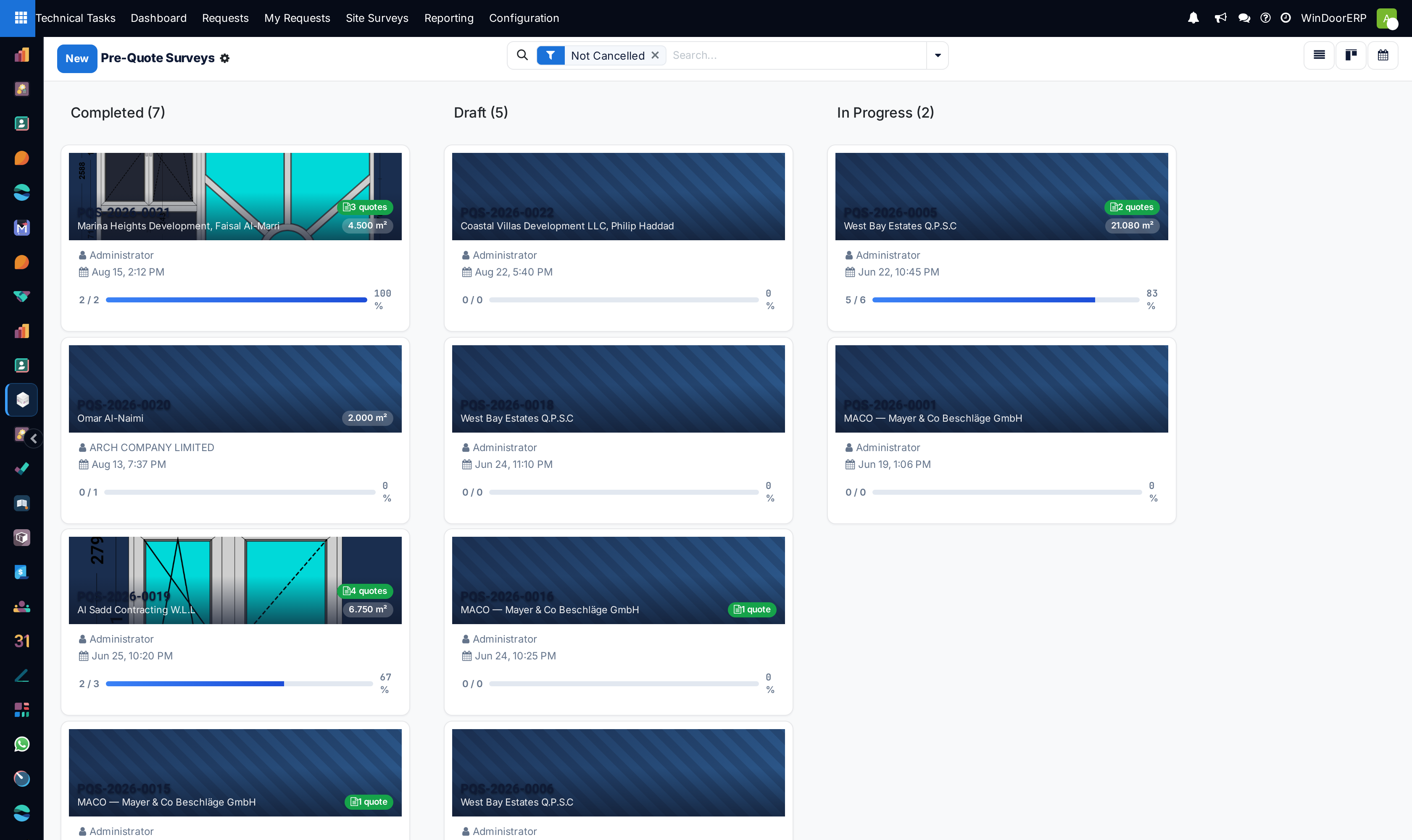
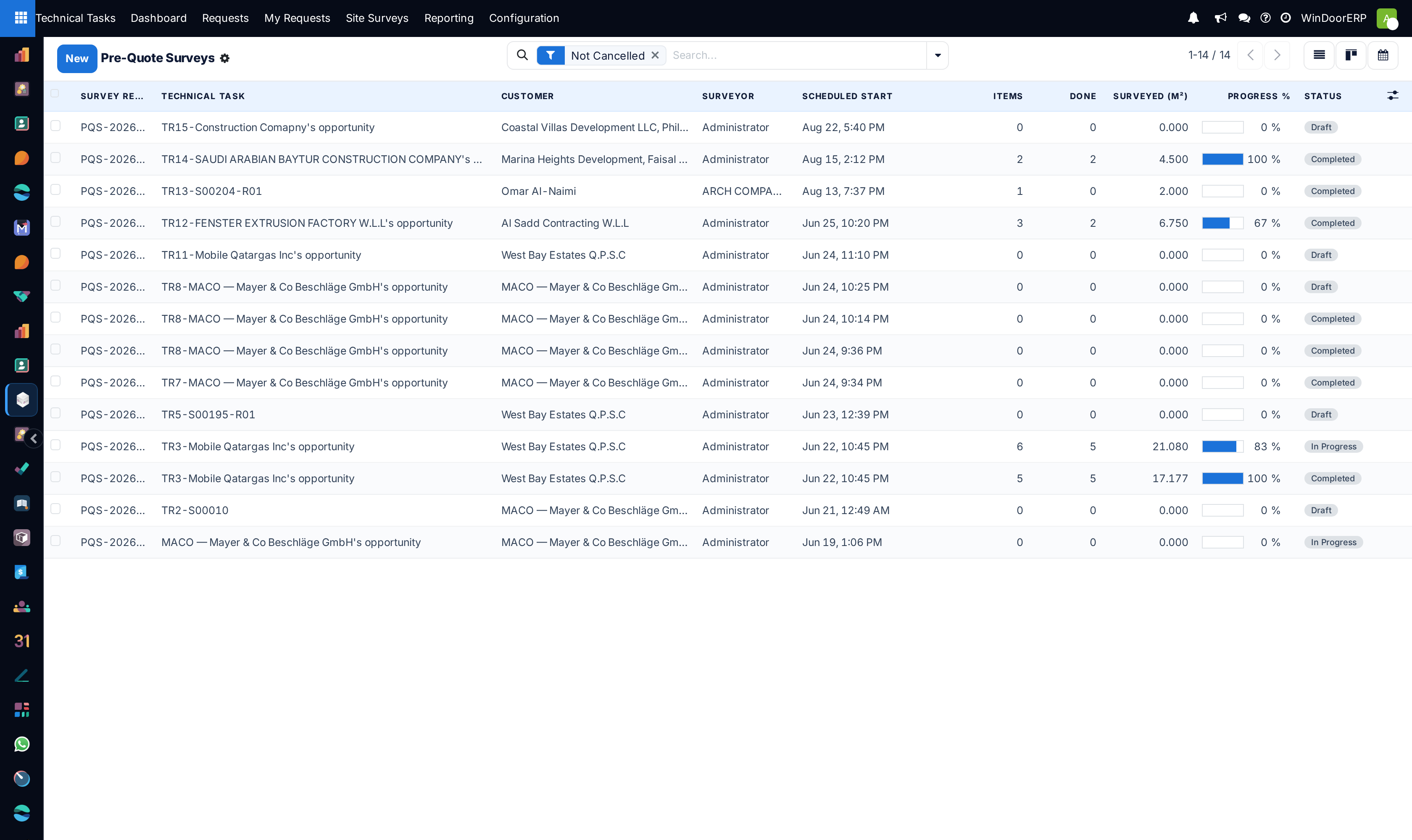
Pre-Quote Surveys opens as a list and offers a kanban and a calendar from the switcher at the top right. Every one of them is filtered to pre-quote surveys only and hides cancelled ones behind the Not Cancelled facet, which you can remove.
| View | What it shows |
|---|---|
| List | Survey Reference, Technical Task, Customer, Surveyor, Scheduled Start, Items, Done, Surveyed (m²), a Progress % bar and the Status badge. Surveyed area and progress are optional columns and can be switched off from the ⚙ column picker at the end of the header row. |
| Kanban | Cards grouped by status. The card's banner image is the survey's own cover — the first item's design drawing, or its first photo — over which sit the reference, the customer, a green badge counting quotations made from this survey and a badge with the surveyed area. Below: surveyor, scheduled date and a completion bar. |
| Calendar | Month view on Scheduled Start, coloured by status, showing reference, customer and surveyor. The dispatch board for booking a surveyor's week. |
| Form | The pre-quote form described below. Note there is no pivot or graph here: survey analytics live in the manager-only Reporting menu. |
The search panel offers filters for Not Cancelled, Draft, In Progress, Completed, Pending Approval and Approved, and group-by for State, Surveyor and Customer.
The pre-quote form
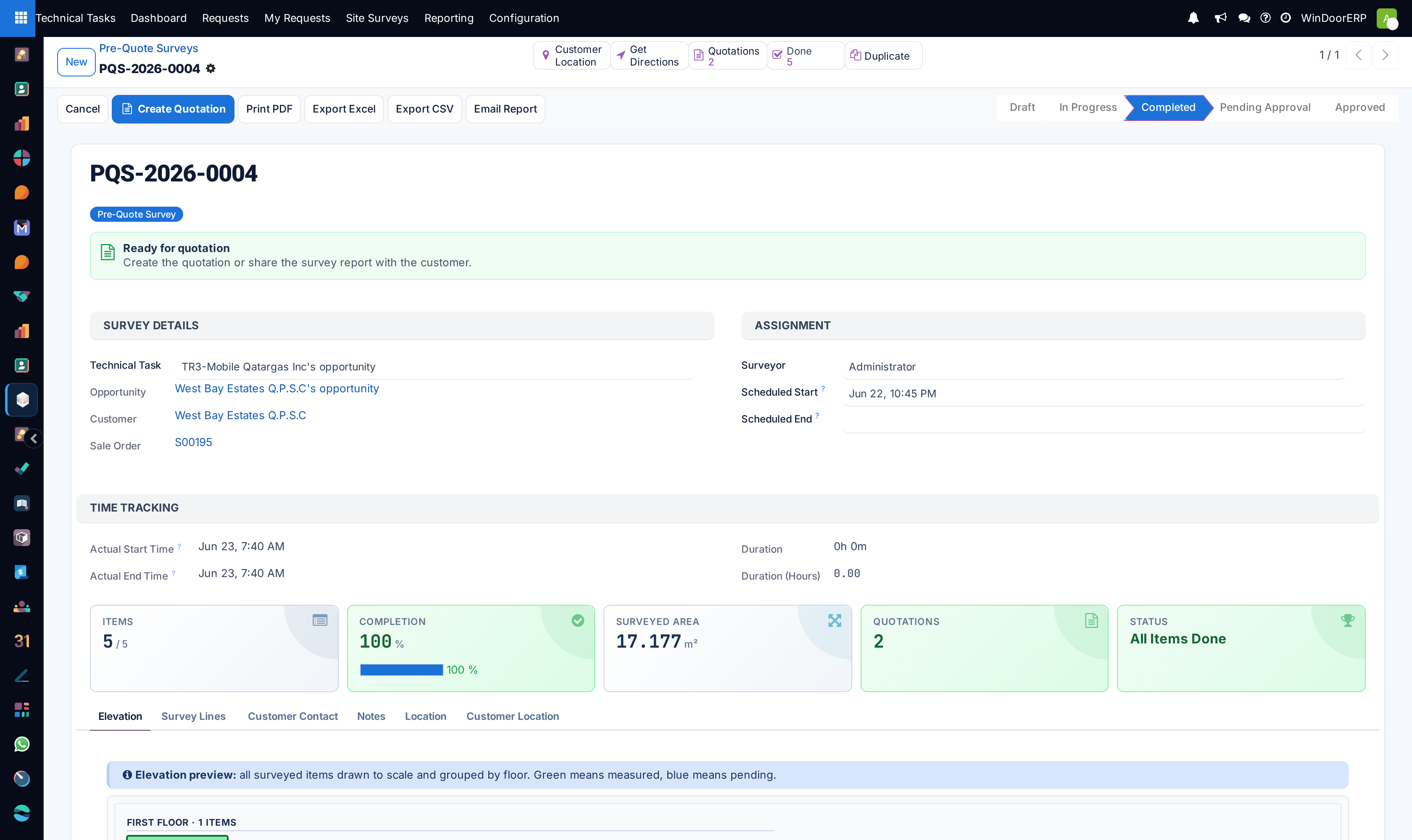
The header carries the whole workflow. Start Survey in draft; Mobile App in draft or in progress, which auto-starts a draft survey and opens the touch capture screen; Complete Survey while in progress; Approve and Reject in pending approval, both visible only to survey managers; Cancel in every state except approved and cancelled; Reset to Draft only on a cancelled survey; and Create Quotation once the survey is Completed or Approved, which is visible only to salespeople. Beside them sit Print PDF, Export Excel, Export CSV and Email Report, available in any state.
The smart buttons above the title are Customer Location and Get Directions (only when the site has coordinates), Quotations counting the orders created from this survey, Done counting completed items, and Duplicate.
Under the title, a coloured strip always names the next sensible action — Add the first survey item, Ready to start, Continue measuring — 3 of 5 items completed, All items are done, Waiting for approval, Ready for quotation. It is a prompt, not a control.
| Field | What it does |
|---|---|
| Survey Reference | Read-only. Drawn from the PQS- sequence when the record is created, and never reused if the survey is cancelled. |
| Technical Task | The request the survey belongs to. It is the only editable link on this group — customer, opportunity and sale order are all read through it. |
| Opportunity / Customer / Sale Order | Read-only mirrors of the technical request's own opportunity, customer and order. A pre-quote survey usually has no sale order yet; if one shows here it is because the request was raised from an order. |
| Surveyor | Defaults to whoever created the survey. It is also the access key: a Survey User sees the surveys where they are the surveyor, plus unassigned drafts, and nothing else. |
| Scheduled Start / Scheduled End | The booked visit — what the calendar plots and what the surveyor's phone lists under a day heading. Defaults to now, then overwritten by the request's own start and end dates when it has them. |
| Actual Start Time / Actual End Time / Duration | Read-only, in the Time Tracking group, filled by Start Survey and Complete Survey. Hidden while the survey is still a draft. |
Below the fields sit the live tiles: Items (done of total), Completion with its bar, Surveyed Area in square metres, Quotations when any exist, and an All Items Done tile when nothing is outstanding.
| Tab | Contents |
|---|---|
| Elevation | Every item drawn to scale and grouped by floor — green measured, blue pending. The same drawing is the kanban card's banner and appears on the report. Hidden while the survey has no items. |
| Survey Lines | The measuring table, grouped by floor, editable in place, with Add New Item above it. Columns: Code (read-only, minted automatically), Description, Floor, Location, Width (mm), Height (mm), Sill H (mm) — hidden by default — Qty, Area (m²), a Done toggle, the result badge, and a button that opens the full item form. There are deliberately no quoted columns, no Site Not Ready toggle and no split button here: none of them mean anything before something has been sold. |
| Mobile View | The same items as touch cards with an Edit button into the capture app. It is a phone-width tab: on a desktop screen it does not appear in the tab row at all. |
| Customer Contact | The on-site representative and their phone, plus the customer and surveyor signature pads. |
| Notes | General Notes and Site Access Notes — the second is what the surveyor reads on their phone before setting off. |
| Location | The GPS start and end positions recorded by Start and Complete, read-only. Hidden in draft; the end block appears only once the survey is completed. |
| Customer Location | The site's own geolocation: latitude and longitude, a Lock Location flag, an interactive map, a QR code and Google Maps links, plus buttons to refresh the coordinates from the opportunity or the customer, to save them back to either, and to extract them from a pasted Google Maps link (short maps.app.goo.gl links included). A badge says where the shown address came from. |
Capturing one opening
Opening an item — through Add New Item or the arrow at the end of a row — gives the pre-quote speed form, a single screen built for a phone held in one hand at the bottom of a ladder. Its header has Save & Add Next and Mark Complete, and a two-step status bar running Pending to Pass.
| Field | What it does |
|---|---|
| Item Code | Read-only and generated: the floor's one-character code followed by a two-digit sequence within that floor, so item 5 on floor 1 becomes 105. The form says so under the title: Auto-code: Floor + Sequence (FNN format). This is why Floor is required here and optional almost everywhere else. |
| Floor / Location | Both are picked from the maintained lists under Configuration. Neither can be deleted while an item uses it. |
| Width (mm) / Height (mm) | The measured opening, in large numeric inputs. The area is computed from them and shown read-only. |
| Tangent Point Left / Right (mm) | Optional. Where an arch or a splay meets the reveal. |
| Sill Height (mm) and Window Position | Added by the WebCC integration in a Sill & Position group. They are not decoration: the sill height rides through to the quotation line, and the position (Inside / Outside / Centre) is carried onto the quotation line's install position. |
| Surveyed Qty, under the Quantity heading | How many identical openings this one item stands for. Save & Add Next forces it to at least 1 so a saved item is never worth nothing. It becomes the quotation line's quantity — but note that the survey's own Surveyed Area total multiplies each item's area by the quoted quantity, which on a pre-quote is always 1, so an item standing for four windows still counts once in that total. |
| Photo 1 / Photo 2 / CAD Sketch | Optional images, stored behind the field rather than in the chatter's attachment list. Photos sent from the mobile app or the surveyor's portal are checked on arrival — 10 MB each at most, and JPEG, PNG, GIF or WEBP only; a file dropped straight onto the backend form is not checked. |
| Quick Remarks | The free-text field, labelled Remarks / Deviations everywhere else. Anything the numbers cannot say belongs here. |
| Completed | The toggle that feeds the progress bar. Mark Complete refuses while the surveyed dimensions are empty: "Please enter surveyed dimensions before marking as complete." |
The item record itself also holds the three-point aperture measurements, the diagonals and the whole site-conditions block, but no pre-quote screen shows them: opening an item from a pre-quote survey always lands on this speed form, and the mobile app and the surveyor's portal show the same reduced set. Those fields belong to the production survey, and that is where they are filled in. At the pre-quote stage a good width, a good height and a photograph are worth more than twenty fields half-filled.
Completing: what decides the next state
Complete Survey stamps the completion time and then routes the survey. It goes to Pending Approval when the survey requires approval, and straight to Completed when it does not. For a pre-quote survey the only rule that applies is the Approval Threshold (%) in Site Surveys › Configuration › Settings, default 5: if the total surveyed area differs from the total quoted area by more than that, a manager has to sign it off. A pre-quote survey typically has no quoted area to differ from, so in practice it completes directly.
Going to approval also raises a to-do activity, Survey Approval Required, on every Survey Manager. Approve stamps the approver and date and closes those activities; Reject sends the survey back to Draft — not to In Progress — and closes them with "Pre-Quote survey rejected — returned for corrections". Approving a pre-quote survey deliberately writes nothing back to any sale order: that is a production-survey job.
If the technical request stage mapping is configured (Stage after Pre-Quote Approved in the same Settings screen), approval also moves the request forward to that stage. The move is forward-only, and an unset mapping does nothing at all.
Note
The setting called Auto-Approve Pre-Quote Surveys on that same Settings screen is read by nothing in the software. Switching it on or off changes no behaviour. Pre-quote routing is decided entirely by the Approval Threshold. The same is true of Require GPS Location and Track Survey Time — both are stored and neither is consulted; positions and times are recorded whenever the buttons that record them are pressed.
Turning the survey into a quotation
Create Quotation opens the Create Quotation from Survey dialog. It is the one wizard that matters on a pre-quote survey, and it does considerably more than open a blank order.
| Field | What it does |
|---|---|
| Profile | Required. The window system the whole quotation will be built in. |
| Outside Color | Required, and restricted to the colours the chosen profile is mapped to. Changing the profile clears the colours and the glass. |
| Inside Color / Glass / Accessories | Optional. They travel onto the order and into the generated designs. |
| Generate Designs | On by default. Draws every created quotation line as a fixed window in the WebCC designer at the surveyed size and runs an instant cut-list analysis on it. Turn it off for a plain quotation. |
| Items Preview list | A read-only snapshot of every survey item — Code, Description, Floor, Location, Width, Height, Area, Qty, Sill H — with one editable column, Product. Rows are green when a product resolved and red when none did. |
Choosing a profile and colour resolves each line's product through the Colour & Material mapping. If any line is still without one, a warning banner appears and Create Quotation refuses with "No product found for: … Please configure the Color & Material mapping for the selected Profile + Color combination, or assign a product manually."
When it does run, it creates the sale order for the survey's customer, links it to the technical request, and writes one order line per wizard row carrying the description, item code, width, height, area, sill height, floor, location, colours, glass and profile names, with the quantity taken from the surveyed quantity (falling back to 1). Each survey item is then back-linked to the order line it produced, and the survey PDF is attached to both the order and the survey with a note in each chatter. The new quotation opens.
Two things are worth knowing before you press it. Every item is carried, not just the completed ones — an item left half-measured becomes a quotation line at whatever size it holds. And with Generate Designs on, every window is drawn as a fixed window; openable types are a later, deliberate edit in the designer. Design generation never blocks the quotation: what was drawn, what was skipped and what failed is summarised in one note on the order's chatter.
The other wizards, and acting in bulk
Select several surveys in the list and the Actions menu offers seven wizards, all bound to the survey list:
| Wizard | What it does |
|---|---|
| Bulk Assign Surveyor | Sets the surveyor, and optionally a new scheduled date, on every selected draft survey at once. Anything else in the selection is refused with "Please select at least one survey in Draft state." |
| Bulk Approve Pre-Quote / Bulk Reject Pre-Quote | Approve or reject the selected pre-quote surveys that are in Pending Approval. Rejection demands a reason, which is posted onto every survey's chatter. |
| Bulk Approve / Bulk Reject | The older type-agnostic pair, still bound to the same menu. They behave the same way but do not check the survey type. |
| Bulk Approve Production / Bulk Reject Production | Bound to the same menu even on the pre-quote list, and they will simply find no eligible surveys there. |
Email Report opens its own small dialog — Recipient Email (required, "Please enter a recipient email address." if left empty), CC Emails, Subject, Message Body and an Include Excel Export toggle — and sends the survey PDF, optionally with the spreadsheet beside it.
The Compare to Order comparison wizard exists on this model too, but it compares a production survey with its sale order. Called from a pre-quote survey it looks for the production survey on the same order and stops with "No production survey found for comparison. Please create and complete it first."
Reports and exports
Print PDF renders the pre-quote survey report: a cover page, then exactly two openings per page — each with its measurement band and its photographs and sketch printed full width — and a final Summary & Sign-off page carrying the customer and surveyor signature blocks. It deliberately prints no design drawing; the drawing belongs to the quotation, not to the record of what was measured.
Export Excel and Export CSV produce a measurements-only file — the pre-quote export has no quoted-versus-surveyed columns because there is nothing quoted to compare against. Both check your access rights before they render.
Who can do what
| Access right | What it grants |
|---|---|
| Survey User | Create, read and edit surveys and their items — but never delete them. Read-only on options, floors, locations, templates, settings and notification rules. A record rule narrows the view further: a Survey User sees the surveys where they are the Surveyor, plus any unassigned draft survey, and no colleague's work. |
| Survey Manager | Everything a Survey User can do, on every survey in the company, plus deletion, the Approve and Reject buttons, and the Pending Approval, Reporting and Configuration menus, which are hidden from everyone else. |
| Salesperson | Needed for Create Quotation — the button carries that group, so a surveyor who is not a salesperson finishes the survey and hands it on. |
| Survey Field User | A marker only, with no model access of its own. It puts the surveys tile in a portal user's account and lets them claim an unassigned draft from the pool. |
Important
Approval is gated on the form buttons and nowhere else. The bulk approve and reject wizards in the list's Actions menu carry no group restriction and are open to a plain Survey User, so a surveyor who can see a survey can approve it from the list even though the Approve button is hidden on the form. If approval is a real control in your company, that is worth knowing before you hand out the Survey User right.
The web portal
Two different portal pages exist, for two different audiences, and they are easy to confuse because their addresses differ by one letter.
The surveyor's portal — /my/surveys
A surveyor needs no WindoorERP seat. They sign in as a portal user and work at /my/surveys, which plans their day, opens each job, and captures the openings where they stand. A pre-quote survey gets its own capture screen — the one screen in the product where a surveyor may add items, because on a pre-quote there is nothing sold to protect. The screen carries the item list, the aperture and dimension fields, the photo slots and the not-ready outcome, and it queues its saves through connection gaps.
Before leaving, the surveyor runs the ready check, which lists every blocker at once: no items at all, items neither measured nor marked not-ready, a not-ready item without a reason, a completed item missing a dimension. Out-of-tolerance measurements and openings that disagree with their own siblings are reported as advice and never block. Submit starts the survey if it is still a draft, completes it exactly as the back-office button would, and then raises a Quote <customer> to-do on the job's salesperson with the survey attached — the pre-quote survey's one automatic hand-off. Quoting itself stays a human click, because the wizard needs a profile and a colour the field cannot supply.
No portal route can approve a survey. After submission the surveyor cannot edit either: "This survey has already been submitted and can no longer be edited. Ask the office if it needs to be re-opened." Re-entry is a Re-visit Request, which a manager decides in Site Surveys › Field Portal › Re-visit Requests. The whole surveyor experience — the day plan, the outcomes, the customer message templates, the performance page — is documented in Measure on site from the surveyor's phone.
The customer's page — /my/survey/<id>
Singular, and a different thing entirely. Every survey is born with an access token, and /my/survey/<id>?access_token=… renders a public page for the customer: the reference, the order if there is one, the status badge, the survey type, the scheduled and completed dates, who is attending, a measurement progress bar, a warning naming how many openings were found not ready, the on-site contact and access notes, and the signature once it exists. There are no measurements and no prices on it — that is what makes the link safe to send.
The link is real and the token is checked properly, but nothing in the interface hands it to you: the action that mints it and the Portal URL field that holds it are not on any form or menu. In practice the page is reached only from a link built elsewhere. Ask your administrator if you need it.
Note
The setting named Enable Customer Portal does not gate that customer page at all. It is the master switch for the surveyor portal: turn it off and /my/surveys and every one of its data routes stop answering, while the customer's token link keeps working. The name is misleading; the behaviour is not in doubt.
Troubleshooting
"Survey can only be started from Draft state." — someone has already started or completed this survey. Check the status bar before pressing anything.
"Items can only be added in Draft or In Progress state." — the survey has been completed. A completed pre-quote survey is closed to new openings; duplicate it, or have the manager reject it back to Draft.
"Please enter surveyed dimensions before marking as complete." — a width and a height are the minimum an item must carry.
"The survey must be Completed or Approved before creating a quotation." — press Complete Survey first. A survey sitting in Pending Approval is not enough either: it needs the manager's decision.
"Only Pre-Quote surveys can create quotations from this wizard." — you have reached the quotation wizard from a production survey. Production surveys feed production orders, not quotations.
"No product found for: … configure the Color & Material mapping…" — the profile and outside colour you chose have no product mapped for those item codes. Complete the mapping, or set the Product column by hand on the offending rows.
The item code came out as New Item rather than a number — the item has no floor, or the floor has no one-character Code on it. Set the code under Configuration › Dropdown Options › Floors.
The quotation was created but the drawings are missing — design generation is best-effort and never blocks the order. Open the new order's chatter: one note lists exactly what was drawn, what was skipped for missing dimensions or zero quantity, and what failed.
A dropdown on the item form does not offer a value that exists under Configuration › Dropdown Options — those records are a reference list only. The selections on the item are fixed in the software and adding an option does not extend them.
Common mistakes
- Using a pre-quote survey to re-measure an order that is already won. That is the production survey's job, and only its approval posts anything back to the order.
- Creating the survey from the Surveys menu with no technical request on it — no request means no customer, no site and no journey.
- Pressing Create Quotation before every item is complete. Half-measured items still become quotation lines, at whatever size they are holding.
- Leaving Generate Designs on and assuming the drawings are the final ones. Every opening is drawn as a fixed window; sashes and opening directions are a later edit in the designer.
- Recording one measurement per opening, and no photograph. The photograph is what settles the argument six weeks later.
Checkpoint
A survey record exists for a real site, with measurements attached to the openings.