Run one order through the factory
Release a real order to the factory
Why this step
The configuration is done; now use it. Take a confirmed sales order and launch manufacturing from it, and watch the openings become manufacturing orders on the layout you just built.
What this does
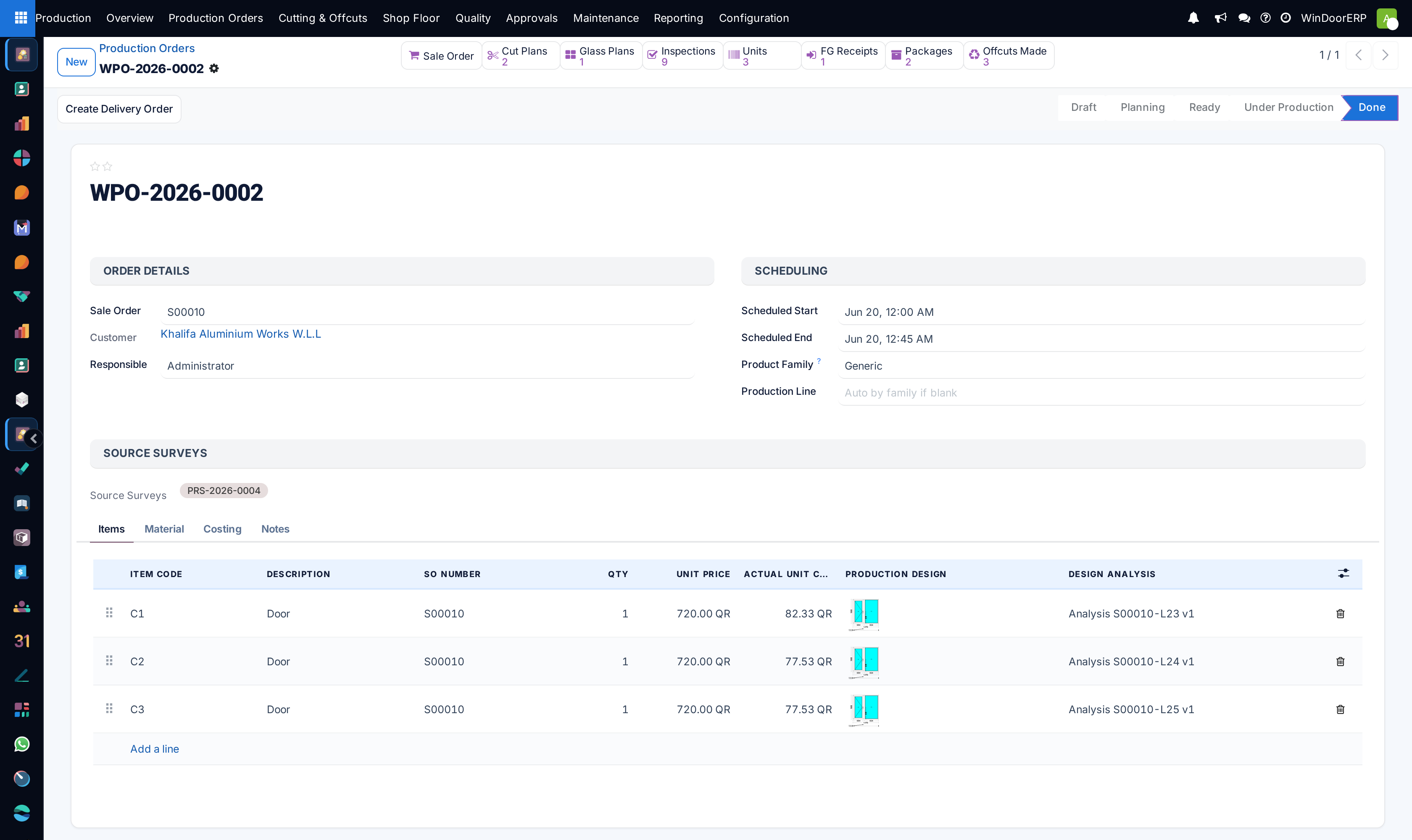
Turns a confirmed sale into work the factory can run: a production order in the Production app, carrying one item per fabricated opening with its design, its analysis, and — once generated — the material each unit consumes.
The route runs through the production survey, not through a button on the sales order. The sales order itself only shows a Production Orders stat button once orders exist, plus per-line Surveyed / Produced / Delivered quantity columns. The survey is where site measurements and final designs are settled, and it is the survey that creates the production order — so a job cannot reach the factory without passing the measuring step.
Before you start
- The sales order confirmed, and its production survey Completed or Approved, with the items to build marked completed on the survey.
- Designs analysed. Each completed survey line should carry a current design analysis — the analysis is what the material list is generated from.
- If the Approvals feature is on: whoever confirms production will need the release approved first.
Steps
-
01
Open the production survey (its reference starts with
PRS-) and press Create Production Order — the button appears once the survey is Completed or Approved. -
02
Review the new order's Items tab: one line per completed survey item, with quantity, unit price, the production design image and the analysis. Read the chatter — it lists every fallback taken (items copied without their own design, analyses reused from the sale line) and warns about completed items that did not pass their check point, which are copied anyway for you to remove by hand.
-
03
On the Material tab, press Generate / Refresh to build the material list from the analyses. Confirming is refused until this has been done.
-
04
Press Confirm. This is the big step: cutting plans are auto-generated if none exist, the production and installation stock transfers are created, reserved offcuts are committed, and — if the setting is on — the Glass Purchase Order wizard opens for the order's glass. The order moves to Planning.
-
05
Optionally Mark Ready, then press Start Production when the floor begins: with the Scanning feature on, one serialized piece per unit is created and its barcode labels are queued.
-
06
When everything is built, Mark as Done — with the Finished-Goods feature on, the finished units are received into stock with one serial each, ready for Create Delivery Order.
What each order carries
- The design and analysis per item, so the shop floor sees the drawing and the material list can be rebuilt at any time.
- A link back to the sale order and the source surveys — the answer to "whose window is this?" is one click in either direction.
- The Scheduling block: start and end dates, the Product Family and an optional Production Line — left blank, work-order generation picks the line whose family matches.
- A row of smart buttons that grows with the order: cut plans, glass plans, inspections, units, transfers, packages, offcuts, glass purchase orders.
The order's states
| State | Meaning |
|---|---|
| Draft | Editable; material list and items can be reshaped freely. Splitting or merging orders is realistically possible only here. |
| Planning | Confirmed: transfers exist, cutting plans exist, offcuts are committed. |
| Ready | An optional staging state between planning and start. |
| Under Production | Started; pieces and labels exist if Scanning is on. |
| Quality Hold ⇄ Under Production | A whole-order hold, toggled with the Quality Hold / Release Hold buttons. |
| Done | Finished; units received to stock when the Finished-Goods feature is on. |
| Cancelled | Open transfers cancelled, reserved offcuts released. Reset to Draft reopens a cancelled order. |
Warning
Changing a design after release does not change the shop floor by itself. Raise it properly: Request Change on the production order sends the affected items back to the technical team as a change-request survey; approving that survey writes the new designs onto the order and posts "…Regenerate the material list to reflect the new designs." — the material list is not rebuilt automatically, and material already issued or cut does not un-cut itself. Stop the work, approve the change, regenerate, and re-issue deliberately.
Troubleshooting
| "Production orders can only be created from production surveys." | The survey is a site or pre-quote survey. Only production-type surveys create orders. |
|---|---|
| "No completed items found on this survey. …" | No survey line is marked completed. Complete the items to build, then create the order. |
| "Generate the material list before confirming the following order(s): …" | Confirm was pressed before Generate / Refresh on the Material tab. |
| "Release to production requires approval for: …" | The Approvals feature gates confirmation. Press Request Release Approval and have it signed. |
| "Cannot mark … done — … work order(s) are still open. Finish or cancel them first." | With the Work Orders feature on, Done demands the routing be closed out. |
| "Warning: the following completed items did not pass the check point: …" | Posted on creation — those items were still copied. Delete the lines you do not want built. |
| "Could not auto-generate the cutting plan on confirmation, so profiles are issued as cut pieces instead of whole bars: …" | Confirm still went through, but bar optimization failed (typically a product with optimization enabled and no valid Standard Bar Length) — the production transfer then lists cut pieces rather than whole bars. Fix the product and run Optimize Bars. |
| "Some stock transfers were not created — missing route configuration: …" | Confirm proceeded but skipped a transfer whose route is not configured. Set the production / installation material routes in Production › Configuration › Settings, then order the material via Order Extra Material or re-create the order. |
| Cancel is not available on a finished order | Done orders cannot be cancelled — the button disappears once the order is Done. |
Common mistakes
- Looking for a "create production" button on the sales order — the path is survey → Create Production Order, by design.
- Releasing before the site survey is really final, and cutting to the architect's sizes rather than the measured ones.
- Skipping the chatter after creation. The fallbacks it records — reused analyses, non-pass items copied — are exactly the lines that go wrong later.
- Confirming the whole contract when only phase one is due. Split the order in draft; once confirmed, restructuring is blocked by the stock documents it created.
- Expecting delivery from the sales order for fabricated lines — designed items ship only through the production order's finished-goods delivery, and the standard sale delivery for them is deliberately suppressed.
Checkpoint
A manufacturing order exists for a real opening, on the right work centre, from a sales order nobody re-keyed.