Go live
Count your stock onto the shelves
Why this step
The warehouse is configured; now make it true. Count what is physically on site and enter it, so the first figure anyone reads is one they can trust. Everything built on top of this — reordering, costing, availability on a quotation — inherits the accuracy of this single step.
What this does
Corrects what the system believes is on hand so that it matches what is physically there — and records the correction as a movement with a date, an author and a value.
Stock is never edited. A count difference is posted as a move against Inventory Loss, which is why an adjustment shows up in valuation and in the product's history rather than quietly replacing a number.
Before you start
- Inventory access. Counting does not need administrator rights.
- Count when nothing is moving. A count taken while goods are being picked will disagree with itself.
- Know what you are counting: a product in a location, and — where those features are on — a specific lot or package.
Steps
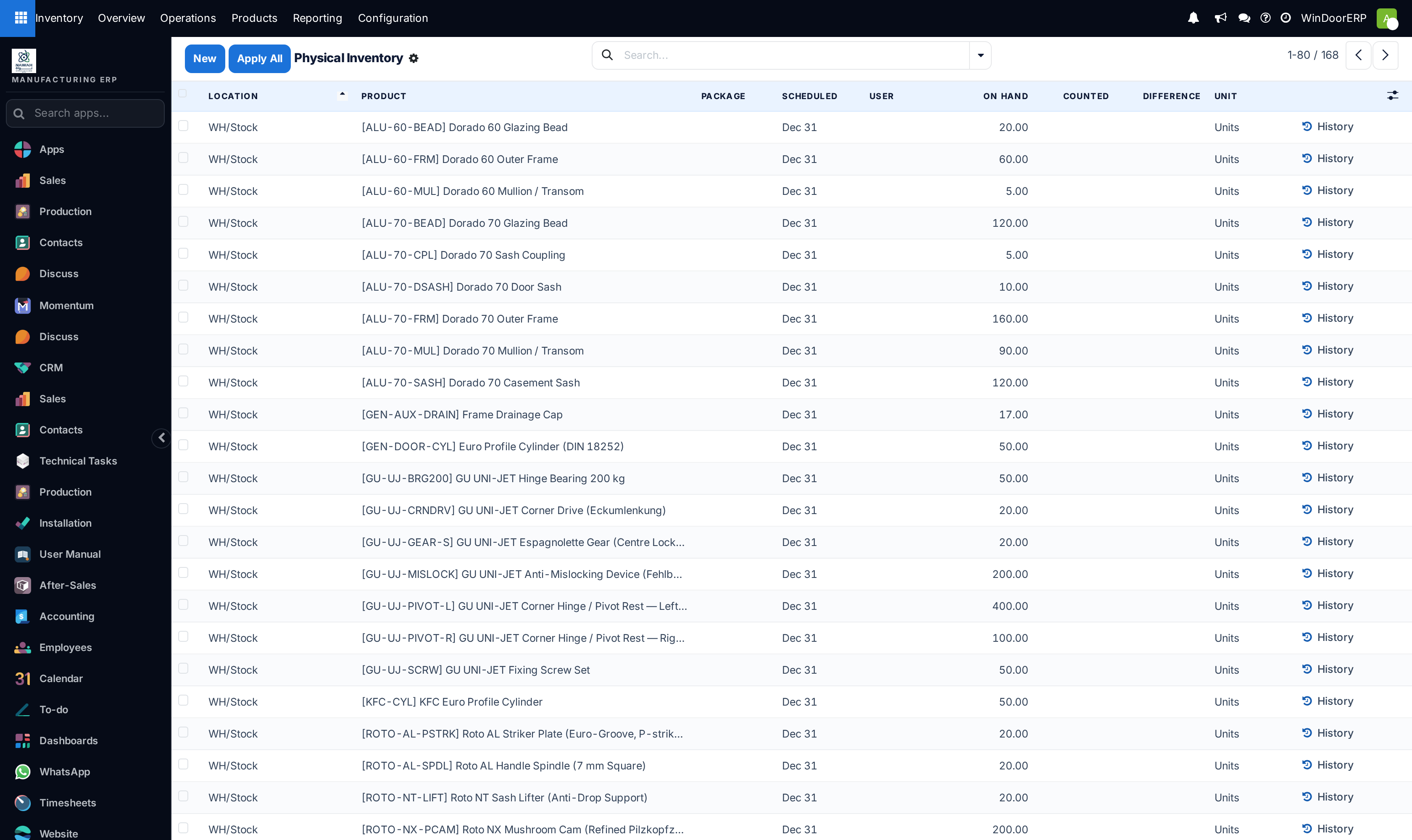
-
01
Open Inventory ▸ Physical Inventory. Each line is a product in a location, with what the system believes is there.
-
02
Filter to what you are counting — one location, one product category — rather than working the whole list.
-
03
Enter what you actually counted in the Counted column. Difference fills in for you.
-
04
Check the differences before applying. A large one is usually a mistake in the count or a transfer nobody validated.
-
05
Click Apply. Stock is corrected and the movements are written.
-
06
Set Scheduled on the lines you want to count again, so the next count is planned rather than remembered.
Every column that matters
| Location | Where this quantity sits. Counting is always per location — a product on two racks is two lines. |
|---|---|
| Product | What is being counted. |
| Lot/Serial Number | Shown when lot tracking is on. Each lot counts separately. |
| Package | Shown when packages are on. |
| Quantity | What the system believes is on hand, before your count. |
| Available Quantity | On hand minus what is reserved for orders. A shelf can be full and nothing available. |
| Counted | What you found. An empty Counted is not zero — it means not yet counted, and applying leaves that line untouched. |
| Difference | Counted minus Quantity, computed. This is what will be posted. |
| Scheduled | When this line is due to be counted again. |
| Assigned To | Who is doing the count, for splitting a stocktake between people. |
Counting zero
The commonest mistake on this screen: leaving Counted blank on a line you believe is empty. Blank means "not counted", and applying skips it, so the phantom stock survives the stocktake.
To record that a location is empty, type 0. That is a count of zero, it produces a difference, and it is posted.
What Apply actually does
Applying writes a stock move for each line with a difference: goods move from Inventory Loss into the location when you counted more, and out to Inventory Loss when you counted less.
Those moves carry the date, the user and the value, so a stocktake is auditable afterwards and appears in valuation. Nothing is overwritten and nothing is lost.
It also means an adjustment is not free: writing off stock is a real cost that lands in the accounts. Large differences deserve a look before they are applied, not after.
Making a count trustworthy
Count a location at a time and apply as you go, rather than entering the whole warehouse and applying once. A long open count drifts as work continues around it.
Investigate before you apply. A difference is evidence of something — a transfer nobody validated, a delivery taken from the wrong rack, a receipt still sitting in input. Applying without asking corrects the number and loses the reason.
Use Scheduled and Assigned To to run a rolling count of the fast-moving items rather than one annual shutdown. The figures stay usable all year instead of being right for a week.
Troubleshooting
| Applying did nothing on some lines | Counted was left blank on those. Blank is not zero. |
|---|---|
| The difference is not what I expected | Compare against Quantity, not Available Quantity. Reserved stock is still on hand. |
| A product I counted is not in the list | There is no quantity record for it in that location yet. Add a line for the product and location. |
| The count changed while I was counting | Transfers were validated during it. Count when the floor is quiet, and apply per location as you go. |
| A huge difference on one line | Usually a unit-of-measure mismatch or an unvalidated transfer, not missing goods. Check the moves before applying. |
| Stock is right but nothing can be delivered | It is reserved. That is Available Quantity, not a counting problem. |
| An adjustment needs reversing | Count again to the correct figure and apply. The first adjustment stays in the history, which is the point. |
Common mistakes
- Leaving Counted empty for a location that is empty, and never clearing the phantom stock.
- Counting the whole warehouse in one open session while people keep picking.
- Applying a large difference without finding out what caused it.
- Reading Available Quantity as the amount on the shelf.
- Treating an adjustment as free. It posts a real value into the accounts.
- Counting once a year and trusting the figures in month eleven.
Checkpoint
On-hand quantities match a physical count of the shelves, and the counted date is recorded against each line.