Find your footing
Create the customer you are quoting
Why this step
Everything downstream — the quotation, the site survey, the invoice — hangs off this record, so it is worth getting the address and contact right once.
What this does
Creates the customer record every quotation, order, delivery and invoice will point at. Ten minutes here is what stops a window being delivered to a billing address six months later.
Before you start
- Search before you create. A duplicate customer splits the history, the statement and the credit picture in two — try a phone number, a tax ID or part of the email before clicking New.
- Have the tax registration number and the site address to hand if this is a company you will invoice.
Steps
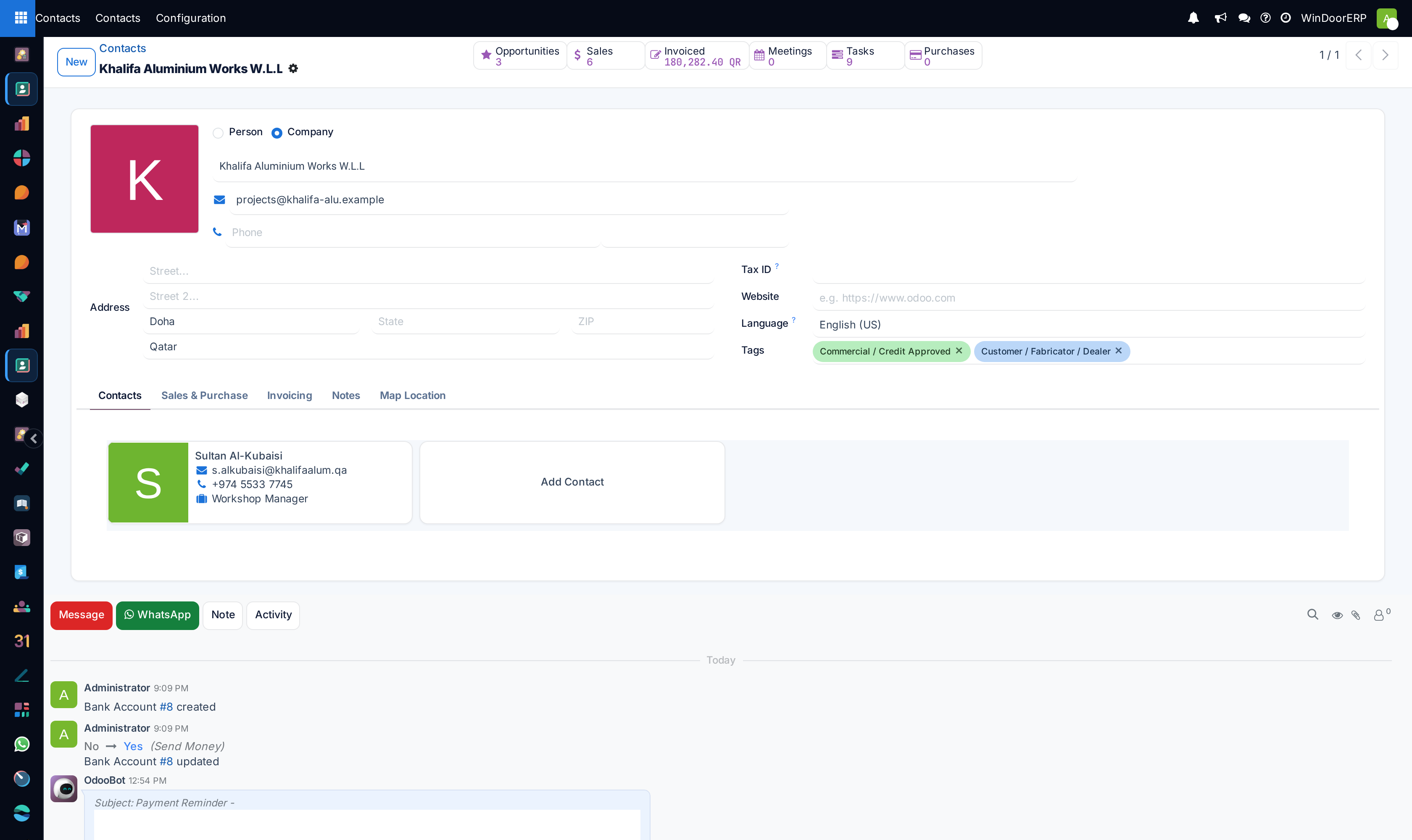
-
01
Open the Contacts app and click New.
-
02
Choose Company for a developer, contractor or business; choose Person for a private client.
-
03
Enter the name exactly as it should appear on an invoice — it is the only field the form insists on, so everything else is discipline, not enforcement.
-
04
Fill in Email and Phone — these are what the portal invitation and the order emails use. The phone number reformats itself to international form (
+974 …) as you leave the field. -
05
Enter the address, and set Language to the one this customer should receive documents in — it drives the quotation PDF, the portal and every email.
-
06
Add the Tax ID if they are registered.
-
07
Save.
Site addresses and contact people
A project rarely goes where the invoice goes. On the Contacts tab, click Add Contact and pick the Address Type:
- Delivery — the site. WindoorERP picks this address for the order silently: no address field appears on the quotation form, so this record is the only place the site address is set.
- Invoice — the accounts department.
- Contact — a person: the site engineer, the procurement manager.
- Other — anything else worth keeping.
Example
A contractor has one company record, an invoice address at their head office, and three delivery addresses — one per tower. Each quotation picks the right delivery address, and the installation crew's paperwork carries it.
Terms that follow the customer
On the Sales & Purchase tab, set what should apply automatically to every future order: the Salesperson, the Payment Terms, and the Pricelist that decides their prices. Setting them once here beats remembering them on every quotation — and note that when no salesperson is set here, a new quotation assigns whoever creates it.
| Field | What it does |
|---|---|
| Name | Prints on every document. The only required field. |
| Email / Phone | Portal invitation and order emails; the phone is normalised to international format on entry. |
| Language | The language of this customer's PDFs, portal pages and emails. |
| Tax ID | The tax registration printed on invoices. Free text — check it yourself. |
| Salesperson / Payment Terms / Pricelist | Defaults copied onto every new order for this customer. |
| Tags | Free classification — Contractor, Credit Approved — for filters and reports. |
Creating a customer from the quotation itself
Typing a new name in a quotation's Customer field offers Create (a name-only record to fix up later) and Create and edit… (the proper form in a dialog). The compact dialog asks for little — but there, unlike the full form, the Email is required. Typing a few letters of a company name may also offer enriched suggestions from the autocomplete service; take them as a starting point, not as verified data.
Troubleshooting
| Symptom | Cause and fix |
|---|---|
| The portal invitation cannot be sent | The contact has no email. Portal access hangs off the email address — fill it in first. |
| The phone number stayed exactly as typed | It could not be parsed as a real number for the country, so it was left alone. Re-enter it with the country code. |
| Documents render in the wrong language for this customer | The contact's Language field decides — set it to Arabic for an Arabic-reading customer and re-print. |
| The delivery went to the billing address | The customer has no Delivery-type child address, so the main address was used. Add one on the Contacts tab; the order picks it up silently. |
Common mistakes
- Creating a second contact because a search for "Al Rayyan" returned nothing — try a phone number, a tax ID, or part of the email before clicking New.
- Typing the site address over the main address instead of adding a Delivery child. The invoice then goes to the site.
- Leaving the language empty for an Arabic-speaking customer.
- Putting a person's name on a company record, so the invoice is addressed to an individual who cannot pay it.
Checkpoint
The customer appears when you start typing their name in any Customer field.