Read the five reports
Find where a material is sitting
Why this step
The screen says you hold forty bars; the storeman cannot find them. This report says which location, which lot, and how much is reserved to somebody else — which is usually the answer.
What this does
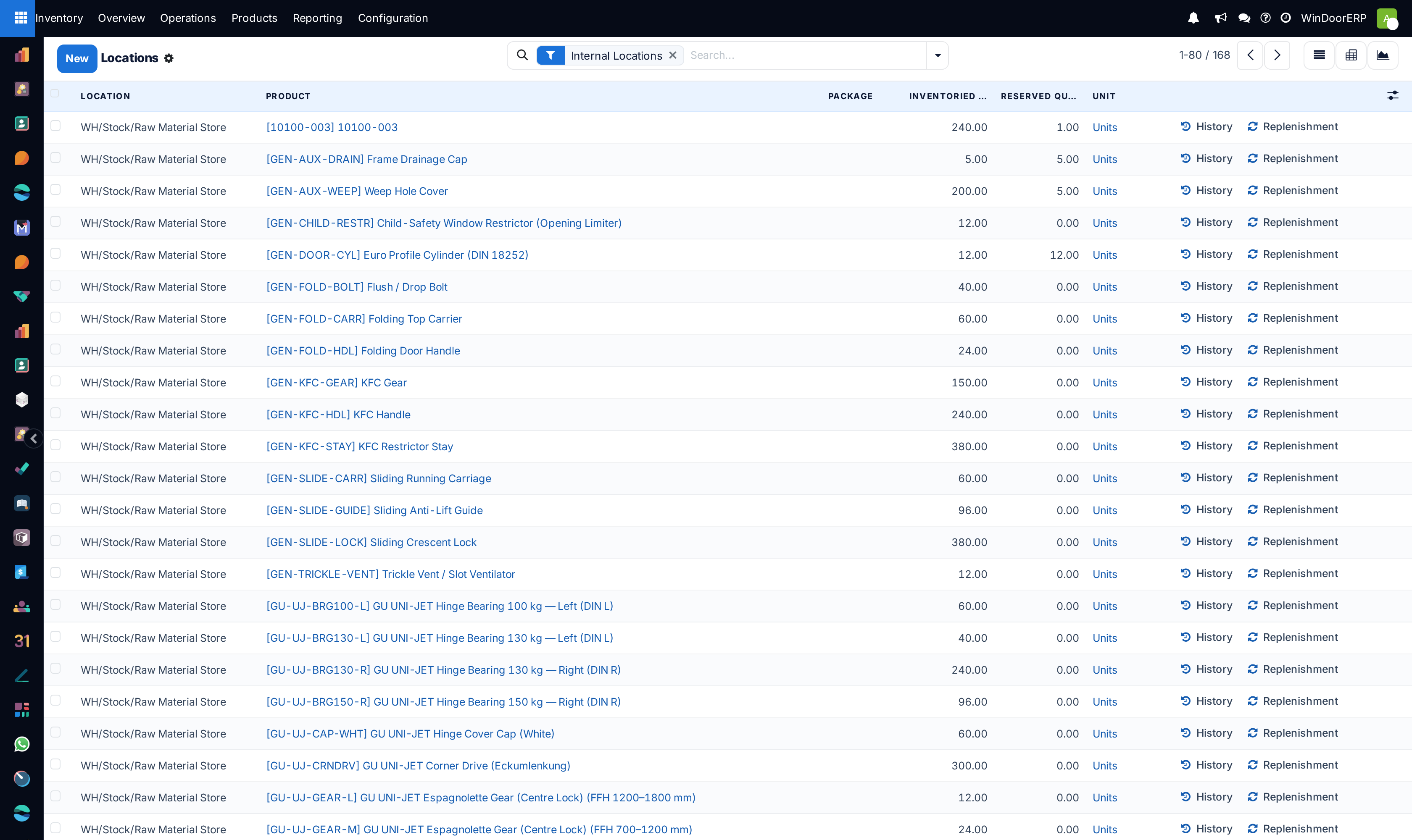
Inventory › Reporting › Locations answers "where exactly is it sitting": one line per product per location (per package where packages are used), with the on-hand, reserved and available quantities — and it is editable, so correcting a miscount here is an inventory adjustment.
Honesty first about who sees it: beyond the manager-only Reporting menu, this entry additionally requires the multi-locations right, which only a handful of users on this platform hold. For everyone else the practical "where is it?" answer is the Stock report's On Hand plus each product's History — there is a single warehouse, so "where" usually means "which rack", and that is exactly what this screen adds for those who have it.
Before you start
- The Inventory Manager role and the multi-locations access right.
- Know that edits here are real: changing a quantity applies an inventory adjustment with the same mechanics as Physical Inventory.
Steps
-
01
Open Inventory › Reporting › Locations. It opens filtered to Internal Locations — the stock you own, where it lives.
-
02
Search by product to see every rack holding it, or by location to see everything on one rack.
-
03
Read the quantities: Inventoried Quantity (editable), Reserved, and — from the column picker — Available and the manager-only Value column.
-
04
Group by Location or Product Category for rack-level or family-level subtotals.
-
05
Follow a row's History button for the moves behind the quant, or use Replenishment to act on a shortage.
-
06
To see scrap and adjustment residues, clear the Internal Locations filter — loss locations are outside it by design.
Worth knowing
| Behaviour | Detail |
|---|---|
| Editing On Hand here | Applies an inventory adjustment immediately — same as counting. The count workflow (scheduled counts, To Apply, conflicts) is covered in the cycle-count article. |
| Value column | Hidden by default and manager-gated at field level; add it from ⚙ to see per-quant value with group subtotals. |
| Package column | Shown (packages are enabled platform-wide); the Lot/Serial and Owner columns you may see in generic documentation are tied to features this platform does not run. |
| Filters | Internal Locations (default), Transit, Negative Stock — the fastest way to find impossible quants — plus the counting filters (To Count, To Apply, Conflicts) shared with Physical Inventory. |
| Relocate header button | Managers can move selected quants to another location/package in one step — a corrective tool, not a picking replacement. |
Troubleshooting
| The Locations entry is missing from Reporting | You lack the multi-locations right — it gates this menu on top of the manager-only Reporting menu. Use the Stock report's On Hand and History instead. |
|---|---|
| No Value column anywhere | It is optional-hidden and manager-gated. Enable it from the ⚙ column picker as a manager. |
| Scrapped stock is invisible | The default Internal Locations filter excludes loss locations. Clear it or search the loss location by name. |
| An edit "didn't stick" | It did — as an inventory adjustment; check the product's History for the adjustment move. If you meant to just look, be careful: the quantity cell is editable. |
| Negative quantities appear | Real data problem, not a display bug — something was consumed from a rack that never received it. The Negative Stock filter collects them for cleanup. |
Common mistakes
- Treating the editable quantity as a scratchpad — every change is a real adjustment with stock-history consequences.
- Looking for lots or owners here — those columns belong to features this platform has switched off.
- Reconciling rack counts while transfers are mid-flight — reserved stock is on the racks but spoken for; read Reserved next to Inventoried before "correcting".
- Forgetting the audience: sending a colleague "check Reporting › Locations" fails for anyone without the multi-locations right.
Checkpoint
You can locate any material down to its shelf, and see how much of it is already promised.