Get it out the gate
Print the slips and the labels
Why this step
At the other end somebody unloads this onto a floor with no office. The delivery slip and the labels are the only thing telling them which crate is which — print them as part of dispatch, not as an afterthought.
What this does
The paperwork that travels with the goods. From any transfer's ⚙ › Print menu an operator prints the Picking Operations sheet, the Delivery Slip, the Packages manifest, the Return slip, and product Labels in a choice of formats — and the operation type's Hardware tab can print a chosen set of these automatically the moment a transfer is validated, so the paper appears with no clicks at all. (The branded WinDoor Delivery Note for finished-goods handovers is separate — its own button on the transfer, covered in the documents chapter.)
Before you start
- A transfer with product lines — label printing refuses an empty one.
- For automatic printing: the Administrator Inventory right, to edit the operation type.
Printing labels from a transfer
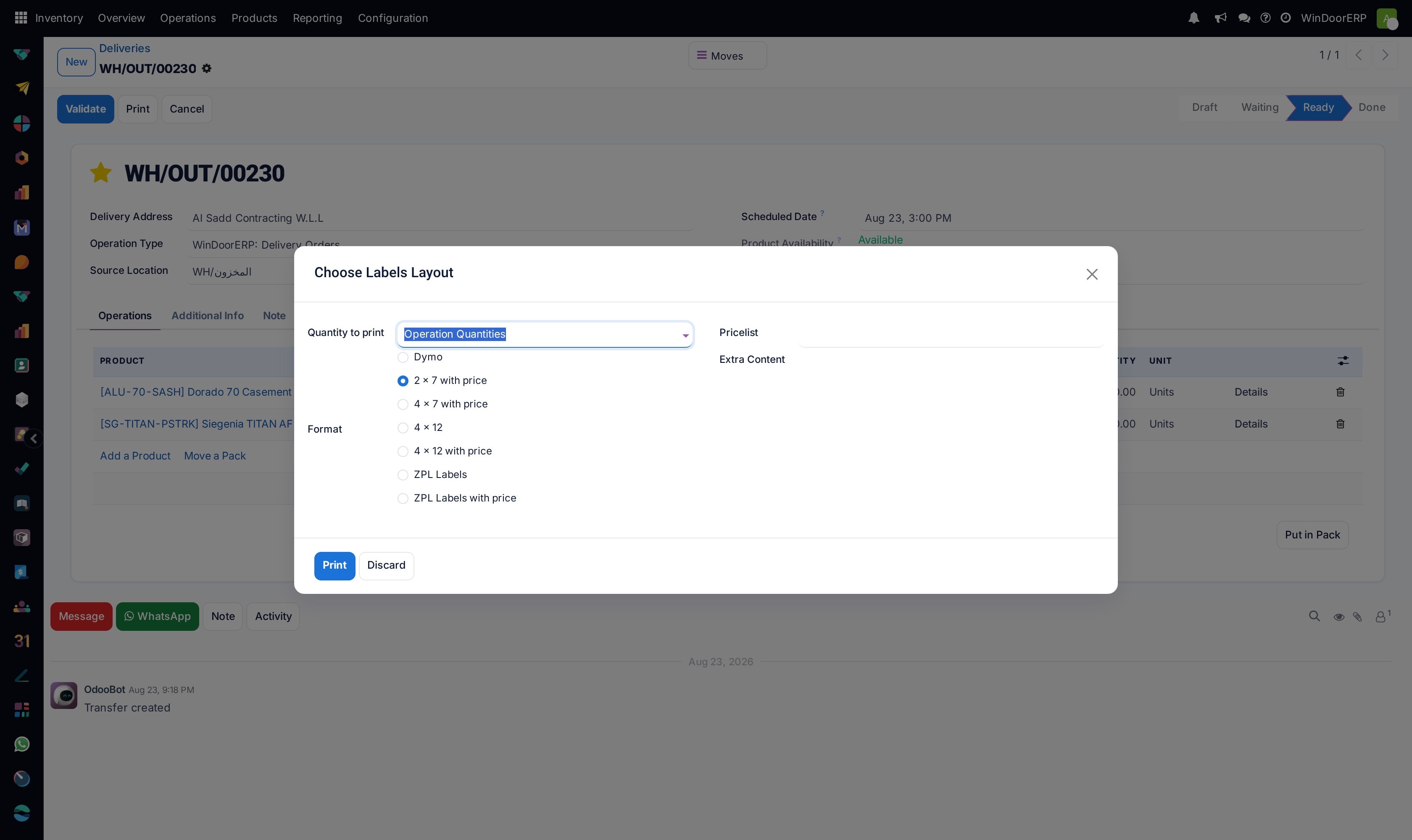
The other Print entries need no dialog: Picking Operations is the internal work sheet (locations, quantities, lot columns), the Delivery Slip is the customer-facing packing document, Packages lists the transfer per package, and the Return slip is an address-and-barcode label for sending a parcel back — not a goods-received document.
-
01
Open the transfer and go to ⚙ › Print › Labels.
-
02
In the Choose Labels Layout dialog, leave Quantity to print on Operation Quantities for one label per unit on the transfer — or switch to Custom and set the Copies per product.
-
03
Pick the Format: Dymo for a label printer, the 2 × 7 / 4 × 7 / 4 × 12 sheet layouts (with or without price), or the ZPL variants for Zebra-language printers. Formats with price also let you pick the Pricelist.
-
04
Anything typed in Extra Content is printed on every label — a project code, a site name.
-
05
Click Print; the PDF downloads, one barcode label per unit.
Printing automatically at validation
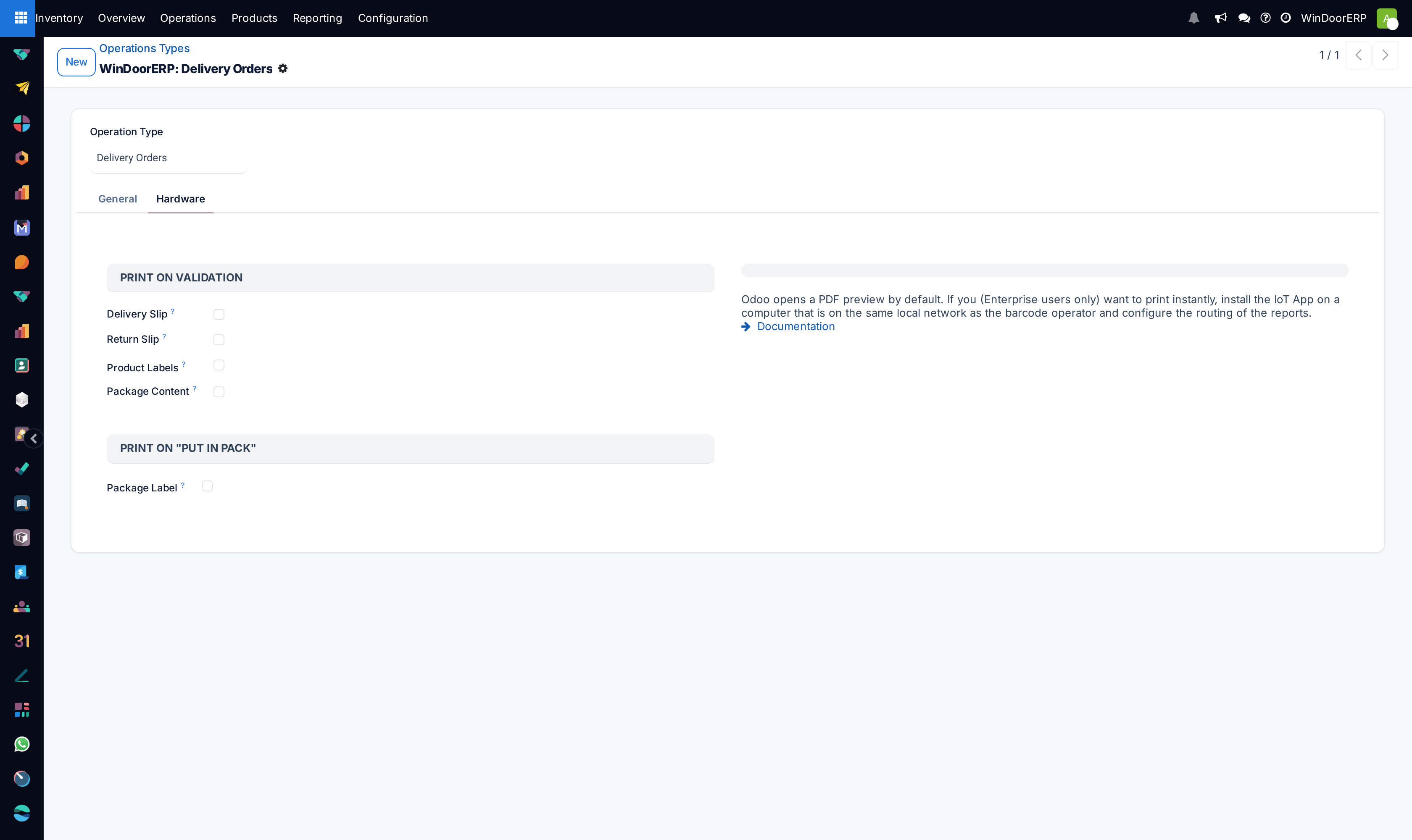
Open the operation type (Inventory › Configuration › Operations Types) and its Hardware tab. Under Print on Validation, tick what should come out every time a transfer of this type is validated: Delivery Slip, Return Slip, Product Labels (with a fixed label format chosen right there — no dialog interrupts the operator), and Package Content. Below it, Package Label under Print on "Put in Pack" prints a label the moment goods are packed rather than at validation. From then on, hitting Validate produces the ticked documents together as PDF previews to print. That is the honest version of "one-click label printing": the click is Validate, and the tab did the rest. The tab's own note about instant printing to a physical printer refers to an IoT setup this edition does not include — here, a PDF preview opens and the operator prints it.
Two checkboxes you may see mentioned elsewhere do not appear on this system: lot/serial label auto-printing (the Lots feature is off) and carrier/export documents (no shipping-carrier integration is installed).
Troubleshooting
"No product to print, if the product is archived please unarchive it before printing its label." — the transfer has no printable product lines, or the product was archived; fix the lines first.
"You need to set a positive quantity." — Custom quantity with 0 or less in Copies.
Labels came out one per line instead of one per unit — lines measured in non-unit measures (metres, kilograms) get a single label each under Operation Quantities; use Custom for more.
Validate printed nothing — nothing is ticked on that operation type's Hardware tab; the Print menu still works either way.
Looking for lot or serial label printing — the Lots & Serial Numbers feature is switched off on this system, so neither the print path nor its Hardware checkbox is offered.
Common mistakes
- Using the Return slip as a goods-received note — it is a parcel label for the courier, nothing more.
- Hand-printing labels on every receipt when the Hardware tab could do it at validation — configure once, stop clicking.
- Printing price labels with the wrong pricelist — the price on the label is whatever pricelist the dialog had selected.
Checkpoint
Every crate leaving carries a label that identifies its opening, its floor and its order.